
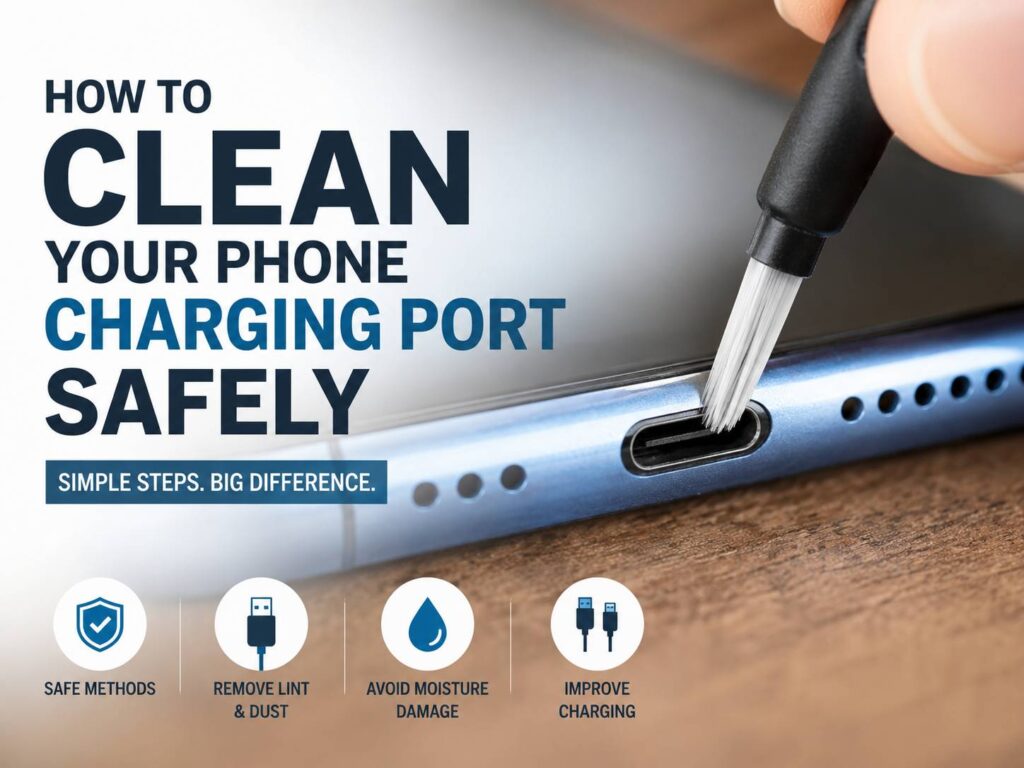
A phone that charges slowly, disconnects without warning, or only charges at a certain angle can be frustrating. At first, the cable often gets the blame. Still, the real problem may be hiding inside the charging port.
Pocket lint, dust, sand, and other tiny particles can build up inside the connector. Over time, that debris gets pressed into a dense layer each time you plug in the cable. Then, the charger can no longer sit properly inside the port.
In many cases, a careful cleaning restores a stable connection. Yet the charging port contains small and fragile contacts, so the wrong tool can cause lasting damage. Metal pins, wet cotton swabs, and forceful scraping can turn a simple blockage into a costly repair.
This guide explains how to clean a phone charging port safely, which tools to avoid, how to deal with moisture warnings, and when to stop cleaning and contact a repair technician.
Why Phone Charging Ports Get Dirty
Your phone goes almost everywhere with you. It sits inside pockets, handbags, backpacks, cars, and dusty rooms. As a result, small fibers and particles can work their way into the charging port.
At first, the buildup may not affect charging. Then, each cable insertion pushes the dirt farther toward the back of the connector. Over time, the loose material becomes tightly packed lint.
This compacted layer can prevent the plug from reaching the charging contacts. The cable may look connected from the outside, yet it may still sit a few millimeters too far out.
Common debris found inside phone charging ports includes:
- Pocket lint
- Clothing fibers
- Household dust
- Pet hair
- Fine sand
- Makeup powder
- Paper fibers
- Food crumbs
- Dried drink residue
- Moisture-related corrosion
A phone case can protect the edges of the device. Still, most cases leave the charging connector open. For that reason, cases do little to stop lint from entering the port.
Port covers can help in dusty environments. At the same time, a cover can trap moisture when you place it over a wet connector. So, always let the port dry before fitting the cover again.
Signs Your Phone Charging Port May Be Dirty
A phone can charge poorly for several reasons. For example, the cable may be worn, the adapter may be weak, or the battery may be too hot. Still, a dirty port often creates a few clear symptoms.
Watch for these common signs:
- The charging cable feels loose
- The plug does not enter fully
- Charging starts and stops when the cable moves
- Fast charging no longer works
- The phone charges only at one cable angle
- A computer does not recognize the phone
- The phone shows a moisture or debris warning
- Wired headphones or accessories disconnect
- Several different cables have the same problem
In many cases, you can see a small gap between the cable housing and the phone. That gap may mean lint is blocking the plug from reaching its normal position.
Still, slow charging alone does not prove that the port is dirty. A damaged cable, an unsuitable power adapter, battery protection settings, background apps, or high phone temperature can slow charging too.
For this reason, test another cable and adapter before you start cleaning. That simple check can save time and reduce the risk of touching a port that was already clean.
What You Need Before Cleaning the Charging Port
You do not need an expensive cleaning kit. In practice, fewer tools usually mean less risk.
Gather these basic items:
- A bright flashlight
- A clean, dry, soft-bristled brush
- A dry microfiber cloth
- A known-working charging cable
- A compatible wall adapter
A small electronics brush or camera lens brush can work well for loose dust. Still, the bristles should feel soft and flexible.
Before you begin, check the brush closely. It should not contain water, cleaning product, grease, or loose fibers. It should not have exposed metal near the bristles either.
Some people use an old toothbrush. Yet many toothbrushes are too wide or too stiff for a phone port. They may push lint deeper, and they can leave old residue behind.
In my experience, a flashlight and a soft dry brush are enough for basic surface cleaning. Problems often start when people add needles, toothpicks, sprays, or too much pressure.
What You Should Never Put Inside a Phone Charging Port
Many online tips recommend household objects for charging port cleaning. At first, those tools may sound practical. Still, some can scratch contacts, bend internal parts, or leave more debris behind.
Do not insert these objects into the port:
- Sewing needles
- Safety pins
- Paper clips
- SIM card tools
- Metal tweezers
- Small screwdrivers
- Staples
- Knives
- Dental picks
- Cotton swabs
- Paper towels
- Wet wipes
- Wooden toothpicks
Metal objects create one of the biggest risks. For example, a needle can scratch the contacts or connect two electrical points at once.
Wooden toothpicks may look safer. Yet the tip can split, snap, or catch on a contact. Small pieces of wood may then remain trapped inside the connector.
Cotton swabs cause a different problem. They are usually too large, so they can compress lint instead of removing it. They can leave cotton fibers inside the port too.
You should not pour or spray rubbing alcohol, contact cleaner, or water into the connector. In some repair settings, trained technicians use specialist cleaning products. Still, pouring liquid into a phone at home can send residue deeper inside the device.
How to Clean a Phone Charging Port Safely
The steps below work best for loose dust and light lint near the opening. Still, stop at once when you notice bent contacts, heavy corrosion, burn marks, or a damaged connector.
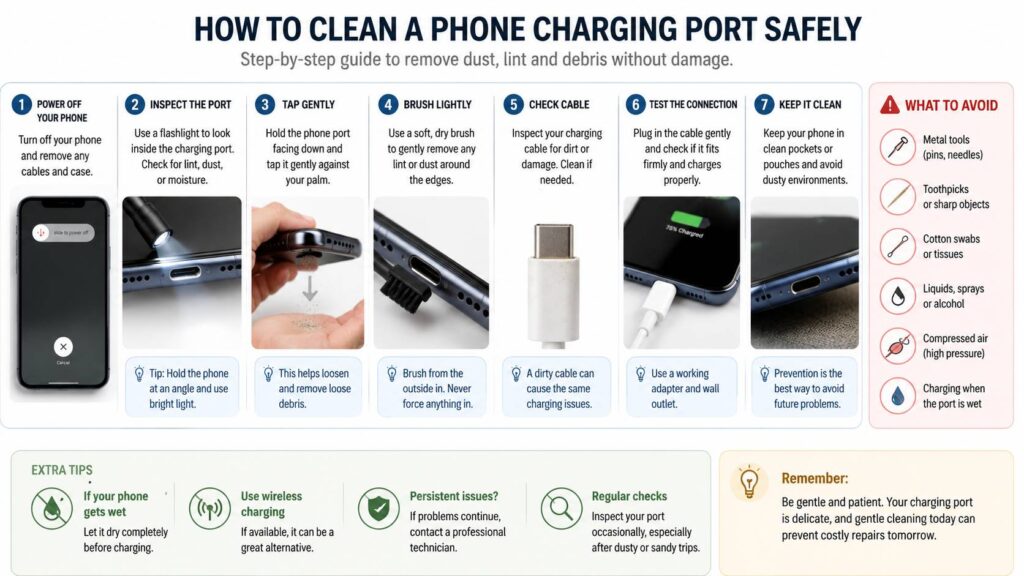
Turn Off the Phone
First, disconnect all cables and accessories. Then, turn the phone off fully.
This step reduces electrical risk and stops repeated charging alerts during cleaning. Next, remove the phone case so you can see the connector clearly.
Some cases sit close to the charging plug. As a result, they can make a normal cable feel loose or prevent the plug from entering fully. Testing without the case can rule out that issue.
Inspect the Port Under Bright Light
Next, shine a flashlight into the charging port. Do not press the light or another object against the opening.
Look for:
- A layer of lint at the back
- Dust around the edges
- Bent contacts
- Green or white corrosion
- Dark burn marks
- A cracked USB-C center section
- Visible moisture
- Sticky residue
USB-C connectors have a thin section in the middle. The contacts sit on both sides of that piece. Lightning ports use a different internal design, but their contacts are just as easy to damage.
At this stage, take your time. Shadows can look like dirt, and internal plastic can look like a blockage. So, change the viewing angle before deciding that something needs to be removed.
Hold the Charging Port Facing Down
After inspection, hold the phone with the charging port facing the floor. Gravity can then help loose material fall outward.
Gently tap the top or back of the phone against your open palm. Use light taps only. Do not hit the device against a desk, wall, or hard object.
Afterward, check the port again. Small pieces of dust or lint may fall out without any direct contact.
Brush Around the Opening
Next, use a clean and dry soft-bristled brush. Move it lightly around the outside edge of the connector.
Keep the phone facing downward during this step. That way, loose particles have a better chance of falling out.
Do not force thick bristles deep into the port. Instead, focus on surface dust and material sitting close to the entrance.
Then, tap the phone gently against your palm again. Check the connector under the flashlight before moving on.
Inspect the Charging Cable
The phone port is not the only place that collects dirt. In fact, dust can build up inside a USB-C cable connector too.
Look at the plug under bright light. Check for:
- Bent metal
- Dark marks
- Dirt inside the connector
- A loose outer shell
- Frayed cable material
- Signs of overheating
Next, test a different cable that you know works properly. Insert it gently and check whether it reaches its normal depth.
A good connection should feel stable during normal use. Some movement is common, but the cable should not stop charging after a light touch.
Test the Phone
Once the port looks clean and dry, turn the phone back on. Then, connect it to a reliable wall adapter.
Check whether:
- The charging icon appears
- Fast charging returns
- The connection remains steady
- The cable sits deeper
- The moisture warning disappears
- A computer recognizes the device
- Wired accessories work again
At this point, do not twist or pull the cable to test it. A gentle movement is enough to see whether the connection remains stable.
Should You Use Compressed Air?
Compressed air sounds like a quick fix. Still, it is not the best choice for most phone owners.
A strong burst can push debris deeper into the connector. It can move moisture farther inside the phone too. Canned air can release cold liquid propellant when the can is tilted.
For that reason, skip compressed air during routine charging port cleaning. Gentle tapping and a soft dry brush near the opening carry less risk.
Some technicians use controlled air tools at low pressure. Yet they work with better lighting, magnification, and repair equipment. That situation is very different from using a can of air at home.
What to Do When the Charging Port Is Wet
A wet charging port needs a different method. Do not brush, scrape, or charge the phone when liquid may still be inside.
Follow these steps:
- Disconnect the cable immediately.
- Turn off the phone.
- Remove the case.
- Hold the charging port downward.
- Tap the phone gently against your palm.
- Place it in a dry room with natural airflow.
- Wait before testing the cable again.
A fan can help move cool air around the connector. Still, keep it at a reasonable distance.
Do not use:
- A hot hair dryer
- A radiator
- An oven
- Strong direct sunlight
- Compressed air
- Cotton swabs
- Paper towels
- Rice
- A charging cable during drying
Rice remains a common internet suggestion. Yet it does not pull moisture from deep inside a connector. Worse, rice dust and small particles can enter the port.
Drying time varies. A lightly damp connector may dry in a few hours. A phone exposed to more liquid can need a full day or longer.
Some phones support wireless charging. In that case, wireless charging can provide temporary power without using the connector. Still, the back of the phone and the charging pad must be completely dry.
Do not ignore a liquid warning just to restore power faster. Charging through a wet connector can damage both the cable and the phone contacts.
How to Clean a USB-C Charging Port
Most current Android phones and newer iPhones use USB-C. This connector supports charging, data transfer, and video output on compatible devices.
The thin center section inside a USB-C port needs careful handling. Side pressure can bend or crack it.
Use these steps:
- Turn off the phone
- Remove the case
- Inspect the connector with a flashlight
- Hold the port facing down
- Tap the phone gently
- Brush only near the opening
- Test with a clean cable
Do not push a tool around the central section. If that piece looks bent, cracked, or uneven, stop cleaning and book a repair.
USB-C cables vary more than many people realize. Some support basic charging only. Others support fast charging, high-speed data, or video output.
So, a cable that charges your phone may not work well with a laptop or monitor. For a clearer look at cable standards, display support, power delivery, and port features, read our USB-C monitor buying guide.
How to Clean an iPhone Lightning Port
Older iPhone models use a Lightning connector. Pocket lint often gathers at the very back of this port.
At first, the cable may still charge the phone. Then, the plug starts to feel loose or falls out more easily.
Turn off the iPhone and inspect the connector under bright light. Next, hold it with the port facing down and tap it gently against your palm.
Use a soft dry brush around the opening. Do not insert metal, cotton, paper, wood, or liquid into the connector.
Sometimes, a worn cable and a dirty port create similar symptoms. So, test a second Apple-certified or compatible cable before deciding that the port needs repair.
If the contacts look dark, uneven, or corroded, stop cleaning. A qualified technician can inspect the port with proper tools and magnification.
Why the Charging Cable Still Feels Loose
A cable that remains loose after basic cleaning can point to a deeper problem.
Possible causes include:
- Compacted lint remains deep inside
- The cable plug is worn
- The phone case blocks the cable
- Internal contacts are bent
- The USB-C center section is damaged
- The connector has corrosion
- The port housing has worn down
- Internal solder joints are damaged
First, remove the case and test another cable. Next, test the original cable in another compatible device.
If every cable feels loose in the phone, the port may contain deep debris or physical wear. At that point, repeated scraping is more likely to cause damage than fix the problem.
A repair shop can remove compacted lint under magnification. In many cases, professional cleaning costs much less than replacing a damaged charging assembly.
Common Charging Port Cleaning Mistakes
Cleaning With the Phone Turned On
Always turn the phone off first. This simple step reduces electrical risk and stops repeated connection warnings.
Scraping Until the Port Looks Empty
A charging port does not need to look spotless. Internal parts, plastic, and shadows can look like dirt.
So, stop once loose material is gone. Do not keep scraping just to make the port look cleaner.
Applying Too Much Pressure
The contacts inside a phone connector are small. Too much force can bend them or damage the central USB-C section.
Gentle movement is enough for safe home cleaning. Deep debris belongs in the hands of a technician.
Pouring Alcohol Into the Connector
Alcohol can carry dirt deeper into the device. It can affect nearby adhesives and seals too.
For routine cleaning, stick to dry methods. Sticky residue needs professional attention.
Charging Too Soon After Water Exposure
A dry exterior does not mean the inside of the connector is dry. Moisture can remain around the contacts for hours.
Wait until the warning disappears and the port has had enough time to dry.
Ignoring the Cable
A worn cable can produce the same symptoms as a dirty port. For example, a damaged plug may charge only at a certain angle.
Test another cable before cleaning or arranging a repair.
Continuing After You See Corrosion
Green, white, or dark residue can point to liquid damage or electrical wear. Cleaning alone will not repair damaged contacts.
Stop using the wired connector and arrange an inspection.
When to Contact a Repair Technician
Home cleaning has clear limits. Stop and seek professional help in these situations:
- The port is fully blocked
- Debris does not move
- The USB-C center section is bent
- The contacts look damaged
- The port has green or white corrosion
- The connector smells burned
- The phone becomes hot near the port
- Every cable disconnects
- The cable no longer stays in place
- Moisture warnings keep returning
- Charging works, but data transfer does not
- The phone was recently dropped
- The phone was exposed to a large amount of liquid
A technician can check whether the problem comes from lint, worn contacts, corrosion, a loose charging module, or board damage.
Do not keep testing a port that becomes hot or gives off an unusual smell. Disconnect the charger, turn off the phone, and stop using the connector.
How to Keep the Charging Port Clean
A few simple habits can reduce future buildup.
Try these tips:
- Keep the phone in a clean pocket
- Avoid carrying tissues in the same pocket
- Clean the phone case every few weeks
- Keep the phone away from open drinks
- Check the port after beach trips
- Remove sand before placing the phone in a bag
- Inspect cable plugs for dirt
- Insert and remove cables straight
- Use a port cover in dusty workplaces
- Remove the cover after moisture exposure
- Avoid charging on dusty floors or workbenches
At the same time, avoid cleaning the port too often. Repeated tool insertion can create wear that was not there before.
Inspect the connector only after charging problems appear or after exposure to dust, sand, or moisture.
Frequently Asked Questions
Can I clean my phone charging port with a toothpick?
A toothpick can split, snap, or damage the contacts. For that reason, avoid inserting one into the connector.
Gentle tapping and brushing near the opening are safer options.
Can I use rubbing alcohol?
Do not pour or spray rubbing alcohol into the charging port. Liquid can move dirt deeper inside the phone.
Sticky residue should be checked by a repair technician.
Can I vacuum the charging port?
A household vacuum offers poor control around a small connector. It can create static or strike the phone with the nozzle.
So, skip this method.
Why does my phone charge only at an angle?
The port may contain compacted lint. The cable or connector may be worn too.
Test a different cable first. Then, arrange an inspection if gentle cleaning does not restore a stable connection.
Why does my phone say the port is wet when it looks dry?
A small amount of moisture can remain around the contacts. Conductive dirt or corrosion can trigger the same warning.
Let the phone dry in cool moving air. Seek service if the warning continues after a full drying period.
Can a dirty port stop fast charging?
Yes. Poor contact can interrupt the communication between the phone and charger.
Still, an unsuitable cable or power adapter can cause the same issue.
How often should I clean the charging port?
Do not clean it on a fixed schedule. Inspect it when charging behaviour changes or after exposure to dust and sand.
Frequent cleaning can cause unnecessary wear.
Final Thoughts
Cleaning a phone charging port does not need to be complicated. First, turn off the device. Next, inspect the connector under bright light. Then, hold the port downward, tap the phone gently, and brush only loose dust near the opening.
Avoid needles, toothpicks, cotton swabs, liquids, heat, rice, and aggressive scraping. Those methods can create a bigger problem than the original blockage.
In practice, the hardest part is knowing when to stop. If debris sits deep inside the connector, or the port shows damage, professional cleaning is the safer choice.