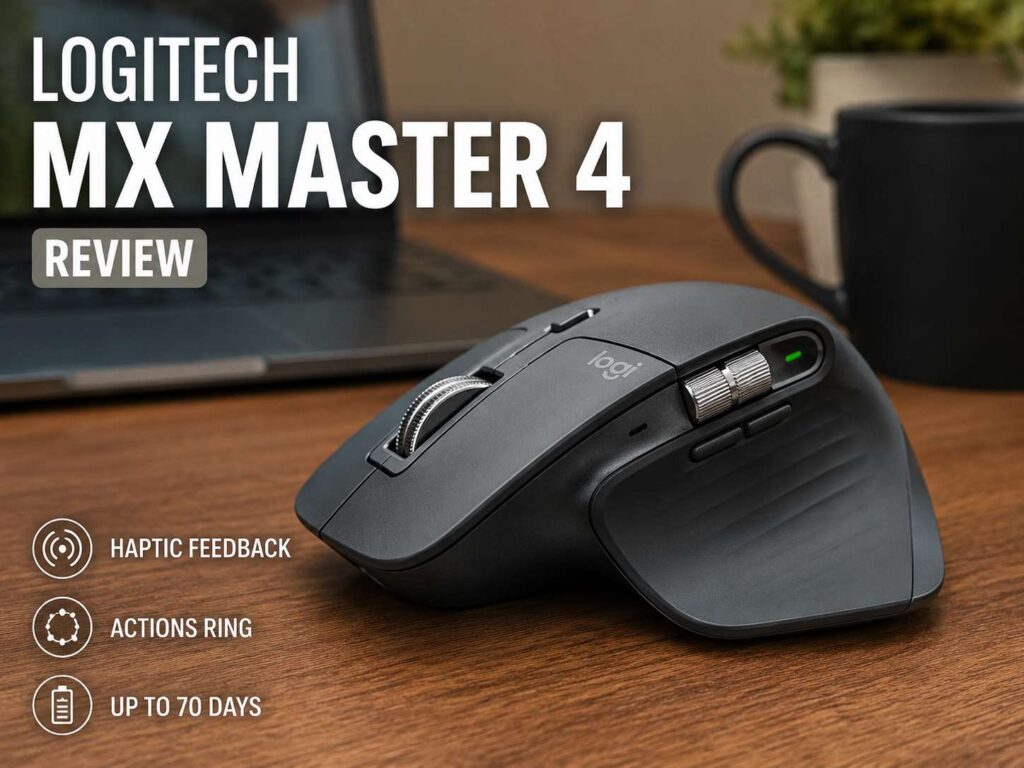
Logitech MX Master 4 Review: Quick Verdict
The Logitech MX Master 4 is a premium wireless mouse built for people who work at a computer for long hours. It is made for office work, creative apps, coding, research, spreadsheets, browsing, and multi-device setups. It is not a gaming-first mouse, and that is fine. Logitech designed it for control, comfort, fast scrolling, shortcuts, and a cleaner desk workflow.
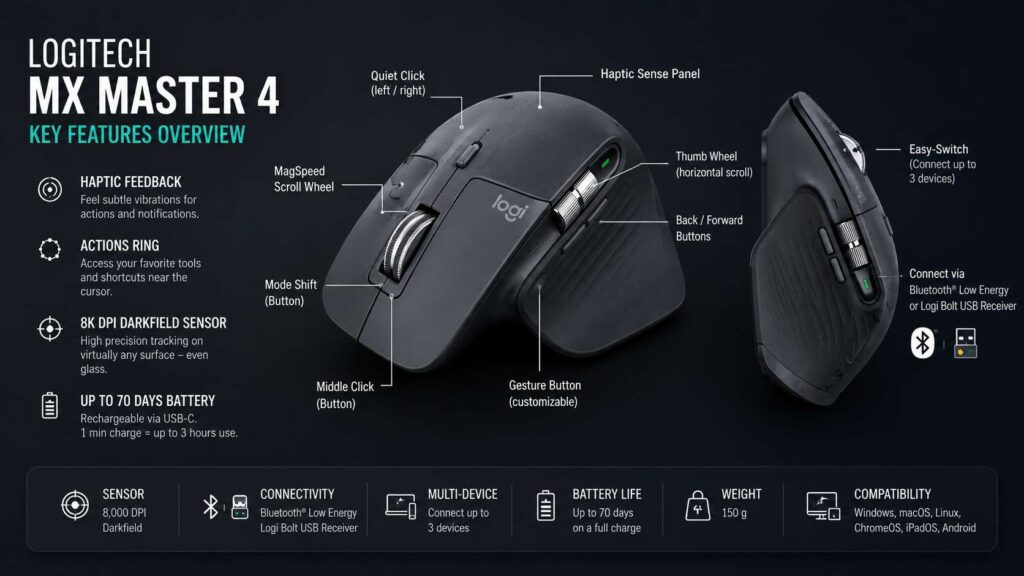
The biggest upgrade over older MX Master models is haptic feedback. Logitech calls this feature the Haptic Sense Panel. It gives small vibration feedback during selected actions, such as using the Actions Ring, switching screens, using gestures, triggering Smart Actions, or working with supported app plugins. That small touch feedback makes the mouse feel more modern and more connected to what you are doing on screen.
Another key feature is Actions Ring. This adds shortcut bubbles near your cursor, so you can reach useful tools faster. For people who use apps like Microsoft Office, Slack, Notion, Adobe Photoshop, Lightroom, Premiere Pro, Figma, Final Cut Pro, or DaVinci Resolve, this can save time during repeated tasks.
The MX Master 4 also keeps the features that made this series popular. You get the MagSpeed scroll wheel, a thumb wheel for horizontal scrolling, quiet clicks, an 8K DPI Darkfield sensor, Bluetooth and Logi Bolt support, and up to 70 days of battery life.
For many users, this will be one of the best options in the premium productivity mouse category. Still, it is not perfect. It is right-handed only, it weighs 150 g, and the best features need Logi Options+. If you want a simple, cheap mouse for light browsing, this is more than you need. Yet for serious desk work, the MX Master 4 makes a strong case.
Design and Build Quality
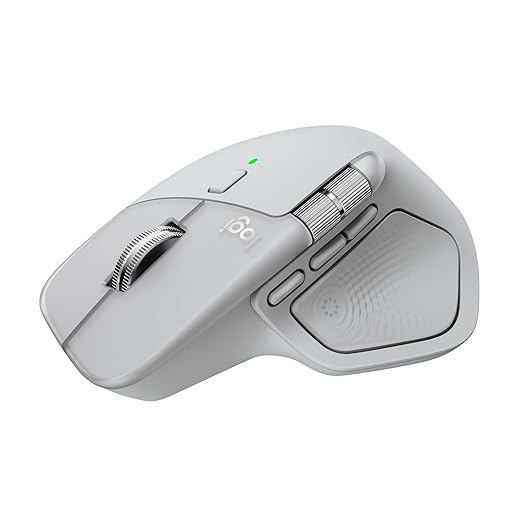
The Logitech MX Master 4 keeps the familiar shape of the MX Master line. It has a tall body, a wide thumb rest, and a sculpted right-handed design. Your palm sits naturally on top, and your thumb rests along the side where Logitech places the extra controls.
This shape is one of the main reasons people choose an MX Master mouse. It feels more supportive than a flat office mouse. During long work sessions, that extra support can matter. Your hand does not feel like it is floating over the desk, and the mouse gives you a more stable grip.
The MX Master 4 measures 50.8 mm high, 88.4 mm wide, and 128.2 mm deep. It weighs 150 g. Those numbers tell you a lot. This is a large desk mouse, not a compact travel mouse. It fits best next to a full keyboard on a proper work surface.
The finish feels premium without looking flashy. Logitech lists improved stain resistance, polished microtextures, recycled plastic in the plastic parts, a low-carbon aluminum thumb wheel, and FSC-certified packaging for the business version. That gives the mouse a more responsible material story, yet the main appeal remains the same: it feels like a serious tool for daily work.
Still, there is one clear design limit. The MX Master 4 is made only for right-handed users. The thumb rest, thumb wheel, side buttons, and Haptic Sense Panel all sit on the left side of the mouse. Left-handed buyers should not force it. A different ergonomic mouse will feel better.
Comfort for Long Work Days
Comfort is one of the strongest reasons to buy the Logitech MX Master 4. The tall shape supports your palm, and the thumb rest gives your hand a clear place to sit. After a full day of documents, email, calls, tabs, and spreadsheets, that support can feel valuable.
The mouse does not have a vertical design, so it will not rotate your wrist like a true vertical ergonomic mouse. Still, it feels much more supportive than many basic wireless mice. For users who want comfort but still prefer a normal mouse shape, the MX Master 4 hits a nice middle ground.
The size matters, though. People with medium or large hands will likely enjoy the shape most. Small-hand users may find it bulky, mainly if they prefer fingertip grip or fast wrist movements. Since the mouse is heavy, it also feels more planted than agile.
That weight can be a good thing for work. It makes cursor movement feel steady, which helps with spreadsheets, editing, design tools, and detailed page work. For fast gaming, though, it is not ideal. The MX Master 4 is a productivity tool first.
If your main goal is comfort during office work, browsing, editing, and multitasking, this mouse makes sense. For a wider buying guide, you can compare it with other options in this guide to the best wireless mouse for productivity.
Haptic Feedback: What Makes the MX Master 4 Feel Different
The biggest new feature on the MX Master 4 is haptic feedback. This is the feature that makes it feel different from the MX Master 3S and older models.
The Haptic Sense Panel gives small vibration feedback during supported actions. For example, you can feel it when using Actions Ring, gestures, Smart Actions, screen switching, app plugins, connectivity events, power events, and battery-saving events. You can adjust the strength in Logi Options+ with four levels: Subtle, Low, Medium, and High.
This feedback is not meant to feel dramatic. It is more like a small tap that confirms an action. After a while, it can make certain tasks feel more natural. You do not need to look for every visual cue on screen, since the mouse can give you a physical signal.
For creative users, this can feel useful in supported apps and plugins. For office users, it can make shortcuts and gestures feel more direct. For casual users, it may feel like a nice extra rather than a must-have feature.
There is one practical point to remember. Haptics become more useful with software support. The mouse works without deep setup, but the best haptic features rely on Logi Options+ and supported app plugins. So, if you never customize your mouse, this feature will not reach its full value.
Actions Ring and Smart Shortcuts
Actions Ring is another major part of the MX Master 4 experience. It creates an on-screen shortcut menu near your cursor. Instead of reaching for app menus or remembering every keyboard shortcut, you can open the ring and select an action.
This sounds small, but it can help during repetitive work. Think about muting a call, opening a screenshot tool, switching tools in a creative app, launching a Smart Action, or accessing a shortcut in Excel or Photoshop. The mouse can bring these actions closer to where your hand already is.
Actions Ring can adapt to the app you are using. That means your shortcuts in a spreadsheet can be different from your shortcuts in a design app. For people who work across several tools every day, this makes the MX Master 4 feel more personal.
The value depends on setup. Out of the box, the mouse already works well. Yet Actions Ring becomes much better after you spend time building shortcuts that match your routine. If you repeat the same actions every day, the setup time pays off.
This is where the MX Master 4 separates itself from cheap office mice. A low-cost mouse can move the cursor and click. The MX Master 4 can become a control surface for your daily work.
Sensor and Tracking Performance
The Logitech MX Master 4 uses an 8K DPI Darkfield high precision sensor. The DPI range goes from 200 to 8,000 DPI, with adjustment available in 50 DPI steps through software. That gives you plenty of control over pointer speed.
The high DPI ceiling matters most on large displays. If you use a 4K monitor, an ultrawide display, or a dual-monitor setup, you need more pointer range. With the MX Master 4, you can move across large screens without dragging your hand too far across the desk.
Darkfield tracking is another strong feature. Logitech’s Darkfield sensor can work on many surfaces, including glass that meets Logitech’s minimum thickness requirement. That makes the mouse useful in offices, home workspaces, shared desks, and travel situations where you may not always have a mouse pad.
For productivity, tracking feels like a strength. The mouse is precise enough for documents, browser work, design tools, light photo editing, coding, and spreadsheets. For competitive gaming, it is less convincing. The weight and listed 125 Hz report rate place it clearly in work mouse territory.
That is not a weakness in the wrong context. It only means buyers should understand the product. This is a premium productivity mouse, not a lightweight esports mouse.
MagSpeed Scroll Wheel
The MagSpeed scroll wheel remains one of the best parts of the MX Master series. The MX Master 4 keeps this feature, and it is a big reason to choose this mouse over cheaper alternatives.
You can scroll line by line in ratchet mode, which gives you more control during careful reading or editing. Then, you can switch to free-spin mode for long pages, long documents, large PDFs, and code files. Logitech rates the wheel at up to 1,000 lines per second in free-spin mode.
That speed feels useful in real life. Long articles, reports, product pages, spreadsheets, and research documents become easier to move through. Instead of spinning a basic wheel over and over, you can glide through content quickly.
The scroll wheel also feels refined. It does not feel loose or rough like many budget mouse wheels. It has a smooth, controlled feel, and the mode-shift button gives you direct control over how it behaves.
If you spend a lot of time reading, editing, comparing pages, or moving through large files, this wheel alone can make the MX Master 4 feel worth the upgrade.
Thumb Wheel and Side Controls
The thumb wheel is another feature that makes the MX Master 4 useful for real work. It sits above the thumb rest and handles horizontal scrolling by default.
This is helpful in wide spreadsheets, video timelines, design boards, photo editors, and project tools. Instead of dragging a horizontal scroll bar, you can use your thumb. It feels faster and more natural once you get used to it.
The side buttons also help with daily work. Back and forward buttons are useful in browsers, file folders, documents, and apps. The gesture button adds another layer of control, especially after customization in Logi Options+.
The MX Master 4 has 8 buttons listed by Logitech. These include left click, right click, back, forward, gesture, wheel mode-shift, middle click, and Actions Ring. That gives the mouse enough controls for serious work without turning it into a confusing button grid.
Quiet Click is present too. The buttons feel softer and sound more polite than regular clicky office mice. That helps in shared offices, home offices, late-night work, and video calls.
Connectivity and Multi-Device Use
The MX Master 4 supports Bluetooth Low Energy and Logi Bolt. Depending on the version and region, the package can include a Logi Bolt USB-C receiver. Logitech lists up to 10 meters of wireless range, though real range can change based on your desk, devices, and signal conditions.
The mouse can connect to three devices. You can move between them with Easy-Switch or Actions Ring. This is useful if you use a work laptop, personal desktop, tablet, or Mac and Windows setup.
Platform support is broad. Logitech lists support for Windows, macOS, Linux, ChromeOS, iPadOS, and Android. Full customization depends on Logi Options+, which is available for Windows and macOS.
This makes the MX Master 4 a smart choice for mixed-device users. For example, you can use it with a Windows laptop during work hours, then switch to a Mac or tablet later. You do not need several mice on the desk.
For people who work across devices, that convenience becomes part of the value. It keeps the desk cleaner and reduces the small friction of moving between computers.
Battery Life and Charging
Battery life is excellent on paper. Logitech lists up to 70 days of use from a full charge. Real battery life will vary based on haptic intensity, daily use, connection type, and settings, but the official rating is strong for a rechargeable mouse.
The battery is a rechargeable Li-Po unit. Logitech’s business specs list it at 650 mAh. Charging uses USB-C, which feels right for a modern premium mouse.
Fast charging is useful too. Logitech lists up to 3 hours of use from a 1-minute charge under its stated conditions. That means a low battery warning should not ruin your workday. Plug it in briefly, and you can keep working.
The only thing to check is the retail package. Some versions may not include a USB-C charging cable, depending on region and package type. The business listing includes the mouse, receiver, and user documentation. Check the box contents before buying if that matters to you.
Software Experience with Logi Options+
Logi Options+ is the control center for the MX Master 4. You use it to adjust button actions, haptic feedback, pointer settings, scrolling behavior, Actions Ring, Smart Actions, app profiles, and battery status.
The mouse works as a normal Bluetooth or Logi Bolt mouse without deep setup. Still, the best features live inside Logi Options+. If you skip the software, you miss much of what makes the MX Master 4 special.
App profiles are especially useful. You can make the same button do different things in different programs. For example, a button can control one action in Excel, another in Photoshop, and another in your browser. That makes the mouse feel built around your work instead of forcing every app into the same control layout.
Smart Actions can save time too. They let you trigger repeated steps through a custom action. For users who repeat the same desk tasks daily, this can remove small annoyances.
The drawback is clear. If you want a mouse that reaches its full value without an app, the MX Master 4 may feel too software-heavy. For power users, though, Logi Options+ is a major strength.
MX Master 4 for Mac vs Standard MX Master 4
Logitech offers a standard MX Master 4 and an MX Master 4 for Mac. The Mac version targets macOS and iPadOS users and comes in Apple-friendly colors such as Space Black and White Silver.
The standard version is the safer pick for mixed setups. If you use Windows and macOS, or you want the broadest package flexibility, the regular MX Master 4 makes more sense. In some packages, it can include a receiver, which is useful for users who prefer a USB connection over Bluetooth.
The Mac version makes sense if most of your work happens inside the Apple ecosystem. It matches Apple setups better and focuses on macOS and iPadOS use.
The core experience remains very similar. You still get haptic feedback, Actions Ring, MagSpeed scrolling, the thumb wheel, 8K DPI tracking, multi-device support, and Logi Options+ customization.
Logitech MX Master 4 vs MX Master 3S
The Logitech MX Master 3S is still a strong productivity mouse. It has quiet clicks, MagSpeed scrolling, 8K DPI tracking, a comfortable shape, and long battery life. So, should you upgrade?
The MX Master 4 makes the most sense if you want the newest interaction features. Haptic feedback and Actions Ring are the main reasons to choose it over the MX Master 3S. These features make the mouse feel more active, more customizable, and more useful for repeated workflows.
The MX Master 4 also adds a stronger focus on app plugins, Smart Actions, and quick shortcuts near the cursor. For users who work in creative apps or productivity apps all day, that can make a real difference.
The MX Master 3S still makes sense if the price is much lower. If you do not care about haptics or Actions Ring, the older model gives you many of the same core benefits. It is still comfortable, quiet, accurate, and easy to recommend.
For new buyers who want the latest Logitech productivity mouse, the MX Master 4 is the better pick. For value buyers, the MX Master 3S remains worth checking. For a closer look at why premium work mice cost more, read this comparison of the MX Master 4 vs cheap office mice.
Who Should Buy the Logitech MX Master 4?
The Logitech MX Master 4 is best for people who spend many hours on a computer and want more control than a basic mouse can offer.
It is a strong fit for:
- Office workers who manage email, documents, calls, and browser tabs
- Spreadsheet users who need horizontal scrolling
- Designers, editors, and creators who use complex apps
- Developers who move between code, terminals, browsers, and docs
- Mac and Windows users who switch between several devices
- Home office users who want quiet clicks and long battery life
- Power users who enjoy shortcuts and custom controls
- People with large monitors or multi-monitor desks
It is not the best choice for every buyer. Skip it if you need a left-handed mouse. Skip it if you want an ultra-light gaming mouse. Skip it if you only browse a few pages per day and do not need advanced controls.
The MX Master 4 is expensive compared with simple office mice. Still, the price makes more sense if you use the scroll wheel, thumb wheel, app profiles, Actions Ring, and Smart Actions every day.
Pros and Cons
Pros:
- Comfortable right-handed shape for long desk sessions
- Haptic feedback adds useful touch cues
- Actions Ring makes shortcuts easier to reach
- 8K DPI Darkfield sensor works across many surfaces
- MagSpeed scroll wheel is excellent for long pages
- Thumb wheel helps with spreadsheets, timelines, and wide apps
- Quiet clicks suit shared workspaces
- Bluetooth and Logi Bolt support
- Connects with up to three devices
- Up to 70 days of battery life
- USB-C charging
- Fast charge support
- Strong fit for office work, creative work, coding, and multitasking
- Broad platform support
- Premium build and thoughtful materials
Cons:
- Right-handed only
- Heavy at 150 g
- Not ideal for competitive gaming
- Best features need Logi Options+
- Haptic plugin value depends on supported apps
- Premium price
- Large body may not suit small hands
- Not the best travel mouse
Price
Final Verdict
The Logitech MX Master 4 is one of the strongest productivity mice available right now. It takes the familiar MX Master shape and adds haptic feedback, Actions Ring, deeper shortcuts, strong app customization, and the same excellent scrolling experience that made the series popular.
It is not the right mouse for everyone. Casual users can spend less. Competitive gamers should choose a lighter gaming mouse. Left-handed users need another option. Still, for right-handed professionals, creators, developers, and office workers, the MX Master 4 is a polished and powerful desk tool.
The best part is the full experience. The shape supports your hand. The scroll wheel moves through long pages fast. The thumb wheel helps with wide content. The Actions Ring brings useful commands closer. Haptic feedback gives small physical cues that make shortcuts feel more natural.
If you want a premium ergonomic wireless mouse for productivity, creative work, office tasks, coding, spreadsheets, and multi-device control, the Logitech MX Master 4 deserves a place near the top of your list.