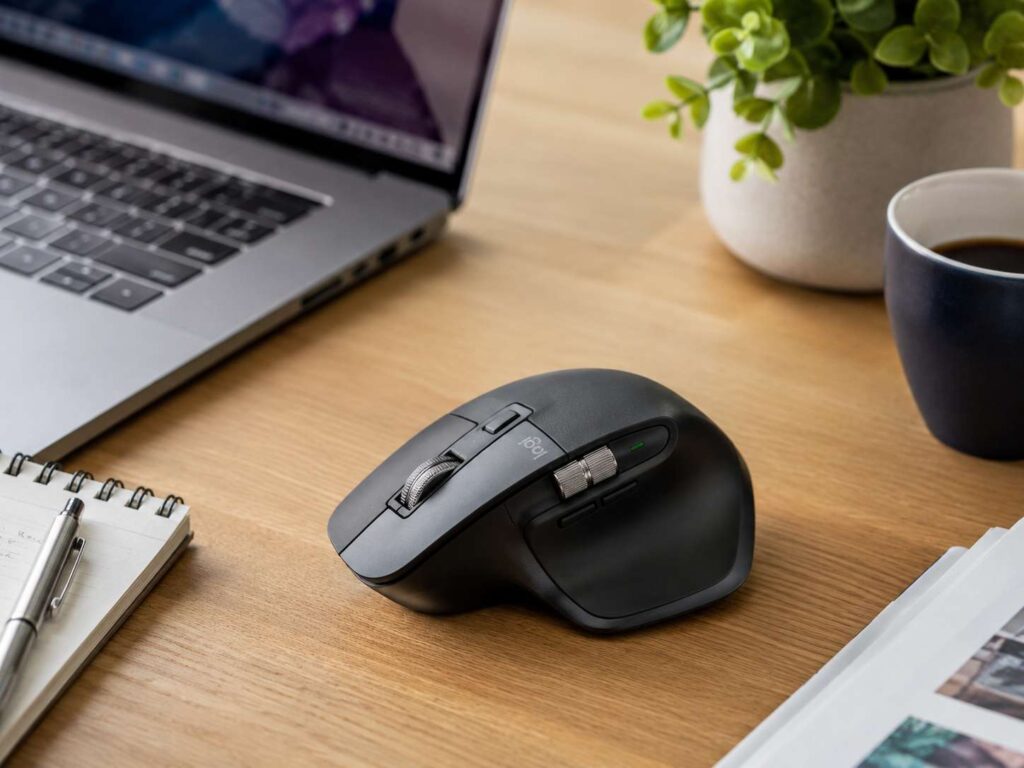
A good wireless mouse will not finish your work for you, but it can make each task feel easier. Better scrolling, quiet clicks, a relaxed grip, and useful buttons all save small amounts of time. Over a full workday, those small gains matter.
The best wireless mouse for productivity should match your hand, desk, laptop, monitor, and daily apps. A writer needs comfort and quiet clicks. A designer needs accurate tracking and extra controls. A spreadsheet user needs fast scrolling. A remote worker needs strong battery life and quick device switching.
For many people, a premium mouse makes sense. For others, a simple multi-device mouse does the job well. So, the right choice comes down to how you work, not only how much the mouse costs.
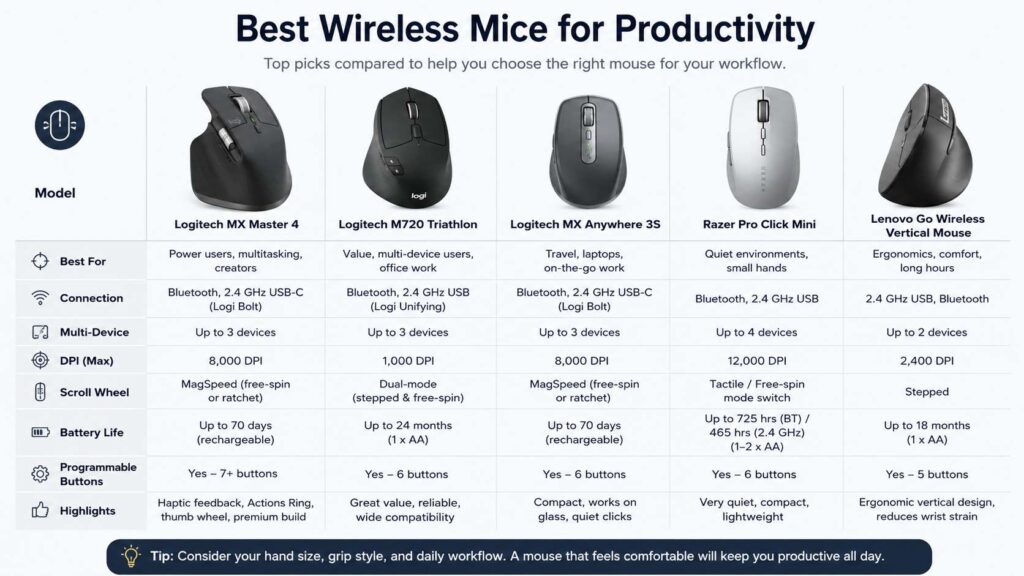
Best Overall Wireless Mouse for Productivity: Logitech MX Master 4
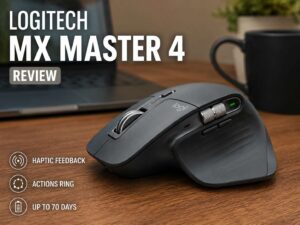
The Logitech MX Master 4 is the best pick for most serious desk setups. It has an 8,000 DPI sensor, MagSpeed scrolling, haptic feedback, and Actions Ring shortcuts. Logitech says Actions Ring can help users save up to 33% of their time across tested desktop actions, based on a 2025 Ergo Lab study with 37 MX Master users.
This mouse suits people who move between many apps each day. For example, you can set shortcuts for browser tabs, screenshots, copy, paste, mute, window controls, app tools, or desktop switching. Then, instead of reaching for the keyboard each time, you press one button.
The shape works best for right-handed users who like a larger mouse. It supports the palm well, so long desk sessions feel less tiring. The side thumb wheel also helps with wide spreadsheets, video timelines, design canvases, and horizontal browser movement.
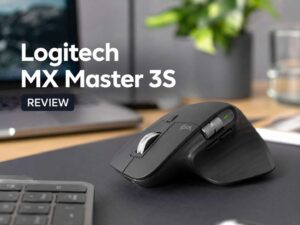
For a deeper look at the older model in the same family, read this Logitech MX Master 3S review. It gives useful context if you are choosing between the MX Master 3S and newer productivity mice.
Still, the MX Master 4 is not ideal for every user. Small hands can find it bulky. Travel users will likely prefer a compact mouse. For a fixed desk, though, this is the strongest all-round choice.
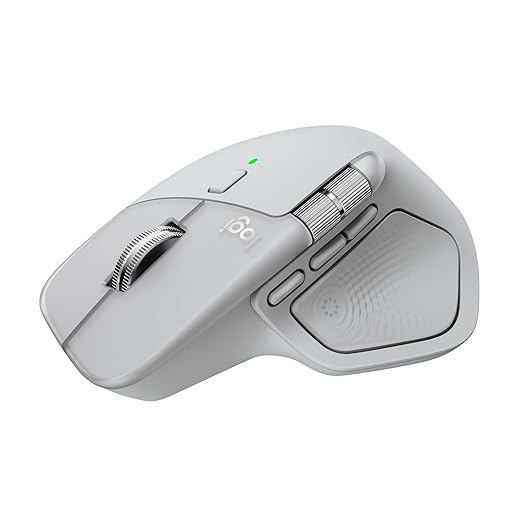
Best value Suggestion: Logitech M720 Triathlon
The Logitech M720 Triathlon is the best value pick for many buyers. It costs less than premium office mice, yet it still covers the features you need for daily work.
The Amazon.com listing for the Logitech M720 Triathlon describes it as a multi-device wireless mouse with Bluetooth, a USB Unifying Receiver, 1,000 DPI, six programmable buttons, and up to two years of battery life. At the time checked, the listing showed a 4.5-star rating from more than 13,000 reviews.
This mouse works well for people who switch between a laptop, desktop, and tablet. You can pair it with up to three devices, then move between them with a button. That feature helps remote workers, students, and anyone with both a work computer and personal computer.
The scroll wheel gives you two modes. You can move fast through long pages, then switch to a more controlled feel for exact movement. Plus, the extra buttons make simple shortcuts easy.
The M720 is not flashy. That is part of its appeal. It feels practical, reliable, and easy to recommend as an Amazon.com pick for office work.

Best Compact Wireless Mouse: Logitech MX Anywhere 3S
The Logitech MX Anywhere 3S is a strong pick for laptop users, hybrid workers, and people with small desks. It has an 8,000 DPI sensor, quiet clicks, and tracking on many surfaces, including glass. Logitech lists these features on its official product page.
This mouse fits easily in a laptop bag. It also feels more comfortable than many tiny travel mice, since it keeps a clean shape and a better scroll wheel. So, it works well at home, in the office, at a café, or during travel.
The MagSpeed scroll wheel is a major reason to choose it. Long PDFs, product pages, web research, and spreadsheets feel easier to move through. Then, once you need control, the wheel still feels precise.
It does not give the same palm support as the MX Master 4. That trade is fine if you work on the move. The MX Anywhere 3S favors portability over full-desk comfort.

Best Quiet Wireless Mouse: Razer Pro Click Mini
The Razer Pro Click Mini is a good fit for shared rooms, calls, libraries, and late-night work. Its quiet clicks keep noise low, but the mouse still feels controlled.
Razer lists up to 725 hours of battery life on Bluetooth and up to 465 hours on 2.4 GHz wireless with two AA batteries. Razer support also says the mouse can run with one AA battery or two AA batteries.
That battery setup gives users more choice. One battery keeps the mouse lighter. Two batteries give longer use. For travel, that flexibility helps.
The Pro Click Mini has a compact body. It works best for claw grip and fingertip grip. Larger hands may want more palm support, but users who prefer smaller mice will like the shape.
Its scroll wheel can switch between tactile scrolling and free-spin scrolling. That makes it useful for long documents, web pages, and admin dashboards.
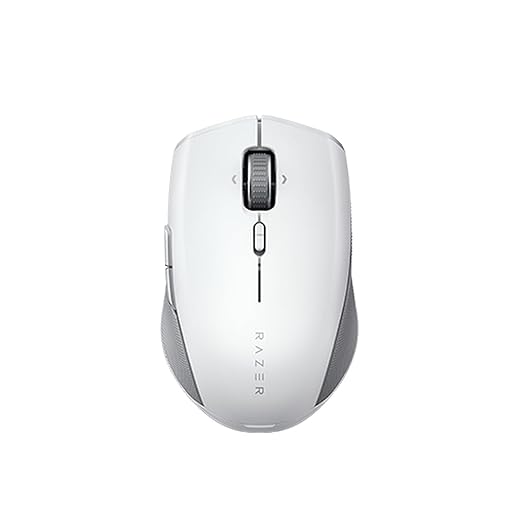
Razer Pro Click Mini Portable Wireless Mouse: Silent, Tactile, Mouse Clicks - Sleek & Compact Design - HyperScroll Technology - Productivity Dongle - Connect...
Best Ergonomic Pick: Lenovo Go Wireless Vertical Mouse
The Lenovo Go Wireless Vertical Mouse is the best pick here for users who want a more relaxed wrist position. Its vertical shape places your hand closer to a handshake posture. For many desk workers, that feels more natural than a flat mouse.
Lenovo lists one AA battery, up to 18 months of battery life, an optical sensor, and three mouse resolution levels for this model.
Vertical mice take some time to learn. At first, the pointer can feel different. After a few days, it gets easier. Then the shape can feel better for long email sessions, browsing, spreadsheets, and document editing.
This is not the best choice for people who need very fast pointer movement. For comfort-first office work, it makes more sense.

What to Look for in a Productivity Mouse
A productivity mouse should reduce repeated effort. It should help you move faster through simple tasks and feel comfortable for long use.
Look for these features:
- Comfortable shape for your hand size
- Bluetooth and 2.4 GHz wireless support
- Fast scroll wheel
- Programmable buttons
- Multi-device switching
- Quiet clicks
- Long battery life
- Good tracking on your desk surface
- Software for button shortcuts
- Strong build quality
DPI matters, but it should not be your only focus. A higher DPI sensor helps on 4K monitors, ultrawide monitors, and large desk setups. For most office users, comfort and scrolling matter more.
A mouse that feels right after five minutes can feel wrong after five hours. So, hand size and grip style need real attention.
Bluetooth vs 2.4 GHz Wireless
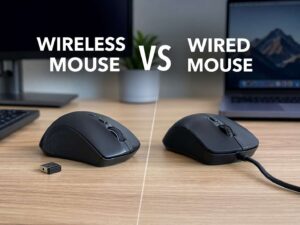
Most modern productivity mice use Bluetooth, a USB receiver, or both. Bluetooth keeps your ports free and works well with laptops, tablets, and MacBooks.
A 2.4 GHz receiver often gives a steadier connection. It is a good choice for desktop PCs, busy desks, and places with many Bluetooth devices nearby.
The best option is a mouse with both connection types. That gives you more freedom. For example, you can use Bluetooth with a laptop and a USB receiver with a desktop PC.
Multi-device support makes an even bigger difference. If you use two computers, a mouse with quick switching saves time every day.
Why Programmable Buttons Matter
Extra buttons are not only for gaming. They work very well for office work.
You can set buttons for:
- Back and forward
- Copy and paste
- Mute microphone
- Take screenshot
- Open search
- Switch desktops
- Move between browser tabs
- Zoom in and out
- Open Task View
- Start app shortcuts
For example, a writer can map copy and paste. A designer can map zoom and pan. A developer can map tab switching. A project manager can map mute and screenshot.
Then, common actions take one press instead of two or three steps. That makes the mouse feel faster, even if the sensor is not the main upgrade.
If you are deciding between a premium mouse and a cheap model, read this comparison of MX Master 4 vs cheap office mice. It explains where premium office mice give real value.
Scroll Wheel Quality Matters More Than You Think
A better scroll wheel can change your whole workday. Basic wheels feel slow in long pages. Better wheels let you move fast, then stop with control.
This matters for:
- Long PDFs
- Excel and Google Sheets
- Code files
- WordPress dashboards
- Product research
- Email threads
- Design timelines
- Project boards
The Logitech MX series stands out here. MagSpeed scrolling feels fast and controlled. The Razer Pro Click Mini also gives users a useful switch between free-spin and tactile scrolling.
For people who read, research, edit, or manage content all day, the scroll wheel deserves as much attention as DPI.
Best Wireless Mouse for Mac Users
Mac users should look for Bluetooth support, good software, and smooth scrolling. The Logitech MX Master 4, MX Master 3S, and MX Anywhere 3S are strong choices for macOS users.
A compact mouse works well with a MacBook. A larger mouse fits better at a full desk. Designers, editors, and heavy browser users often benefit from a thumb wheel and extra buttons.
Check the product version before buying. Some Mac versions do not include a USB receiver. That is fine for Bluetooth users, but desktop users may prefer a model with one in the box.
Best Wireless Mouse for Windows Users
Windows users have the widest range of options. The MX Master 4 works well for power users. The M720 works well for value buyers. The Razer Pro Click Mini fits quiet offices and smaller hands.
Software matters here. Good mouse software lets you set different buttons for Excel, Chrome, Teams, Outlook, Photoshop, or your code editor.
For a Windows desktop PC, a 2.4 GHz receiver can be the safer choice. For a laptop, Bluetooth keeps your setup cleaner. A mouse with both gives you the most control.
Best Wireless Mouse for Work From Home
For a home office, comfort should come first. You have more control over your desk, chair, monitor height, and accessories, so the mouse should fit the setup.
A large mouse like the MX Master 4 works well on a full desk. A vertical mouse helps users who want less wrist twist. A compact mouse suits small desks and hybrid work.
Noise matters too. Quiet clicks help during calls and late work sessions. Long battery life also keeps the mouse from becoming one more thing to charge each night.
For most work-from-home users, the MX Master 4 is the best premium pick. The M720 is the best value pick. The Lenovo Go Wireless Vertical Mouse is the comfort-first pick.
Final Buying Advice
Pick the Logitech MX Master 4 if you want the best wireless mouse for productivity and spend most of your day at a desk. It gives you strong comfort, fast scrolling, button shortcuts, and high-end tracking.
Choose the Logitech M720 Triathlon if you want a reliable Amazon.com option at a lower price. It handles multi-device work well and gives you useful buttons without a premium cost.
Pick the MX Anywhere 3S if you work from a laptop and move often. Choose the Razer Pro Click Mini if quiet clicks and a compact shape matter most. Pick the Lenovo Go Wireless Vertical Mouse if wrist comfort matters more than speed.
A good productivity mouse should feel natural, move cleanly, and remove small delays from your day. Once you match the mouse to your hand and work style, the upgrade feels obvious.