
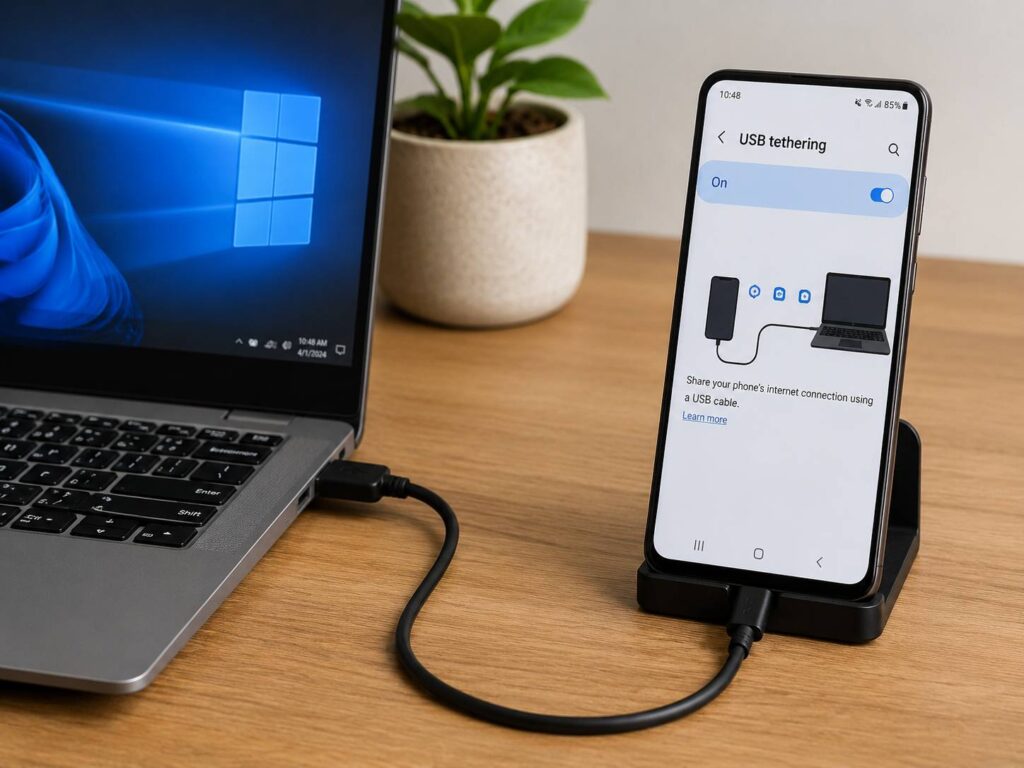
USB tethering lets your phone share its mobile internet connection with a computer through a USB cable. It works with many Android phones, iPhones, Windows PCs, and Mac computers. In practice, it turns your phone into a small wired modem.
This feature can be helpful during a home internet outage, a business trip, or a long train journey. It can also save you when hotel Wi-Fi feels slow or unreliable. Better yet, setup usually takes less than a minute.
Still, USB tethering has a few limits. Your mobile plan must support internet sharing, your cable must carry data, and your computer can use mobile data much faster than expected. So, it helps to understand how the feature works before relying on it.
What Is USB Tethering?
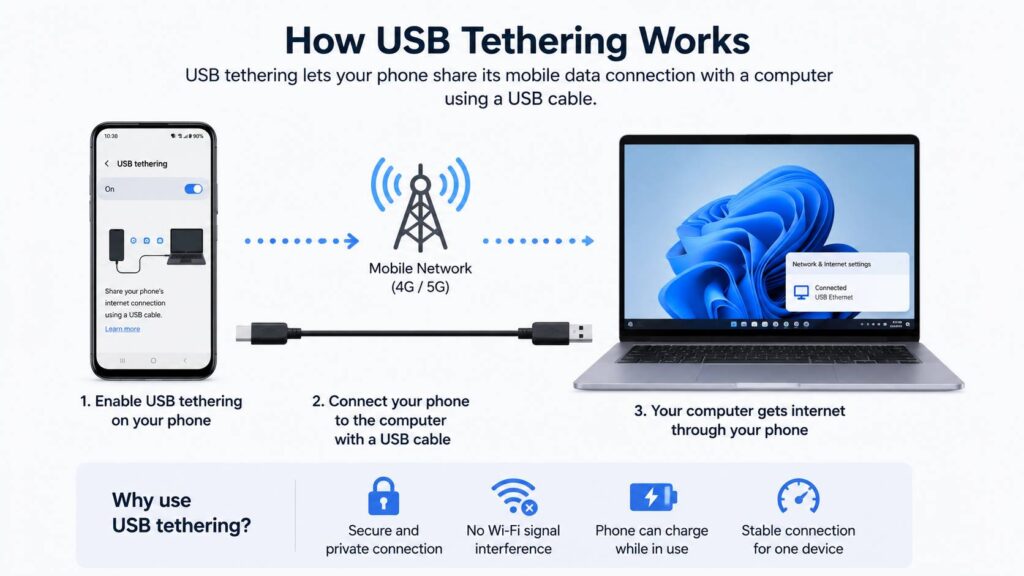
USB tethering is a wired method of sharing your phone’s internet connection. Your phone connects to a 4G or 5G mobile network, then passes that connection to a laptop or desktop computer through USB.
Once connected, the computer often treats the phone like a wired network adapter. In many cases, the internet starts working a few seconds after you turn on the correct setting.
The word tethering simply means sharing one device’s internet connection with another device. For example, a mobile hotspot uses Wi-Fi tethering. Bluetooth tethering sends the connection through Bluetooth. USB tethering uses a physical cable.
As a rule, USB tethering works best when you need to connect one computer. A Wi-Fi hotspot makes more sense when several devices need internet at the same time.
How Does USB Tethering Work?
Your phone manages the mobile connection. Then, it routes internet traffic through the USB cable to your computer. Data sent from the computer travels back through the phone and reaches the mobile network.
The process sounds technical, but the phone handles nearly everything. You only need to connect the cable and turn on USB tethering.
Several things affect speed and stability:
- Mobile signal strength
- 4G or 5G coverage
- Network congestion
- Your carrier’s tethering policy
- Phone modem quality
- USB cable quality
- Background activity on the computer
For instance, a strong 5G signal can provide fast internet through USB. A weak indoor signal will still feel slow, even with a high-quality cable.
At the same time, USB tethering cannot make your mobile connection faster than the network allows. It only changes the way your computer connects to the phone.
USB Tethering vs Mobile Hotspot
USB tethering and mobile hotspot mode share the same mobile data connection. Still, they create a different experience.
| Feature | USB tethering | Mobile hotspot |
|---|---|---|
| Connection type | Wired | Wireless |
| Best for | One computer | Several devices |
| Password needed | Usually no | Yes |
| Phone charging | Usually yes | No, unless connected to power |
| Wireless interference | None between phone and PC | Possible |
| Range | Limited by cable | Works across a room |
| Portability | Lower | Higher |
For one laptop, USB tethering often feels steadier. It avoids crowded Wi-Fi channels, keeps the phone close, and reduces the chance of another person trying to join your hotspot.
By comparison, a Wi-Fi hotspot offers more freedom. You can leave the phone in a bag, connect several devices, and move around without a cable.
In my experience, USB tethering works better for video calls, urgent uploads, and longer work sessions. A mobile hotspot feels more convenient for casual browsing or sharing internet with a tablet and laptop at once.
Main Benefits of USB Tethering
USB tethering offers several useful advantages.
- It often provides a steady connection. A cable avoids local Wi-Fi interference.
- It does not need a hotspot password. The computer connects directly through USB.
- It usually charges the phone. Most computers send some power through their USB ports.
- It works with desktops. A computer without Wi-Fi can still get online.
- It keeps the connection private nearby. The phone does not broadcast a visible Wi-Fi network.
- It works as backup internet. You can stay online during a router or broadband failure.
For this reason, USB tethering is a practical backup for remote work. It can keep email, web tools, and messaging apps online until your main connection returns.
Still, charging and tethering at the same time can make the phone warm. Heavy downloads, video meetings, gaming, and weak mobile reception can raise the temperature further.
So, place the phone on a hard surface. Keep it out of direct sunlight, and avoid covering it with clothes, bedding, or paperwork.
Drawbacks of USB Tethering
USB tethering is useful, but it is not perfect. First, it normally connects one computer at a time. Next, the phone must remain attached to the cable.
The cable can also get in the way. This becomes more noticeable on a small desk, airplane tray, or crowded café table.
Mobile data use is another concern. Desktop software often transfers far more data than phone apps. For example, Windows updates, cloud backups, streaming services, and game downloads can use several gigabytes without much warning.
Some mobile plans place limits on tethering too. A carrier can offer a separate hotspot allowance, reduce tethering speed, or charge more for this type of use.
For that reason, check your mobile plan before using USB tethering for large downloads or daily work.
How to Use USB Tethering on Android
The menu names differ between Android brands. Still, the process is usually similar.
- Turn on mobile data.
- Connect the phone to the computer with a USB data cable.
- Unlock the phone.
- Open Settings.
- Tap Network and internet, Connections, or a similar option.
- Open Hotspot and tethering or Mobile Hotspot and Tethering.
- Turn on USB tethering.
- Wait for the computer to detect the new network.
On many Samsung phones, the setting appears under Settings > Connections > Mobile Hotspot and Tethering.
On many Google Pixel phones, it appears under Settings > Network and internet > Hotspot and tethering.
If the USB tethering switch looks grey, the phone may not detect a data connection. In that case, unlock the phone, reconnect the cable, and choose File transfer from the USB notification.
How to Use USB Tethering on an iPhone
Apple places USB internet sharing inside Personal Hotspot.
- Turn on cellular data.
- Open Settings.
- Tap Personal Hotspot.
- Turn on Allow Others to Join.
- Connect the iPhone to the computer.
- Tap Trust if the iPhone asks about the computer.
- Select the iPhone connection on the computer if it does not connect automatically.
A Mac usually detects the iPhone as a network connection. A Windows PC may need Apple’s device software before USB tethering works correctly.
Then, keep Personal Hotspot active and leave the iPhone connected. The computer should start using the phone’s mobile connection.
Is USB Tethering Safe?
USB tethering is a good choice in public places. It does not broadcast a Wi-Fi network name, so nearby people cannot see the connection or try to guess a hotspot password.
Still, the wired link does not protect every part of your online activity. Websites, apps, your carrier, and online services still handle your traffic in the normal way.
Use secure websites, keep your operating system updated, and avoid unknown USB accessories. More importantly, connect your phone only to computers you trust.
Public USB charging stations deserve extra care. A USB cable can carry power and data at the same time. So, use your own charger or a power-only adapter when you do not need internet sharing.
Does USB Tethering Use More Mobile Data?
USB tethering does not increase data use by itself. Your computer simply uses the phone’s mobile data connection.
The real problem comes from desktop apps. They often download updates, sync files, and load higher-quality video without asking first.
Common data-heavy activities include:
- Windows or macOS updates
- Cloud storage syncing
- Video streaming
- Video meetings
- Game downloads
- Photo and video backups
- Large email attachments
- Browser tabs with autoplay media
For example, a one-hour high-resolution video stream can use far more data than reading email or browsing a few websites.
So, set the connection as metered on Windows. Then pause cloud syncing, game updates, and automatic backups. Lowering video quality can save a large amount of data too.
Does USB Tethering Drain the Phone Battery?
Most computers send power to the phone through USB. In many cases, the phone charges during tethering.
Still, the charging speed depends on the USB port, cable, phone, and workload. An older laptop port may provide little power. At the same time, a weak mobile signal makes the phone work harder.
During video calls or large downloads, the phone may charge very slowly. It can even lose a small amount of battery while showing the charging icon.
Heat deserves more attention than the battery percentage. If the phone becomes very warm, remove a thick case and stop heavy downloads for a few minutes.
Can You Use USB Tethering Without Mobile Data?
USB tethering normally shares your phone’s mobile data connection. So, turning off mobile data will usually stop internet access on the computer.
Some Android phones can share an existing Wi-Fi connection through USB. Support varies between brands and software versions, so the option may not appear on every phone.
For regular desktop use, a USB Wi-Fi adapter may be simpler. Still, phone-based sharing can help when the computer has no working wireless connection.
Why Is USB Tethering Not Working?
Start with the cable. Many cables support charging but do not support data transfer.
Then check these common causes:
- Mobile data is turned off
- The phone has no usable signal
- USB tethering is turned off
- The phone is locked
- The computer has not been trusted
- The USB cable is damaged
- The USB port is faulty
- A VPN blocks the connection
- The carrier limits tethering
- Apple device software is missing on Windows
- Network drivers need a restart
First, unplug the cable and restart both devices. Then connect the phone to another USB port. After that, try another cable that you know can transfer files.
On Android, open the USB notification and select File transfer. Next, return to the tethering menu and turn USB tethering on again.
On iPhone, check that Personal Hotspot remains active. Then accept the Trust prompt if it appears.
A full network reset should be a later step. It can remove saved Wi-Fi networks, Bluetooth pairings, and custom connection settings.
Why Is the USB Tethering Option Greyed Out?
A grey USB tethering switch usually means the phone has not detected a proper USB data connection.
The most common cause is a charge-only cable. These cables can charge a phone, but they cannot send files or network data.
Try these steps:
- Unlock the phone.
- Disconnect and reconnect the cable.
- Use a cable that supports file transfer.
- Connect directly to the computer.
- Avoid unpowered USB hubs.
- Try another USB port.
- Select File transfer from the USB menu.
- Restart both devices.
- Turn mobile data off and back on.
Dust inside the phone’s USB port can cause an unstable connection too. Clean the port gently with the phone turned off. Do not use a metal object or pour liquid inside the connector.
Can a Carrier Detect USB Tethering?
Mobile carriers can identify and manage tethering traffic. Some plans include it without a separate limit. Others provide a smaller hotspot allowance or reduce speed after a set amount of data.
USB tethering does not hide computer traffic from the carrier. So, review your plan before downloading large files.
A few emails and web pages use little data. By comparison, system updates, game downloads, cloud backups, and high-quality video can consume a monthly allowance very quickly.
Building a Simple Travel Setup
USB tethering becomes more useful when paired with a few small accessories. A reliable data cable, compact charger, and wired or Bluetooth mouse can turn a laptop into a practical travel workstation.
For a smoother setup, this guide explains how to connect a Bluetooth mouse to Windows 10 without the usual headaches.
In practice, keeping these accessories in one small pouch saves time. You do not need to search for cables or change settings during an outage or urgent call.
When Should You Use USB Tethering?
USB tethering works well in several situations:
- Your home internet stops working
- Hotel Wi-Fi feels slow
- Public Wi-Fi seems unsafe
- A desktop computer has no Wi-Fi adapter
- You need a stable connection for a meeting
- You want the phone to charge during use
- Only one computer needs internet
- You need quick backup access
For long daily sessions, fixed broadband or a dedicated mobile router is usually more practical. A phone can get warm, receive calls, and face mobile data limits.
Even so, USB tethering remains one of the most useful backup features on a modern phone.
Is USB Tethering Worth Using?
Yes, USB tethering is worth using when one computer needs quick and steady internet access. It takes little time to set up, does not broadcast a hotspot network, and often feels more stable than Wi-Fi tethering.
My view is simple. Keep a dependable USB data cable in your laptop bag. You may not use it every day, but it can save an important meeting or help you finish urgent work during an internet outage.
Just watch your mobile data use and phone temperature. Then, USB tethering becomes a practical tool rather than an emergency trick.