What Onboard Memory on a Mouse Means
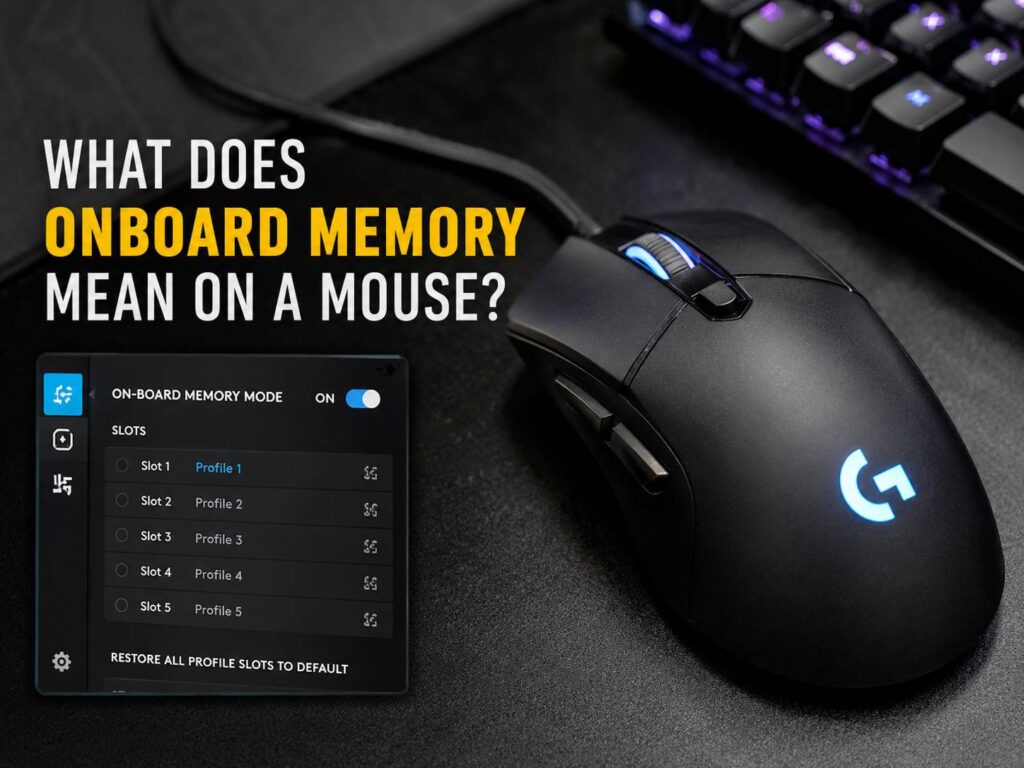
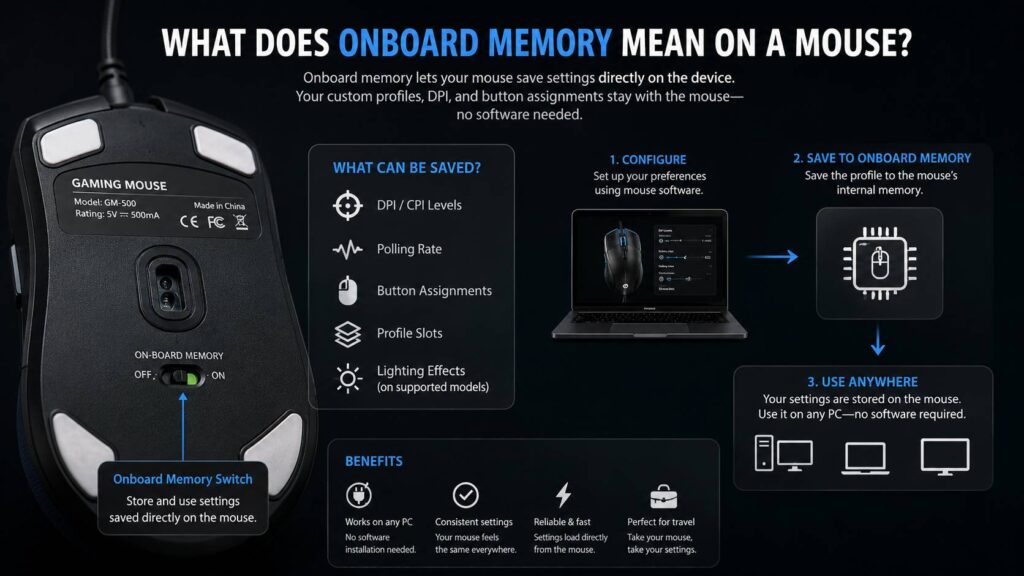
Onboard memory on a mouse means the mouse can save some settings inside the device itself. After you save those settings, the mouse can remember them without needing the brand’s software open all the time.
For example, many gaming mice can store DPI levels, polling rate, button assignments, and profile settings. Some models can store RGB lighting too. A few can save basic macros, but this depends on the mouse and software.
So, what does onboard memory mean on a mouse in normal use? It means your mouse can feel the same after you unplug it, restart your PC, or use it on another computer.
This feature sounds small at first. Still, it can save a lot of frustration. Nobody wants to set up the same DPI, side buttons, and profile settings again and again. If the mouse remembers your setup, you spend less time fixing settings and more time using the mouse.
Why Onboard Memory Matters
Onboard memory matters because it gives your mouse a saved setup that can work without constant software support.
Many modern gaming mice use companion software. Logitech has G HUB, Razer has Synapse, Corsair has iCUE, SteelSeries has GG, and other brands have their own apps. These apps help you change DPI, lighting, polling rate, macros, button functions, and profiles.
The problem is simple. Software can be annoying.
It can fail to open. It can update at the wrong time. It can use system resources. It can get blocked on a work laptop. In some cases, the software profile works only on one computer. Then you move the mouse to another PC and your setup disappears.
Onboard memory solves part of that problem. Once you save the right profile to the mouse, the device keeps those settings inside its own memory.
This helps if you use:
- A gaming PC and a work laptop
- A desktop and a travel laptop
- A shared family computer
- A school or office computer
- A gaming cafe PC
- A tournament or LAN setup
- A PC where you do not want extra software running
Plus, onboard memory gives the mouse a more reliable feel. Your DPI does not suddenly feel wrong. Your side buttons do not lose their job. Your profile does not reset after every reboot.
What Settings Can Onboard Memory Save?
Most mice with onboard memory can save common performance settings. The exact list changes by brand and model, but many support the basics.
A mouse with onboard memory can often save:
- DPI or CPI levels
- Polling rate
- Button remaps
- Profile slots
- Basic lighting settings
- Lift-off distance on some models
- Debounce settings on some models
- Surface tuning on some older or advanced models
- Basic macros on selected models
DPI is usually the most important one. It controls how fast your cursor moves. A player who uses 800 DPI will notice right away if the mouse resets to 1600 DPI. The aim feels too fast, and every movement feels off.
Polling rate can matter too. A 1000 Hz polling rate means the mouse reports its position up to 1000 times per second. Some newer mice support 2000 Hz, 4000 Hz, or 8000 Hz. Higher polling rates can feel more responsive, but they can drain battery faster on wireless models.
Button remapping is another big reason to care. If you set a side button to back, forward, melee, push-to-talk, copy, paste, or a keyboard shortcut, onboard memory can help keep that setup active.
For a deeper look at button layouts, this guide on whether you need more than two side buttons on a mouse is a useful next read.
What Onboard Memory Usually Does Not Save
Onboard memory does not always save every feature from the mouse software. This is easy to miss.
A product page may say “onboard memory,” but that does not mean the mouse saves everything. Some mice save only DPI and polling rate. Others save button assignments too. A few save lighting, macros, and several hardware profiles.
Complex features often still need the software running. These can include:
- Game-specific profiles
- App-specific shortcuts
- Advanced RGB effects
- Cloud sync
- Long macros with delays
- Text macros
- Multi-device lighting sync
- Audio-reactive lighting
- Automatic profile switching
Here is the practical issue. You may create a full setup in the software, save it, then move the mouse to another PC and find that only part of it works. The DPI may stay correct, but the macro may not. The lighting may reset. The profile switch button may act differently.
That does not mean onboard memory is bad. It just means you need to know what your mouse can actually store.
My honest opinion: onboard memory is one of those features that brands sometimes describe too loosely. It is worth having, but you should check the details before you buy.
Onboard Memory vs Software Profiles
Onboard memory and software profiles are not the same thing.
A software profile lives in the mouse app on your computer. It can do more, but it usually needs the software installed or running.
An onboard profile lives inside the mouse. It is more portable, but it may support fewer features.
Software profiles are better for advanced setups. For example, you can create one profile for a shooter, one for video editing, one for browsing, and one for productivity. The software can switch between them based on the app or game you open.
Onboard profiles are better for the settings you always want available. DPI, polling rate, basic buttons, and one clean layout should go into onboard memory.
The best setup is simple. Use software profiles for deep control on your main PC. Save your core setup to onboard memory so the mouse still feels right on other computers.
How Many Onboard Profiles Do You Need?
Some mice store one onboard profile. Others store three, four, or five. High-end gaming mice may offer several slots, but more slots do not always mean a better experience.
Most users need only one or two strong profiles.
For example:
- Profile 1: everyday use, browsing, office work
- Profile 2: FPS gaming with lower DPI
- Profile 3: MMO or productivity shortcuts
- Profile 4: travel laptop setup
- Profile 5: high-DPI setup for large monitors
Still, profile switching can create problems. If you press the profile button by mistake, your mouse may change DPI or button behavior during a game. That gets annoying fast.
For most people, one main onboard profile is enough. If you play different game types or use the same mouse for work and gaming, two or three profiles make sense.
Is Onboard Memory Good for Gaming?
Yes, onboard memory is very useful for gaming.
For FPS players, it helps keep aim consistent. DPI and polling rate matter a lot here. If those settings reset, your aim can feel strange right away.
For MMO players, onboard memory can help store button assignments. Side buttons can handle skills, push-to-talk, map, inventory, or other common commands.
For MOBA players, a saved profile can keep basic shortcuts ready. It will not replace deep game-specific software profiles, but it keeps the basics steady.
For competitive players, onboard memory has another benefit. Some event PCs may not allow third-party mouse software. If your settings are saved inside the mouse, you can still use your normal DPI and basic button layout.
Still, be realistic. Onboard memory will not make a bad mouse good. Shape, sensor quality, click feel, weight, feet, wireless stability, and comfort matter more. Onboard memory supports the setup. It does not replace the core hardware.
Is Onboard Memory Useful for Work?
Yes, onboard memory can be very useful for work too.
This feature is not only for gaming mice. A saved mouse profile can help with office work, design, coding, spreadsheets, video editing, and web browsing.
Useful button assignments for work include:
- Copy
- Paste
- Undo
- Redo
- Back
- Forward
- Enter
- Escape
- Screenshot
- Mute microphone
- Play or pause
- Open task view
The biggest benefit appears on locked work laptops. Some companies do not allow users to install mouse software. If the mouse stores the setup internally, your saved buttons can still work after you configure the device on another computer.
This is similar to many other tech buying choices. Small feature differences can change daily use more than expected, whether you compare mouse memory or something like robot vacuum vs cordless vacuum.
Common Problems With Onboard Memory
Onboard memory is helpful, but it is not perfect. Several issues come up often.
The first problem is saving to the wrong place. Many apps have both software profiles and device memory profiles. If you change only the software profile, the mouse may not store anything inside its memory.
The second problem is limited macro support. A basic button remap often works fine. A complex macro may fail without the software.
The third problem is lighting. Some mice save a static color, but they do not save advanced RGB animations. Others may save lighting only after you switch to a hardware mode.
The fourth problem is profile confusion. Several onboard slots sound nice, but it is easy to forget which one is active. A tiny LED indicator does not always make things clear.
The fifth problem is software design. Some mouse apps bury onboard memory settings behind menus. You may need to switch to device memory mode, save the profile, then test it after closing the software.
The fix is usually simple. Set the profile, save it to onboard memory, close the software, restart the mouse, and test again.
How to Test If Onboard Memory Works
You can test onboard memory without special tools.
Start by opening your mouse software. Set your preferred DPI stages, polling rate, and button assignments. Save those settings to an onboard profile or device memory slot.
Next, close the software fully. Check the system tray too. Many apps keep running in the background after you press the X button.
Then unplug the mouse and plug it back in. Test the DPI button, side buttons, and profile switch button.
After that, restart your computer. Test the same settings again.
For the best test, plug the mouse into another computer that does not have the brand software installed. If your core settings still work, onboard memory is doing its job.
Check these items:
- DPI stages
- Polling rate
- Side button functions
- Profile switching
- RGB behavior
- Macro behavior
- Lift-off distance, if supported
- Saved lighting off mode, if battery life matters
This test tells you more than a product description. It shows exactly what your mouse can remember.
What to Check Before Buying a Mouse With Onboard Memory
Do not buy a mouse only because the product page says it has onboard memory. Check what the memory actually supports.
Look for these details:
- Number of onboard profiles
- DPI storage
- Polling rate storage
- Button remapping support
- Hardware macro support
- RGB storage
- Profile switch button
- Windows and macOS software support
- Firmware update support
- Wireless battery impact
- Built-in memory mode or device memory mode
For gaming, DPI, polling rate, and button remaps matter most. RGB storage is nice, but it should not be the main reason to buy.
For work, button remapping is the key feature. A simple mouse that saves useful shortcuts can feel better than a flashy mouse with weak software.
For travel, one clean onboard profile matters more than five messy ones.
Does Onboard Memory Affect Performance?
Onboard memory does not improve the sensor. It does not make clicks faster by itself. It does not lower weight or improve comfort.
It only stores settings.
A mouse with onboard memory can still have a bad shape, poor feet, a weak scroll wheel, or cheap switches. A mouse without onboard memory can still perform well on one computer with software running.
So, treat onboard memory as a convenience and reliability feature.
Before buying, judge the full mouse:
- Shape
- Size
- Weight
- Sensor
- Click feel
- Scroll wheel
- Side button placement
- Cable or wireless quality
- Battery life
- Mouse feet
- Software stability
- Price
A good mouse should feel right in your hand first. Onboard memory is a bonus that makes the setup easier to keep.
Who Should Care Most About Onboard Memory?
Onboard memory matters most for users who switch devices or want stable settings.
It is worth having if you are:
- A competitive gamer
- An FPS player
- An MMO player
- A student using shared PCs
- A worker with a locked laptop
- A traveler
- A streamer
- A video editor
- A designer
- A coder
- A Linux user who sets up the mouse on Windows first
- Someone who dislikes background software
It matters less if you use one mouse on one PC and never move it. In that case, software profiles may be enough.
Still, I prefer having onboard memory if the price is reasonable. It adds flexibility, and it can save time later.
Best Onboard Memory Setup for Most People
The best setup is not complicated.
Start with one main profile. Set your normal DPI, preferred polling rate, and core button assignments. Keep it simple. Save that profile to the first onboard memory slot.
Next, create a second profile only if you need it. For example, use one profile for gaming and one for work.
Then test both profiles with the software closed. This step matters. Skip it, and you may find out later that the mouse did not save what you expected.
For wireless mice, think about battery life too. A high polling rate and bright RGB can drain the battery faster. A travel profile with lower polling rate and lighting off can be useful.
My real opinion: the best onboard memory profile is usually boring. It should save the settings you never want to lose. Fancy lighting and complex macros can stay in the software.
Final Verdict
Onboard memory on a mouse is worth having. It helps your mouse keep its main settings without relying on software all the time.
It is useful for gaming, work, travel, shared computers, and locked laptops. It can save DPI, polling rate, button remaps, and sometimes lighting or macros. Still, each mouse handles onboard memory differently.
The smart move is simple. Check what the mouse can save before you buy it. After setup, test the mouse with the software closed. If the settings still work, the onboard memory is doing what you need.
A mouse should first fit your hand, your grip, and your daily use. After that, onboard memory is one of the best small features to have. It keeps your setup familiar, even when the software is not there to help.