USB4 vs USB-C Explained: How to Tell Which Port You Have and What It Can Do

USB4 vs USB-C Explained: How to Tell Which Port You Have and What It Can Do

USB4 and USB-C are easy to mix up. They often appear together in laptop, monitor, dock, and external SSD specifications, so many buyers assume they describe the same thing.

They do not.

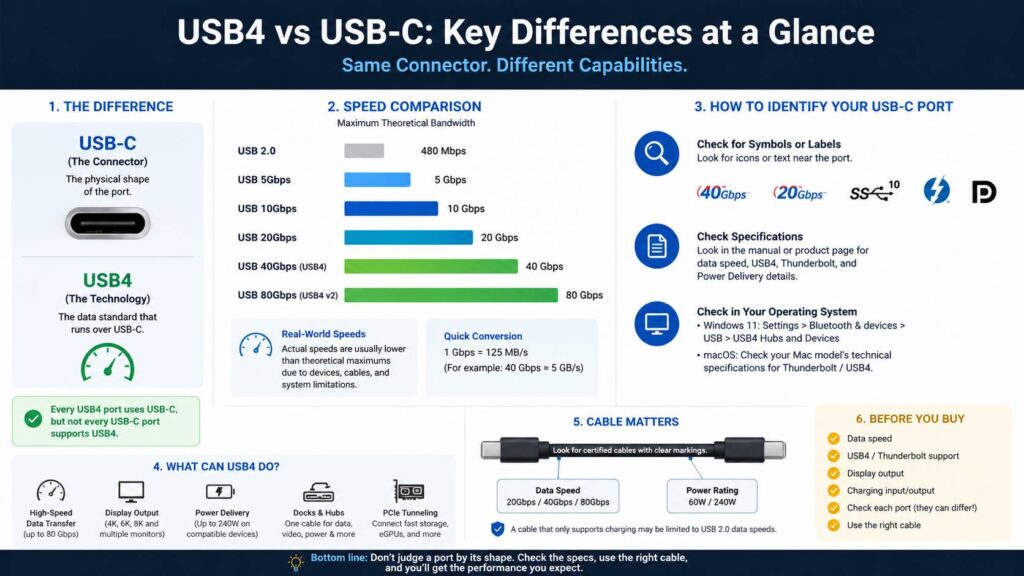
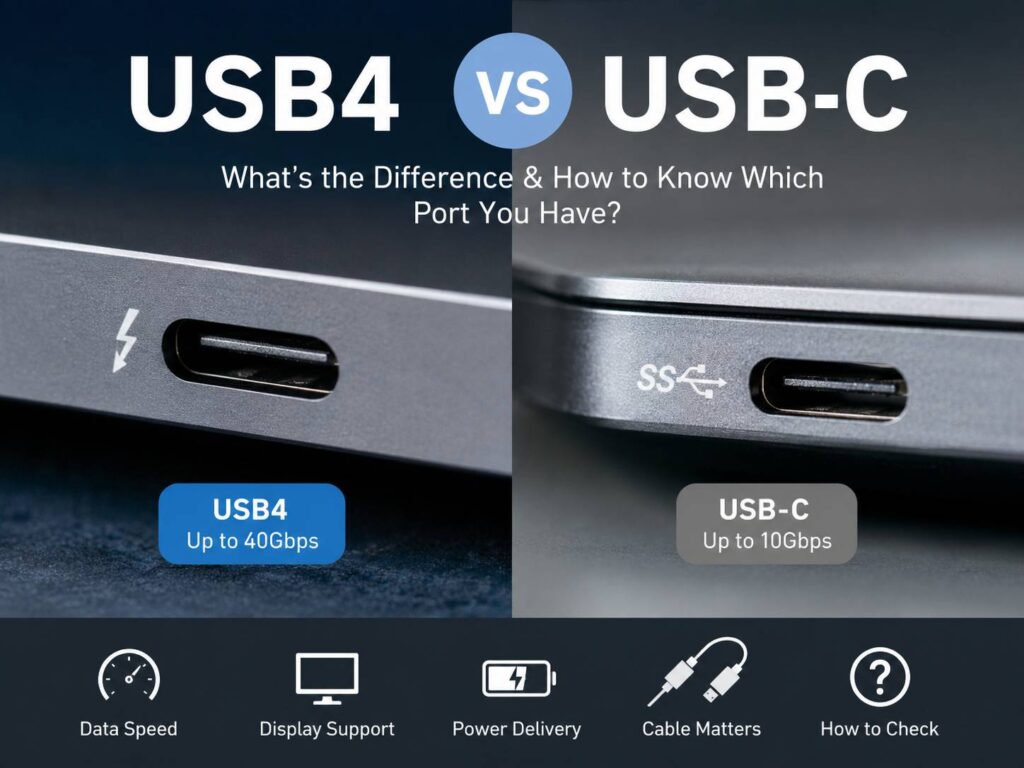
USB-C describes the physical connector. USB4 describes a data standard that can use that connector.

That difference sounds small, but it explains why two USB-C ports that look identical can behave very differently. One port might offer basic USB 2.0 data speeds. Another might handle USB4 at 40 Gbps, external monitors, laptop charging, and a full docking station through one cable.

Current USB4 technology can reach 80 Gbps on compatible hardware. Some configurations can provide even more bandwidth in one direction for demanding display and data workloads.

Still, the connector alone tells you very little. So, if you are trying to identify the USB-C port on your laptop, desktop, monitor, tablet, or phone, you need to look beyond its shape.

USB4 vs USB-C: What Is the Actual Difference?

USB-C, often called USB Type-C, is the small reversible connector found on most modern electronics.

You can insert the plug either way. That alone made it much nicer to use than old USB-A and Micro-USB connectors.

USB4 is different. It defines what the connection can do with data.

So, every USB4 port uses USB-C, but not every USB-C port supports USB4.

A USB-C connector can carry several technologies, including:

  • USB 2.0
  • USB 3.x
  • USB4
  • USB Power Delivery
  • DisplayPort video
  • Thunderbolt on supported devices

For that reason, seeing “USB-C” on a product page is not enough.

A manufacturer might advertise two USB-C ports without clearly explaining that one supports video and charging, yet the other only handles data. This still happens on laptops and monitors, and it causes plenty of confusion.

The better question is simple: What does this particular USB-C port support?

How Fast Is USB4?

USB4 offers much more bandwidth than older USB connections.

Depending on the device, you can encounter USB connections rated at:

ConnectionMaximum advertised bandwidth
USB 5Gbps5 Gbps
USB 10Gbps10 Gbps
USB 20Gbps20 Gbps
USB 40Gbps40 Gbps
USB 80Gbps80 Gbps

USB4 first became widely associated with 20 Gbps and 40 Gbps connections. More recent USB4 specifications raised the maximum to 80 Gbps.

For context, converting bits to bytes gives a rough idea of the theoretical data rate:

  • 20 Gbps ÷ 8 = 2.5 GB/s
  • 40 Gbps ÷ 8 = 5 GB/s
  • 80 Gbps ÷ 8 = 10 GB/s

Those numbers are theoretical.

In real use, an external SSD will transfer files more slowly. The drive itself has a speed limit. The enclosure matters too. Protocol overhead, temperature, file size, and the cable can all reduce performance.

So, buying an 80 Gbps cable will not suddenly make a 10 Gbps SSD eight times faster.

Does Every USB-C Port Support USB4?

No, and this is probably the most useful fact to remember.

The USB-C shape does not guarantee a particular data speed.

A USB-C port can run at only 480 Mbps through USB 2.0. Another port with the same shape can provide 40 Gbps USB4 data, video output, and charging.

You might encounter USB-C ports supporting:

  • 480 Mbps
  • 5 Gbps
  • 10 Gbps
  • 20 Gbps
  • 40 Gbps
  • 80 Gbps

They can look almost identical from the outside.

For example, some inexpensive laptops include USB-C mainly for basic data transfers. A more expensive model can use the same connector for a dock, two monitors, high-speed storage, Ethernet, and charging.

This is why product photos are not enough to identify USB4.

How to Tell Which USB-C Port You Have

Start by looking closely at the area around the port.

Manufacturers sometimes print symbols beside USB-C ports. These symbols can reveal part of the port’s capabilities.

Look for markings such as:

  • 20Gbps
  • 40Gbps
  • 80Gbps
  • A lightning symbol
  • A DisplayPort logo
  • A charging or battery symbol

Still, many laptops have little or no useful labeling.

In that case, check the manufacturer’s specification sheet. Search for sections named Ports, Connectivity, I/O, Expansion, USB, or Thunderbolt.

You want more information than simply “USB-C.”

A useful specification should mention details such as:

  • Data transfer speed
  • USB4 support
  • DisplayPort support
  • USB Power Delivery
  • Thunderbolt support
  • Maximum charging power

If those details are missing, check the product manual for the exact model number.

How to Check USB4 on a Windows 11 PC

Windows 11 can help identify USB4 hardware on compatible systems.

Open:

Settings > Bluetooth & devices > USB > USB4 Hubs and Devices

If your computer exposes USB4 information through Windows, this page can show USB4 hubs and connected devices.

Still, do not treat a missing page as final proof that your laptop lacks every related feature. Firmware, drivers, and the system’s implementation can affect what Windows displays.

For that reason, I would still check the manufacturer’s specification page.

Windows can warn you about limited USB-C or USB4 connections too. These warnings are useful if a dock, monitor, or external drive suddenly runs at a lower speed than expected.

In many cases, the cable turns out to be the problem.

How to Check USB4 on a Mac

Apple commonly labels modern Mac ports with terms such as:

  • Thunderbolt / USB 4
  • Thunderbolt 4
  • Thunderbolt 5

The easiest check is the technical specifications page for your exact Mac model.

You can also identify the model through macOS and then compare its port specifications.

For instance, several Mac generations include Thunderbolt ports that support USB4 data transfers up to 40 Gbps. Newer hardware can offer faster Thunderbolt connections.

The port still looks like ordinary USB-C.

That is another good example of why connector shape tells only part of the story.

USB4 vs Thunderbolt: What Changes?

USB4 and Thunderbolt are closely related, but the names do not mean exactly the same thing.

Thunderbolt 3, Thunderbolt 4, Thunderbolt 5, and USB4 all use the USB-C connector.

That can make shopping for docks confusing.

A Thunderbolt dock can have features or certification requirements that differ from a basic USB4 dock. Display support, PCIe bandwidth, device compatibility, and minimum performance requirements can differ too.

If you are not familiar with the monitor side of this connection, our guide explaining what Thunderbolt is on a monitor covers how the port works with displays, laptops, data, and charging.

For normal accessories, USB and Thunderbolt compatibility is often straightforward. For expensive hardware, check the exact requirements.

This matters most with:

  • High-speed NVMe storage
  • Multi-monitor docks
  • 4K and higher-resolution displays
  • Professional audio hardware
  • Video capture equipment
  • PCIe-based accessories

A $10 adapter is one thing. A $300 dock deserves a proper compatibility check before buying.

Can USB4 Connect to an External Monitor?

Yes. USB4 can carry display traffic through a USB-C connection on compatible hardware.

This means one cable can sometimes connect your laptop to a monitor, transfer USB data, and charge the computer at the same time.

That is one of USB-C’s best practical uses.

Still, USB4 alone does not tell you how many monitors a laptop supports.

External display limits can depend on:

  • The processor
  • The GPU
  • The computer manufacturer
  • Display resolution
  • Refresh rate
  • Dock hardware
  • Available bandwidth
  • The operating system

For example, a dock might advertise support for several monitors. Your laptop might support fewer.

So, check the laptop’s external display specifications before spending money on a dock.

Can USB-C Charge a Laptop?

Yes, if the laptop supports USB-C charging.

Modern USB Power Delivery can provide up to 240W with compatible hardware and cables.

Still, all USB-C charging setups are not equal.

Your laptop might accept 45W, 65W, 100W, 140W, or another power level. The charger needs to support a suitable USB Power Delivery profile. The cable must support enough power too.

For example, connecting a 30W phone charger to a laptop that normally uses a 100W adapter can produce slow charging. Under heavy use, the battery can continue dropping even though the charger is connected.

A higher-rated charger does not automatically force excessive power into a device either. Compatible USB Power Delivery equipment negotiates the appropriate power level.

USB4 vs USB-C diagram

Why USB-C Cables Can Cause So Many Problems

The cable is often the forgotten part of the connection.

A USB-C cable can physically fit your laptop and SSD yet still limit transfer speeds badly.

Some USB-C cables focus mainly on charging. They can carry USB 2.0 data at only 480 Mbps.

Others support:

  • 5 Gbps
  • 10 Gbps
  • 20 Gbps
  • 40 Gbps
  • 80 Gbps

Charging capability can differ too.

Current certified USB-C cables can carry clear markings for their data and power ratings. You might see labels such as:

  • 40Gbps
  • 80Gbps
  • 60W
  • 240W

For example, a cable marked 40Gbps / 240W gives you useful information immediately.

A listing that only says “fast USB-C cable” tells you very little.

How to Choose the Right USB-C Cable

Start with what you want the cable to do.

For phone charging, focus on charging power.

For a laptop, check the power level your computer expects.

For external SSDs, data speed becomes far more important.

For docks, you need to think about data, power, and display support together.

A practical checklist looks like this:

  • Check the required data speed
  • Check charging wattage
  • Check video support
  • Check cable length
  • Look for clear performance markings
  • Use certified cables for expensive or demanding equipment

Then match the cable to the weakest realistic limit in your setup.

There is little reason to buy an expensive 80 Gbps cable for a basic USB 5Gbps flash drive.

At the same time, using a cheap charging cable with a high-speed SSD is an easy way to waste the performance you already paid for.

USB4 Is Backward Compatible, but There Is a Catch

USB4 works with many older USB devices through suitable cables and adapters.

That makes upgrading easier.

Still, the older device keeps its original speed.

Connect a USB 5Gbps SSD to a USB 40Gbps port and the drive still tops out around its own connection limit.

The same idea applies throughout the entire setup.

Your real connection speed depends on:

Host port + cable + adapter or dock + connected device

The slowest part often becomes the bottleneck.

For example, you might have:

  • A 40 Gbps laptop port
  • A 40 Gbps SSD enclosure
  • A 5 Gbps cable

That cable can prevent the rest of the hardware from reaching its expected performance.

So, if a USB-C device feels strangely slow, check every part of the chain.

USB 20Gbps vs 40Gbps vs 80Gbps: Which Speed Do You Need?

Most everyday USB devices do not need extreme bandwidth.

A keyboard, mouse, printer, basic flash drive, or phone will not gain much from an 80 Gbps connection.

USB 20Gbps is already fast for many storage devices and normal accessories.

USB 40Gbps makes more sense for:

  • Fast external NVMe SSDs
  • Large photo libraries
  • Video editing
  • High-end docking stations
  • High-resolution monitors
  • Several devices connected through one dock

USB 80Gbps targets more demanding setups.

It can matter for very fast storage, heavy display use, and future docking hardware. For most home users, though, USB 40Gbps still offers plenty of bandwidth.

Personally, I would rather have a well-implemented 40 Gbps USB4 port with charging and good display support than chase an 80 Gbps label that I never use.

USB-C vs USB4 for External SSDs

External SSDs are one area where the difference becomes easy to notice.

A fast NVMe SSD inside a good USB4 enclosure can move large files much faster than an older USB 5Gbps drive.

For instance, video editors moving hundreds of gigabytes of footage can save real time with a faster connection.

Normal documents and photos are different.

If you transfer a few gigabytes once a week, the difference between a good 10 Gbps drive and a 40 Gbps drive might not matter much in daily use.

So, match the hardware to your workload.

What to Check Before Buying a USB-C Laptop

Never judge a laptop by the number of USB-C ports alone.

Two USB-C ports do not necessarily mean two identical ports.

Check each one for:

  • USB version
  • Maximum data speed
  • USB4 support
  • Thunderbolt support
  • Display output
  • Charging input
  • Charging output
  • Dock support

Some laptops place one full-featured USB-C port on one side and a slower port on the other.

That setup is not always obvious until you read the manual.

This small check can prevent a lot of frustration later.

What to Check Before Buying a USB-C Dock

Docks can be even trickier than laptops.

Before buying one, check:

  • Host connection speed
  • USB4 or Thunderbolt requirement
  • Maximum monitor resolution
  • Number of supported displays
  • Ethernet speed
  • USB port speeds
  • Power Delivery output
  • Included cable specifications

Then compare those details with your laptop.

A dock rated for 100W charging cannot make a laptop accept 100W if the computer itself only supports 65W.

Likewise, a dock designed for three external monitors cannot bypass a laptop’s own display limits in every situation.

Common USB4 and USB-C Problems

The SSD is much slower than advertised

Check the cable first.

Then check the port, SSD enclosure, and drive.

A charging-focused USB-C cable can make an expensive external SSD feel painfully slow.

USB-C does not output video

The port might not support display output.

Look for DisplayPort support in the laptop specifications.

The laptop charges slowly

Check the charger wattage and cable rating.

A small phone charger can fit the USB-C port but still provide far less power than the laptop needs.

A USB-C dock keeps disconnecting

Try a shorter, certified cable that matches the dock’s required speed.

Then update the laptop’s firmware and USB-related drivers.

One USB-C port works but another does not

The ports might have different capabilities.

This happens more often than people expect, especially on thinner laptops with several USB-C connectors.

Is USB4 Worth Having on a New Laptop?

For a laptop you plan to keep for several years, USB4 is a useful feature.

It gives you more room for fast storage, better docks, displays, and future accessories.

USB 40Gbps is a good target for a modern premium laptop. USB 80Gbps is attractive for demanding users, but most people do not need it yet.

Budget laptops are different.

If you mainly browse the web, watch videos, write documents, and connect basic accessories, paying much more just to get USB4 might not make sense.

Still, I would check for video output and USB-C charging even on an inexpensive laptop. Those two features can make the computer much nicer to use.

USB4 vs USB-C FAQ

Is USB4 the same as USB-C?

No. USB-C is the connector shape. USB4 is a data standard that runs through USB-C.

Does every USB-C port support USB4?

No. A USB-C port can support anything from older USB data speeds to USB4 at 80 Gbps.

Does every USB-C cable support USB4?

No. USB-C cables have different data and charging ratings. Some only carry USB 2.0 data.

Can USB4 reach 40 Gbps?

Yes. USB4 supports 40 Gbps connections on compatible devices.

Can USB4 reach 80 Gbps?

Yes. Newer USB4 hardware can support 80 Gbps.

Can USB4 charge a laptop?

USB4 uses USB-C, and compatible USB-C ports can support USB Power Delivery. Charging capability still depends on the device.

Can USB4 connect to monitors?

Yes, on compatible hardware. The number of displays and maximum resolution depend on the computer and dock.

Is USB4 better than USB 3.2?

USB4 offers more bandwidth and better support for complex combinations of data and display traffic. Still, the difference will not matter much for basic peripherals.

Is Thunderbolt the same as USB4?

No. They share several technologies and use the same USB-C connector, but certification and hardware requirements differ.

The Simple Way to Avoid USB-C Confusion

Do not buy a device based only on the words “USB-C.”

Check four things:

  • Data speed
  • Charging support
  • Display support
  • Cable rating

Then check Thunderbolt or USB4 support if you plan to use high-speed storage or a dock.

That habit makes USB-C much easier to deal with.

The connector looks universal. Its capabilities are not.

← Back to the blog