What Mouse Polling Rate Means
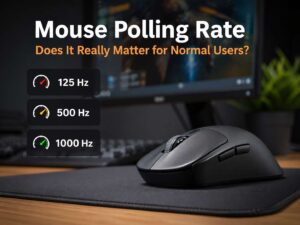
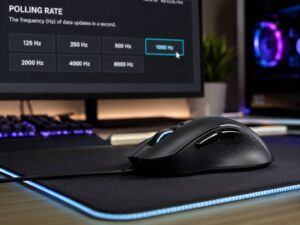
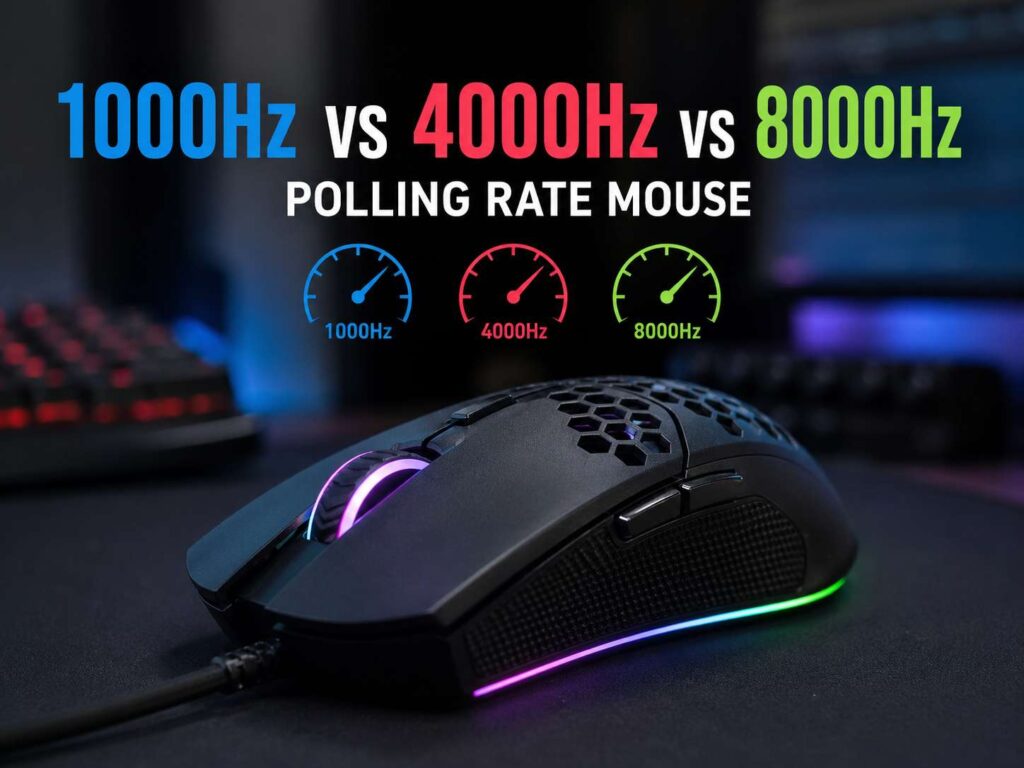
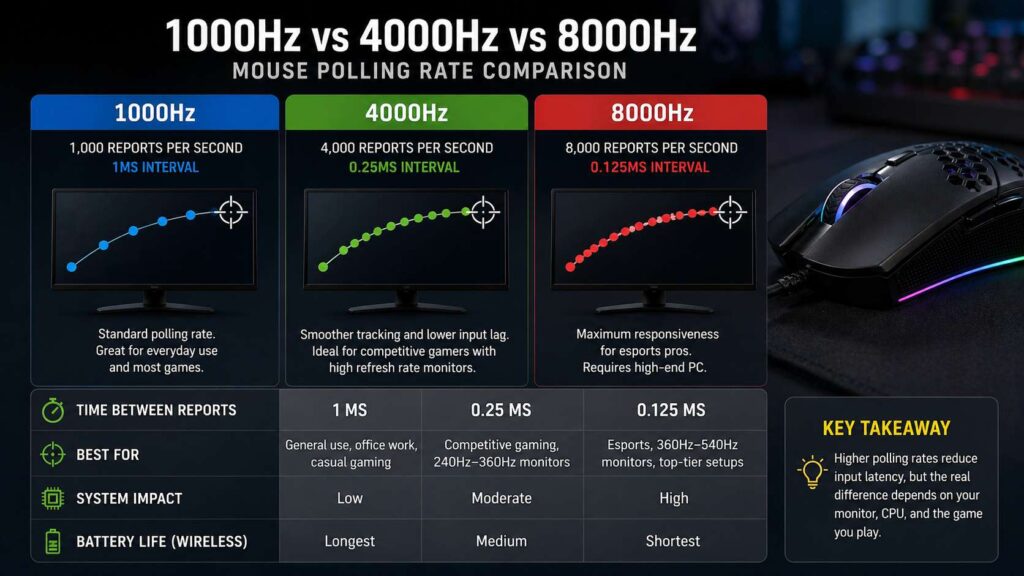
Mouse polling rate tells your PC how many times your mouse reports movement each second. A 1000Hz mouse sends up to 1,000 reports per second. A 4000Hz mouse sends up to 4,000 reports per second. An 8000Hz mouse sends up to 8,000 reports per second.
That number affects timing. At 1000Hz, the mouse reports every 1 millisecond. At 4000Hz, the gap drops to 0.25 milliseconds. At 8000Hz, the gap drops again to 0.125 milliseconds.
So, higher polling means your PC receives mouse updates more often. In theory, that gives the game fresher movement data. In practice, the result depends on your monitor, frame rate, CPU, mouse sensor, wireless receiver, and the game itself.
A higher polling rate does not turn a basic mouse into a pro-level gaming mouse. Still, it can make aiming feel cleaner on a fast setup. Small movements can look smoother. Quick flicks can feel more direct. For some players, that matters.
For normal desktop use, the gain feels much smaller. Browsing, writing, editing documents, and office work do not need 4000Hz or 8000Hz. A solid 1000Hz setting already feels quick for daily tasks. For a deeper look at this part, read this guide on whether mouse polling rate matters for normal users.
Quick Comparison: 1000Hz vs 4000Hz vs 8000Hz
Here is the simple version:
| Polling rate | Reports per second | Time between reports | Best use |
|---|---|---|---|
| 1000Hz | 1,000 | 1 ms | Most gamers, office use, wireless battery life |
| 4000Hz | 4,000 | 0.25 ms | Competitive FPS, fast PCs, 240Hz or 360Hz monitors |
| 8000Hz | 8,000 | 0.125 ms | High-end esports setups, 360Hz or 540Hz monitors |
The jump from 1000Hz to 4000Hz cuts the report gap by 0.75 milliseconds. That is the biggest practical jump in this group. The jump from 4000Hz to 8000Hz cuts the gap by another 0.125 milliseconds, so the gain is smaller.
This does not make 8000Hz pointless. It gives the fastest common report rate found on many modern gaming mice. Still, it asks more from your PC and battery. For that reason, 4000Hz often gives the best balance for serious players.
Why 1000Hz Still Works Well
A 1000Hz polling rate remains the safest mouse setting for most people. It reports once every 1 millisecond, which is already quick. Many gaming mice use 1000Hz as the default for good reason.
This setting fits 60Hz, 120Hz, 144Hz, 165Hz, and 240Hz monitors. It works well for games, school work, office tasks, photo editing, browsing, and daily PC use. It keeps CPU demand low, and it helps wireless mice last longer on a charge.
A 1000Hz mouse works fine for CS2, Valorant, Fortnite, Apex Legends, Call of Duty, Overwatch, and many other games. Aim still depends more on comfort, sensor quality, weight, shape, grip style, mouse pad control, and stable frame rate.
For many players, 1000Hz feels smooth and predictable. That matters more than chasing the highest number in the mouse software. A stable setup gives better aim than a faster setting that causes stutter.
Choose 1000Hz for a laptop, a budget gaming PC, or a wireless mouse used all day. Pick it for older games too. Some older engines react poorly to very high polling rates, and 1000Hz avoids most of those problems.
Why 4000Hz Is the Best Middle Ground
A 4000Hz polling rate sends four times more reports than 1000Hz. The report interval falls from 1 millisecond to 0.25 milliseconds. That change can make tracking feel more connected, mainly in fast shooters.
This setting shines on a strong gaming PC. It pairs well with 240Hz and 360Hz monitors. The screen updates fast enough to show more of the smoother mouse input. Small corrections can look cleaner, and fast swipes can feel more direct.
Competitive FPS players gain the most from 4000Hz. Tactical shooters reward tiny aim corrections. Arena shooters reward fast tracking. Battle royale games reward both. So, a cleaner input path can help players who already have good aim and stable FPS.
There is a trade-off. More reports mean more work for the CPU. Most modern gaming PCs handle 4000Hz without trouble, but some systems show frame-time spikes. Certain games can stutter with high polling, mainly during fast camera movement.
For this reason, 4000Hz is a smart first upgrade from 1000Hz. It gives a clear technical gain, yet it avoids much of the strain linked with 8000Hz. Many players will find this setting easier to live with.
What 8000Hz Really Adds
An 8000Hz polling rate sends up to 8,000 reports each second. The report interval drops to 0.125 milliseconds. That is extremely fast for mouse input, and it sits at the top end of many current gaming mice.
This setting targets esports players with strong hardware. A fast CPU, high FPS, clean USB connection, premium sensor, and 360Hz or 540Hz monitor all help. Without that full setup, the difference can feel tiny.
The main gain is smoother data delivery. Your mouse sends movement updates more often, so the game gets more chances to read fresh input. During fast flicks or tiny crosshair moves, that can feel crisp.
Still, 8000Hz brings clear downsides. It can raise CPU load. It can shorten wireless battery life. It can create stutter in some games. It can reveal weak USB hubs, poor wireless receiver placement, or background app issues.
A wired 8000Hz mouse avoids battery drain, but it still uses more system resources. A wireless 8000Hz mouse needs a strong receiver setup. Place the receiver close to the mouse pad, not behind the PC case.
Use 8000Hz only after testing. Try it in your main game for at least a few matches. Then switch to 4000Hz and compare aim feel, frame smoothness, and battery drain. The better setting is the one that feels stable.
The Latency Math Made Simple
The math behind polling rate is easy:
1000Hz means 1,000 reports per second. One second has 1,000 milliseconds. So, 1000Hz gives a 1 ms report interval.
4000Hz means 4,000 reports per second. 1,000 divided by 4,000 gives 0.25 ms.
8000Hz means 8,000 reports per second. 1,000 divided by 8,000 gives 0.125 ms.
So, the full jump from 1000Hz to 8000Hz saves up to 0.875 milliseconds in report interval. That is less than one millisecond. It sounds small, but gaming latency comes from many small pieces.
Mouse input, game processing, render queue, GPU time, display refresh, and panel response all add up. High polling only improves one part of that chain. For this reason, it helps most after the rest of the setup is already fast.
A player on a 60Hz monitor will not see the same benefit as a player on a 360Hz monitor. The mouse sends faster reports, but the screen still updates far less often. A faster display makes the change easier to feel.
Monitor Refresh Rate Changes the Result
Monitor refresh rate plays a major role in polling rate feel. A 60Hz monitor refreshes every 16.67 milliseconds. A 144Hz monitor refreshes every 6.94 milliseconds. A 240Hz monitor refreshes every 4.17 milliseconds. A 360Hz monitor refreshes every 2.78 milliseconds. A 540Hz monitor refreshes every 1.85 milliseconds.
Those numbers show why high polling rate fits fast monitors. At 60Hz, the screen refresh gap is much larger than the mouse report gap. So, 4000Hz or 8000Hz will not look dramatic.
At 240Hz, the result becomes easier to notice. At 360Hz or 540Hz, high polling rate makes more sense. The display refreshes often enough to show finer input changes.
This is why many esports mice now advertise 4K and 8K polling. The mouse market followed high-refresh monitors. Faster mice pair best with faster screens.
Still, monitor speed alone does not fix everything. Your PC needs to produce high, stable FPS too. A 360Hz screen with unstable frame times will not feel clean, no matter which polling rate you choose.
DPI and Polling Rate Work Together
Polling rate controls how often the mouse reports. DPI controls how much cursor movement comes from physical movement. These two settings affect feel in different ways.
Many high polling rate mice feel best at 1600 DPI or higher. Higher DPI gives the sensor more movement data, and higher polling sends updates more often. Then you lower in-game sensitivity to keep the same overall aim speed.
For example, a player using 800 DPI and 0.4 in-game sensitivity can try 1600 DPI and 0.2 in-game sensitivity. The final turn speed stays similar, but the mouse can send finer movement steps.
That said, comfort matters first. A DPI setting only helps if you can control it. Some players aim better at 800 DPI. Others prefer 1600 DPI or 3200 DPI. Office users have different needs too, and this guide on whether DPI matters on office mice explains that side in plain terms.
For FPS games, raw input should stay on in supported titles. Mouse acceleration should stay off for most players. After that, test DPI and polling rate together rather than changing everything at once.
Battery Life and CPU Load
Higher polling rates use more power. This matters most for wireless mice. A mouse set to 8000Hz can drain much faster than the same mouse set to 1000Hz.
For daily use, that trade rarely makes sense. A wireless mouse at 1000Hz feels fast and lasts longer. For ranked matches, 4000Hz or 8000Hz can make sense. After gaming, switching back to 1000Hz saves battery.
CPU load matters too. At 8000Hz, your PC handles up to 8,000 reports every second. Modern gaming CPUs can process that, but games do not all behave the same. Some titles run fine. Others show stutter, mainly on systems already near their limit.
Background apps can make this worse. RGB software, recording tools, browser tabs, game overlays, and hardware monitors all add load. Close extra software before judging high polling rate.
USB placement matters as well. Plug wired mice straight into the PC. For wireless mice, place the receiver near the mouse. Avoid cheap USB hubs and long extension chains. A clean connection helps more than most people expect.
Best Polling Rate for Each User
Most users should pick 1000Hz. It feels smooth, saves battery, and works across almost every game and app.
Casual gamers should stay at 1000Hz too. The gain from 4000Hz or 8000Hz will feel small, mainly on 60Hz or 144Hz screens.
Competitive players on 240Hz monitors should test 4000Hz. This setting gives a clear step up without the heavier cost of 8000Hz.
Players on 360Hz or 540Hz monitors should test both 4000Hz and 8000Hz. Keep the setting that gives smooth aim with no frame-time spikes.
Laptop users should start at 1000Hz. Heat, battery life, and CPU limits matter more on portable systems.
Wireless mouse users should use 1000Hz for normal work and 4000Hz for serious matches. Use 8000Hz only during gaming sessions that need the lowest possible input delay.
Final Verdict
A 1000Hz polling rate is still the best default for most people. It gives fast response, low CPU demand, strong battery life, and broad game support.
A 4000Hz polling rate gives the best balance for competitive gaming. It feels smoother than 1000Hz on fast monitors, and it creates fewer issues than 8000Hz.
An 8000Hz polling rate fits top-tier gaming setups. It gives the fastest report interval, but it needs a strong PC, a fast monitor, and a stable USB or wireless connection.
The best choice is not the biggest number. Pick the highest polling rate that stays smooth in your main games. Start with 1000Hz, test 4000Hz, then try 8000Hz only if your setup can handle it. Stable aim beats a flashy setting every time.