A trackball mouse can feel odd the first time you use one. The device stays still, and your thumb or fingers move the ball. That single change makes a big difference for comfort, desk space, and control.
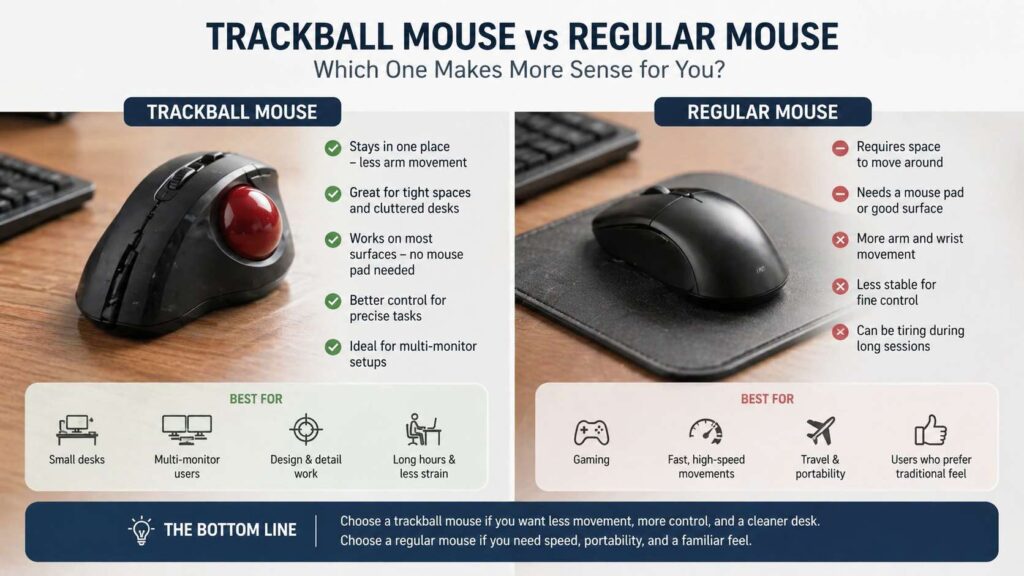
A regular mouse needs room to move. Your hand, wrist, forearm, and shoulder all help guide it across the desk. A trackball works from one fixed spot, so it suits small desks, wide screens, shared work areas, and people who feel tired after long sessions.
This guide explains when a trackball mouse makes more sense, who should try one, and where a standard mouse still wins.
What Is a Trackball Mouse?
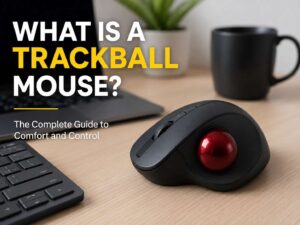
A trackball mouse is a pointing device with a built-in ball. You roll the ball to move the cursor. The base stays in one place.
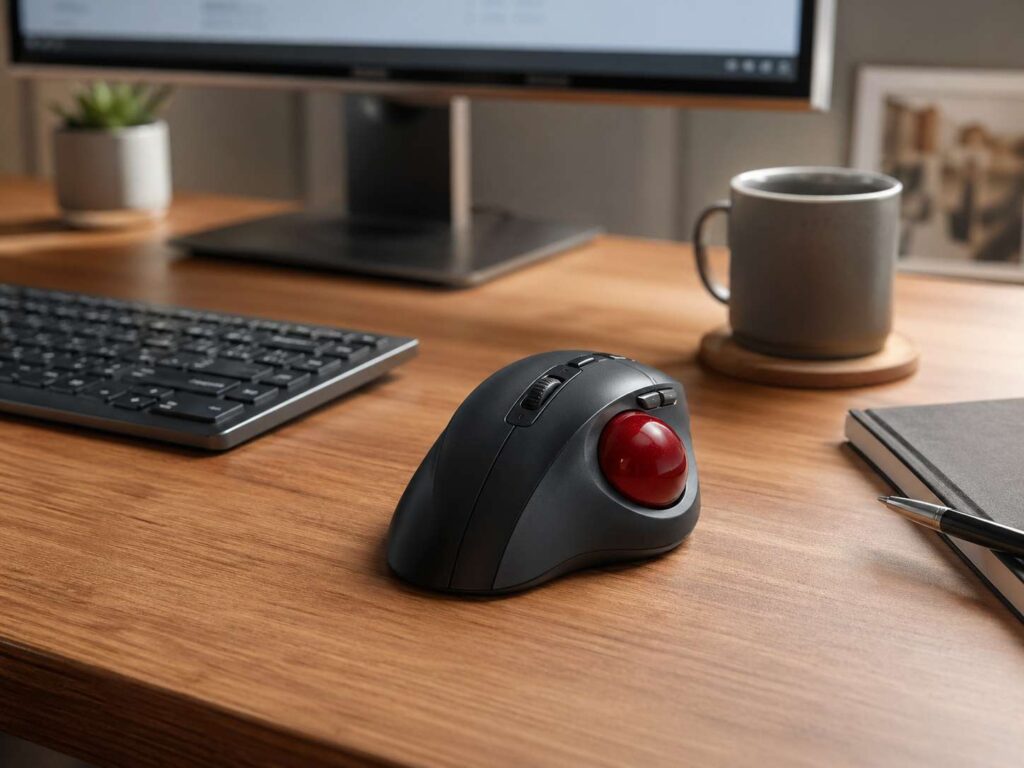
Some models use a thumb-controlled ball on the side. Others place a larger ball in the center, so your fingers do the work. Both styles can feel comfortable, but they suit different hands and habits.
A thumb trackball feels closer to a normal mouse. Your palm rests on the body, your fingers click the buttons, and your thumb controls movement. A finger trackball feels less familiar at first, but it suits precise cursor control.
People often search for a trackball mouse for wrist pain, small desk setup, ergonomic mouse alternative, or stationary mouse. Those searches all point to the same idea: less movement across the desk.
A Trackball Mouse Makes Sense on a Small Desk
Small desks make regular mice harder to use. You run out of space. The mouse hits the keyboard. Your wrist bends at a poor angle. Then you lift the mouse, move it back, and repeat the same motion all day.
A trackball removes most of that problem. It only needs enough space for the device itself. You can place it beside the keyboard and leave it there.
This helps in home offices, dorm rooms, compact apartments, studio setups, and shared workstations. It also works well on a keyboard tray, a side table, or a crowded desk with notebooks, speakers, chargers, and a coffee mug nearby.
A small desk mouse should feel stable. Look for rubber feet, a solid body, and buttons you can reach without stretching. Wireless models reduce cable clutter, but wired models work well if you want a simple setup with no battery checks.
It Reduces Large Arm Movements
A normal mouse asks your arm to move again and again. The movement feels small at first. After hours of browsing, editing, clicking, dragging, and switching windows, your shoulder and forearm can feel tired.
A trackball mouse changes the workload. Your arm can stay closer to your body. Your shoulder does less sweeping motion. Your wrist does not need to drag the device across a pad.
This is one of the main reasons people compare a trackball vs mouse for office work. The trackball does not suit every user, but it clearly helps in workspaces where constant mouse movement feels annoying.
Programmers, writers, analysts, editors, and support agents often spend many hours at a computer. A stationary mouse can make that daily routine feel calmer, since the device stays in one predictable spot.
It Can Help With Wrist Comfort
A trackball mouse can support better wrist comfort, but it does not fix every pain issue. The device still needs the right size, angle, and placement. Your grip matters too.
Keep the trackball close to your keyboard. Your elbow should rest near your body. Your wrist should stay straight, not bent sharply to the left, right, up, or down.
Use a light touch. It is easy to grip a new mouse too hard, especially during the first few days. That tension can create new discomfort. Let your hand rest on the device and move the ball with small, gentle motions.
A thumb trackball can feel natural if you already like shaped ergonomic mice. A finger trackball can feel better if your thumb gets tired quickly. Test both styles if you can, since comfort depends on your hand size and work habits.
Trackball Mouse vs Vertical Mouse
A trackball mouse and a vertical mouse solve different problems.
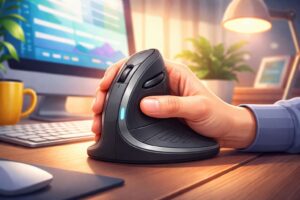
A vertical mouse changes your hand angle. It puts your hand in a more handshake-like position, but you still move the whole mouse across the desk. A trackball keeps the device still, so your thumb or fingers control cursor movement.
People who ask what is a vertical mouse often want less wrist strain. That makes sense. A vertical mouse can feel more natural than a flat mouse for some hands.
A trackball makes more sense when desk space, arm movement, and surface control matter more. It works even on poor surfaces, and it does not need a wide mouse pad.
You can also keep both devices. Switching between them during the day changes the load on the hand. That can feel better than using one device for every task.
It Works Well With Large or Multiple Monitors
A large monitor gives you more screen space, but it also asks for more cursor travel. Two or three monitors make that distance even greater.
A regular mouse often needs more arm movement in this setup. You raise pointer speed to cross the screens faster, but then the cursor can feel too jumpy. Lower the speed, and the movement takes more effort.
A trackball gives you a different balance. You can roll the ball fast to move across screens, then slow down for small buttons, menus, and text fields.
Finger trackballs often feel strong here, since the larger ball gives smooth movement across long distances. Thumb models can work too, especially for users who want a mouse-like shape with less desk travel.
For multi-monitor work, tune pointer speed carefully. Start with a medium-high setting. Test it across your full screen width. Lower it if you overshoot small targets. Raise it if you need too many ball rolls.
It Can Improve Precision in Detail Work
A trackball can feel very steady during detail work. The base does not move, so your hand does not need to control the device and the cursor at the same time.
That can help with photo editing, spreadsheet work, timeline editing, audio tools, CAD navigation, and text selection. Small cursor moves feel easier once you learn the ball motion.
Many trackballs include extra buttons too. You can set them for back, forward, middle click, copy, paste, or app shortcuts. A scroll ring or large wheel can make long documents and timelines easier to move through.
Precision takes practice, though. The first day can feel slow. Dragging files or selecting text can feel strange. After a few work sessions, the motion starts to feel more natural.
It Works on Surfaces Where a Regular Mouse Struggles
A regular mouse needs a good surface. Some sensors struggle on glass, shiny desks, fabric, couch cushions, or uneven tables.
A trackball avoids that issue in daily use. Its sensor reads the ball inside the device, not the desk below it. That makes it useful for living room PCs, standing desks, repair benches, mobile carts, studio desks, and travel setups.
You can place a trackball on a side table, lap desk, or keyboard tray and use it right away. No mouse pad needed.
This benefit matters more than it sounds. A normal mouse can feel great on a clean desk, then feel poor in a tight or awkward setup. A trackball keeps the same feel across many locations.
Thumb Trackball or Finger Trackball?
A thumb trackball is the easiest starting point for many people. The shape feels close to a regular mouse. Your hand rests on the body, and your thumb moves the cursor.
This style suits users who want a simple switch. It also works well for office tasks, browsing, email, and daily computer use.
The main drawback is thumb fatigue. If your thumb already feels tired from phone use, controllers, or previous strain, a thumb model may not feel right after long sessions.
A finger trackball uses the index and middle fingers to move the ball. It suits fine control and long cursor movement. The ball is often larger, so movement can feel smooth and steady.
The tradeoff is the learning curve. Button placement can feel unusual. Clicking and moving at the same time takes practice. Give this style several days before judging it.
Where a Trackball Mouse Does Not Make Sense
A trackball mouse is not the best choice for everyone. Fast gaming can feel harder, especially in shooters that need quick camera movement. You can learn it, but a standard mouse remains the easier tool for speed.
The cleaning routine also matters. Dust and skin oil can build up around the ball supports. If movement feels rough or sticky, pop out the ball and clean the contact points with a soft cloth.
You may never like the feel. A regular mouse gives direct hand movement, and that can feel more natural for quick gestures. A trackball asks your hand to learn a new pattern.
Skip a trackball if you need instant comfort today. Try one if your current mouse setup creates space problems, shoulder fatigue, or poor surface tracking.
How to Set Up a Trackball Mouse
Place the trackball close to your keyboard. Do not reach forward for it. Keep your elbow near your side and your wrist straight.
Next, adjust pointer speed. Start slightly higher than your usual mouse speed. A trackball should cover the screen with small ball movement, not constant rolling.
Then set the buttons. Keep the layout simple at first. Back, forward, and middle click are useful for most people. Copy and paste can help office users. A precision button can help editors and designers.
Clean the ball once a week at first. Remove the ball if the design allows it. Wipe the ball and clear dust from the small support points. This keeps movement smooth and predictable.
Give yourself time. The first few hours can feel clumsy. After a week, you may stop thinking about the new motion and start working at a normal pace.
Who Should Try a Trackball Mouse?
A trackball mouse makes the most sense for people who work long hours at a computer. Office workers, writers, editors, coders, designers, analysts, and customer support teams are good examples.
It also suits people with compact desks, wide monitors, limited arm movement, crowded work areas, or poor mousing surfaces.
A thumb trackball fits users who want a familiar shape. A finger trackball fits users who want more precise ball control and do not mind a short learning period.
Do not buy only based on product photos. Check hand size, button placement, scroll type, wireless support, software support, and return policy. Real comfort only shows up after normal daily use.
Final Verdict
A trackball mouse makes more sense when a regular mouse asks for too much space or too much arm movement. It can help with small desks, multi-monitor setups, detail work, and awkward surfaces.
It will not suit every hand, and it will not replace a gaming mouse for every player. Still, for office work and long computer sessions, it can turn a cramped setup into a cleaner and more comfortable one.
Start with the style that matches your main concern. Choose a thumb trackball for a familiar feel. Pick a finger trackball for more precise control. Then adjust pointer speed, keep your grip light, and give your hand time to learn the movement.