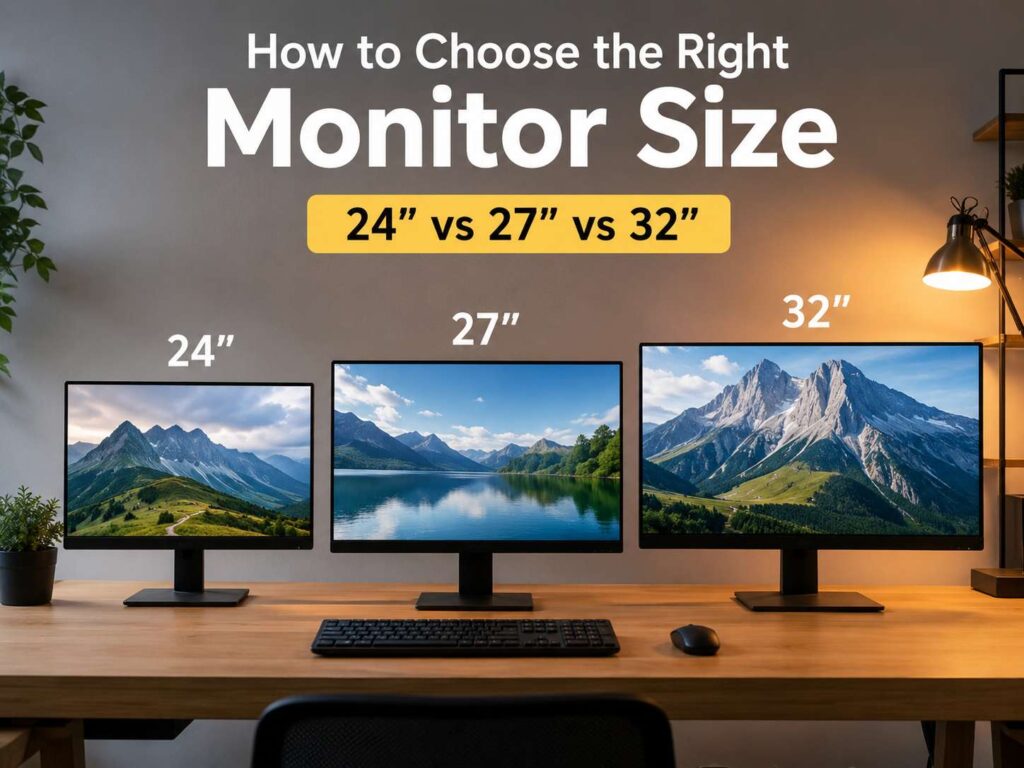
Start with the way you use your screen
Choosing the right monitor size sounds simple at first. You pick a bigger screen, place it on the desk, and get more room to work. In practice, size only tells part of the story.
A good monitor should match your desk, your eyes, your computer, and your daily tasks. A 24-inch screen can feel perfect in a small room. A 32-inch screen can feel sharp and roomy on a deep desk. The same 32-inch screen can feel too close on a narrow desk.
So, start with your real use. Do you write, browse, and answer emails most of the day? A 24-inch or 27-inch monitor will serve you well. Do you edit photos, manage large spreadsheets, code, or keep several windows open? Then a 32-inch monitor or an ultrawide screen can save time and reduce constant window switching.
For many buyers, the safest choice is a 27-inch monitor with 1440p resolution. It gives more space than 24 inches, yet it still fits most desks. It feels sharper than 1080p at that size too.
Match monitor size with desk depth
Desk depth plays a huge role in comfort. A large screen placed too close can make your eyes scan too much. Your neck can move more than it should. After a long workday, that can turn into eye strain, shoulder tension, or plain fatigue.
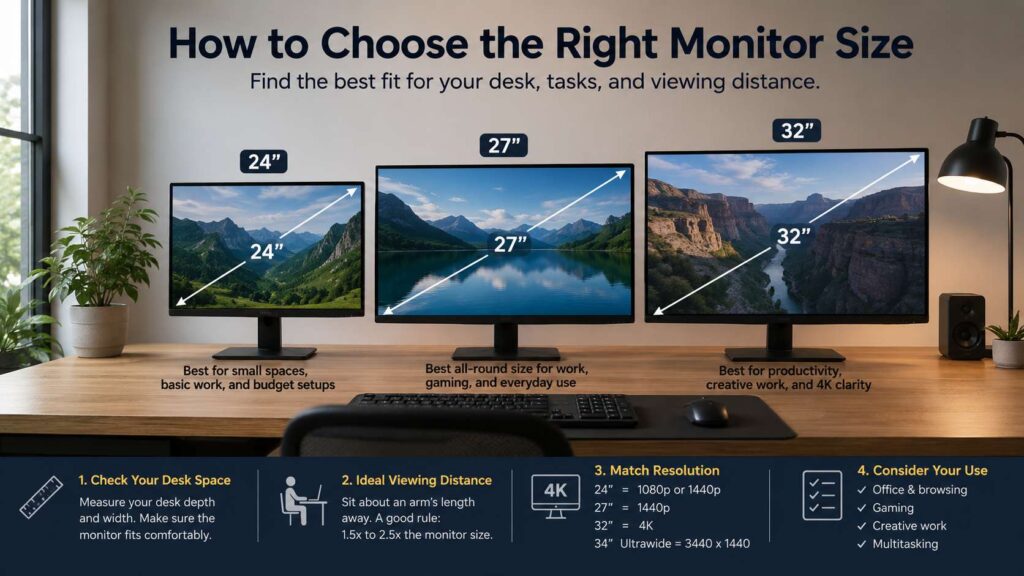
A shallow desk works best with 24 inches or 27 inches. A deeper desk gives you more room for 32 inches, 34 inches, or larger screens. The screen should sit roughly an arm’s length away. The top edge should sit near eye level, and the main viewing area should stay slightly below your natural line of sight.
That setup helps your posture. It keeps the screen from feeling too tall too. A monitor arm can help here, since it frees desk space and makes height changes easier.
Choose 24 inches for small desks and simple work
A 24-inch monitor remains a smart pick for small rooms, shared desks, student setups, and basic office work. It fits almost anywhere. It costs less than most larger screens. It works well with 1080p resolution, so you do not need an expensive computer to run it.
This size suits email, documents, browser tabs, online classes, light photo edits, and general home use. It can feel tight for split-screen work, yet it still handles one main task at a time with no problem.
For gamers, 24 inches still has a place. Competitive players often like this size since the whole screen stays easy to see at once. Less eye movement can help in fast shooters and esports titles.
A 24-inch monitor makes the most sense for budget buyers, compact desks, and users who value focus over screen space.
Choose 27 inches for the best all-round balance
A 27-inch monitor is the sweet spot. It feels larger than 24 inches, but it does not take over the desk. You can place two windows side by side, read text comfortably, and still keep speakers, a keyboard, and a mouse in a normal layout.
For office work, 27 inches gives you enough room for writing, research, video calls, and browser-based tools. For gaming, it feels more immersive than 24 inches. For creative work, it gives a larger canvas without forcing you into a huge setup.
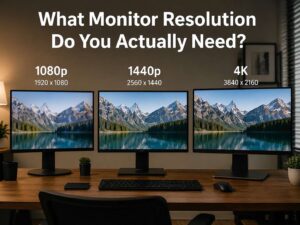
The best match for this size is 1440p. A 27-inch 1080p monitor can work, but text looks less crisp. A 27-inch 4K monitor looks sharp, yet text and menus can feel small without scaling. That is why 1440p lands in the middle so well.
For a deeper comparison, read this guide on 1440p vs 4K monitors. It will help you decide whether higher resolution makes sense for your desk and budget.
Choose 32 inches for 4K, creative work, and more space
A 32-inch monitor gives you a much larger workspace. It works well for photo editing, video editing, spreadsheets, design tools, coding, and research-heavy work. You can keep more panels open and see more detail at once.
This size pairs best with 4K resolution. At 32 inches, 4K gives crisp text and plenty of room. It makes photos, videos, and detailed layouts look cleaner too. For office tasks, 32 inches can replace a smaller dual-monitor setup.
At the same time, this size needs space. A shallow desk can make a 32-inch screen feel too close. So, measure first. Check the width of the monitor, the stand depth, and the distance from your chair to the wall.
A 32-inch monitor is a strong choice for users who spend long hours at a desk and need room for real work. It is less ideal for tiny rooms or very fast competitive gaming.
Choose an ultrawide monitor for multitasking
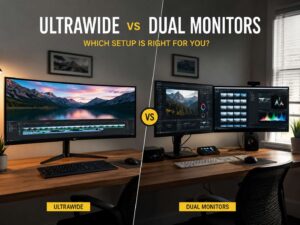
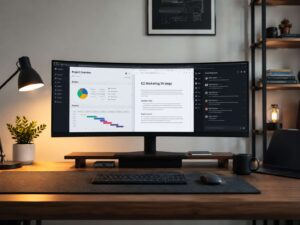
Ultrawide monitors usually start around 34 inches. They give you extra width instead of extra height. That wider format works well for timeline editing, coding, finance dashboards, writing with research on the side, and daily multitasking.
A 34-inch ultrawide feels like two smaller monitors merged into one screen. You get a cleaner desk and no bezel in the middle. Window snapping tools help a lot here. They let you divide the screen into two or three useful zones.
An ultrawide monitor is not the best choice for every user. Some games support it well, and some do not. Some web pages look too wide, so you will often keep apps in separate window zones.
Still, for productivity, an ultrawide monitor can feel natural after a few days. It works best for users who hate switching windows and want one wide workspace.
Think about resolution before size
Monitor size and resolution must work together. Size controls how large the screen looks. Resolution controls how sharp the image looks. A large screen with too few pixels can look soft, mostly with text.
Use this simple pairing guide:
24 inches: 1080p works well, 1440p looks sharper.
27 inches: 1440p is the best balance.
32 inches: 4K is the best match for sharp text and large workspace.
34 inches ultrawide: 3440 x 1440 is a common and useful target.
40 inches and larger: 4K or higher works best for desktop use.
For example, a 27-inch 1080p monitor gives you a bigger image, but not more sharpness. A 27-inch 1440p monitor gives you more workspace and cleaner text. Then a 32-inch 4K monitor gives you both size and detail, as long as your desk has enough depth.
Pick the right size for gaming
Gaming needs a different view of monitor size. You need screen size, resolution, refresh rate, response time, and graphics power to work together.
For competitive gaming, 24 inches to 27 inches makes the most sense. The screen stays easy to scan, and you can react fast. A 24-inch 1080p high-refresh monitor can still serve esports players well. A 27-inch 1440p high-refresh monitor gives a better mix of detail and speed for most PC gamers.
For single-player games, racing games, sports titles, and console gaming, 27 inches to 32 inches feels more immersive. A 32-inch 4K monitor works well with modern consoles and powerful PCs. It gives rich detail, but it asks more from your hardware.
For sim racing and flight games, a 34-inch ultrawide or larger curved screen can feel more natural. Just check support for your favorite games first.
Pick the right size for office comfort
Office comfort does not stop with the screen. Your keyboard, chair, mouse, and desk height matter too. A huge monitor will not fix a poor setup.
For writing and admin work, 24 inches or 27 inches feels comfortable. For spreadsheets, dashboards, and multitasking, 27 inches or 32 inches works better. For users who keep chat, email, docs, and web tools open all day, a 34-inch ultrawide can reduce tab switching.
Your mouse settings matter as part of the same desk setup. A very large screen often needs more pointer travel, so cursor speed can affect comfort. This guide on whether DPI matters on office mice explains how mouse sensitivity affects daily work.
Next, look at the monitor stand. Height adjustment, tilt, and swivel can make a bigger difference than an extra inch of screen size. A good stand lets you place the screen where your eyes and neck feel relaxed.
Avoid the most common monitor size mistakes
Buying the biggest monitor within budget can work, but it can create problems. A large low-resolution screen can make text look rough. A big monitor on a shallow desk can feel tiring. A very wide screen can waste space if your apps do not use it well.
Another common mistake is ignoring the stand. Some large monitors use bulky stands that eat up desk depth. A monitor arm can solve this problem, but you need a desk that can support it.
Next, check your computer. A 4K gaming monitor needs more graphics power than a 1440p screen. For office work, most modern laptops can handle 4K output, but port support still matters. Check HDMI, DisplayPort, USB-C, refresh rate limits, and laptop dock support before you buy.
A better plan is simple. Pick the size first, match the resolution, then check your desk and ports.
Quick size recommendations
For basic home use, choose 24 inches. It is simple, affordable, and easy to fit.
For most work and gaming setups, choose 27 inches with 1440p resolution. This gives the best mix of space, sharpness, and comfort.
For creative work and large spreadsheets, choose 32 inches with 4K resolution. It gives more room and cleaner detail.
For multitasking, choose a 34-inch ultrawide. It can replace two smaller screens.
For esports, choose 24 inches or 27 inches with a high refresh rate. Speed and visibility matter more than size.
For console gaming at a desk, choose 32 inches with 4K. It matches modern console output well and gives a strong visual experience.
Final advice
The right monitor size should make your day easier. It should not force you to lean forward, turn your head all the time, or fight blurry text.
For most buyers, 27 inches is the best starting point. Pair it with 1440p, and you get a screen that works for office tasks, gaming, school, browsing, and light creative work. For more space and sharper detail, move to 32 inches with 4K. For heavy multitasking, look at a 34-inch ultrawide.
So, do not buy by size alone. Measure your desk. Think about your main tasks. Match the resolution to the screen. Then choose a monitor that feels comfortable after hours of real use, not just one that looks impressive in a product photo.