The quick answer
A 1440p monitor is the better pick for most people. It gives you sharp image quality, smooth gaming, fair pricing, and lower strain on your graphics card.
A 4K monitor gives you a cleaner image, sharper text, and more screen detail. It works best for photo editing, video editing, console gaming, coding, and large 32-inch screens.
So, the choice is not just 1440p vs 4K. Screen size, refresh rate, GPU power, desk distance, panel type, and budget all matter. For most PC gamers, 1440p still offers the best balance. For people who care about crisp text and fine detail, 4K feels better every day.
What 1440p and 4K actually mean
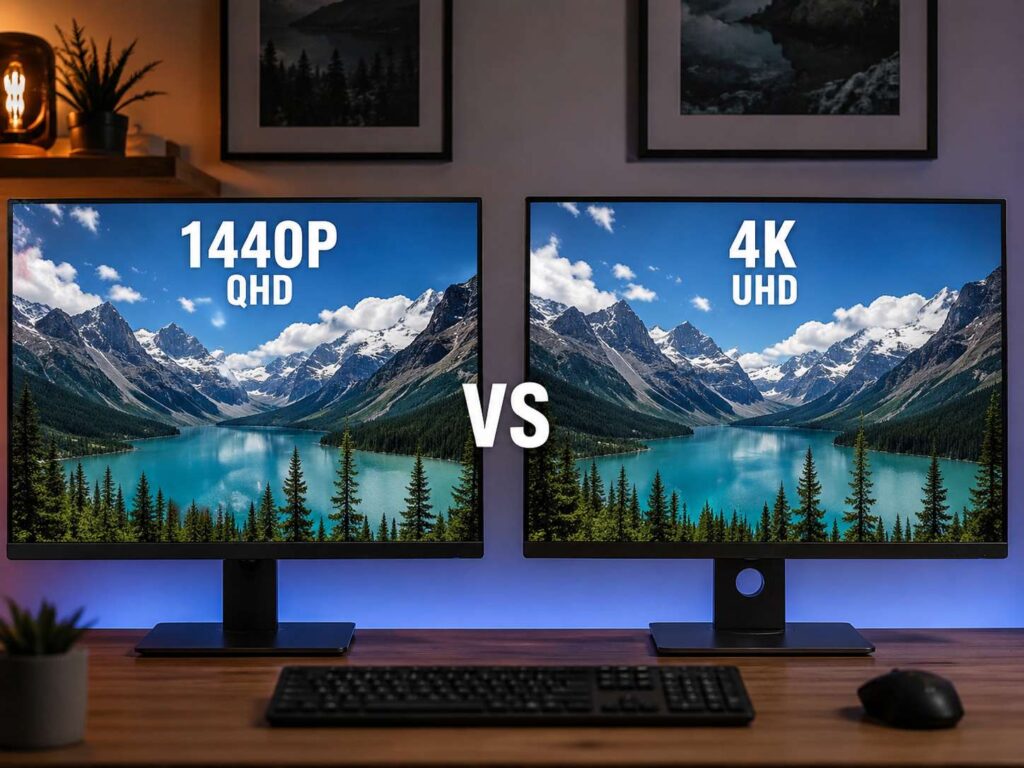
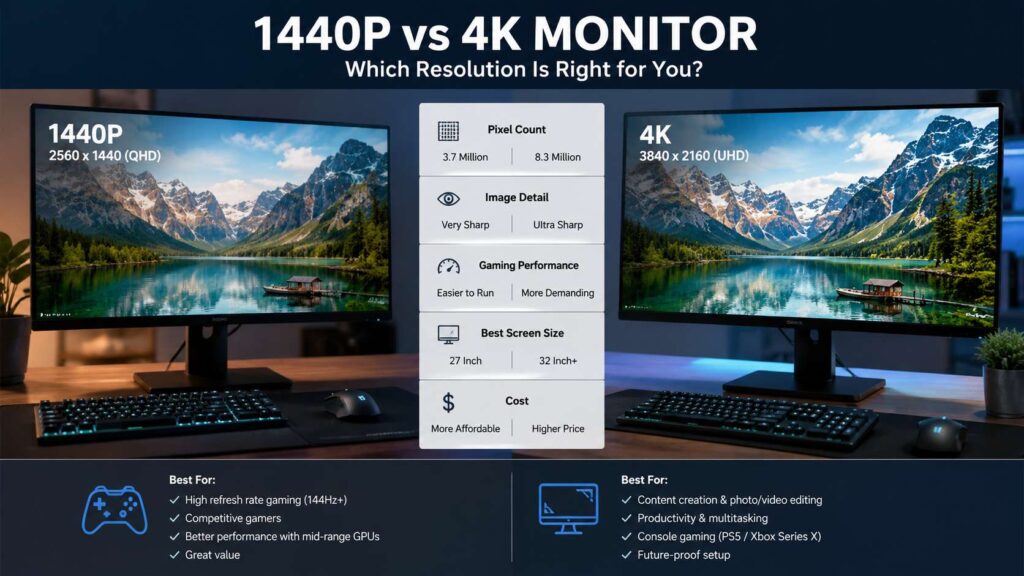
A 1440p monitor usually has a resolution of 2560 x 1440 pixels. You may also see it called QHD or WQHD. It has about 3.7 million pixels on the screen.
A 4K monitor usually has a resolution of 3840 x 2160 pixels. You may see it called 4K UHD or UHD. It has about 8.3 million pixels.
That means 4K has more than twice as many pixels as 1440p. The image can look sharper, but your PC must work harder too. Games need more graphics power. Video files look cleaner. Text can look smoother. At the same time, price goes up, and high refresh rate 4K monitors cost more.
1440p feels like the real upgrade from 1080p. It gives more workspace, better detail, and a cleaner image without the heavy cost of 4K.
Image sharpness and screen size
Screen size changes how each resolution feels.
A 27-inch 1440p monitor is one of the safest choices. Text looks clear, games look sharp, and Windows scaling usually stays simple. You get more room than 1080p, but you do not need a huge desk or a very expensive PC.
A 32-inch 4K monitor gives you a larger, cleaner workspace. It works well for writing, editing, design, spreadsheets, and multitasking. You can place two windows side by side and still have enough room to read comfortably.
A 27-inch 4K monitor looks very sharp too. Still, at that size you may need to raise scaling to 125% or 150%. That makes text easier to read, but it cuts down some of the extra workspace. For that reason, 32 inches often feels like the better size for 4K.
A 32-inch 1440p monitor can work, but it does not look as crisp as 27-inch 1440p. Text and icons look larger, so it suits users who sit farther away. Still, for close desk use, 27-inch 1440p gives a cleaner balance.
Gaming performance: 1440p wins for most PCs
Gaming is where the difference becomes clear.
A 1440p monitor asks your graphics card to push about 3.7 million pixels per frame. A 4K monitor asks for about 8.3 million pixels per frame. That is a much heavier load.
For that reason, 1440p works better for high frame rates. It is easier to reach 144Hz, 165Hz, or 240Hz at 1440p than at 4K. Games feel smoother, input feels faster, and you can often use higher graphics settings.
A 4K monitor makes games look cleaner. Fine textures, distant objects, signs, grass, buildings, and shadows can look more detailed. Still, you need a strong graphics card to enjoy 4K at high settings. Ray tracing makes the load even heavier.
For competitive games, 1440p is usually the smarter pick. Shooters, racing games, battle royale games, and esports titles benefit more from high refresh rates than extra pixels.
For story games, open-world games, simulators, and slower single-player games, 4K can feel more impressive. The image looks rich and crisp, mainly on a 32-inch screen.
So, choose 1440p for speed. Choose 4K for detail.
Refresh rate matters more than it seems
Resolution gets most of the attention, but refresh rate changes the feel of the monitor.
A 1440p 144Hz monitor feels much smoother than a 4K 60Hz monitor. Mouse movement looks cleaner. Game motion feels quicker. Scrolling through long pages feels easier on the eyes.
A 4K 144Hz monitor gives both sharpness and smoothness, but the price rises fast. Your PC also needs enough power to reach high frame rates at that resolution.
For gaming, look for at least 144Hz. A 165Hz or 180Hz 1440p monitor gives great value. A 240Hz 1440p monitor suits competitive players. For office work, 60Hz can still work, but 100Hz or higher feels nicer for daily use.
Your full setup matters too. Monitor refresh rate, graphics card speed, mouse settings, and input delay all work together. For example, gamers who care about fast aiming should understand mouse sensitivity and polling rate too. You can read more about pointer settings in this guide on whether DPI matters on office mice, and this breakdown of 1000Hz vs 4000Hz vs 8000Hz polling rate.
1440p vs 4K for PS5 and Xbox Series X
Console users should look at 4K more closely.
The PS5 works best with a 4K 120Hz display. Many games target 4K output, and HDMI 2.1 helps unlock smoother high-refresh play. A 1440p monitor can still work well, but 4K fits the console better.
Xbox Series X handles both 1440p and 4K well. That makes 1440p a strong value pick for Xbox players. You can get 120Hz gameplay at a lower price, and the image still looks sharp on a 27-inch screen.
For a premium console desk setup, a 4K 120Hz monitor makes the most sense. For a cheaper setup, a 1440p 120Hz or 1440p 144Hz monitor still gives a smooth, clean picture.
Console buyers should check HDMI 2.1 support. Some monitors list high refresh rates but limit them through certain ports. So, check the exact port specs before buying.
1440p vs 4K for work and productivity
For work, both resolutions feel better than 1080p.
A 1440p monitor gives you more space for browser tabs, documents, spreadsheets, email, and chat apps. It works very well at 27 inches. Text stays readable, and you do not need strong scaling.
A 4K monitor gives sharper text and more room. This helps writers, coders, editors, designers, analysts, and anyone who works with many windows. Fonts look cleaner. Small icons look smoother. Long reading sessions can feel easier with the right brightness and scaling.
A 32-inch 4K monitor can replace two smaller screens. You can keep a document on one side and a browser on the other. Then you can open notes, chat, or a video call without feeling cramped.
Still, 1440p is enough for most home offices. It costs less and works well with almost any modern desktop or laptop.
1440p vs 4K for photo editing, video editing, and design
Creative work often benefits from 4K.
Photo editors get more visible detail. It becomes easier to check sharpness, crop images, clean up small marks, and review fine texture. Video editors get more space for timelines, preview windows, media bins, and tools.
A 4K monitor also helps when editing 4K footage. You can view more detail without zooming as much. This makes color checks, framing, and focus checks easier.
Still, resolution is not the only thing that matters. Color accuracy matters more for serious editing. Brightness, contrast, panel type, uniformity, and calibration support matter too. A good 1440p monitor with accurate color can beat a cheap 4K monitor with weak color.
For design and editing, 4K is the better long-term choice. For light Canva work, basic photo edits, and general content tasks, 1440p still works well.
GPU needs and total cost
A 1440p monitor usually saves money in more than one way.
The monitor itself often costs less. Your graphics card does not need to work as hard. Your PC may stay useful longer. You can keep high frame rates without buying the most expensive GPU.
A 4K monitor raises the total cost. You may need a stronger graphics card, more video memory, better cooling, and better cables. Games may need lower settings to stay smooth.
For office use, this matters less. Most modern laptops can run a 4K monitor for documents, browsing, and video. Gaming changes the story. A weak GPU can run a 4K desktop, but it will struggle in demanding games.
Match the monitor to the PC. A midrange gaming PC fits 1440p very well. A high-end PC makes 4K gaming much more realistic.
Panel type can change the whole experience
Do not buy by resolution alone.
IPS panels offer good color, wide viewing angles, and solid speed. They work well for gaming, office work, and creative tasks.
VA panels often offer stronger contrast. Blacks can look deeper, which helps movies and dark games. Cheap VA monitors can show blur in dark scenes, so read reviews before buying.
OLED panels offer deep blacks, fast response, and excellent contrast. They look great for gaming and media. They cost more, and static desktop use needs some care.
Mini LED monitors can offer bright HDR and stronger local contrast than normal IPS or VA panels. Quality still varies a lot by model.
For gaming, check refresh rate and real response time. For work, check text clarity, coating, brightness, stand adjustment, USB-C, and warranty. For editing, check color accuracy and calibration features.
A great 1440p monitor can feel better than a cheap 4K monitor. So, panel quality matters as much as pixel count.
Best monitor size for 1440p and 4K
For 1440p, 27 inches is the sweet spot. It gives sharp text, strong gaming performance, and good desk comfort. It is easy to feel at home with it right away.
For 1440p at 32 inches, choose it only if you prefer larger text or sit farther back. It gives a bigger image, but it loses some sharpness.
For 4K, 32 inches is the best all-round size. It gives you more screen space and better sharpness. It also makes scaling feel more natural.
For 27-inch 4K, choose it for very sharp text and a compact desk setup. Just expect to use scaling. For 40-inch or larger 4K screens, check desk depth first. Large screens can feel great, but they need space.
Buying checklist before you choose
Use this checklist before you buy a 1440p or 4K monitor:
Resolution: Pick 2560 x 1440 for QHD, or 3840 x 2160 for 4K UHD.
Screen size: Pick 27 inches for 1440p, or 32 inches for 4K.
Refresh rate: Pick 144Hz or higher for gaming.
Panel type: Pick IPS for balanced use, OLED for deep blacks and speed, or mini LED for better HDR.
Ports: Pick HDMI 2.1 for PS5 and Xbox Series X at 4K 120Hz.
DisplayPort: Use it for many PC gaming setups.
Adaptive sync: Look for FreeSync, G-Sync Compatible, or AdaptiveSync support.
Stand quality: Height, tilt, swivel, and pivot matter for daily comfort.
USB-C: Useful for laptop users, mainly with power delivery.
HDR: Check real brightness and certification, not only the HDR label.
GPU power: Pick 1440p for midrange PCs, and 4K for stronger systems.
Which one should you buy?
Buy a 1440p monitor if you want the best value. It is sharp, fast, and easier to run. It fits most gaming PCs, home offices, school setups, and everyday use. A 27-inch 1440p 144Hz or 165Hz monitor is still one of the best monitor choices in 2026.
Buy a 4K monitor if you want sharper text, more detail, and more room to work. It fits 32-inch screens, PS5, Xbox Series X, photo editing, video editing, coding, and premium desk setups. It costs more, but it can feel better for years.
For most buyers, 1440p is the smarter pick. For users who value clarity, large screens, and creative work, 4K is worth the higher price.