The choice is bigger than screen size
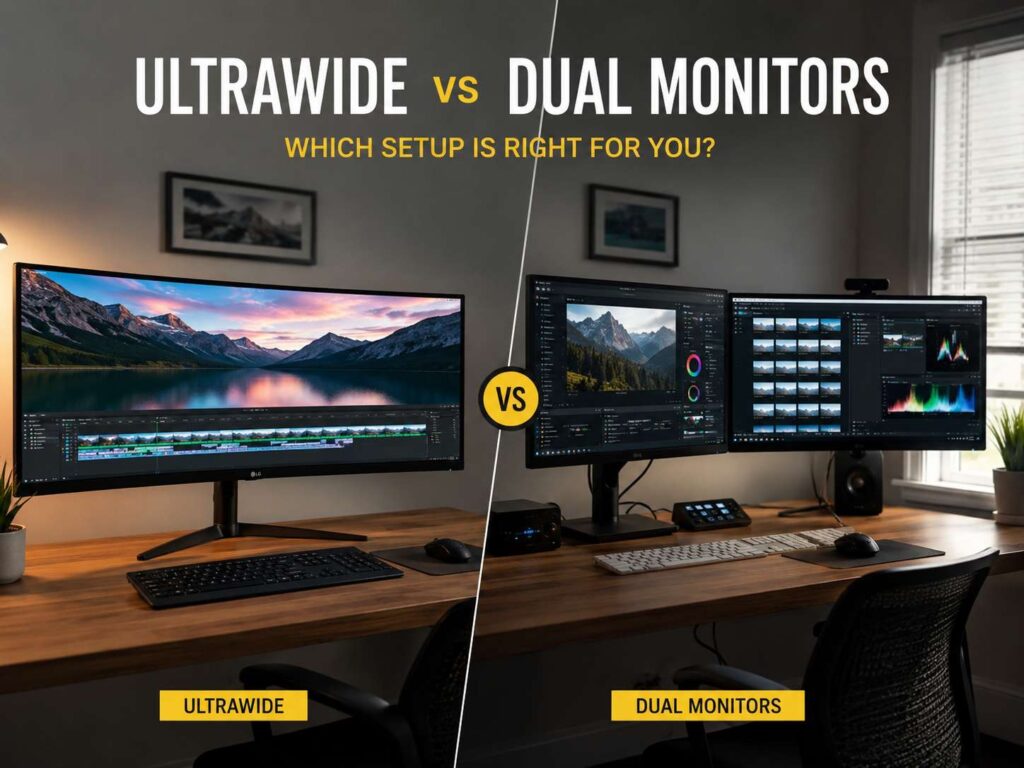
A better monitor setup can change how your desk feels every day. More screen space helps with work, gaming, school tasks, and simple home browsing. Still, the main question is not just “How big should my monitor be?” The better question is this: do you want one wide screen or two separate screens?
Ultrawide monitors and dual monitors both solve the same problem. They give you more room than a single basic display. Yet they do it in very different ways.
An ultrawide monitor gives you one clean panel with no middle gap. Dual monitors give you two clear work zones. So, the right choice depends on your desk size, your budget, and the way you move between tasks.
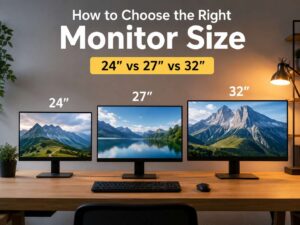
Before you buy, it helps to think about your desk depth too. A large display can feel great from the right distance, but cramped from too close. For a deeper look at sizing, this guide on the best monitor size for your desk explains how screen size fits real home office spaces.
What an ultrawide monitor feels like in daily use
An ultrawide monitor feels clean and simple. You get one screen, one stand, and fewer cables. That alone makes many desks look neater.
Most popular ultrawide monitors use a 21:9 aspect ratio. Larger models use 32:9, which feels closer to two screens joined into one panel. A 49-inch ultrawide with 5120 x 1440 resolution gives you a wide workspace that feels similar to two 27-inch QHD monitors side by side.
This setup works well for people who keep several windows open. You can place a browser on the left, a document in the center, and notes on the right. Since there is no bezel in the middle, your eyes move across the screen more naturally.
That clean view helps with spreadsheets, writing, video editing, photo editing, timelines, dashboards, and research. It also helps if you hate dragging windows between two displays.
Still, an ultrawide needs space. A 34-inch model fits many desks. A 49-inch model needs more width and a stronger desk. So, measure first. Width, depth, and viewing distance all matter.
What a dual monitor setup does better
A dual monitor setup gives you two separate screens. That sounds simple, but it changes how you work.
You can keep your main task on one monitor and place support apps on the second. For example, a writer can draft on one screen and keep research on the other. A developer can code on one display and test on the second. A student can watch a lecture on one monitor and take notes on the other.
This separation feels useful. It keeps tasks in their own places, so your desktop does not become one wide mess of windows.
Dual monitors also give you more physical control. You can angle one screen toward you. You can rotate one monitor into portrait mode. You can raise one screen higher and keep the other lower. For reading long pages, code, PDFs, or chat threads, a vertical second screen can feel very practical.
Price helps too. Two standard 27-inch QHD monitors often cost less than one premium ultrawide. Plus, upgrades feel easier. If you already own one good monitor, adding a second one costs less than replacing the full setup.
Productivity: clean flow or clear separation?
Productivity depends on how your brain likes to organize work.
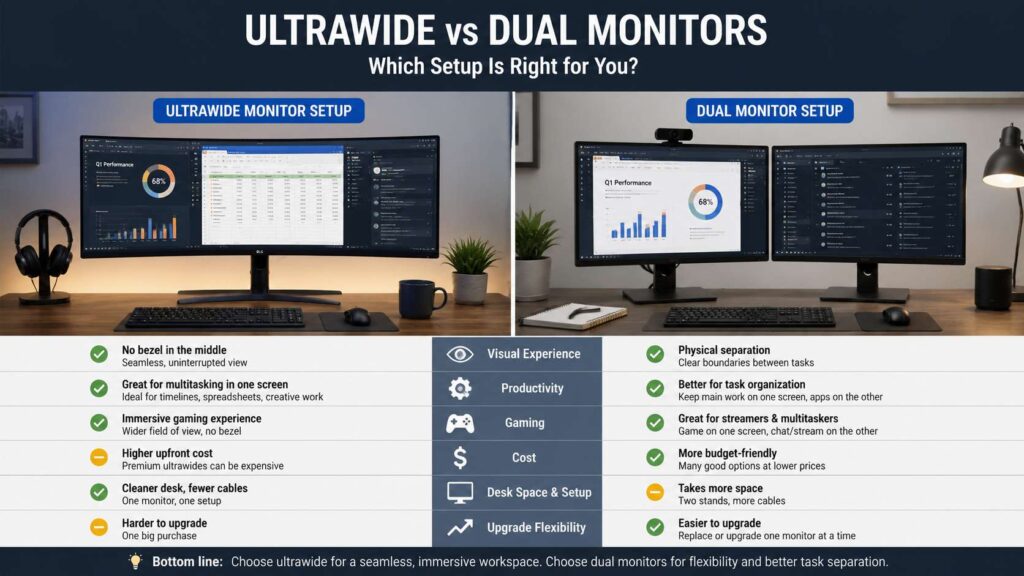
An ultrawide works best if you want one smooth workspace. You can stretch a spreadsheet, edit a long timeline, or compare documents without a line down the middle. The screen feels calm, and the desk looks tidy.
Dual monitors work best if you like separate zones. One display stays focused on the main task. The second holds email, chat, notes, browser tabs, or a preview window. For many office users, this feels faster.
So, which setup helps more? For deep focus, ultrawide wins. For switching between apps, dual monitors often win.
There is another point to consider: window management. Modern versions of Windows and macOS make large screens easier to use. Snap layouts, split views, and tiling tools help you place apps faster. As a result, ultrawide monitors no longer feel as messy as they did years ago.
Dual monitors still keep one advantage, though. Full-screen apps behave better. You can keep a video call, game, or presentation full-screen on one display and use the second monitor freely. That small detail matters during work calls, live streams, and online classes.
Gaming: immersion versus control
For gaming, ultrawide monitors feel more exciting. A curved ultrawide fills more of your view, and supported games can look wider and more natural. Racing games, flight simulators, open-world games, and strategy games often feel better on one large curved panel.
The missing bezel matters too. Two monitors create a gap in the center, which is not ideal for most games. For that reason, gamers rarely use dual monitors as one stretched gaming screen.
Still, dual monitors suit gamers who multitask. You can play on the main screen and keep Discord, music, OBS, browser guides, or chat on the second. Streamers often prefer this setup, since it keeps game and stream controls apart.
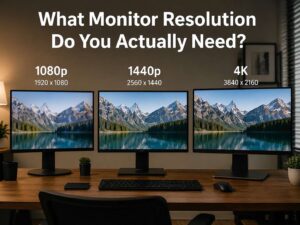
Resolution matters here. A 5120 x 1440 ultrawide pushes far more pixels than a regular 2560 x 1440 display. A high-refresh 4K or Dual UHD screen asks even more from the graphics card. So, check your GPU before you buy a premium gaming ultrawide.
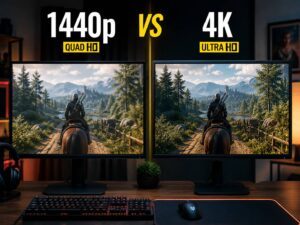
If resolution is part of your decision, this 1440p vs 4K monitor comparison can help you choose a sharper screen without wasting money on pixels your setup cannot use well.
Desk space, posture, and comfort
A monitor setup should look good, but it should also feel good after several hours.
With an ultrawide, place the center of the screen directly in front of your chair. This keeps your neck in a more natural position. A curved panel can help the edges feel closer, which matters on very wide models.
With dual monitors, choose a main screen. Put that display straight ahead. Then place the second monitor slightly to the side. If you use both screens equally, center the gap between them, but expect more head movement.
Desk depth matters here. A large monitor placed too close can feel overwhelming. It can also make your eyes move too much. A deeper desk gives a large screen more breathing room.
Monitor arms help both setups. They free up desk space and make height changes easier. Still, check the weight limit before buying an arm for a large ultrawide. Some 49-inch monitors need heavy-duty mounts.
Price and upgrade value
Budget often decides the winner.
Dual monitors usually offer better value. You can pair two 24-inch or 27-inch displays and get plenty of space for work. You can also buy one monitor now and add another later. That path keeps costs easier to manage.
Ultrawide monitors cost more, especially at 34 inches and above. Premium models with high refresh rates, USB-C hubs, OLED panels, Mini LED backlights, or 49-inch screens can get expensive fast.
Still, price is not only about the monitor. Dual setups can need extra cables, stands, arms, and more desk space. An ultrawide may cost more upfront, but it can clean up the desk and reduce setup hassle.
For long-term use, dual monitors win on flexibility. Ultrawide monitors win on simplicity and comfort for wide workflows.
Who should buy an ultrawide monitor?
Choose an ultrawide monitor if you want a cleaner desk and one large workspace. It suits people who work with wide content or many windows at once.
It is a strong fit for writers, video editors, designers, data analysts, finance users, and anyone who spends time in spreadsheets. A 34-inch ultrawide gives a nice balance for most desks. A 49-inch ultrawide suits users who want a premium command-center feel.
Gamers who want immersion should look at curved ultrawide models with strong refresh rates. Just make sure the graphics card can handle the screen’s resolution.
Who should choose dual monitors?
Choose dual monitors if you want better value and more control. This setup works well for remote work, school, coding, streaming, research, admin tasks, and customer support.
It also suits users who like a vertical second screen. That setup feels great for long documents, code, chats, and web pages.
Dual monitors make sense if you already own one display. Instead of replacing it, you can add a second one and build a larger workspace for less money.
Final verdict: ultrawide vs dual monitors
Ultrawide vs dual monitors is not a one-size answer. It is a desk-life choice.
An ultrawide monitor gives you a clean, modern setup with no center gap. It feels smooth for wide work, creative tasks, spreadsheets, and immersive gaming. It also reduces cable clutter and makes the desk look simpler.
Dual monitors give you more flexibility. They cost less in many cases, support portrait mode, and separate tasks clearly. They also make more sense for streaming, coding, research, and mixed work.
For most people, two 27-inch QHD monitors offer the best value. For a cleaner premium setup, a 34-inch or 49-inch ultrawide feels better. For gaming immersion, a curved ultrawide has the stronger appeal.
The best setup is the one that fits your desk, your eyes, and your daily habits. Buy for the work you do most often, not for the biggest screen you can fit.