A mouse looks like a small purchase. Then you start shopping and the prices jump fast. One model costs less than lunch. Another costs more than a full keyboard. Gaming mice, vertical mice, silent mice, wireless mice, and premium office mice all sit in different price bands.
So, how much should you spend on a mouse?
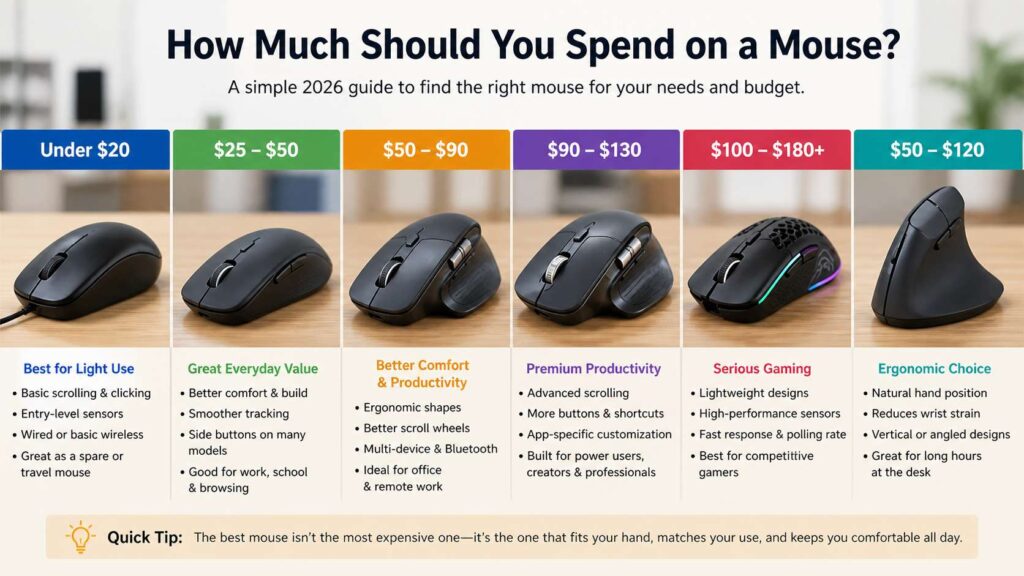
Most people get the best value between $25 and $80. That range covers better comfort, smoother scrolling, stronger wireless performance, and a shape that feels better during long sessions. A mouse under $20 can still work, but it often feels basic. A mouse over $100 makes sense for gamers, creators, heavy office users, and people who use a mouse for many hours each day.
Price alone does not tell the full story. Your hand size matters. Your grip style matters. Your desk setup matters too. The best mouse budget comes down to how often you use it and what you expect it to do.
The Best Mouse Budget for Most People
For everyday use, $30 to $60 is the smartest range.
This price range gives you a clear step up from cheap office mice. You get a better shape, cleaner tracking, a stronger scroll wheel, and fewer annoying issues. Many mice in this bracket include side buttons, quiet clicks, Bluetooth, or a USB receiver.
That makes them a good fit for school, browsing, light work, video calls, email, shopping, and normal home use.
Cheaper mice still have a place. A $10 or $15 mouse can work fine for a spare laptop bag or a guest computer. For daily use, though, the savings often feel smaller after a few weeks. Rough scrolling, stiff buttons, and a cramped shape can become irritating fast.
A good everyday mouse does not need a wild DPI number or flashy lights. It needs a comfortable grip, steady tracking, and buttons that feel right under your fingers.
Spend Under $20 for Light Use Only
A mouse under $20 works best for simple tasks.
This budget fits casual users who check email, browse the web, stream videos, or use a laptop from time to time. Basic wired mice can perform well at this price, and they avoid battery problems. Basic wireless mice can work too, but they often feel lighter and less refined.
The main trade-off is comfort. Many cheap mice use small shells, basic plastic, louder clicks, and simple scroll wheels. Some feel too narrow. Others feel too flat. After an hour or two, your hand can start to notice.
Tracking can also feel less stable on glossy desks, fabric surfaces, or cheap mouse pads. That does not mean every low-cost mouse is bad. It means you need to set realistic expectations.
Spend under $20 for a backup mouse, travel mouse, or very light computer use. For daily work, move up one price level.
Spend $25 to $50 for Daily Value
The $25 to $50 range is the best starting point.
Here, you can find a better wireless mouse, a quiet office mouse, or a simple gaming mouse with a decent sensor. Some models offer Bluetooth and 2.4 GHz wireless. Others add back and forward buttons, which help with web browsing and file work.
This range suits students, home users, light office users, and casual gamers. It also works well for people who need a reliable mouse but do not want to pay for premium extras.
Focus on shape first. A mouse that fits your hand will feel better than one with a huge feature list. Palm grip users often prefer a fuller body. Claw grip users need a shape that supports quick finger movement. Fingertip grip users usually like lighter, smaller mice.
A good mouse in this range should move smoothly, click cleanly, and feel natural after a full day of basic use.
Spend $50 to $90 for Work and Comfort
People who work at a desk all day should look at the $50 to $90 range.
This is where comfort starts to matter more. You can find better ergonomic shapes, stronger wireless performance, longer battery life, and nicer scroll wheels. Many models also support multiple devices, which helps if you switch between a laptop and desktop.
Office workers, remote workers, writers, developers, editors, and spreadsheet users often get better value here than in the cheapest range. Small features can save time every day.
Side buttons help with browser controls, copy actions, app shortcuts, and file navigation. A better scroll wheel helps with long documents and large pages. A more comfortable shell can reduce finger strain during long sessions.
For a deeper look at work-focused features, read this guide on the best productivity mouse features. It pairs well with this mouse price guide, since the right features often matter more than the highest price.
Spend $90 to $130 for Premium Productivity
A premium productivity mouse makes sense for people who use a mouse as a main work tool.
This price range often includes advanced scrolling, app profiles, extra buttons, thumb wheels, better materials, and stronger software support. These features help most with creative work, office work, coding, design, video editing, and large spreadsheets.
You do not buy this type of mouse for basic clicking. You buy it to reduce small repeated actions across a long workday.
A premium office mouse can help you move between apps faster. It can make long scrolling smoother. It can place shortcuts under your thumb. Over weeks and months, those small gains feel useful.
Still, this price range is not for everyone. A person who only browses the web for 30 minutes each evening will not get full value from a high-end work mouse. A simpler $40 model will feel more sensible.
Spend $100 to $180 for Serious Gaming
Gaming mice have their own price ladder.
A casual gamer can spend $40 to $80 and still get a strong mouse. This range covers good sensors, fast response, lighter bodies, and wired or wireless choices. That is enough for casual play.
Competitive players often spend $100 to $180. At that level, brands focus on very low weight, faster wireless performance, premium switches, better feet, and pro-style shapes. These details matter more in fast shooters, where aim, grip, and reaction time feel closely tied to the mouse.
The best gaming mouse price range changes by game type.
FPS players often care about weight, shape, sensor accuracy, and click response. MMO players often care about side buttons. Strategy players may prefer comfort and precise control. Casual players can skip the most expensive models and still enjoy a strong setup.
Do not pay extra for RGB lighting alone. It looks nice on a desk, but it does not improve aim or comfort. Spend the money on shape, sensor quality, button feel, and weight instead.
Ergonomic Mice Are Worth Paying More For
Comfort deserves a real budget.
A mouse that looks boring but fits your hand well can beat an expensive model that forces your wrist into a bad angle. This matters for long workdays, repeated scrolling, and heavy computer use.
Vertical mice, trackballs, wider office mice, and angled ergonomic mice all target different needs. Some people like a vertical mouse since it puts the hand in a handshake-style position. Others prefer a wider standard mouse with better palm support.
The right choice comes from your hand and desk, not from price alone.
Check how your wrist sits on the desk. Your arm should not stretch too far forward. Your hand should not twist sharply. The mouse should sit close enough to your keyboard so your shoulder stays relaxed.
Your full desk setup matters too. A better mouse helps, but keyboard height, chair height, monitor position, and noise all shape daily comfort. For focused work, good audio can help as much as good input gear. This guide on noise-canceling headphones in 2026 can help you build a calmer desk setup for work or study.
Cheap Mouse vs Expensive Mouse: What Changes?
A cheap mouse handles basic clicks. An expensive mouse usually improves comfort, control, build quality, and software features.
The biggest changes often show up in these areas:
Shape and grip feel
Scroll wheel quality
Button feel
Wireless stability
Battery life
Sensor performance
Weight
Extra buttons
Software control
Long-term comfort
A cheap mouse can feel fine at first. After a few weeks, rough edges become more obvious. The scroll wheel may feel loose. The clicks may feel loud. The body may feel too small. The feet may drag more on the mouse pad.
A better mouse often feels smoother and more predictable. That does not mean the most expensive option is always the best. It means there is a real difference between a basic mouse and a well-made one.
The sweet spot still sits in the middle.
What Features Are Worth Paying For?
Pay for comfort first. A mouse that fits your hand gives you better value than one with a long spec list.
Next, pay for a good scroll wheel. This matters for reading, research, long pages, spreadsheets, and editing. Smooth scrolling can make daily work feel much better.
Side buttons are worth paying for if you use browser back and forward, shortcuts, gaming commands, or app controls. They save small movements all day.
Wireless quality matters if you hate cable drag or use a laptop. A good wireless mouse should feel stable and quick. A poor wireless mouse can disconnect, lag, or feel inconsistent.
Battery life matters too. Some people prefer AA batteries since they are easy to replace. Others prefer built-in rechargeable batteries with USB-C charging. Both can work well.
Weight matters most for gaming. Lighter mice are easier to move fast. Heavier mice can feel more stable for office work. Pick based on your use, not a trend.
How Much to Spend by User Type
Casual laptop user: $15 to $30. Choose a small wireless mouse with decent battery life.
Student: $20 to $40. Look for portability, quiet clicks, and a shape that fits a backpack setup.
Everyday home user: $25 to $50. Get better comfort, stable tracking, and a scroll wheel that feels smooth.
Office worker: $40 to $80. Focus on hand comfort, side buttons, and a reliable wireless connection.
Remote worker: $50 to $100. Look for multi-device support, strong battery life, Bluetooth, and shortcut control.
Designer or editor: $80 to $130. Pick a premium productivity mouse with better scrolling and app controls.
Casual gamer: $40 to $80. Get a good sensor, a comfortable shape, and a weight you like.
Competitive gamer: $90 to $180. Look for low weight, quick response, strong wireless, and a shape that matches your grip.
Ergonomic buyer: $50 to $120. Test vertical, angled, or wider designs. Comfort matters more than extra features.
Mistakes to Avoid Before Buying
Do not buy only by DPI. The highest DPI settings are more than everyday use needs. Shape and control matter more.
Do not buy a tiny mouse just for travel if you plan to use it every day. Small mice can strain your fingers during long sessions.
Do not ignore your grip style. A mouse that works for palm grip can feel wrong for fingertip grip.
Do not overpay for lights. RGB can look nice, but it should not be the main reason you spend more.
Do not skip return rules. A mouse can look perfect online and feel wrong after one hour. Shape is personal.
Do not assume wireless always means better. A good wireless mouse feels great. A poor one feels frustrating. Wired mice still make sense for fixed desks and low budgets.
Final Buying Advice
Most people should spend $30 to $60 on a mouse. That range gives the best mix of comfort, price, and daily performance.
Spend less than $20 for light use, spare setups, or travel. Spend $50 to $90 for long workdays. Spend $90 to $130 for premium productivity features. Spend $100 to $180 for serious gaming needs.
The best mouse is not always the most expensive one. The best choice fits your hand, works well on your desk, tracks smoothly, and feels good after hours of use.
A mouse is a small tool, but you touch it thousands of times each week. Spend where it counts: shape, comfort, scrolling, button feel, and reliable connection.