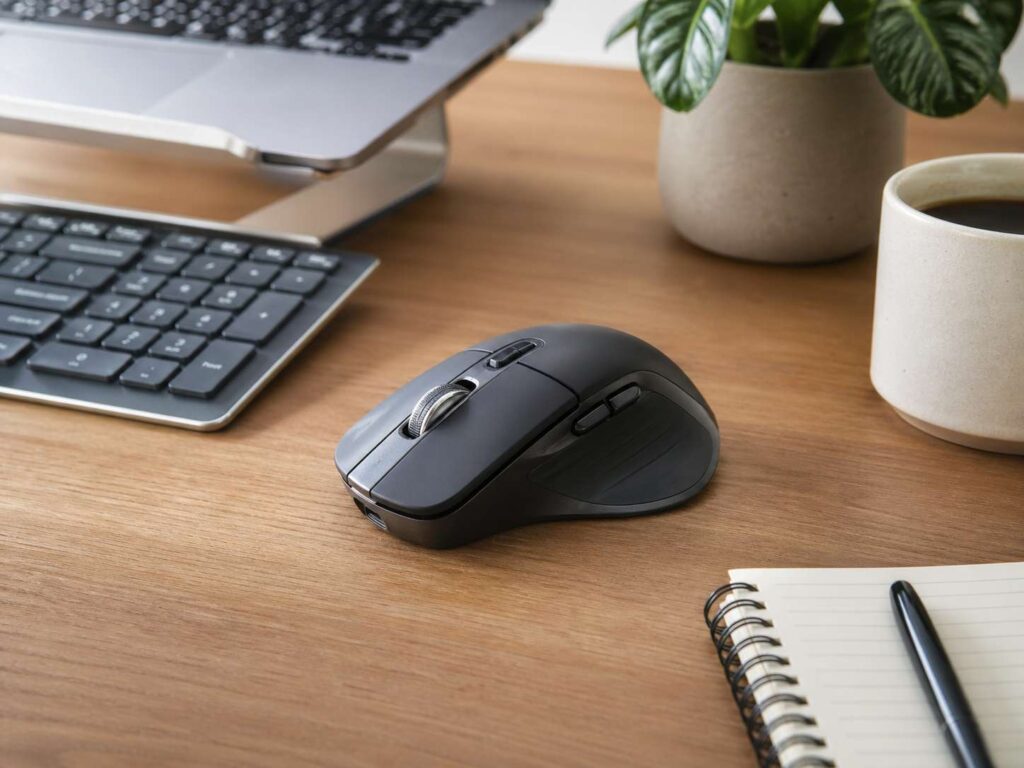
A good productivity mouse does more than move a cursor. It helps your hand stay relaxed, cuts small delays, and makes daily work feel smoother. The best option is not always the one with the highest DPI, the most buttons, or the biggest price tag. Instead, the right mouse fits your hand, matches your desk, and supports the way you work every day.
For office work, writing, research, spreadsheets, design, coding, and remote work, comfort should come first. After that, look at scrolling, button layout, wireless quality, battery life, and software controls. These details sound small at first. Still, they can change how your desk feels after a full week of work.
A great mouse should feel natural within minutes. Your hand should not fight the shape. Your fingers should not stretch for the buttons. Your wrist should not bend at an awkward angle. If the mouse gets these basics right, the extra features become much more useful.
Start With Comfort
Comfort is the first sign of a strong productivity mouse. A model can look premium and still feel wrong after 30 minutes. Your palm should rest in a natural position. Your fingers should land on the main buttons without effort. Your thumb should sit on the side without pressure.
Grip style matters here. Palm grip users often like a taller mouse with a fuller body. Claw grip users often prefer a medium shape with clear button control. Fingertip grip users usually need a lighter mouse that moves with less effort.
Mouse size matters too. A very small mouse can force your fingers into a tight bend. A very large one can spread your hand too far. Both issues can create fatigue during long work sessions. For that reason, the best productivity mouse is usually the one that feels boringly comfortable.
Weight also affects comfort. A heavier mouse can feel steady during slow tasks. A lighter mouse can feel better for large screens and fast pointer movement. So, rather than chasing the lightest model, choose a weight that feels controlled.
Pick a Shape That Supports Your Wrist
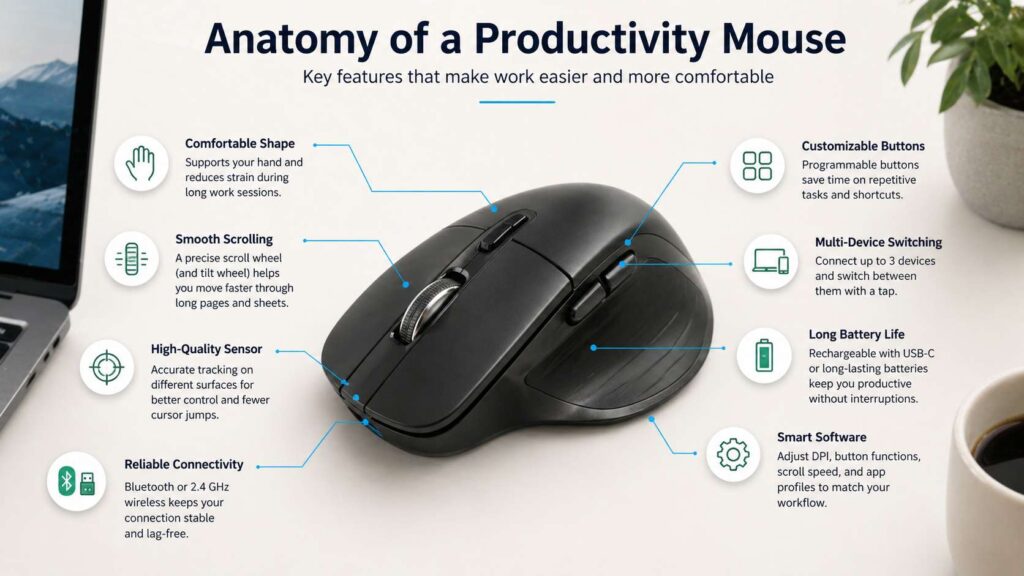
A good work mouse should help your wrist stay close to a neutral position. Flat mice look clean, but they can make some users twist the forearm more than expected. Taller ergonomic mice and angled mice can reduce that twist for many people.
A vertical mouse places the hand in a more natural handshake-style position. This design can feel strange at first, yet many users adjust after a few days. If you are not familiar with this shape, this guide on what is a vertical mouse explains how it works and why some users prefer it for long desk sessions.
Angled ergonomic mice sit between a regular mouse and a full vertical mouse. They keep a familiar button layout, but they reduce some wrist rotation. For many office users, this style gives a nice middle ground.
Trackballs can help in smaller desk setups too. A trackball stays in one place, so your thumb or fingers move the cursor. This can reduce shoulder movement, but it takes practice. Some people love the control. Others never enjoy the feel.
Choose Smooth Scrolling
Scrolling has a bigger effect on productivity than many people expect. Work often means long pages, large documents, dashboards, code files, and spreadsheets. A poor scroll wheel adds friction every day.
A good productivity mouse should have a wheel that feels precise. Each step should feel clear. The wheel should not wobble, skip, or feel loose. For reading and editing, that control matters.
Fast scrolling helps with long pages. You can flick the wheel once and move through many lines quickly. Then, when you need more control, a stepped mode helps you stop exactly where you want.
Horizontal scrolling can help too. Spreadsheet users, designers, video editors, and anyone working with wide tables will feel the difference. A thumb wheel or tilt wheel can save repeated hand movement. For writers, this feature may not matter much. For Excel-heavy users, it can feel like a real upgrade.
Look for Useful Buttons
Extra buttons can save time, but only when they match your habits. A mouse with 12 buttons can feel messy. A mouse with two well-placed thumb buttons can feel perfect.
Back and forward buttons help in browsers, folders, and research work. They reduce keyboard reach and speed up common navigation. A middle click can open links in a new tab. A gesture button can switch apps, show the desktop, mute audio, or take screenshots.
The best productivity mice let you set buttons per app. For example, one button can go back in Chrome, then copy in a spreadsheet, then switch tools in a design app. That kind of setup saves more time than a fixed button layout.
Placement matters more than the number of buttons. A button should sit where your thumb can reach it without strain. It should not trigger by accident. It should also give clear feedback, so your hand knows the click happened.
Quiet buttons can help too. In shared offices, calls, and late-night work, loud clicks can become distracting. A quiet mouse feels calmer during long sessions.
Do Not Chase DPI Alone
DPI gets too much attention. It affects how far the pointer moves when you move the mouse, but higher DPI does not automatically mean better productivity.
Most office users do not need extreme DPI. Large monitors, 4K screens, and multi-monitor setups can benefit from a wider DPI range. A higher setting lets the pointer cross more screen space with less hand movement. Lower settings give more control for detailed tasks.
Sensor quality still matters. A good mouse should track smoothly on your desk surface. It should not jump, stall, or jitter. This matters during text selection, drag-and-drop work, design edits, and spreadsheet use.
Pointer speed settings matter as well. Small changes can reduce hand movement and make the mouse feel more natural. So, after buying a new mouse, take a few minutes to adjust cursor speed and scroll behavior.
Check Wireless Quality
Wireless mice now make sense for most productivity setups. A cable can drag on the desk, catch on objects, or create clutter. A good wireless mouse should feel stable during normal work.
Bluetooth works well for laptops and tablets. A 2.4 GHz USB receiver can feel steadier for desktop setups, especially in busy wireless spaces. Many productivity mice offer both, which gives you more freedom.
Multi-device switching is one of the most useful work features. Many people use a laptop, desktop, tablet, or second computer. A mouse that switches between two or three devices can clean up the desk and reduce gear clutter.
Button placement matters here too. Some mice place the device switch button on the bottom. That works, but it slows you down. A top or side button feels better if you switch devices often.
Battery Life Should Fit Your Routine
Battery life does not matter as much as comfort, but it still affects your day. A mouse that dies during work breaks focus. Rechargeable models often last weeks on one charge. Battery-powered models can last months, though they add battery cost.
USB-C charging is a practical feature. It matches many modern laptops, docks, monitors, and chargers. Fast charging helps too. A short charge can often cover many hours of use, depending on the model.
Charging port placement matters more than it seems. A front charging port lets you use the mouse while it charges. A bottom port forces you to stop. During busy work, that detail can annoy you fast.
A clear battery indicator helps as well. A desktop notification, LED, or software alert prevents surprise shutdowns. For daily work, predictability matters.
Use Software Controls Wisely
Software can turn a simple mouse into a better work tool. Good mouse software lets you adjust buttons, scroll speed, pointer speed, gestures, and app profiles.
App-specific profiles are especially helpful. A thumb button can act as back in a browser, undo in a design app, and mute in a meeting app. This saves small amounts of time many times per day.
Good software should feel simple. It should open fast, save changes without errors, and stay out of the way. A productivity mouse loses value when its app feels confusing or heavy.
Privacy settings deserve a quick check too. Some apps ask for accounts, background services, or analytics. Turn off anything you do not need.
Match the Mouse to Your Main Work
A good productivity mouse depends on your main tasks. Writers and researchers should focus on comfort, quiet clicks, fast scrolling, and back-forward buttons. They do not need extreme DPI or many side buttons.
Spreadsheet users should care more about horizontal scrolling, precise wheel control, and programmable buttons. Wide sheets feel much easier when you can move sideways without dragging scroll bars.
Designers need stable tracking, good sensor control, and a shape that supports precision. A mouse that feels too heavy can slow detailed edits. At the same time, a mouse that feels too light can feel twitchy.
Coders often benefit from smooth scrolling, middle-click behavior, app switching, and button profiles. Long files make the scroll wheel very important.
Remote workers should look for quiet clicks, multi-device pairing, strong wireless, and long battery life. A mouse that works well across a laptop, monitor, and tablet setup saves time each day.
Travel users need a different balance. A compact mouse fits a bag and works in small spaces. Still, very small mice can cause hand strain during long work sessions, so they work best for short mobile use.
Think About Desk Setup Too
A good productivity mouse can still feel bad on the wrong desk. Place it close to the keyboard. Your elbow should stay near your body. Your shoulder should not reach forward all day.
A simple mouse pad can improve tracking and reduce wrist friction. It also protects the desk and gives the sensor a steady surface. For many users, this small change makes the mouse feel better right away.
Keyboard size affects mouse comfort too. A full-size keyboard pushes the mouse farther to the right. That can increase shoulder reach. A tenkeyless or compact keyboard brings the mouse closer, which often feels better during long sessions.
Your chair height matters as well. Your forearm should sit near desk level. Your wrist should not bend sharply upward. The desk edge should not press into your wrist or forearm.
Regular Mouse or Vertical Mouse?
A regular mouse still works well for many users. It feels familiar, offers strong control, and suits most tasks. For gaming-style precision, design edits, and fast pointer work, many people still prefer the classic shape.
A vertical mouse can make sense if your wrist feels tired after long sessions. It changes your hand angle and can reduce forearm rotation. The tradeoff is simple: it may feel less precise at first. After a short adjustment period, many users find it comfortable for office work.
If you are choosing between these two styles, this comparison of a vertical mouse vs regular mouse can help you decide which shape fits your desk, grip, and work habits.
The right choice is the one your hand accepts. Comfort should win over looks, brand names, and spec sheets.
Common Mistakes to Avoid
Many people buy a productivity mouse by specs alone. That often leads to a poor fit. High DPI, a premium brand, or a long feature list does not guarantee comfort.
Another common mistake is using a tiny travel mouse as a full-time desk mouse. It saves space, but it can strain the hand during long sessions. Travel mice work best for short use and mobile setups.
Some users ignore button placement. Extra buttons help only when they are easy to reach. Poorly placed buttons create mistakes and tension.
Default pointer settings can cause problems too. A better cursor speed can reduce hand movement. Better scroll settings can make long pages easier to handle. After setup, spend a few minutes tuning the mouse.
Ongoing pain, tingling, or numbness needs attention. Change the mouse shape, desk position, or work routine early. Small changes can prevent bigger problems later.
Best Features to Look For
A strong productivity mouse should feel comfortable first. After that, it should add features that save time without making the mouse harder to use.
Look for these features:
Comfortable shape for your grip
Good size for your hand
Neutral wrist position
Smooth scroll wheel
Fast scrolling for long pages
Horizontal scrolling for wide work
Back and forward buttons
Programmable buttons
Quiet clicks
Stable Bluetooth or 2.4 GHz wireless
Multi-device switching
Long battery life
USB-C charging
Adjustable pointer speed
Software profiles for common apps
Reliable tracking on your desk surface
Not every user needs every feature. A writer can skip a thumb wheel. A spreadsheet user should value it. A designer should care more about sensor control. A remote worker should focus on quiet clicks, device switching, and battery life.
Final Thoughts
A mouse is good for productivity when it reduces effort. It should help your hand stay relaxed, move the pointer cleanly, and speed up common actions without extra thought.
The best productivity mouse is not the one with the longest spec sheet. It is the one that fits your hand, sits close to your keyboard, scrolls smoothly, tracks well, and gives you a few useful shortcuts.
For most people, a medium or large ergonomic wireless mouse works best. Smooth scrolling, two or more side buttons, adjustable pointer speed, and long battery life are the features that matter most. Users with wrist strain should test an angled or vertical shape. People who work across several devices should choose fast device switching.
A good mouse will not change your work overnight. Still, it can remove small annoyances. Over a full week, those small gains start to feel real.