What refresh rate means on an office monitor
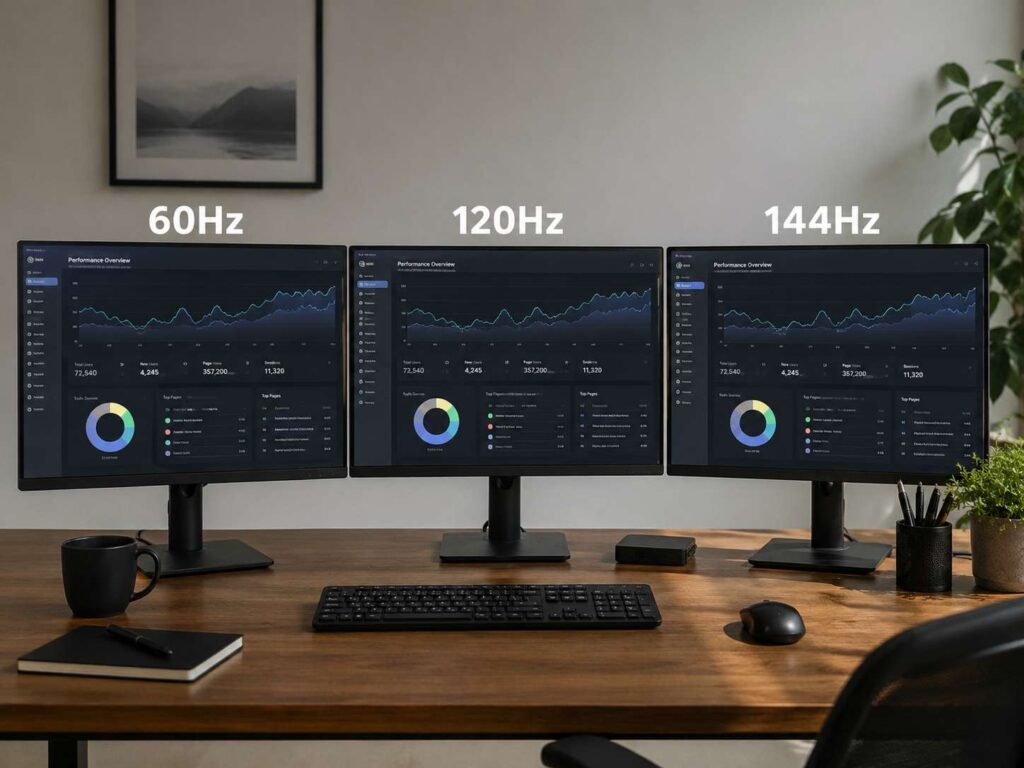
Refresh rate tells you how many times a monitor updates the image each second. A 60Hz screen refreshes 60 times per second. A 120Hz screen refreshes 120 times per second. A 144Hz screen refreshes 144 times per second.
That sounds technical at first, but the daily effect is easy to notice. Higher refresh rates make motion look smoother. So, your mouse cursor feels more direct. Web pages scroll with less blur. Windows move across the desktop with less judder. Long spreadsheets feel easier to follow as you move through rows and columns.
For office work, refresh rate does not make text sharper by itself. Resolution handles that. Still, refresh rate affects how the screen feels in motion. For example, a 60Hz monitor can show crisp text, but a 120Hz monitor can make scrolling through that text feel calmer.
Here is the simple timing difference:
- 60Hz refreshes about every 16.7 milliseconds.
- 120Hz refreshes about every 8.3 milliseconds.
- 144Hz refreshes about every 6.9 milliseconds.
So, 120Hz cuts the refresh delay in half compared with 60Hz. Then 144Hz improves it again, but by a much smaller amount. For that reason, most office users notice the jump from 60Hz to 120Hz more than the jump from 120Hz to 144Hz.
Is 60Hz still enough for office work?
Yes, 60Hz still works well for many office setups. If your day mostly includes email, writing, browser tabs, video calls, PDFs, accounting tools, and basic admin work, 60Hz can do the job without trouble.
The best reason to buy 60Hz is value. At the same price, a 60Hz monitor often gives you better resolution, better color, a better stand, or USB-C charging. Those features can matter more than motion.
For example, a 27-inch 4K 60Hz monitor can feel better than a cheaper 27-inch 1080p 144Hz monitor for office work. The 4K screen gives you sharper text, cleaner numbers, and more space for windows. So, writers, editors, analysts, and remote workers often gain more from 4K clarity than from a higher refresh rate.
A 60Hz monitor makes sense if:
- You want a low-cost work monitor.
- You mostly read, type, and use office apps.
- You want 4K resolution on a tighter budget.
- Your laptop or dock has basic display support.
- You do not notice motion blur during scrolling.
Still, 60Hz has a clear weak point. After you use 120Hz for a few days, 60Hz can feel slower. The difference shows up most during scrolling, mouse movement, and fast window changes. It does not ruin office work, but it does make the screen feel less smooth.
Why 120Hz is the best middle choice for productivity
For most people, 120Hz is the best refresh rate for office work. It gives a clear smoothness upgrade over 60Hz, but it does not feel excessive for a desk setup.
At 120Hz, scrolling feels cleaner. The cursor feels closer to your hand movement. Window animations look more natural. Long pages feel easier to scan. So, the whole setup feels more comfortable during a full workday.
Office work includes constant small movements. You scroll through websites. You drag windows. You move between apps. You highlight text. You scan long documents. Each action feels smoother on 120Hz.
For programmers, this difference can feel even more useful. Code files, logs, docs, and pull requests often involve long vertical scrolling. So, a 120Hz screen can make daily movement feel less jumpy. If you want a deeper look at that use case, this guide on whether programmers need a 144Hz monitor covers the coding side in more detail.
Choose 120Hz if:
- You work at your desk for 6 to 8 hours a day.
- You scroll through long web pages, documents, or code.
- You want smoother motion without buying a gaming-first display.
- You already use a 120Hz phone, tablet, or laptop.
- You want a monitor that feels modern for several years.
120Hz is the right balance. It improves comfort, but it does not force you to chase specs that add little value to normal office tasks.
Where 144Hz makes sense for office users
A 144Hz monitor can be excellent for office work, but it makes the most sense for mixed use. If you work during the day and game after hours, 144Hz is easy to justify. It gives you smooth desktop motion and better gaming performance in one screen.
For pure office work, 144Hz still feels good. The cursor glides smoothly. Scrolling looks clean. Large monitors feel more responsive. Yet the gain over 120Hz is modest. You go from 8.3 milliseconds per refresh to 6.9 milliseconds. That is only about 1.4 milliseconds faster.
So, 144Hz is a nice upgrade, not a must-have. The better reason to buy it is value. Many 144Hz monitors now cost close to 120Hz models, mainly at 1080p and 1440p. In that case, the higher refresh rate can make sense.
A 144Hz monitor fits well if:
- You want one monitor for work and gaming.
- You found a 144Hz model at a better price than a 120Hz one.
- You use a large screen and move windows often.
- You scroll through long spreadsheets, dashboards, or code.
- You want the smoothest common refresh rate without paying for 240Hz.
Still, do not buy 144Hz at the expense of text clarity. A sharp 120Hz screen beats a blurry 144Hz screen for office work. Text quality, resolution, panel type, and stand adjustment matter every day.
60Hz vs 120Hz vs 144Hz: practical office comparison
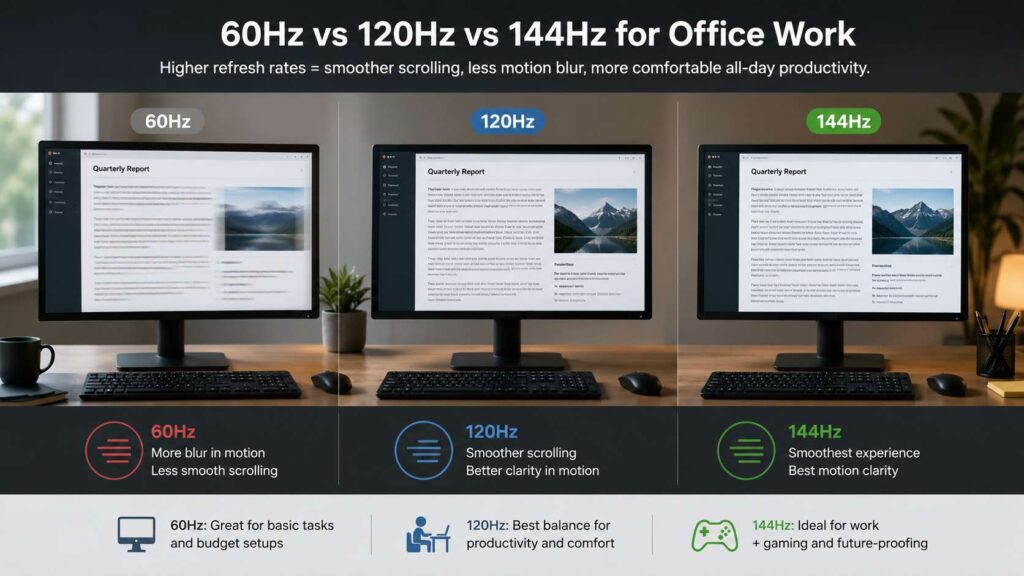
Here is the clean comparison:
| Refresh rate | Best use | Main strength | Main weakness |
|---|---|---|---|
| 60Hz | Basic office work and budget 4K setups | Lower price and wide support | Less smooth scrolling |
| 120Hz | Daily productivity, coding, research, remote work | Best balance of smoothness and value | Fewer cheap monitor options |
| 144Hz | Work plus gaming, fast scrolling, long-term setups | Very smooth motion | Small gain over 120Hz for office tasks |
For most desks, the ranking is clear:
- Best budget choice: 60Hz
- Best all-round choice: 120Hz
- Best work and gaming choice: 144Hz
Then comes the key point. Refresh rate should not be your only filter. For office use, a monitor needs clear text, good brightness control, a stable stand, and the right ports. If those basics fall short, a high refresh rate will not save the experience.
Text clarity matters more than refresh rate
Office work is text-heavy. You read emails. You write documents. You check numbers. You review dashboards. So, resolution can matter more than refresh rate.
A 27-inch 4K 60Hz monitor often gives a better work experience than a 27-inch 1080p 144Hz monitor. The 4K screen makes letters cleaner and gives you more space for apps. That helps during long work sessions.
Here is a simple size and resolution guide:
- 24-inch 1080p works for basic office use.
- 27-inch 1440p gives a strong balance for most desks.
- 27-inch 4K gives very sharp text.
- 32-inch 4K gives more room for split-screen work.
For many buyers, a 27-inch 4K screen is one of the best office upgrades. It gives you sharp text, clean spreadsheets, and enough room for two windows side by side. If that sounds close to your setup, this guide on whether a 27-inch 4K monitor is worth it can help you compare size, clarity, and value.
So, pick resolution first. Then pick refresh rate. A great office monitor should make text easy to read and motion pleasant to follow.
Eye comfort depends on more than Hz
On eye strain, a higher refresh rate can make motion feel smoother, so scrolling can feel easier. Still, refresh rate is only one part of comfort.
Eye comfort also depends on brightness, glare, text size, screen distance, room lighting, and breaks. A 144Hz monitor set too bright can still feel harsh. A 60Hz monitor placed well with good brightness can feel comfortable for many hours.
Use these simple habits:
- Match screen brightness to the room.
- Keep the monitor free from glare.
- Raise text size instead of leaning forward.
- Place the top of the screen near eye level.
- Keep the screen at a comfortable distance.
- Blink often during long work sessions.
- Look away from the screen at regular points.
For comfort, 120Hz is a good upgrade. But do not treat it as a cure for every desk problem. Lighting and posture still matter.
Laptop, dock, and cable support
Before you buy a 120Hz or 144Hz monitor, check your laptop, dock, and cable. The monitor can support a high refresh rate, but your setup still needs enough display bandwidth.
This matters most with 4K monitors and USB-C docks. Some docks support 4K at 60Hz but not 4K at 120Hz. Some HDMI ports support high refresh rates only at lower resolutions. Some cables look the same but support different speeds.
Check these details before you buy:
- The monitor’s refresh rate at your chosen resolution.
- The laptop’s HDMI, USB-C, Thunderbolt, or DisplayPort support.
- The dock’s display limits.
- The cable rating.
- The monitor’s refresh rate on each input.
- The graphics chip support for your target setup.
For example, 1440p at 144Hz is easier to run than 4K at 144Hz. So, a 27-inch 1440p 144Hz monitor can be a safer pick for many laptops. A 4K 120Hz monitor can be excellent, but it needs stronger port support.
Best refresh rate by office task
Different jobs benefit from different monitor specs. Here is a practical guide.
For email and admin work, 60Hz is enough. You gain more from a clean panel, a good stand, and enough screen space.
For writing and editing, text clarity comes first. A 4K 60Hz monitor can work very well. Still, 120Hz feels smoother during long scrolling sessions.
For coding, 120Hz is a strong pick. It makes code movement, cursor tracking, and file navigation feel cleaner.
For spreadsheets, resolution and size matter most. A 32-inch 4K monitor gives you more room. Still, 120Hz helps as you move through large sheets.
For design work, color and resolution come first. Then refresh rate adds a smoother feel during canvas movement.
For video calls, refresh rate matters less. Webcam quality, speakers, microphone, and screen placement matter more.
For mixed work and gaming, 144Hz is the best choice. It handles daily tasks well and gives you smoother games after work.
What to buy in 2026
For most office users in 2026, 120Hz is the best choice. It gives the biggest smoothness gain over 60Hz, yet it still feels practical for work. It improves scrolling, cursor movement, and window handling in a way you can feel every day.
60Hz still makes sense for budget buyers. It also works well for people who want 4K clarity at a lower price. So, do not ignore a good 60Hz monitor if it has the right size, resolution, ports, and stand.
144Hz makes sense for work and gaming, or for buyers who find a strong deal. It feels very smooth, and many 144Hz monitors now offer good value. Still, the office-only gain over 120Hz is small.
The best buying order is simple:
- Pick the right size.
- Pick the right resolution.
- Pick a good panel.
- Check the stand and ports.
- Then choose the refresh rate.
That order protects you from buying a fast monitor that feels poor for real work.
Final verdict
Choose 60Hz if you want a low-cost office monitor, a budget 4K screen, or a basic display for simple work.
Choose 120Hz if you want the best refresh rate for office work. It gives the best mix of comfort, smoothness, and value for most people.
Choose 144Hz if you want one screen for productivity and gaming, or if the price is close to a similar 120Hz model.
For most desks, 120Hz is the smartest pick. It makes daily work feel smoother without pushing you into specs that do little for emails, documents, spreadsheets, and web apps.