The quick answer
Most people should spend $200 to $300 on a monitor. This range gives you the best balance of price, size, sharpness, and comfort. It usually gets you a 27-inch 1440p screen, an IPS panel, a refresh rate above 100Hz, and a stand that feels better than the cheapest models.
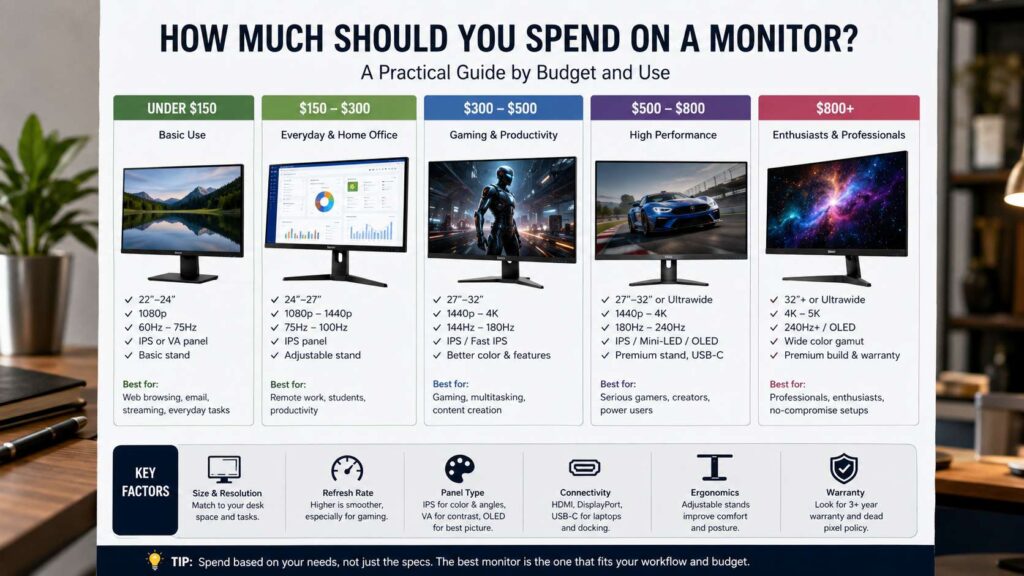
Still, the right monitor budget changes with your setup. A simple home user can stay near $150. A remote worker should aim closer to $250. A gamer often gets better results near $300 to $500. A creator, MacBook user, or OLED buyer should expect a higher price.
A monitor is not like a mousepad or cable. You look at it for hours every day. For that reason, it makes sense to spend a little more on the screen that fits your eyes, desk, and daily work.
Best monitor budget by type of user
For basic home use, plan to spend $100 to $170. This works well for email, bills, web browsing, video calls, and light streaming. Choose a 24-inch 1080p IPS monitor with HDMI and at least 75Hz. A 100Hz model feels nicer for scrolling, so pick one if the price stays close.
For office work, spend $180 to $300. A 27-inch 1440p monitor gives you more room for documents, browser tabs, spreadsheets, chat apps, and dashboards. Text looks sharper than 1080p, but the price stays fair.
Students should aim for $120 to $250. A 24-inch 1080p screen fits small desks and dorm rooms. A 27-inch 1440p screen makes more sense for coding, research, writing, and long study sessions.
For casual gaming, spend $180 to $350. Look for 1080p at 144Hz or 1440p at 144Hz to 180Hz. This price range gives a big jump over an old 60Hz monitor.
For serious gaming, plan for $350 to $700. That range covers better 1440p panels, 240Hz screens, entry OLED deals, and 4K high refresh monitors. Match the screen to your PC. A weak graphics card will struggle with 4K gaming.
How much to spend for a home office monitor
A strong home office monitor should cost $200 to $350. The safest pick is a 27-inch 1440p IPS monitor with 100Hz or more. It gives you enough room for two windows side by side, and the text stays clear at normal desk distance.
Next, check the stand. Height adjustment matters more than built-in speakers. A bad stand forces your neck into an awkward angle. A good stand lets you raise, lower, tilt, and rotate the screen.
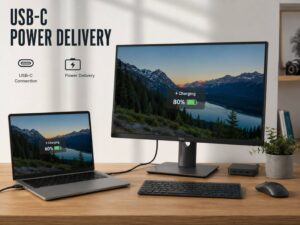
For laptop users, a USB-C monitor makes sense. Spend $350 to $600 for a model with video, charging, and USB ports through one cable. Look for at least 65W power delivery. For larger laptops, choose 90W or more.
So, what is the sweet spot for remote work? A 27-inch 1440p IPS monitor around $250 is the safest answer. It feels roomy, looks sharp, and does not waste money on gaming features you will not use.
How much to spend for gaming
For budget gaming, spend $180 to $300. A 24-inch 1080p 144Hz monitor works well for esports and tight desks. A 27-inch 1440p 144Hz screen gives a better all-around experience if your PC can handle it.
For most PC gamers, $300 to $500 is the stronger range. You can get 1440p, fast refresh rates, better motion handling, and nicer colors. For gaming, that combination beats a cheap 4K screen.
For premium gaming, spend $600 to $1,000. This is where OLED, 4K high refresh, and better HDR monitors sit. The picture looks richer, and motion feels cleaner. Still, this tier only makes sense with a strong PC or a current console.
Console gamers should focus on 4K and HDMI features. A PlayStation 5, PlayStation 5 Pro, or Xbox Series X works best with a 4K monitor that supports 120Hz over HDMI. Expect to spend $300 to $600 for a good match.
How much to spend for 4K
A basic 4K monitor starts to make sense around $280 to $450. This works well for writing, coding, spreadsheets, streaming, and console use. A 27-inch 4K monitor gives very sharp text. A 32-inch 4K screen gives a larger view and feels more relaxed.
For better 4K, plan for $500 to $900. This gets you stronger color, higher refresh rates, USB-C, better stands, and better panel quality. For photo editing and video work, that extra money can pay off.
But do not buy 4K just for the label. A 27-inch 1440p monitor often gives better value for normal work and PC gaming. It costs less, runs easier on a graphics card, and still looks sharp.
Price ranges that make sense
Under $100, expect the bare minimum. These monitors work for spare PCs, reception desks, or short daily use. They often have weak stands, lower brightness, and fewer ports.
From $100 to $200, you can buy a solid 24-inch 1080p monitor. This is a good range for basic users, students, and second screens. Aim for IPS, HDMI, DisplayPort, and 75Hz or better.
From $200 to $300, you enter the best value zone. A 27-inch 1440p IPS monitor in this range fits most desks. It is the price range I would start with for work, school, and mixed use.
From $300 to $500, the choices get stronger. You will see 4K office monitors, better gaming screens, 32-inch models, and USB-C displays. This range suits people who use a screen for many hours each week.
From $500 to $800, you start paying for premium features. Expect better color, better contrast, stronger USB-C docking, ultrawide screens, Mini-LED options, and OLED sales.
Above $800, buy only with a clear reason. This tier fits OLED gaming, large ultrawide screens, pro color work, 5K monitors, and premium 4K setups. Many everyday users will not get enough extra value from this level.
Screen size and resolution
A 24-inch 1080p monitor still works well for small desks. It is cheap, clear enough, and easy to place. It also fits esports players who sit close to the screen.
A 27-inch 1440p monitor gives the best balance. It has more room than 1080p and costs far less than premium 4K. It is the safest monitor size and resolution combo.
A 27-inch 4K monitor is great for sharp text. Writers, programmers, designers, and MacBook users often like this size. Text looks crisp, but you may need display scaling.
A 32-inch 4K monitor works better for large desks. It gives more space for timelines, large spreadsheets, design tools, and console gaming. Avoid 32-inch 1080p. The image looks soft at normal desk distance.
An ultrawide monitor costs more, but it can replace two smaller screens. A 34-inch 1440p ultrawide works well for editing timelines, research, dashboards, and split-screen work. Check desk depth before buying one.
Refresh rate: pay for what you will feel
A 60Hz monitor works, but it feels old next to newer screens. For daily work, 75Hz or 100Hz already feels smoother.
A 144Hz to 180Hz monitor is the best target for mainstream gaming. Motion looks cleaner, mouse movement feels faster, and prices stay reasonable.
A 240Hz monitor fits competitive players. It needs a PC that can push high frame rates. For office work, it adds little value.
A 360Hz screen targets esports. Unless you play esports, spend that money on sharper resolution, better color, or a better stand instead.
Panel type: IPS, VA, OLED, and Mini-LED
IPS is the safest panel type. It gives good color, wide viewing angles, and fair prices. Choose IPS for office work, school, coding, and mixed use.
VA gives deeper contrast than many IPS screens. Cheap VA panels can show smearing in fast motion, so they work better for movies and slower games.
OLED gives deep blacks, excellent contrast, and very fast response. It looks great for games and movies. It costs more, and static desktop elements need care.
Mini-LED can improve HDR brightness and contrast. Quality changes a lot from model to model. Look for real dimming zones, not only a bold HDR badge.
Features worth paying extra for
Pay more for a better stand. Height adjustment, tilt, and swivel make daily use more comfortable. This matters more than RGB lights or weak speakers.
Pay more for USB-C if you use a laptop. One cable can handle video, charging, keyboard, mouse, and webcam. This keeps the desk cleaner and reduces cable clutter.
Pay more for a KVM switch if you use two computers. One keyboard and mouse can control both devices through the monitor. This helps a lot with a work laptop and personal PC.
Pay more for better color accuracy if you edit photos or video. Look for factory calibration, wide color coverage, good brightness, and strong panel uniformity.
Pay more for a clear warranty on OLED. Burn-in coverage and service terms matter. Read the warranty terms before you buy.
Features you can skip
Skip weak HDR on cheap monitors. Many budget screens accept an HDR signal, but they do not have the brightness or contrast for a true HDR image.
Skip built-in speakers if sound matters. Most monitor speakers sound thin. A basic pair of desktop speakers or headphones will sound better.
Skip 4K if your PC cannot drive it in games. A 1440p monitor with higher settings often feels better than 4K with low frame rates.
Skip the cheapest stand. It saves a little money, but it can make the whole setup feel worse.
Skip extreme refresh rates for office work. A 100Hz or 144Hz monitor already feels smooth for documents, browsing, and scrolling.
Do not forget the rest of your desk budget
A monitor is only one part of the setup. Your keyboard and mouse matter too, mainly if you work or play for hours each day. A better screen helps your eyes, but better input gear helps your hands and wrists.
For a balanced desk, do not spend your full budget on the monitor alone. For example, a $250 monitor, a $70 keyboard, and a $40 mouse will feel better than a $360 monitor paired with cheap input gear.
Need help setting the rest of the budget? Read this guide on how much you should spend on a keyboard and this guide on how much you should spend on a mouse in 2026. Together, they help you build a desk setup that feels balanced instead of lopsided.
The best value pick for most people
The best value pick is a 27-inch 1440p IPS monitor with 100Hz or more. It should have HDMI, DisplayPort, and a height-adjustable stand. Expect to spend $200 to $300.
This setup fits work, school, browsing, coding, casual gaming, and light editing. It looks sharper than 1080p. It costs much less than premium 4K or OLED. And it does not need a very powerful PC.
Choose 24-inch 1080p only for a tight budget or a small desk. Choose 4K for sharper text, creative work, or console gaming. Choose OLED for rich contrast and premium gaming. Choose ultrawide if you want one large screen instead of two smaller monitors.
Quick buying checklist
Before you buy, check these points:
- Size: 24 inches for small desks, 27 inches for most users, 32 inches for large desks.
- Resolution: 1080p for low budgets, 1440p for best value, 4K for sharper detail.
- Refresh rate: 100Hz for comfort, 144Hz to 180Hz for gaming, 240Hz for competitive play.
- Panel: IPS for most people, OLED for premium contrast, VA for deeper blacks on a lower budget.
- Ports: HDMI for consoles, DisplayPort for PCs, USB-C for laptops.
- Stand: height adjustment matters.
- Warranty: check the coverage length and OLED burn-in terms.
- Return policy: panel quality can vary from unit to unit.
Final buying advice
Avoid the cheapest monitor you can find. A $120 monitor can handle basic tasks, but it often feels cramped after a few months. A $250 monitor can feel right for years.
For the safest choice, spend $200 to $300 on a 27-inch 1440p IPS monitor. Spend less only for basic use or a second screen. Spend more for 4K, OLED, USB-C docking, strong color work, serious gaming, or an ultrawide setup.
The best monitor is not always the most expensive one. It is the one that fits your desk, your eyes, your computer, and your daily routine.