Why the choice matters
Buying a monitor looks simple at first. Then you start seeing refresh rate, response time, HDR, USB-C, OLED, IPS, 4K, ultrawide, color gamut, and adaptive sync. After a few minutes, every screen starts to sound “perfect.”
The real question is much easier. Do you need a monitor that makes games feel faster, or do you need one that makes long workdays more comfortable?
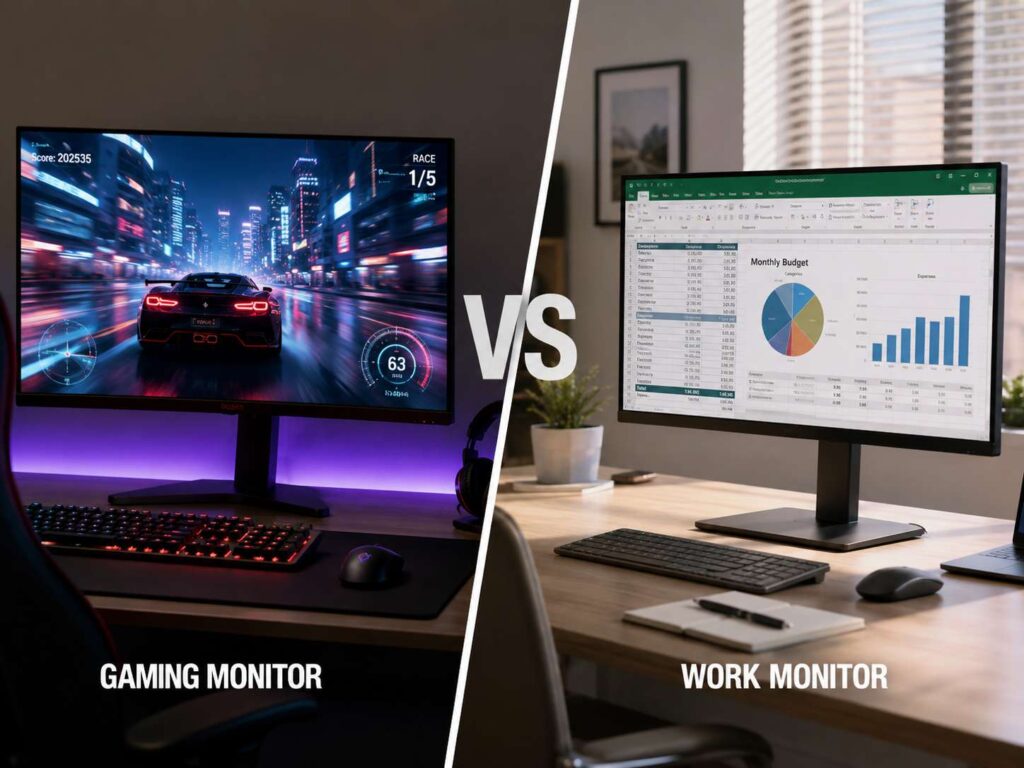
A gaming monitor and a work monitor can look similar on a desk, but they focus on different things. Gaming monitors usually put speed first. They focus on smooth motion, fast response, low input lag, and stronger gaming features. Work monitors care more about sharp text, screen space, comfort, ports, color accuracy, and easy laptop docking.
Still, you may not need one extreme or the other. A good hybrid monitor can handle office work during the day and gaming at night. The trick is knowing which specs matter and which ones only sound impressive on the product page.
Start with how you use your screen most
Your main use should guide the whole decision. A monitor can have great specs and still feel wrong for your daily routine.
Pick a gaming monitor if you play fast games often, such as:
- Competitive shooters
- Racing games
- Esports titles
- Battle royale games
- Sports games
- Fast action RPGs
In these games, motion matters. A 144Hz or 165Hz screen feels much smoother than a basic 60Hz monitor. Mouse movement feels more direct, camera motion looks cleaner, and fast targets become easier to follow.
Pick a work monitor if you spend more time on:
- Writing
- Coding
- Spreadsheets
- Research
- Admin work
- Photo editing
- Video editing
- Remote work
- Multi-window productivity
For work, sharp text and comfort matter more than extreme speed. You need enough space for windows, a clear image, and a stand that does not force your neck into a bad position.
For mixed use, the safest choice is a 27-inch 1440p monitor with at least 144Hz. It gives you clear text for work and smooth motion for games. That is why this format has become one of the best choices for home office and gaming setups.
Refresh rate: the gaming spec that actually matters
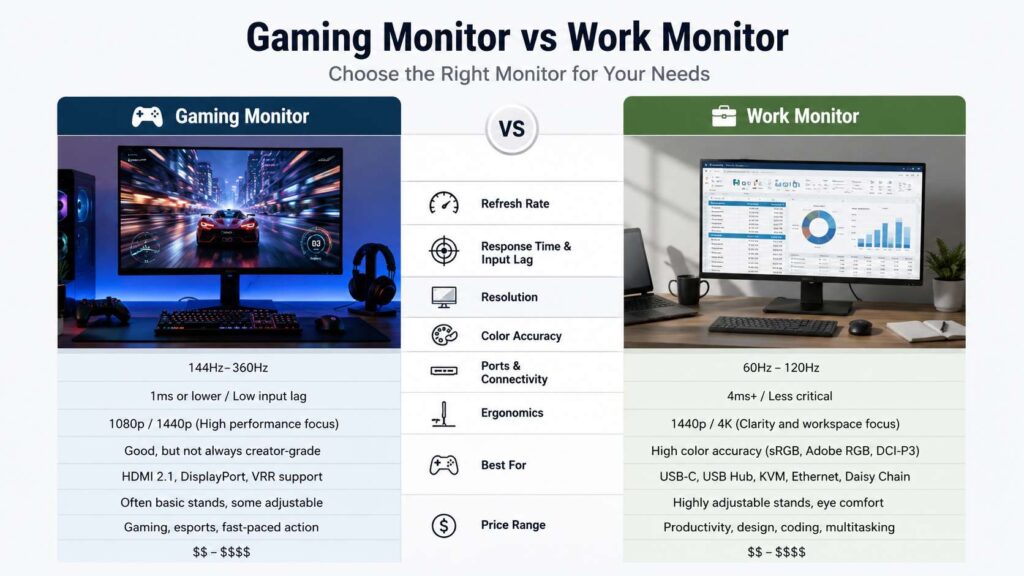
Refresh rate tells you how many times the screen updates each second. A 60Hz monitor refreshes 60 times per second. A 144Hz monitor refreshes 144 times per second. A 240Hz monitor goes even higher.
For gaming, refresh rate makes a clear difference. Once you move from 60Hz to 144Hz, games feel smoother and more responsive. Even scrolling and moving windows on the desktop can feel better.
A 144Hz or 165Hz monitor is enough for most players. It gives you a strong upgrade without pushing the price too high. A 240Hz monitor makes more sense for competitive players who already have a PC that can reach high frame rates. A 360Hz or higher monitor is more of an esports tool than a normal home setup.
For office work, 60Hz is usable. Still, 75Hz, 100Hz, or 120Hz can make scrolling and cursor movement feel nicer. You do not need 240Hz for spreadsheets, but a bit more smoothness helps the screen feel less tiring.
My honest view: I would not buy a new 60Hz monitor today unless it has another clear strength, such as 4K resolution, strong color accuracy, USB-C docking, or a very good price.
Response time and input lag: useful, but often oversold
Gaming monitor brands love to advertise 1ms response time. Some OLED gaming monitors even list 0.03ms. These numbers sound impressive, but they do not tell the full story.
Response time means how fast pixels change from one shade to another. Slow pixel response can create blur, ghosting, or dark smearing. You may notice this in fast games, dark scenes, and high-contrast movement.
Input lag is different. It refers to the delay between your action and what appears on screen. Low input lag matters in gaming, mostly in fast competitive games. For office work, it matters far less.
Here is the practical version:
- Competitive gamers should look for low input lag and strong motion clarity.
- Casual gamers can do well with a good 144Hz or 165Hz IPS monitor.
- Office users do not need to worry much about response time.
- VA panels can show dark smearing on some models.
- OLED panels offer very fast pixel response, but they bring burn-in concerns for static work screens.
Do not judge a monitor only by a “1ms” label. Some displays hit that number only with aggressive overdrive settings, which can create bright trails behind moving objects. Real motion tests from trusted reviewers matter more than the number printed on the box.
Resolution: sharp text or easier gaming performance
Resolution affects both work comfort and gaming performance. It also changes how much you will need to spend on your PC.
The most common monitor resolutions are:
- 1080p, also called Full HD
- 1440p, also called QHD
- 4K, also called UHD
- 3440 x 1440, common on ultrawide monitors
A 24-inch 1080p monitor still works for budget gaming and basic office work. At 27 inches, 1080p starts to look soft. Text can look rough, and small icons lose clarity.
A 27-inch 1440p monitor is the best balance. It gives you more space than 1080p, sharper text, and much easier gaming performance than 4K. For a work and gaming setup, this is the size and resolution I would check first.
A 32-inch 4K monitor works very well for productivity. Text looks crisp, and the extra space helps with spreadsheets, editing timelines, coding, and multiple windows. The trade-off is gaming performance. 4K gaming needs a stronger graphics card, mostly at high refresh rates.
Here is the simple match:
- 24-inch 1080p: budget gaming and basic office tasks
- 27-inch 1440p: best balance for work and gaming
- 27-inch 4K: very sharp text, smaller interface without scaling
- 32-inch 4K: excellent for productivity
- 34-inch ultrawide 1440p: great for multitasking and immersive games
One common issue is scaling. A 27-inch 4K monitor usually runs at 150% scaling. The image looks sharp, but the usable space can feel less impressive than expected. That is not a failure. It just means 4K gives you clarity first, not always more room.
Screen size: bigger is not always better
A larger monitor can feel amazing at first. After a week, it can also feel too wide, too tall, or too close to your face. Desk depth matters more than people expect.
For most users:
- 24 inches works best with 1080p.
- 27 inches works best with 1440p.
- 32 inches works best with 4K.
- 34 inches works well for ultrawide productivity.
- 38 inches and larger need more desk space.
A 27-inch monitor is the safest choice for mixed use. It gives you enough room without making your eyes travel too much. A 32-inch screen gives more space, but it works best when you sit farther back.
For competitive gaming, a 24-inch or 27-inch monitor lets you see the whole screen without moving your head much. For work, larger screens help only when the resolution supports the size. A 32-inch 1080p monitor gives you big pixels, not a better workspace.
Panel type: IPS, VA, OLED, and Mini-LED
Panel type affects contrast, color, motion, viewing angles, and long-term comfort. This is one of the most important parts of the gaming monitor vs work monitor decision.
IPS monitors are popular for both work and gaming. They usually offer good colors, wide viewing angles, and solid motion performance. Many 1440p gaming monitors use IPS panels for this reason. The weak point is contrast. Blacks can look gray in a dark room.
VA monitors usually have stronger contrast than IPS. Dark scenes can look deeper, which helps movies and some games. The downside is motion. Some VA monitors show black smearing, especially in fast games with dark backgrounds.
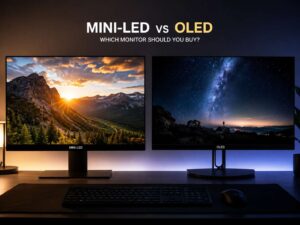
OLED monitors deliver excellent contrast, very fast pixel response, and rich HDR. Games and movies can look fantastic on OLED. Still, OLED is not perfect for every desk. Static work elements such as taskbars, browser bars, spreadsheets, and editing panels can raise burn-in concerns over time. If you are comparing panel types, this OLED vs IPS monitor guide explains the difference in more detail.
Mini-LED monitors can get very bright and can deliver better HDR than standard LED monitors. They work well for gaming, media, and some creative work. Still, blooming can appear around bright objects on dark scenes.
IPS is the safest panel type. For cinematic gaming, OLED can look much better. For long office days with static content, IPS remains a safer and more relaxed choice.
Text clarity: the work feature gamers often ignore
Text clarity can make or break a work monitor. A gaming monitor may look great in a trailer or game menu, then feel uncomfortable for writing, coding, or reading.
Text clarity depends on:
- Resolution
- Screen size
- Pixel density
- Panel subpixel layout
- Coating
- Scaling
- Sharpness settings
- Operating system text rendering
IPS and most standard LCD panels usually handle text well. OLED monitors can be more complicated. Some OLED panels use subpixel layouts that make text look slightly fringed or fuzzy, mostly on Windows. Newer OLED monitors have improved, but the issue has not fully disappeared.
For gaming, this may not matter much. For work, it can become annoying fast. If you write all day, code for hours, or read dense documents, check text clarity before choosing OLED.
This is one reason a high-refresh IPS monitor often beats OLED for mixed work and gaming. It may not have perfect black levels, but it handles office tasks with fewer concerns.
Color accuracy: creators should care more than gamers
Color accuracy matters most if your work involves visuals. Photo editors, video editors, web designers, illustrators, and print-focused users should take this seriously.
Look for specs and features such as:
- sRGB coverage
- DCI-P3 coverage
- Adobe RGB coverage
- Factory calibration
- Delta E rating
- Uniformity
- 10-bit color support
- Hardware calibration
For normal office work, you do not need a professional color display. A good sRGB mode is enough. In fact, a wide-gamut monitor without a proper sRGB mode can make basic content look too saturated.
For gaming, punchy colors can look exciting. Yet exciting does not always mean accurate. Some gaming monitors ship with strong saturation that makes games pop, but skin tones, photos, and web content may look unnatural.
For creative work, buy based on the color space you need:
- Web design: strong sRGB
- Video work: strong DCI-P3
- Print work: strong Adobe RGB
- Photo editing: good calibration and uniform brightness
- General office use: sharp text and stable brightness
My real opinion: If color work pays your bills, do not buy only from a gaming spec sheet. A fast monitor with weak color controls can create extra work and bad results.
Brightness and HDR: read past the badge
HDR is one of the most confusing monitor features. Many monitors accept an HDR signal, but that does not mean they show great HDR.
True HDR needs strong brightness, deep blacks, good contrast control, and proper tone mapping. OLED and good Mini-LED monitors usually perform much better here than basic edge-lit monitors.
For work, HDR is not a must. You can leave HDR off on the desktop, since it can make brightness and colors feel inconsistent. What matters more is normal brightness control. A good work monitor should get bright enough for daytime use and dim enough for evening use.
For gaming and movies, HDR can be a real upgrade on the right monitor. On a weak HDR monitor, it can look washed out or strange.
A simple rule works well: do not pay extra for HDR unless the monitor has the hardware to support it properly.
Ports and docking: work monitors often feel smarter
Work monitors often beat gaming monitors in port selection. This matters a lot if you use a laptop.
A strong work monitor may include:
- USB-C with power delivery
- DisplayPort
- HDMI
- USB hub
- Ethernet
- KVM switch
- Audio out
- Daisy chaining
- Built-in webcam
- Built-in speakers
USB-C can make a desk much cleaner. One cable can send video, charge your laptop, and connect your keyboard, mouse, webcam, or external drive through the monitor.
A KVM switch helps if you use two computers. For example, you can connect a work laptop and a gaming PC, then switch your keyboard and mouse between them without unplugging cables.
Gaming monitors often focus more on HDMI 2.1, DisplayPort, VRR, console support, and high refresh rates. That is great for a PlayStation, Xbox, or gaming PC. Still, some gaming monitors feel less practical for a laptop-based desk.
If you work from a laptop every day, ports may matter more than an extra 80Hz of refresh rate.
Ergonomics: comfort should not be optional
A monitor stand can seem boring, but it affects your body every day. Height adjustment, tilt, swivel, and VESA support matter more than RGB lighting or a dramatic rear design.
Look for:
- Height adjustment
- Tilt
- Swivel
- Pivot
- VESA mount support
- Stable base
- Cable routing
- A stand that does not eat half your desk
The top of the screen should sit around eye level or slightly below. The monitor should sit far enough away that you do not lean forward. Glare also matters. A bright window behind you can make even an expensive monitor feel unpleasant.
A fixed-height stand is one of the most annoying compromises on cheaper monitors. You can fix it with a monitor arm, but that adds cost.
For gaming, comfort still matters. For work, it matters even more. A monitor that looks great but sits too low will bother you every day.
Flat, curved, or ultrawide?
Flat monitors are the safest choice. They work well for gaming, writing, editing, design, browsing, and spreadsheets.
Curved monitors make more sense as the screen gets wider. A 34-inch ultrawide with a gentle curve can feel natural since the edges sit closer to your eyes. A small 24-inch curved monitor rarely adds much value.
Ultrawide monitors are great for productivity. You can place two or three windows side by side without using two separate screens. They can also make supported games feel more immersive.
Still, ultrawide monitors bring a few trade-offs:
- Some games do not support ultrawide well.
- Screen sharing can look awkward.
- Some videos show black bars.
- Large models need a wide desk.
- Budget ultrawides can have weaker pixel density.
For multitasking, a 34-inch 3440 x 1440 ultrawide is a strong choice. For competitive gaming, a standard 27-inch 1440p high-refresh monitor is usually simpler.
Gaming monitor pros and cons
A gaming monitor makes sense if smooth motion and fast response matter most.
Pros:
- Higher refresh rates
- Lower input lag
- Better motion clarity
- Adaptive sync support
- Stronger PC and console gaming features
- Better experience in fast games
- More immersive options with OLED or ultrawide panels
Cons:
- Some models have weak stands
- Text clarity can vary, mostly on some OLED panels
- Color accuracy is not always great
- USB-C docking may be missing
- HDR claims can disappoint
- Styling can look too aggressive for a clean office setup
A gaming monitor can still work well for office tasks. The key is choosing the right model. A 27-inch 1440p 165Hz IPS monitor is one of the safest examples.
Work monitor pros and cons
A work monitor makes sense if comfort, sharp text, and desk function matter most.
Pros:
- Better text clarity options
- More useful laptop ports
- Cleaner design
- Stronger ergonomic stands
- Better screen space for multitasking
- Good options for color work
- USB-C docking on many models
Cons:
- Lower refresh rates on many models
- Motion may feel less smooth
- Gaming features can be limited
- HDR is often basic
- Some models cost more for ports, not panel speed
- Built-in speakers and webcams are often average
A work monitor can still handle casual gaming. A 4K 60Hz productivity monitor works fine for strategy games, RPGs, browsing, and media. For fast shooters, though, it will feel slower than a real gaming display.
Should you buy OLED for work and gaming?
OLED is tempting. The contrast looks beautiful, motion is very clean, and HDR can look far better than on most LCD monitors. For games, movies, and dark-room use, OLED can feel like a major upgrade.
Still, OLED is not the perfect answer for everyone. Static desktop elements can raise burn-in concerns. Text clarity can also vary by panel type. If you work all day in the same apps, use spreadsheets, write in documents, or keep static browser tabs open, think carefully before paying extra.
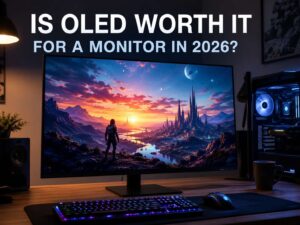
For mixed use, OLED makes sense if gaming and media are your main priorities. For office-heavy use, a high-quality IPS monitor still feels safer. If you want a deeper buying breakdown, read this guide on whether an OLED monitor is worth it in 2026.
My opinion: OLED is amazing when the content changes often. It is less relaxing when your screen shows the same work interface for hours every day.
Best monitor type by user
Choose a 27-inch 1440p 144Hz or 165Hz IPS monitor if you want one safe screen for both work and gaming. This is the best all-around choice for most people.
Choose a 32-inch 4K IPS monitor if you mainly work with text, spreadsheets, coding, editing, and multiple windows.
Choose a 24-inch 1080p high-refresh monitor if you play competitive games on a budget and do not care much about productivity space.
Choose a 34-inch ultrawide monitor if multitasking matters and you want one wide screen instead of two separate monitors.
Choose an OLED gaming monitor if image quality, contrast, HDR, and motion matter more than static office use.
Choose a USB-C productivity monitor if you work from a laptop and want a clean one-cable desk setup.
Common mistakes to avoid
Many monitor regrets come from small details that looked unimportant during the purchase.
Avoid these mistakes:
- Buying a 27-inch 1080p monitor for serious text work
- Buying a 4K gaming monitor without a strong graphics card
- Trusting the “1ms” label without checking real motion performance
- Paying extra for weak HDR
- Ignoring the stand
- Forgetting about desk depth
- Buying OLED for static office work without accepting the risk
- Choosing a monitor only for games, then using it for work eight hours a day
- Choosing a work monitor, then expecting it to feel fast in competitive games
A good monitor should fit your real life. The best spec sheet in the world will not help if the screen feels uncomfortable after two hours.
My practical recommendation
I would choose a balanced monitor instead of a strict gaming or office model.
The safest pick is a 27-inch 1440p IPS monitor with at least 144Hz, height adjustment, DisplayPort, HDMI, good brightness, and solid reviews for motion clarity. It gives enough sharpness for work and enough speed for gaming.
If you work more than you game, choose 32-inch 4K, USB-C, better ergonomics, and stronger text clarity.
If you game more than you work, choose 144Hz or higher, strong adaptive sync, good response times, and a panel that handles motion well.
If you create content, choose color accuracy before gaming features.
If you use a laptop every day, choose USB-C power delivery and a good hub.
The right monitor should make your normal day feel easier. It should not only look good in a product image.
Final verdict: gaming monitor vs work monitor
A gaming monitor is best for speed, smooth motion, and responsive play. A work monitor is best for text clarity, screen space, ports, and long-session comfort.
For mixed use, a 27-inch 1440p high-refresh IPS monitor is the best starting point. For heavy office use, a 32-inch 4K productivity monitor makes more sense. For competitive gaming, a 240Hz or faster gaming monitor gives a real advantage if your PC can keep up.
Do not buy only by category. Buy by habit. A monitor should match your desk, your eyes, your computer, and your daily routine.