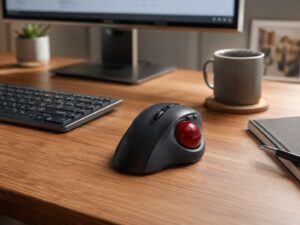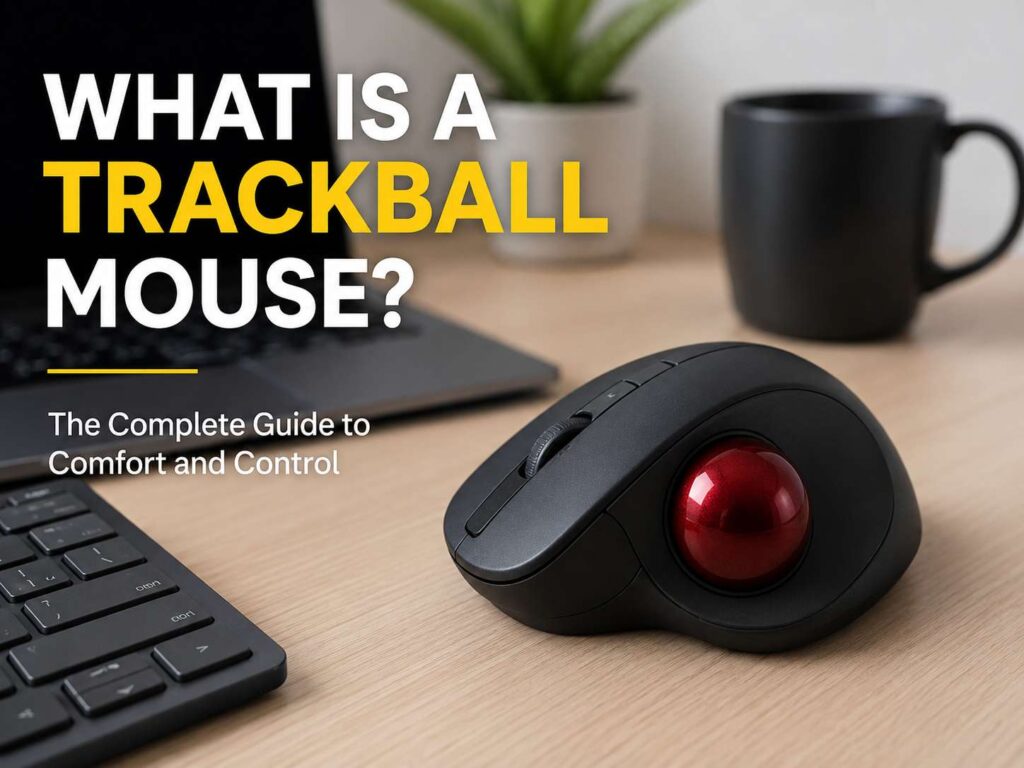
A trackball mouse is a computer mouse with a built-in ball that moves the cursor. Instead of sliding the whole mouse across your desk, you roll the ball with your thumb, fingers, or palm. The base stays still, and your hand rests in one place.
That one change makes the trackball feel very different from a regular mouse. It needs less desk space, cuts down arm movement, and gives steady pointer control. For office work, editing, design, browsing, and large monitor setups, it can be a smart upgrade.
Still, a trackball mouse is not perfect for everyone. It feels strange at first. It needs light cleaning from time to time. Some models can tire your thumb during long sessions. So, before buying one, it helps to know how it works and who it suits best.
What Is a Trackball Mouse?
A trackball mouse is a pointing device with a ball built into the top or side of the body. You move the cursor by rolling that ball instead of moving the whole device.
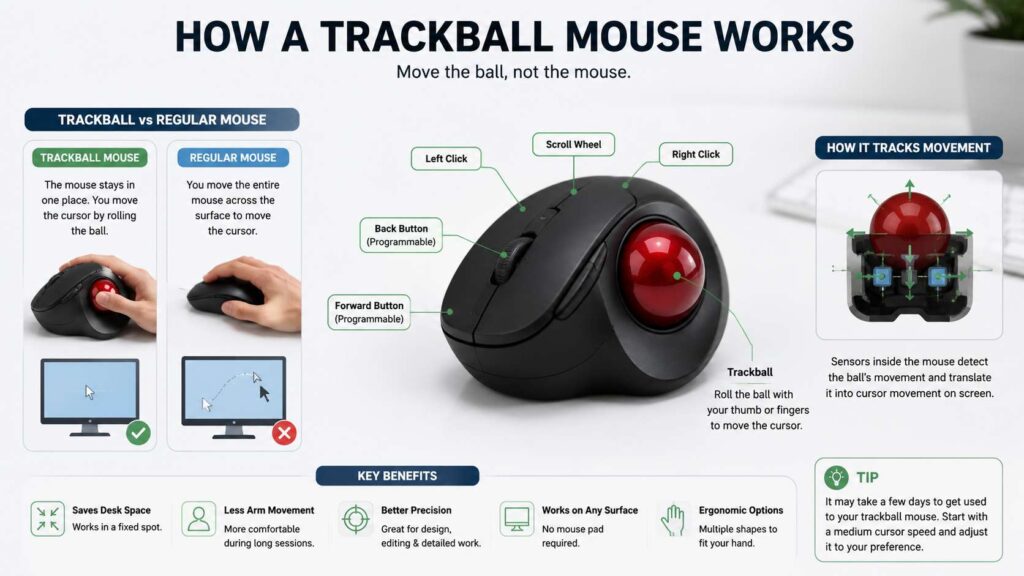
A regular mouse tracks movement across a desk or mouse pad. A trackball does the tracking inside the device. The ball turns, the sensors read that motion, and the pointer moves on your screen.
Most trackball mice still look and act like normal mice in a few ways. They usually include left and right click buttons, a scroll wheel or scroll ring, and sometimes extra shortcut buttons. Many models connect through USB, Bluetooth, or a 2.4 GHz wireless receiver.
The main benefit is simple: your hand stays in one place. That can make daily computer use feel easier, especially on a small desk or during long work sessions.
How Does a Trackball Mouse Work?
A trackball mouse uses internal sensors to read the movement of the ball. As you roll the ball, the device sends that movement to your computer.
The direction feels logical after a little practice:
- Roll the ball forward, and the cursor moves up.
- Roll it backward, and the cursor moves down.
- Roll it left or right, and the cursor moves across the screen.
- Roll it at an angle, and the pointer moves diagonally.
Some trackballs place the ball under your thumb. Others place a larger ball in the center, so you use your fingers or palm. Both designs do the same job, but they feel very different in daily use.
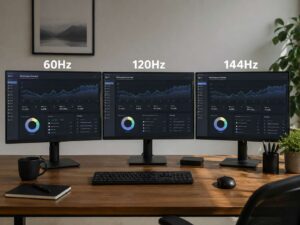
Pointer speed matters a lot with a trackball mouse. A slower setting gives better control for editing, spreadsheets, and detailed work. A faster setting helps with large screens, ultrawide monitors, and dual-monitor setups. After a few small changes in settings, the movement often feels much more natural.
Trackball Mouse vs Regular Mouse
A regular mouse feels familiar. You move it with your hand, lift it when you run out of space, then place it back down. Most people learn this movement early, so it feels normal.
A trackball mouse changes the habit. Your hand rests on the device, and only the ball moves. This can feel odd for the first few days, but it becomes easier with practice.
The main differences are clear:
- A regular mouse needs room to slide.
- A trackball mouse works in one fixed spot.
- A regular mouse uses more wrist, arm, and shoulder movement.
- A trackball mouse uses more thumb or finger movement.
- A regular mouse is easier for fast gaming.
- A trackball mouse can feel better for long office sessions.
- A regular mouse is cheaper in many cases.
- A trackball mouse often gives better control in tight spaces.
Neither option wins for every user. The better choice depends on your work, desk size, hand comfort, and the way you use your computer.
For a deeper comparison, read this full trackball vs mouse guide.
Types of Trackball Mice
Trackball mice come in several styles. The ball position changes the whole feel, so this is one of the most important buying choices.
Thumb Trackball Mouse
A thumb trackball places the ball on the side of the mouse. Your thumb moves the ball, and your fingers rest on the main buttons.
This style feels closer to a regular mouse. For that reason, many first-time trackball users start here. It works well for browsing, office work, spreadsheets, and daily productivity.
Best for:
- Office work
- Web browsing
- Spreadsheets
- Small desks
- Users who want a familiar mouse shape
The downside is thumb fatigue. If your thumb already feels sore from phone use or gaming, this style may not suit you for long sessions.
Finger Trackball Mouse
A finger trackball places the ball in the center or near the top of the device. You move it with your index and middle fingers.
This design often feels more precise. Your fingers can make small movements with better control, and the larger ball can feel smoother.
Best for:
- Design work
- CAD
- Video editing
- Audio editing
- Large monitors
- Detailed pointer control
The learning curve is steeper. Clicking, scrolling, and rolling the ball can feel clumsy at first. After a few days, though, the extra control starts to pay off.
Large-Ball Trackball Mouse
Some trackball mice use a larger central ball. These models often appeal to editors, designers, and technical users.
A larger ball can help with fine movement. Small adjustments feel smoother, and long cursor travel can feel easier on a big screen.
Best for:
- Precision work
- Timeline editing
- Technical drawing
- Creative apps
- Users who dislike tiny cursor jumps
The trade-off is size. Large-ball models take more desk space than compact thumb trackballs.
Ambidextrous Trackball Mouse
An ambidextrous trackball works for both left-handed and right-handed users. These models usually place the ball in the center.
They are useful for shared desks. They also help if you want to switch hands during the day to reduce strain.
Best for:
- Left-handed users
- Shared workstations
- Users who switch hands
- Mixed office setups
The shape may feel less sculpted than a right-handed ergonomic model, but the flexibility is useful.
Main Benefits of a Trackball Mouse
A trackball mouse can make your desk feel cleaner and your hand movement more controlled. The benefits are practical, not just about comfort.
It Saves Desk Space
A regular mouse needs open space. A trackball mouse does not. You can place it beside your keyboard and keep it there all day.
This helps on compact desks, keyboard trays, laptop stands, sofa setups, and crowded workstations. It also works well in places where a normal mouse feels awkward.
It Reduces Arm Movement
Since the device stays still, your arm moves less. Your shoulder and forearm do not need to drag the mouse around the desk.
For long workdays, this can feel more relaxed. It can also help users who feel tired from repeated mouse movement.
It Works Well With Large Screens
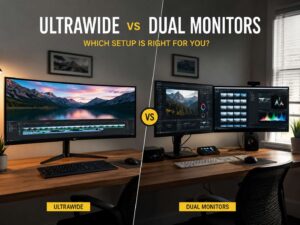
A large monitor needs more cursor travel. The same is true for dual monitors and ultrawide screens.
With a trackball mouse, you can cross the screen with a quick roll of the ball. You do not need to lift and reset the mouse. Once the pointer speed feels right, screen navigation becomes much easier.
It Can Improve Fine Control
A trackball stays planted on the desk. That fixed base can make small cursor movements feel steady.
This can help with:
- Photo editing
- Video editing
- Audio timelines
- CAD work
- Spreadsheets
- File selection
- Design tools
Not every user will feel more precise right away. Still, the control is worth the adjustment period.
It Works on Almost Any Surface
A standard optical mouse needs a usable surface. A trackball mouse does not rely on the desk surface for tracking.
You can use it on glass, fabric, a couch arm, a lap desk, or a small side table. That makes it useful for home offices, travel setups, and media PCs.
Downsides of a Trackball Mouse
A trackball mouse has clear strengths, but it also has a few weak points. These matter before you spend money.
It Takes Time to Learn
The first few days can feel awkward. Your hand expects to move the whole mouse, not just a ball.
Expect an adjustment period of a few days to a week. During that time, the cursor may feel slow or jumpy. A small pointer-speed change usually helps.
It Is Not Always Best for Fast Gaming
Trackballs can work for casual games, strategy games, and simulation games. Fast shooters are different.
Competitive FPS players often prefer a regular gaming mouse. It suits quick flicks, low-sensitivity aiming, and muscle memory built around mouse-pad movement.
Some people game well with a trackball, but it is not the easiest choice for that use.
Thumb Models Can Cause Thumb Fatigue
A thumb trackball gives most of the cursor work to one finger. That can create fatigue during long sessions.
If your thumb gets tired fast, a finger-operated model may feel better. It spreads movement across stronger fingers and can feel smoother for detailed tasks.
It Needs Cleaning
Dust and skin oil can build up around the ball. When that happens, movement may feel rough or sticky.
Cleaning is usually simple. Pop out the ball, wipe it, clean the small contact points, and place it back. The process takes about a minute, but it still counts as maintenance.
Who Should Use a Trackball Mouse?
A trackball mouse makes sense for people who want less arm movement and better control in a fixed spot.
It is a strong choice for:
- Office workers who use a mouse all day
- People with small desks
- Users with large or dual monitors
- Designers and editors
- CAD users
- Spreadsheet-heavy workers
- Laptop users
- Left-handed users who need ambidextrous options
- People who dislike lifting and repositioning a mouse
It can also help users who want a cleaner desk layout. Since the device stays in one place, the mouse area does not need to stay open.
For a broader buyer-focused breakdown, see this trackball mouse guide.
Who Should Avoid a Trackball Mouse?
A trackball mouse is not the best fit for every user.
You may prefer a regular mouse if:
- You play fast competitive games.
- You want the shortest learning curve.
- You need a very cheap mouse.
- You prefer a lightweight gaming mouse.
- Your thumb or fingers tire quickly.
- You share your computer with users who dislike trackballs.
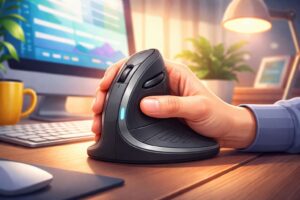
A vertical mouse may suit you better if you only want a more natural hand angle. It keeps the normal sliding motion, so it feels easier to learn.
Trackball Mouse for Office Work
For office work, a trackball mouse can be very practical. It stays close to the keyboard, so your hand does not travel far. This can make your desk feel more organized.
It works well for:
- Web browsing
- Writing
- Research
- Spreadsheets
- CRM tools
- Project management apps
- File management
- Copy and paste tasks
Extra buttons can save time too. Many trackball mice let you set shortcuts for back, forward, copy, paste, zoom, app switching, or middle click.
For productivity, look for a comfortable shape, adjustable pointer speed, wireless support, and at least two programmable buttons.
Trackball Mouse for Design, CAD, and Editing
Trackballs have a loyal fan base among creative and technical users. They can feel steady during precise cursor work.
This helps in:
- CAD software
- 3D navigation
- Photo editing
- Video editing
- Audio production
- Vector design
- Page layout
A finger-operated model often works better here. The larger central ball gives smoother control, and the fingers can make small changes more naturally than the thumb.
For video and audio work, scroll features matter too. A scroll ring or horizontal scrolling can make timeline movement easier.
Trackball Mouse for Gaming
A trackball mouse can handle some games well. Strategy, simulation, management, and turn-based games are usually fine.
Fast action games are harder. A regular gaming mouse still gives most players better speed and aim control.
Trackballs are not bad for gaming by default. They just require a different style. If you already have years of standard mouse aim built into your hand, switching for competitive play will feel difficult.
How to Choose the Best Trackball Mouse
The best trackball mouse should fit your hand, your desk, and your main tasks. Before buying, check these points.
Ball Position
Choose a thumb trackball if you want something close to a regular mouse. Choose a finger trackball if you want more control and do not mind a longer learning curve.
Hand Size and Shape
A good trackball should support your palm without forcing your wrist to bend sharply. Bigger hands often need a larger body. Smaller hands may feel better with a compact model.
Left-Handed or Right-Handed Use
Many thumb trackballs are right-handed only. Left-handed users should check for ambidextrous or left-hand models before buying.
Connection Type
Wired models are simple and stable. Wireless models reduce cable clutter. Bluetooth works well with laptops and tablets. A 2.4 GHz receiver often feels smoother on desktop PCs.
Button Layout
Extra buttons can help a lot. Useful shortcuts include:
- Back
- Forward
- Copy
- Paste
- Zoom
- App switch
- Middle click
- Scroll mode
Scroll Features
Some trackballs use a normal scroll wheel. Others use a scroll ring around the ball. A few models support horizontal scrolling.
If you use spreadsheets or editing timelines, strong scroll controls are worth paying for.
Software Support
Good software lets you change pointer speed, button actions, scroll direction, and app-specific settings. Check support for Windows, macOS, or your chosen system before buying.
Cleaning Access
A trackball should be easy to clean. Look for a model where the ball pops out without tools.
How to Use a Trackball Mouse Comfortably
A trackball mouse feels best with the right setup.
Place it close to your keyboard. Keep your elbow relaxed. Your shoulder should not reach forward. Your wrist should stay straight, not bent hard to the side.
Start with medium pointer speed. If the cursor jumps too much, lower it. If it moves too slowly across a large screen, raise it step by step.
Use light pressure. Do not grip the mouse tightly. Let your hand rest on the body and move the ball with small, controlled motions.
Clean the ball every few weeks. If the cursor starts to drag or skip, clean it sooner.
Trackball Mouse vs Vertical Mouse
A trackball mouse and a vertical mouse solve different problems.
A trackball changes how the cursor moves. Your hand stays still, and the ball does the work.
A vertical mouse changes your hand angle. Your hand sits more like a handshake, but you still move the whole mouse across the desk.
Choose a trackball mouse if you want less arm movement, fixed-position control, and better use in tight spaces.
Choose a vertical mouse if you want a familiar movement style with a different grip angle.
You can also keep both on the desk. Switching between devices can spread the workload across different muscles.
Is a Trackball Mouse Better for Wrist Pain?
A trackball mouse can reduce wrist and arm movement. That can feel more comfortable during long work sessions.
Still, comfort is personal. A trackball can help one person and bother another. Thumb models can create thumb strain. Finger models can feel odd at first. Desk height, chair position, keyboard placement, and break habits all matter too.
If mouse pain keeps coming back, review the whole setup. A new mouse helps more when your posture and desk layout support relaxed movement.
Final Verdict: Is a Trackball Mouse Worth It?
A trackball mouse is worth it if you want less arm movement, better control in a fixed spot, and a cleaner desk setup. It works especially well for office work, editing, browsing, large monitors, and small desks.
It is less ideal for fast competitive gaming or users who want zero learning curve. It also needs light cleaning, and some models can tire the thumb.
For the right person, though, a trackball mouse can make daily computer use feel calmer and more controlled. Start with a shape that fits your hand, adjust the pointer speed, and give yourself a few days to adapt. After that, the fixed-position design may feel surprisingly natural.