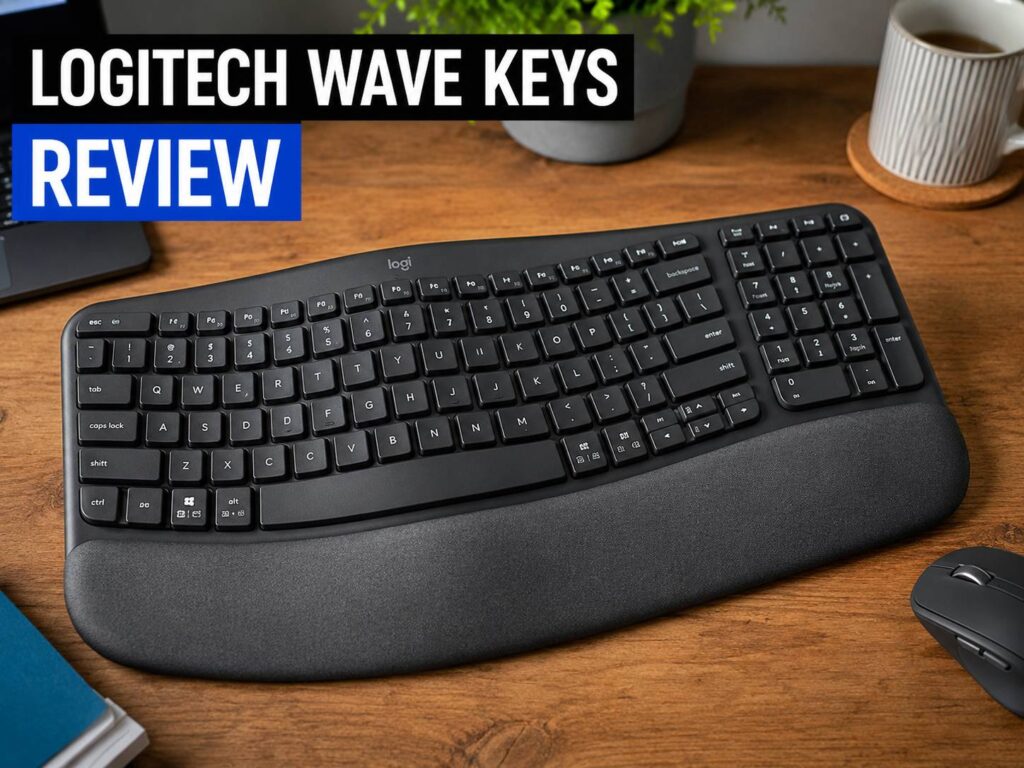
Logitech Wave Keys Review: Quick Verdict
The Logitech Wave Keys is one of the easiest ergonomic keyboards to recommend for home offices, work desks, and long typing sessions. It gives your hands a more relaxed position without pushing you into a full split keyboard layout. That matters, since many ergonomic keyboards feel strange for days, sometimes even weeks. Wave Keys feels different right away, but it does not feel confusing.
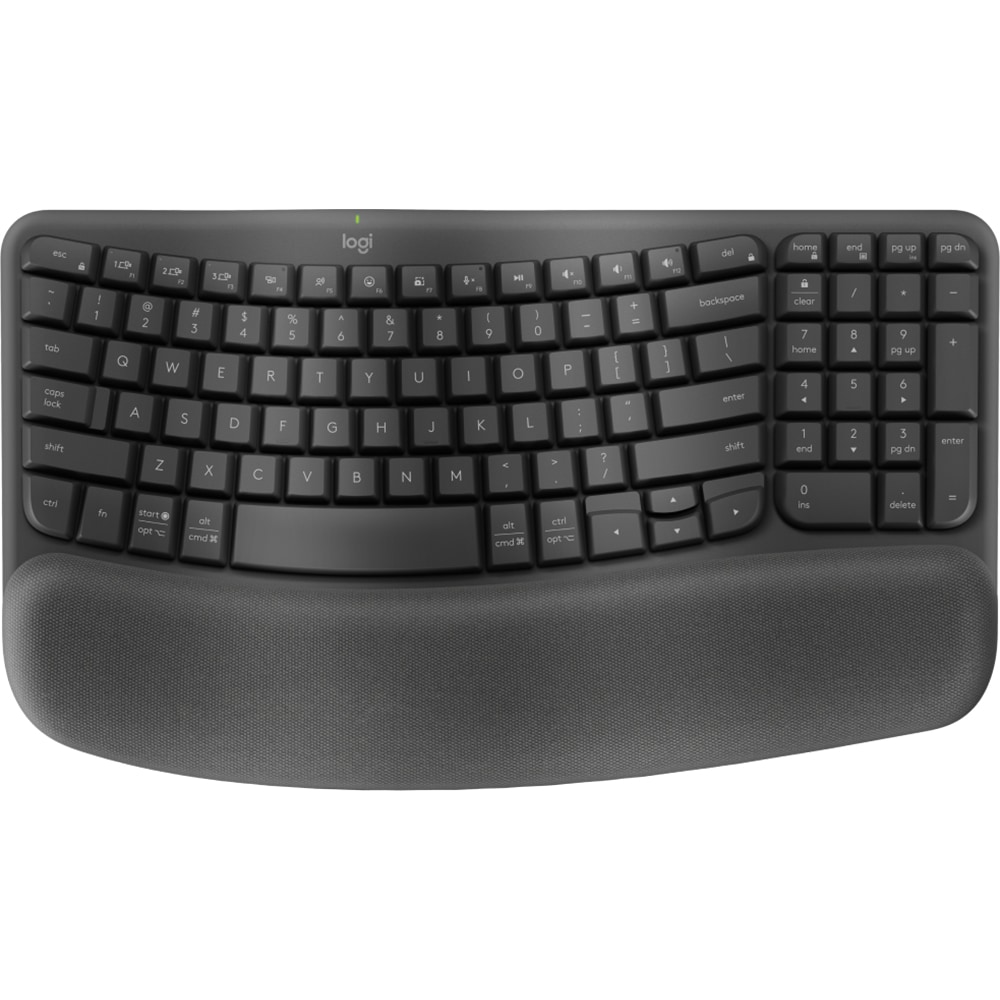
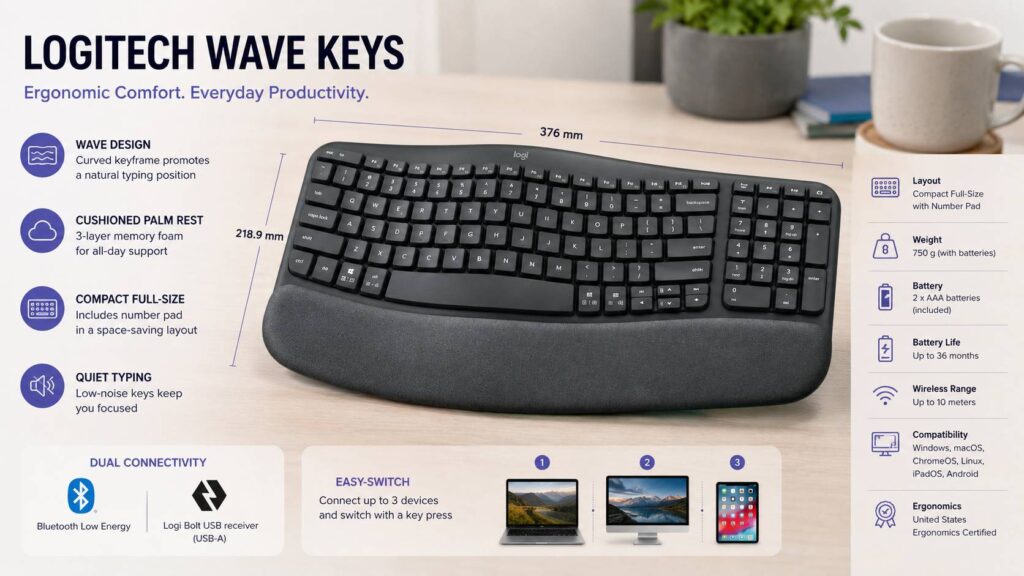
Its biggest strengths are comfort, simple wireless setup, quiet typing, long battery life, and a compact layout that still includes a number pad. The wavy keyframe guides your hands into a softer angle. The built-in palm rest supports your wrists without making the keyboard feel bulky. The 3-layer memory foam palm rest gives it a more premium feel than many office keyboards in this price range.
There are trade-offs. It has no backlighting. It uses AAA batteries rather than USB-C charging. The arrow keys feel small. The palm rest is built in, so you cannot replace it later. Mechanical keyboard fans may find the key feel too soft.
For most office users, writers, students, and casual productivity buyers, those trade-offs feel fair. The Logitech Wave Keys is not trying to be a gaming keyboard or a luxury mechanical keyboard. It is built to make daily typing feel easier, and it does that job well.
Key Specs
- Keyboard type: Wireless ergonomic keyboard
- Layout: Compact full-size layout with number pad
- Key design: Wave-shaped keyframe
- Palm rest: Built-in cushioned palm rest with memory foam
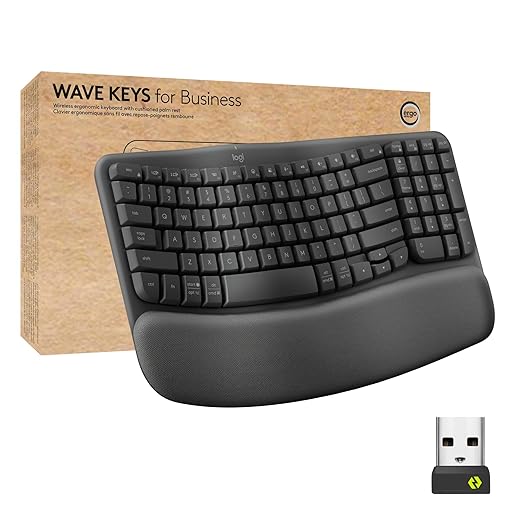
- Wireless options: Bluetooth Low Energy and Logi Bolt USB-A receiver
- Wireless range: Up to 10 meters in open line-of-sight conditions
- Battery: 2 AAA batteries
- Battery life: Up to 36 months, based on use and computing conditions
- Weight: 750 g with batteries
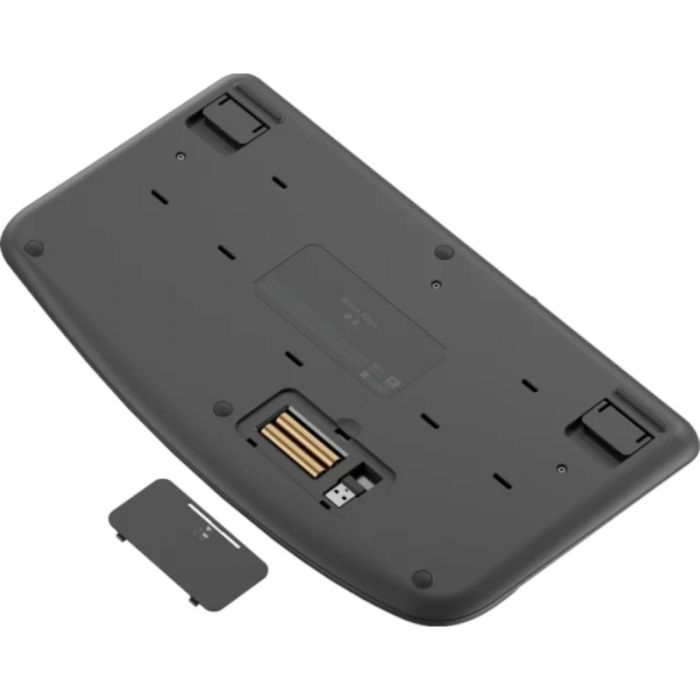
- Dimensions: 376 mm wide, 218.9 mm high, 30.5 mm deep
- Software: Logi Options+ on Windows and macOS
- Compatibility: Windows, macOS, ChromeOS, Linux, iPadOS, Android
- Certification: United States Ergonomics certified
- Best for: Office work, writing, admin tasks, remote work, and light productivity
Design and Build Quality
The Logitech Wave Keys looks unusual at first glance. The key rows rise and curve across the board, so the typing area does not sit in one flat line. That wave shape is the main idea behind the product. It helps place your hands, wrists, and forearms in a more natural position than a flat keyboard.
The design feels less extreme than a split keyboard. That is one of its biggest advantages. You do not need to relearn your typing habits from zero. Most keys sit where you expect them to be, and the layout feels familiar after a short adjustment period.
The built-in palm rest changes the typing feel right away. It supports the base of your hands and keeps your wrists from dropping too sharply onto the desk. The surface feels soft enough for long sessions, but it does not feel mushy or unstable.
The compact width is another smart choice. Wave Keys includes a number pad, yet it does not feel as wide as many full-size keyboards. This helps bring your mouse closer to your body. That means less shoulder reach during the day.
Build quality is good for the price. The keyboard uses plastic, but it does not feel weak during normal desk use. The 750 g weight gives it enough stability, so it does not slide around easily. It is not a metal keyboard, and it does not pretend to be one. It feels like a well-made office keyboard with comfort as the main focus.
Typing Experience
Typing on the Logitech Wave Keys feels soft, quiet, and calm. The keys have a membrane-style feel rather than a mechanical switch feel. You do not get a sharp click, a strong tactile bump, or the crisp snap that comes from many premium mechanical boards.
For office work, that can be a good thing. The keys work well in shared rooms, video calls, and late-night typing sessions. They have enough travel to avoid the flat, dead feeling of some cheap keyboards. The action feels light, so longer writing sessions feel less tiring than on stiff boards.
The wave layout takes a little time to learn. You should adjust quickly, since the layout stays close to a regular keyboard. The main change comes from the curved height pattern across the keys. Your fingers sit at a slightly different angle, and that can feel odd during the first hour.
After that short adjustment period, the keyboard starts to make more sense. The center keys feel easy to reach. The palm rest keeps your hands settled. The typing posture feels more relaxed than on a basic flat keyboard.
The compact layout does create a few small problems. The arrow keys are squeezed into the lower-right corner. That can annoy users who edit documents, move through spreadsheets, or write code all day. Home, End, Page Up, and Page Down placement may take some extra practice too.
For writing, email, web browsing, and office documents, the typing experience is strong. For fast gaming, heavy coding, or mechanical keyboard fans, it may feel too soft and too focused on comfort.
Comfort and Ergonomics
Comfort is the main reason to buy the Logitech Wave Keys. The keyboard does not solve every wrist or hand problem, but it feels much more supportive than a flat entry-level keyboard.
The wave shape encourages your hands to rest in a more natural position. The raised and curved keyframe reduces the feeling that your wrists need to bend outward. The palm rest supports your hands, so your wrists do not press directly into the desk edge.
This matters during long typing days. A normal flat keyboard can feel fine for 30 minutes, then start to feel harsh after several hours. Wave Keys feels better suited to a full workday. It supports a calmer hand position and reduces the need to hover your wrists above the desk.
The compact width helps too. Since the keyboard is not overly wide, your mouse can sit closer to your typing area. That can reduce shoulder stretch, which many keyboard reviews ignore. A wide keyboard with a number pad can push the mouse too far right. Wave Keys avoids part of that problem while keeping the numpad.
Buyers with serious wrist pain, repetitive strain symptoms, or medical ergonomic needs should not treat this as a medical fix. It is a comfort-focused keyboard, not a fully adjustable workstation. It does not split into two halves. It does not let you change tenting angles. It does not offer deep posture adjustment.
For mild discomfort, long office use, and a first step into ergonomic keyboards, it works very well. If you want a more aggressive ergonomic design, read this Logitech ERGO K860 review before deciding.
Wireless Connectivity and Setup
The Logitech Wave Keys gives you two wireless options: Bluetooth Low Energy and the Logi Bolt USB-A receiver. That makes it flexible for desktops, laptops, tablets, and mixed work setups.
Bluetooth is useful for laptops and tablets with limited ports. The Logi Bolt receiver suits a fixed desk setup, especially on a desktop PC. It can also help users who prefer not to rely on Bluetooth pairing.
Easy-Switch keys let you move between paired devices. This is one of Logitech’s best productivity features. You can use the keyboard with a work laptop, personal desktop, and tablet, then switch with a key press. For hybrid workers, that feature saves time every day.
Logi Options+ adds more value on Windows and macOS. You can assign shortcuts, customize function keys, use Smart Actions, and check battery status. Basic typing works without the software on supported platforms, but the app gives you more control.
One small downside is the USB-A receiver. Many modern laptops now use USB-C only. If your laptop lacks USB-A, you need an adapter or Bluetooth. This is not a dealbreaker, but it is worth checking before buying.
Battery Life
Battery life is a major strength. Logitech rates Wave Keys for up to 36 months from two AAA batteries. Real battery life will vary with use, but this is still excellent for a wireless keyboard.
The long battery life makes sense, since the keyboard has no backlighting. That missing feature hurts in dark rooms, but it helps the batteries last longer. For many office users, replacing two AAA batteries every few years is easier than charging a keyboard every few weeks.
The lack of USB-C charging still counts against it. Many modern keyboards now use rechargeable batteries. Wave Keys sticks with replaceable AAA cells. Some users will like that, since they can swap batteries fast. Others will see it as dated.
The choice is simple. If you hate charging desk gear, AAA batteries are fine. If you want one USB-C cable for all devices, this keyboard may feel behind the times.
Software and Customization
Logi Options+ gives the Wave Keys a useful productivity layer. You can remap selected keys, assign shortcuts, check battery level, and create Smart Actions for repeated tasks.
For example, you can set a key to open a favorite app, trigger a work shortcut, or control a common action. This helps people who spend all day in email, browsers, spreadsheets, project tools, or writing apps.
Still, this is not a deep enthusiast keyboard. You cannot remap every key like on some mechanical keyboards. You do not get hot-swappable switches, onboard gaming profiles, RGB controls, or advanced macro layers.
For the target user, the software does enough. It adds practical shortcuts without making the keyboard feel complicated.
Real-World Issues You Should Know
The Logitech Wave Keys has a few clear downsides.
The first issue is no backlighting. If you work in a dim room, this matters. The key legends are readable in normal light, but they do not glow. Anyone who types at night may prefer a backlit keyboard.
The second issue is the cramped arrow cluster. The compact design saves desk space, but the arrow keys pay the price. Writers may not care much. Spreadsheet users, editors, and coders may care a lot.
The third issue is the fixed palm rest. It feels comfortable, but you cannot remove it. If it wears down, stains, or does not fit your wrist position, you cannot swap it for another rest.
The fourth issue is the non-rechargeable battery design. The long battery life softens that problem, but a USB-C rechargeable version would feel more modern.
The fifth issue is typing feel. It is pleasant for office work, but it is not crisp like a good low-profile keyboard and not satisfying like a mechanical switch. Keyboard enthusiasts may find it too basic.
Logitech Wave Keys vs Logitech ERGO K860
The Logitech ERGO K860 is the more serious ergonomic keyboard. It uses a split curved layout and a larger wrist rest. It gives your hands a stronger ergonomic angle, but it takes more time to learn.
Wave Keys is better for users who want comfort without changing their typing habits too much. It is smaller, easier to place on a desk, and less intimidating.
Pick Wave Keys if you want a simple ergonomic upgrade. Pick ERGO K860 if you already know you want a split keyboard and have enough desk space for a larger board.
Logitech Wave Keys vs Logitech MX Keys S
The Logitech MX Keys S feels more premium. It has a sleeker low-profile design, smart backlighting, and a more precise typing feel. It is a better keyboard for users who care about key stability, lighting, and a clean modern desk setup.
Wave Keys wins on wrist support and comfort. It has the built-in palm rest and the wave shape. MX Keys S is flatter and more traditional.
Go with Wave Keys for comfort. Go with MX Keys S for backlighting, premium feel, and a more laptop-like typing style.
Logitech Wave Keys vs Signature K650
The Logitech Signature K650 is a more traditional wireless keyboard with a palm rest. It is good for basic work, but it does not have the same wave-shaped ergonomic design.
Wave Keys feels more focused on comfort. It places your hands in a better position and takes less desk width than many full-size boards.
Wave Keys is the better pick if comfort is the reason you are upgrading. K650 makes more sense if you want a normal full-size keyboard with a palm rest and a familiar layout.
Who Should Buy the Logitech Wave Keys?
Buy the Logitech Wave Keys if you type for hours and want a softer, more comfortable desk setup. It suits office workers, writers, students, remote workers, customer support staff, and anyone who spends much of the day in documents, email, browsers, or spreadsheets.
It is also a good pick for ergonomic beginners. The layout feels familiar enough that you can adjust fast. You get comfort benefits without the shock of a split keyboard.
It is a smart choice for small desks too. The compact design keeps the number pad but gives your mouse more room. That can make the whole setup feel easier on your shoulder and arm.
The keyboard makes sense if you switch between multiple devices. Bluetooth, Logi Bolt, and Easy-Switch support make it easy to use across a work laptop, desktop, and tablet.
If your main goal is comfort during long typing days, you may also want to compare it with this guide to the best keyboard for typing all day.
Who Should Not Buy It?
Skip the Logitech Wave Keys if you need backlighting. This is the biggest missing feature, and there is no built-in workaround.
Do not buy it for serious gaming. It is wireless, comfortable, and fine for casual use, but it is not built for low-latency competitive play, fast key actuation, or advanced gaming controls.
Mechanical keyboard fans should be careful too. The typing feel is quiet and soft, not sharp or tactile in the enthusiast sense.
Coders and spreadsheet-heavy users should think about the arrow keys before buying. The compact layout can slow you down if you use navigation keys all day.
People with serious wrist or hand pain should look at more adjustable ergonomic keyboards and seek proper ergonomic advice. Wave Keys improves comfort, but it does not replace a full desk assessment.
Price
Pros
- Very comfortable for daily typing
- Wave-shaped layout feels easier to learn than a split keyboard
- Built-in memory foam palm rest adds real wrist support
- Compact design keeps the number pad
- Helps keep the mouse closer to the body
- Quiet key feel works well in shared spaces
- Bluetooth and Logi Bolt support
- Easy-Switch works well for multi-device setups
- Strong battery life from two AAA batteries
- Logi Options+ adds useful shortcut control
- Good value for an ergonomic wireless keyboard
Cons
- No backlighting
- Uses AAA batteries instead of USB-C charging
- Arrow keys feel cramped
- Palm rest is not removable
- Not ideal for mechanical keyboard fans
- Not built for serious gaming
- Limited deep customization
- USB-A receiver may need an adapter on newer laptops
Final Verdict
The Logitech Wave Keys is a strong choice for anyone who wants a more comfortable keyboard without moving to a full split ergonomic design. It feels familiar, quiet, supportive, and practical. The wave layout makes sense after a short adjustment period, and the memory foam palm rest adds comfort that many keyboards in this price range lack.
Its flaws are clear. No backlighting is the biggest miss. The arrow keys feel cramped. The AAA battery design feels less modern than USB-C charging. Still, the long battery life, compact shape, and relaxed typing position make those drawbacks easier to accept.
For office work, writing, remote work, and general productivity, Wave Keys hits a very good balance. It is not the most advanced ergonomic keyboard, and it is not the most premium Logitech keyboard. It may be the easiest one to live with for everyday comfort.
If your current keyboard leaves your wrists tired by the end of the day, Logitech Wave Keys deserves a serious look.