What Is Mouse Polling Rate?
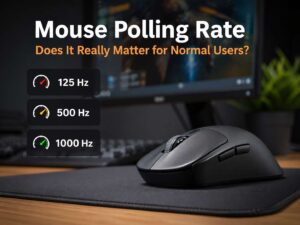
Mouse polling rate tells you how many times your mouse reports its position to your computer each second. The number appears in hertz, or Hz.
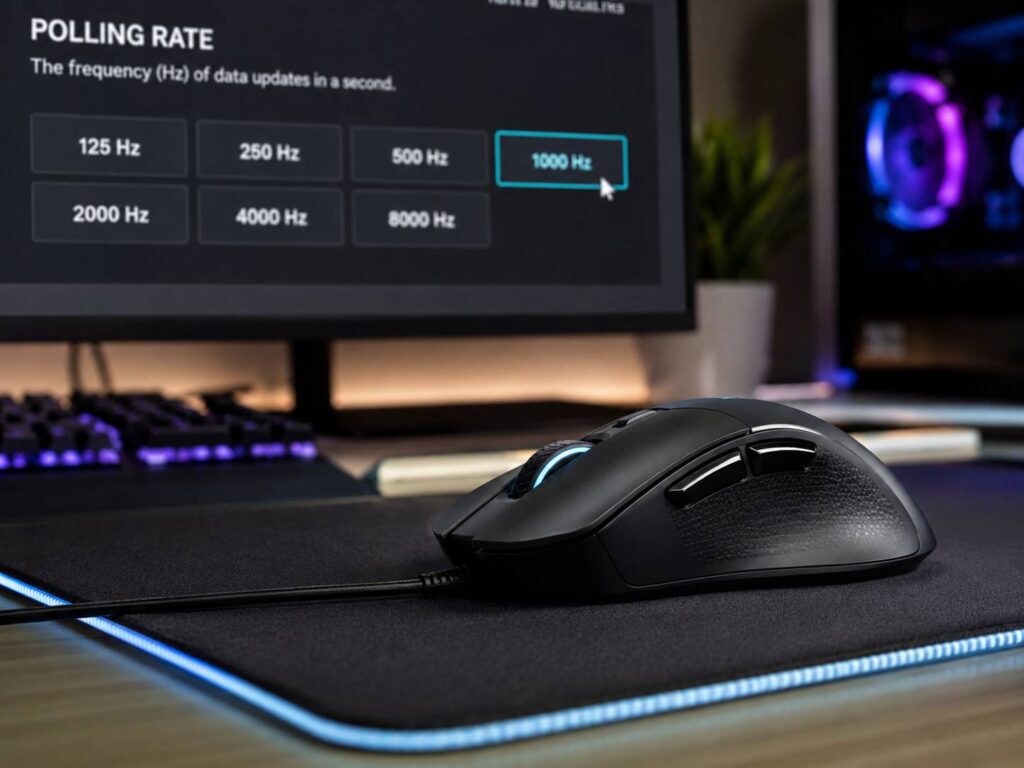
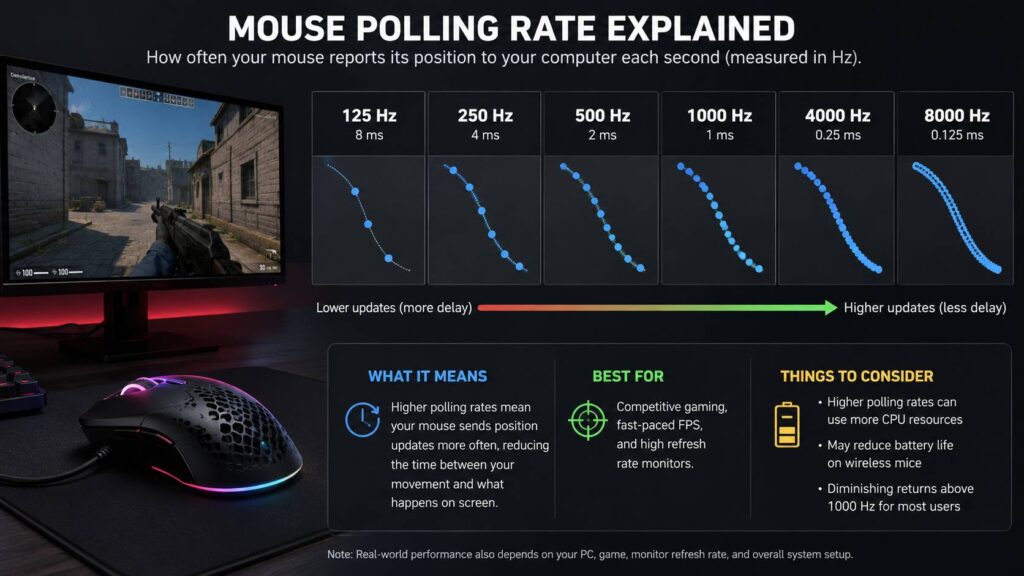
A 125Hz mouse reports 125 times per second. A 500Hz mouse reports 500 times per second. A 1000Hz mouse reports 1000 times per second. Some newer gaming mice go much higher, with 4000Hz or 8000Hz polling rate support.
So, what does that mean in real use? A higher polling rate gives your PC more frequent updates. As a result, your cursor movement can feel smoother and more immediate. For gaming, it can make small aim corrections feel cleaner. For normal desktop use, the difference feels smaller, but it can still make a mouse feel more responsive.
Still, polling rate does not work alone. Sensor quality, DPI, monitor refresh rate, game frame rate, wireless stability, and mouse shape all affect the final feel. For that reason, a high polling rate does not automatically make a mouse better.
Polling Rate vs Response Time
Polling rate connects directly to response time. Higher polling means shorter time between reports.
Here is the basic breakdown:
- 125Hz: one report every 8ms
- 250Hz: one report every 4ms
- 500Hz: one report every 2ms
- 1000Hz: one report every 1ms
- 2000Hz: one report every 0.5ms
- 4000Hz: one report every 0.25ms
- 8000Hz: one report every 0.125ms
At first glance, 8000Hz looks much better than 1000Hz. Technically, it does send data more often. Yet the real difference depends on your setup. A 60Hz monitor will not show the same benefit as a 240Hz or 360Hz monitor. A weaker PC can even feel worse at very high polling rates if the game struggles with the extra input data.
In practice, the jump from 125Hz to 500Hz feels much bigger than the jump from 1000Hz to 4000Hz. The first jump removes obvious delay. The second jump fine-tunes an already fast mouse.
Why Mouse Polling Rate Matters for Gaming
Gaming is where mouse polling rate matters most. Fast shooters, battle royale games, arena shooters, and competitive titles all benefit from quick and steady mouse input.
For example, a low polling rate can make fast flick shots feel less precise. The cursor or crosshair still moves, but the movement updates less often. That can make aim feel slightly uneven during quick turns.
With 500Hz or 1000Hz, movement feels more connected. Then, at 4000Hz or 8000Hz, the feel can become even smoother on the right hardware. This matters most for players who use high-refresh monitors and play at high frame rates.
Still, you do not need to chase the highest number. A good 1000Hz mouse already feels fast and reliable. In my view, shape, weight, sensor quality, and comfort matter more than 8000Hz support.
For a deeper normal-use breakdown, read this guide on whether mouse polling rate matters for normal users.
Does Polling Rate Matter for Normal Users?
For normal users, mouse polling rate matters less. Office work, web browsing, email, document editing, and casual shopping do not need ultra-high polling.
A 125Hz mouse can handle basic tasks. A 250Hz or 500Hz mouse feels smoother. A 1000Hz mouse feels very responsive, especially on a modern monitor.
For work, a higher polling rate will not make you finish faster. Comfort brings more value. Battery life matters too. A stable scroll wheel, quiet clicks, and a good hand shape often make a bigger daily difference.
For normal use, 500Hz is a nice middle ground. It feels smooth, and it does not drain wireless battery as fast as 4000Hz or 8000Hz. If your mouse is wired, 1000Hz is easy to recommend.
Polling Rate vs DPI: What Is the Difference?
Polling rate and DPI are not the same thing.
Polling rate controls how often the mouse reports movement. DPI controls how far the cursor moves from physical hand movement.
For example, 800 DPI means the cursor moves less than it does at 1600 DPI. Yet both settings can run at the same polling rate. A mouse can use 800 DPI and 1000Hz at the same time.
Try 400, 800, or 1600 DPI, then adjust sensitivity inside the game. This gives more control than using a very high DPI setting and very low in-game sensitivity.
Next, think of polling rate as timing. Think of DPI as speed. Both affect feel, but they solve different problems.
Is 1000Hz Polling Rate Good?
Yes, 1000Hz is a very good mouse polling rate. In fact, it is the best setting for most users.
At 1000Hz, the mouse reports every 1ms. That is fast enough for competitive gaming, casual gaming, and smooth desktop use. It also works well with most PCs and most games.
Another benefit is stability. Many mice, games, and systems handle 1000Hz without trouble. Higher rates can feel better, but they can also create stutter in some games. So, 1000Hz gives a strong balance between speed and reliability.
For wireless gaming mice, 1000Hz uses more battery than 125Hz or 500Hz. Still, most modern gaming mice manage it well. For wired mice, battery life does not matter, so 1000Hz is an easy default.
1000Hz vs 4000Hz vs 8000Hz
The difference between 1000Hz, 4000Hz, and 8000Hz comes down to how often the mouse sends data.
A 1000Hz mouse sends 1000 reports per second. A 4000Hz mouse sends four times more. An 8000Hz mouse sends eight times more.
That sounds like a huge upgrade. In real use, the gain is smaller than the numbers suggest. You need a fast monitor, high FPS, and a strong PC to feel the benefit clearly. You may notice smoother tracking, or barely any change.
For competitive FPS players, 4000Hz can feel like a nice upgrade over 1000Hz. It can smooth out tiny aim movements, especially on a 240Hz or faster display. Then again, 8000Hz can demand more from your system. Some games handle it well. Some do not.
The safest path is simple. Start at 1000Hz. Test 4000Hz if your mouse supports it. Try 8000Hz only if your PC stays smooth. For a focused comparison, see this guide on 1000Hz vs 4000Hz vs 8000Hz mouse polling rate.
Common Problems With High Polling Rate Mice
High polling rate mice can feel great, but they are not perfect. The main problems show up at 4000Hz and 8000Hz.
Common issues include:
- Shorter battery life on wireless mice
- Higher CPU usage
- Game stutter
- Uneven frame pacing
- Wireless dropouts from poor dongle placement
- Weak results through low-quality USB hubs
- No clear benefit on low-refresh monitors
The most frustrating issue is stutter. A mouse can feel smooth on the desktop, then feel strange inside one game. In that case, lower the polling rate and test again.
For wireless mice, receiver placement matters. Put the dongle close to the mouse. Use the included USB extender if the brand provides one. A receiver hidden behind a metal PC case can hurt signal quality.
Plus, do not forget battery life. A mouse set to 8000Hz can drain much faster than the same mouse at 1000Hz. For long workdays, that trade-off rarely makes sense.
Best Polling Rate Settings by Use Case
The best mouse polling rate depends on how you use your mouse.
For office work, 250Hz or 500Hz is enough. The mouse will feel smooth, and wireless battery life will last longer.
For casual gaming, 500Hz or 1000Hz works well. Most players should pick 1000Hz and leave it there.
For competitive gaming, 1000Hz is the safest baseline. After that, 4000Hz is worth testing if your mouse, receiver, PC, and game support it well.
For 8000Hz, be more selective. Use it only if the game feels smooth and your system handles it without frame dips.
A simple setup looks like this:
- 125Hz for maximum battery life
- 250Hz for basic work
- 500Hz for smooth daily use
- 1000Hz for most gaming
- 4000Hz for serious competitive play
- 8000Hz for high-end setups and careful testing
In most cases, 1000Hz gives the best mix of speed, feel, and reliability.
How to Change Mouse Polling Rate
Most gaming mice let you change polling rate in the brand’s software. The setting may appear as polling rate, report rate, or USB report rate.
You will often find it in software such as:
- Logitech G HUB
- Razer Synapse
- Corsair iCUE
- SteelSeries GG
- Glorious Core
- Pulsar software
- Lamzu software
After you change the setting, test it in your main game. Move the mouse quickly. Try slow tracking too. Then watch for stutter, skipping, or strange aim feel.
If the mouse feels worse at a higher setting, go back down. A stable 1000Hz setting is better than an unstable 8000Hz setting. Smooth input matters more than a bigger number on the box.
Does a Higher Polling Rate Improve Aim?
A higher polling rate can make aim feel cleaner, but it will not turn bad aim into good aim.
Better aim still comes from practice, steady sensitivity, good posture, a comfortable mouse shape, and a consistent mousepad. Frame rate matters too. A high polling rate cannot fix low FPS or poor visibility in a game.
Still, a good polling rate helps. It reduces the delay between hand movement and screen movement. It can make tracking feel more direct. It can make fast flicks feel less choppy.
1000Hz already gives that clean feeling. Higher rates are fine-tuning, not a shortcut.
Final Verdict: What Polling Rate Should You Use?
Most people should use 1000Hz. It is fast, stable, and widely supported. It feels much better than 125Hz, and it avoids many problems linked to very high polling rates.
For normal users, 500Hz is plenty. It feels smooth and saves battery on wireless mice. For casual gamers, 1000Hz is the better pick. For competitive players with strong PCs and high-refresh monitors, 4000Hz or 8000Hz can be worth testing.
The best advice is simple: start with 1000Hz. Then test higher settings only if your setup supports them well. If games stutter or battery life drops too fast, lower the rate.
A mouse should feel natural, stable, and comfortable. Polling rate helps, but it is only one piece of the full experience.