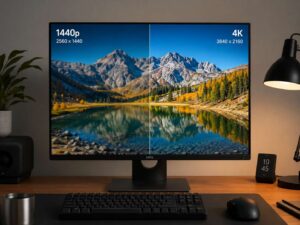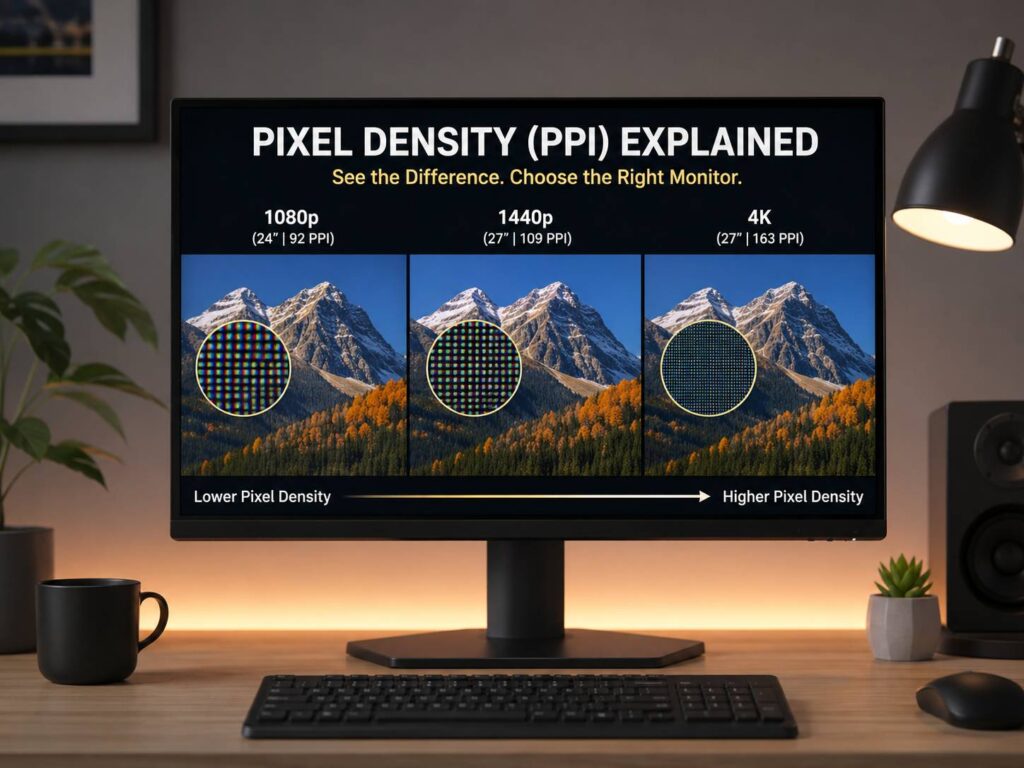
Pixel density on a monitor sounds like a small spec, but it can change how your screen feels every day. It affects text clarity, image sharpness, gaming detail, workspace comfort, and eye fatigue. So, before buying a new display, it is worth understanding what PPI means and why screen size changes everything.
It is tempting to look at resolution first, see 1080p, 1440p, 4K, or 5K, and assume the bigger number always means a better monitor. That is only partly true. Resolution matters, but screen size matters just as much. A 4K image on a 27-inch monitor looks much sharper than the same 4K image on a 43-inch screen.
That difference is pixel density.
A monitor with good pixel density can make your desktop feel cleaner and easier to read. A monitor with poor pixel density can look soft, especially at normal desk distance. For office work, gaming, coding, photo editing, and browsing, this one detail can separate a screen that feels crisp from one that feels slightly dated.
What Is Pixel Density on a Monitor?
Pixel density describes how many pixels fit into each inch of a display. The standard measurement is PPI, which means pixels per inch.
A pixel is one tiny square of light on your screen. Every letter, icon, image, game frame, video, and browser tab is built from these small points. Higher pixel density means more of those points fit into the same physical space. The result is a sharper image with smoother edges.
A low pixel density screen can still work fine, but text may look rough. Icons may look softer. Fine lines can look less precise. Small interface elements can feel harder to read.
A higher pixel density screen makes details look cleaner. Text often looks smoother, photos show finer texture, and menus feel more polished. For people who spend many hours at a desk, this can make a real difference.
Still, pixel density is not the only thing that matters. Brightness, contrast, color quality, refresh rate, panel type, and ergonomics matter too. Even so, PPI is one of the easiest specs to connect with real use.
How PPI Is Calculated
PPI is based on resolution and screen size. To find it, you calculate the diagonal pixel count and divide it by the screen size in inches.
The simple formula is:
PPI = diagonal pixel count ÷ screen size in inches
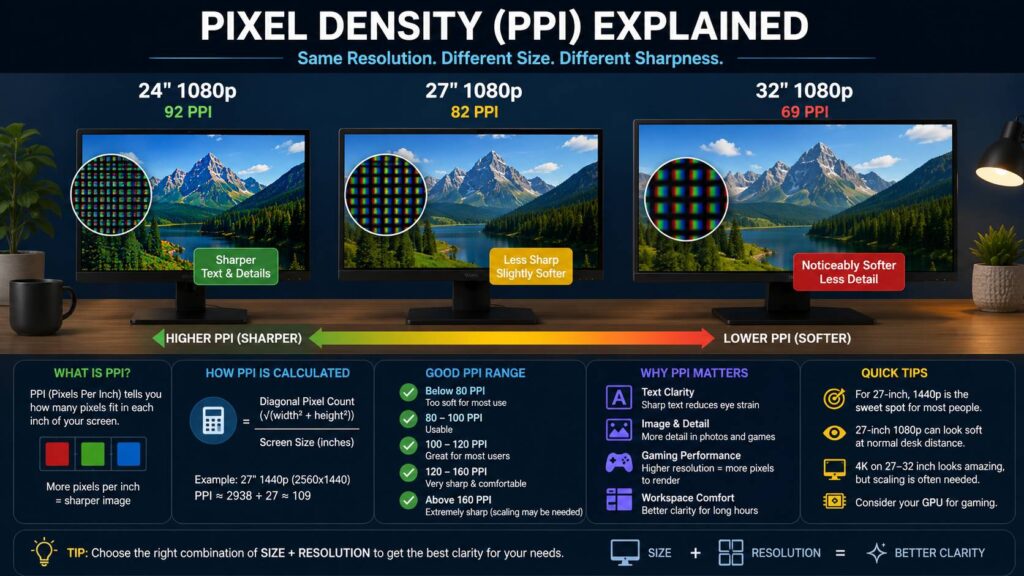
For example, a 27-inch 1440p monitor has a resolution of 2560 × 1440. Its diagonal pixel count is about 2938 pixels. Divide that by 27, and you get about 109 PPI.
That number tells you how tightly packed the pixels are.
The same resolution can look different on different screen sizes. A 1080p screen at 24 inches can look acceptable. A 1080p screen at 32 inches can look soft from a desk.
So, resolution alone is not enough. You need to look at resolution and size together.
Pixel Density vs Resolution
Resolution tells you the total number of pixels on the screen. Pixel density tells you how tightly those pixels are packed.
A 1920 × 1080 monitor has the same number of pixels regardless of size. Yet the image does not look the same across all sizes.
For example:
- 24-inch 1080p: about 92 PPI
- 27-inch 1080p: about 82 PPI
- 32-inch 1080p: about 69 PPI
All three are 1080p monitors. The 24-inch model looks noticeably cleaner than the 32-inch model at a desk. The larger screen stretches the same number of pixels across more space.
Now look at 4K:
- 27-inch 4K: about 163 PPI
- 32-inch 4K: about 138 PPI
- 43-inch 4K: about 102 PPI
Again, the resolution stays the same. The sharpness changes. For this reason, a monitor spec sheet that says “4K” does not tell the full story.
Common Monitor Sizes and Pixel Density
Here is a practical look at popular monitor combinations:
| Monitor Size | Resolution | Approx. PPI | Real-World Feel |
|---|---|---|---|
| 24-inch | 1920 × 1080 | 92 PPI | Good for basic desk use |
| 27-inch | 1920 × 1080 | 82 PPI | Usable, but softer up close |
| 27-inch | 2560 × 1440 | 109 PPI | Strong balance for work and gaming |
| 32-inch | 2560 × 1440 | 92 PPI | Similar sharpness to 24-inch 1080p |
| 27-inch | 3840 × 2160 | 163 PPI | Very sharp, scaling often needed |
| 32-inch | 3840 × 2160 | 138 PPI | Sharp, roomy, and practical |
| 34-inch ultrawide | 3440 × 1440 | 110 PPI | Similar clarity to 27-inch 1440p |
| 49-inch super ultrawide | 5120 × 1440 | 109 PPI | Wide workspace with familiar sharpness |
| 27-inch | 5120 × 2880 | 218 PPI | Extremely sharp text and detail |
In practice, 100 to 140 PPI is a comfortable target. That range gives a clear image without making everything too tiny.
Below 90 PPI, text starts to look less refined. Above 140 PPI, the image looks sharper, but scaling becomes more relevant.
What Is a Good Pixel Density for a Monitor?
A good pixel density depends on your desk distance, screen size, and daily use. For a normal desk setup, I consider 100 PPI the point where a monitor starts to feel properly crisp.
Here is a simple guide:
- Below 80 PPI: too soft for most desk use
- 80 to 95 PPI: usable, but not very sharp
- 100 to 120 PPI: great balance for most users
- 130 to 160 PPI: very sharp and pleasant for text
- Above 160 PPI: excellent clarity, but scaling often matters
For most people, 27-inch 1440p is the safest choice. It lands at around 109 PPI, so text looks clean, games still run well, and the desktop feels spacious.
A 32-inch 4K monitor is another excellent option. It gives around 138 PPI, which feels sharper than 1440p without becoming too small. It works well for office work, coding, spreadsheets, content creation, and multitasking.
A 27-inch 4K monitor gives even higher sharpness, but not everyone likes the scaling tradeoff. For a deeper look at that size and resolution, this guide on whether a 27-inch 4K monitor is worth it explains the pros and drawbacks in more detail.
Why Pixel Density Matters for Text
Text is where pixel density becomes obvious. A low-PPI monitor can make letters look rough around the edges. Small fonts can feel thin, fuzzy, or uneven. After a few hours, that can make reading feel more tiring.
A higher-PPI monitor draws letters with more detail. Edges look smoother. Small text in menus, documents, browsers, and code editors becomes easier to read.
For office work, this matters a lot. Office work means reading emails, writing documents, scanning tables, editing dashboards, and opening many browser tabs. A sharper screen makes those tasks feel cleaner.
That said, very high pixel density can make text too small at native scaling. A 27-inch 4K monitor at 100% scaling gives lots of workspace, but the text can look uncomfortably small. Setting scaling to 150% often fixes readability and keeps the image crisp.
The tradeoff is simple. You gain sharpness, but you may not gain as much usable workspace as expected.
Pixel Density and Display Scaling
Display scaling makes text, icons, menus, and app windows larger without lowering the monitor’s native resolution. It helps high-PPI screens stay readable.
For example, a 27-inch 4K monitor has a very sharp image. At 100% scaling, the desktop can feel tiny. At 150% scaling, text becomes much easier to read. Since the screen still uses all its physical pixels, the image remains crisp.
Scaling matters most on:
- 27-inch 4K monitors
- 32-inch 4K monitors
- 5K displays
- Laptop and monitor setups
- Multi-monitor desks with different PPI values
The common issue is older software. Some apps do not scale perfectly. They may look blurry, too small, or oddly spaced. Most modern apps handle scaling well, but older business tools can still cause frustration.
Mixed displays can create another annoyance. A laptop screen may have very high pixel density, and an older external monitor may have much lower pixel density. Dragging windows between the two can make sizes feel inconsistent.
Pixel Density for Gaming
Gaming adds one more factor: graphics performance. Higher pixel density usually means higher resolution, and higher resolution needs more GPU power.
A 27-inch 1440p monitor is a great gaming pick. It looks much sharper than 1080p at the same size, but it is easier to run than 4K. This makes it a strong match for mid-range and high-end gaming PCs.
A 32-inch 4K monitor looks sharper and more detailed. It suits cinematic games, racing games, story games, and console gaming. At the same time, it asks much more from the graphics card.
A 24-inch 1080p monitor still makes sense for competitive gaming. It is cheaper, easier to drive at high refresh rates, and sharp enough at that size. A 27-inch 1080p monitor is less appealing for desk use. The lower PPI becomes easy to notice.
For anyone comparing the two most common 27-inch options, this breakdown of 1080p vs 1440p on a 27-inch monitor is a helpful next read.
My honest view: 27-inch 1440p is still the best all-round gaming choice for most PC users. It gives better clarity than 1080p, strong frame rates, and fewer scaling issues than 4K.
Pixel Density for Office Work and Study
Office work benefits from sharp text more than people expect. A low-PPI monitor may seem fine at first, but long reading sessions can reveal its weaknesses.
For emails, reports, browser tabs, PDFs, spreadsheets, and online tools, a cleaner image helps. It will not magically fix a bad desk setup, but it can make the screen feel calmer.
Here are the best office pairings:
- 24-inch 1080p for basic work
- 27-inch 1440p for the best value
- 32-inch 4K for more room and better sharpness
- 34-inch ultrawide 1440p for side-by-side windows
- 27-inch 5K for very sharp text and premium clarity
A 32-inch 1440p monitor can work well for people who prefer larger text. It has about the same PPI as a 24-inch 1080p monitor, so it does not look ultra-sharp. Still, the larger physical size can feel comfortable.
For writing, research, admin work, and coding, I prefer at least 100 PPI. It keeps text cleaner and makes the monitor feel more modern.
Pixel Density for Photo Editing, Video Editing, and Design
Creative work benefits from extra sharpness. Photos show finer details. Video timelines feel cleaner. Design layouts look more precise. Text inside editing software is easier to read.
A 27-inch 4K monitor gives excellent sharpness for photo editing. A 32-inch 4K monitor gives a better mix of size and detail. A 27-inch 5K monitor looks extremely crisp, especially for text-heavy design work.
Still, pixel density should not be the only buying factor for creative work. Color accuracy, brightness, contrast, uniformity, panel quality, HDR performance, and calibration support matter too.
A very sharp screen with weak color is not a great editing display. For most creators, a good 32-inch 4K monitor is the more practical choice. It gives enough room for timelines and tool panels, and the image still looks sharp.
Common Pixel Density Problems
Pixel density can cause real issues after purchase. These are the ones buyers notice most often.
Text looks too small on 4K
A 27-inch 4K monitor can make text tiny at 100% scaling. Scaling fixes the issue, but you get less usable desktop space than the 4K label suggests.
Large 1080p monitors look soft
A 27-inch 1080p monitor can look fuzzy at a desk. A 32-inch 1080p screen usually looks worse. This is one of the most common monitor regrets.
Old apps can look blurry
Some older programs do not handle high-DPI scaling well. The app may look slightly blurred beside modern software.
Mixed monitor setups feel uneven
A high-PPI laptop beside a low-PPI monitor can feel awkward. Window sizes, text sharpness, and scaling can change from screen to screen.
Gaming performance can drop
A higher resolution has more pixels to render. A 4K gaming monitor needs a stronger graphics card than a 1440p monitor.
Bigger screens do not always look better
A larger monitor can feel immersive, but the same resolution spread across more inches lowers pixel density. Size alone does not mean sharper image quality.
Best Pixel Density by Use Case
For basic home use
A 24-inch 1080p monitor is still fine for browsing, email, school tasks, and video. It is affordable and sharp enough at that size.
For office work
A 27-inch 1440p monitor is the best value for most desks. It gives a clean image, useful workspace, and simple scaling.
For coding
A 27-inch 1440p screen works well. A 32-inch 4K monitor gives more room for editors, terminals, browser previews, and documentation.
For gaming
A 27-inch 1440p monitor is the safest choice. A 32-inch 4K monitor suits stronger PCs and console setups.
For photo and video editing
A 32-inch 4K monitor gives a strong balance of size, sharpness, and working space. A 27-inch 5K monitor is excellent for people who care most about text clarity and fine detail.
For ultrawide setups
A 34-inch 3440 × 1440 monitor is a good choice. It gives a wide workspace and a PPI close to 27-inch 1440p.
Is Higher Pixel Density Always Better?
Higher pixel density usually makes a screen look sharper, but it is not always the smarter buy.
A high-PPI monitor can cost more. It can need scaling. It can reduce gaming performance. It can expose problems in older apps. At longer viewing distances, the extra sharpness becomes less obvious.
For example, a 32-inch 4K monitor looks cleaner than a 32-inch 1440p monitor. The difference is clear in text and fine detail. For gaming, though, the 4K model needs much more GPU power. Some users will prefer higher frame rates over extra sharpness.
So the best monitor is not always the one with the highest PPI. The better pick is the one that matches your desk, eyesight, workload, and hardware.
Final Buying Advice
Pixel density is one of the most useful monitor specs, and one of the easiest to overlook. It explains why two monitors with the same resolution can feel completely different.
27-inch 1440p remains the easiest recommendation. It has around 109 PPI, looks clean, runs well on many PCs, and avoids most scaling problems. For users who want more detail and more screen space, 32-inch 4K is a strong step up. For people who care most about sharp text, 27-inch 4K or 27-inch 5K can look excellent, but scaling becomes part of the setup.
My honest opinion: avoid 27-inch 1080p for serious desk work unless the low price is the main reason. It works, but the softness shows up quickly in text. A 24-inch 1080p monitor looks cleaner. A 27-inch 1440p monitor feels like the real upgrade.
Pixel density is not complicated once you connect resolution with screen size. Check both before you buy. That small step can save you from a monitor that looks good on paper but feels disappointing on your desk.