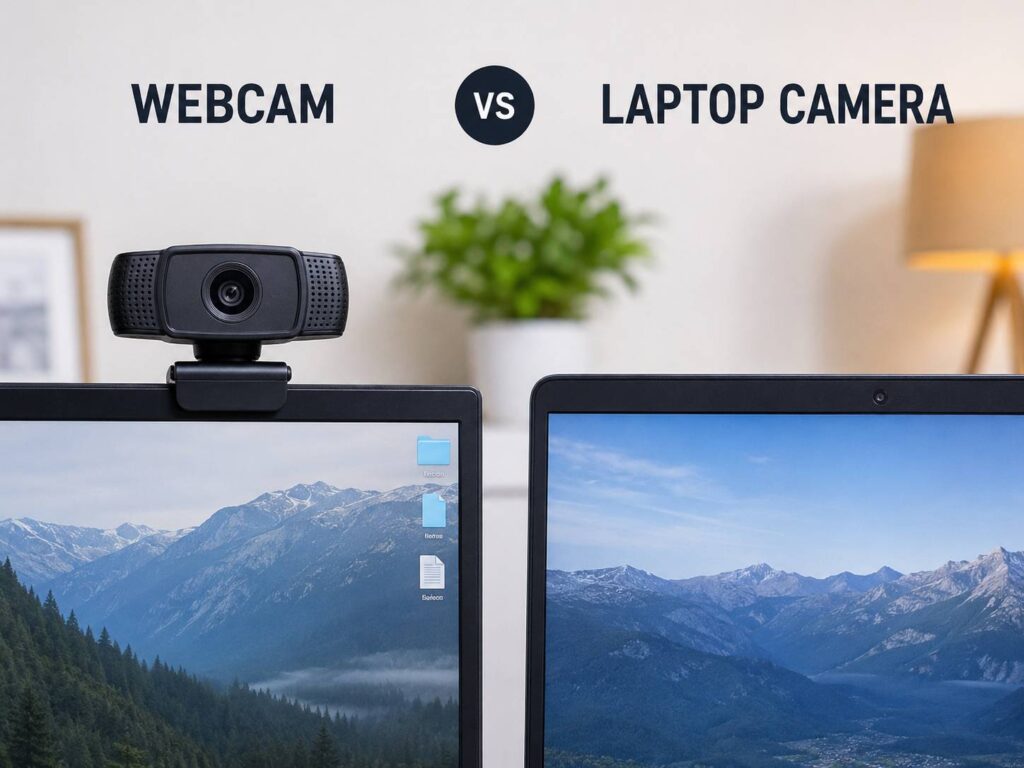
A laptop camera is easy to use. It is built into your screen, it works without extra cables, and it is ready for quick calls. That can be good enough. Still, a dedicated webcam can make a clear difference in video quality, framing, and overall presentation.
The real question is not just “which camera is better?” A better question is: which camera fits the way you actually use video? If you only join short family calls or quick team check-ins, your laptop camera may be fine. If you spend hours in meetings, record videos, teach online, stream, or attend interviews, an external webcam is usually the smarter choice.
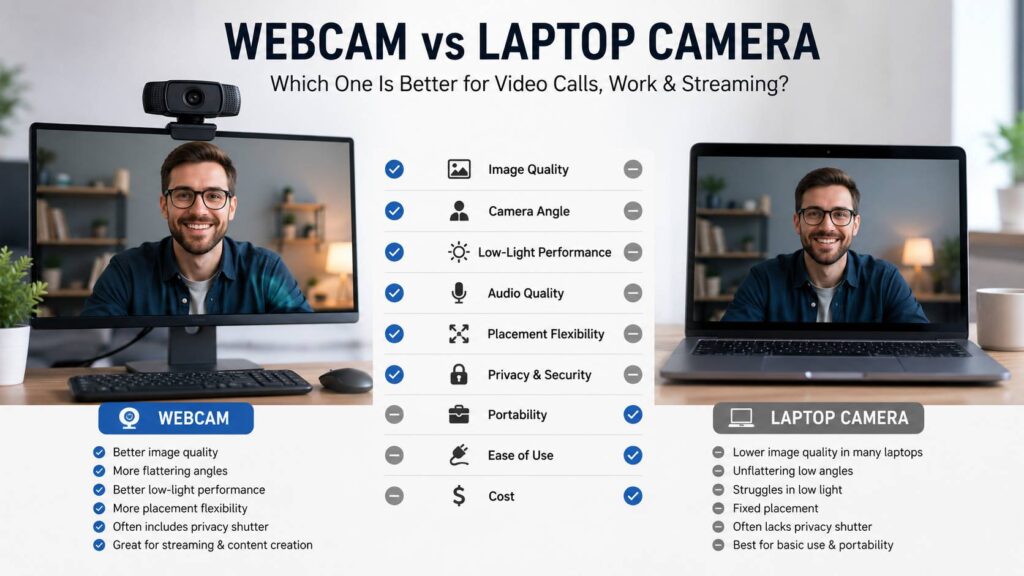
A webcam often gives you sharper detail, cleaner color, better low-light performance, and more control over your camera angle. Plus, you can place it where it makes you look more natural. That alone can improve your whole video setup.
Webcam vs Laptop Camera: What Is the Real Difference?
The biggest difference comes from size and placement. A laptop camera sits inside a thin screen bezel. That tiny space limits the sensor, lens, microphone design, and heat handling. A dedicated webcam has more room for better hardware, so it can often capture a cleaner and sharper image.
At the same time, not every webcam is better than every laptop camera. Some premium laptops now include strong 1080p cameras with smart framing, background blur, and better image processing. Even so, many budget and mid-range laptops still use basic built-in cameras that look soft, dark, or grainy.
Placement matters too. A laptop camera usually sits below your eye line, especially if the laptop rests flat on a desk. That creates an unflattering angle. It can make you look down at the screen instead of toward the person you are speaking with.
A webcam gives you more freedom. You can mount it on an external monitor, a tripod, a shelf, or a small stand. As a result, you can bring the lens closer to eye level. That makes your posture look better and helps you appear more engaged.
Image Quality: Why Webcams Usually Look Better
A good webcam usually beats a built-in laptop camera in image quality. The picture often looks sharper, brighter, and more balanced. Colors can look more natural too, especially in rooms with mixed lighting.
Resolution plays a role, but it is not everything. A strong 1080p webcam can look better than a cheap 4K webcam with poor autofocus and weak exposure. For that reason, you should not buy a camera based on resolution alone.
Here are the features that affect image quality most:
- Sensor size
- Lens quality
- Autofocus performance
- Exposure control
- Color processing
- Frame rate
- Field of view
- Low-light handling
- HDR support
- App control and camera settings
For basic meetings, 1080p is enough for most people. It gives a clean, sharp image without needing too much bandwidth. For creators, streamers, and people who crop their video frame, 4K can make sense. If you are unsure about the difference, this guide on whether a 4K webcam is worth it can help you decide before spending more.
In real use, lighting still matters a lot. A mid-range webcam in good light can look better than an expensive webcam in a dark room. So, before blaming your camera, check your lighting first.
Laptop Cameras Are More Convenient
Convenience is where the laptop camera wins. It is already there. You do not need a cable, mount, driver, tripod, or extra desk space. You open the laptop, join the call, and start talking.
That makes laptop cameras great for travel, school, coffee shop work, casual video chats, and quick meetings. They are also useful if you move between rooms during the day. You do not have to carry a separate camera or worry about leaving it behind.
There is another simple benefit. A built-in laptop camera keeps your setup clean. No cable runs across your desk. No extra device sits on top of your screen. For people who dislike clutter, that matters.
Still, convenience has limits. If your laptop camera looks blurry, sits at a poor angle, or struggles in low light, the easy setup starts to feel less useful. At that point, a webcam becomes less of a luxury and more of a practical upgrade.
Webcams Give You Better Framing and Control
A webcam helps you control how you appear on screen. That may sound small, but it changes the feel of your calls.
With a laptop camera, you are stuck with the camera position. If the laptop is low, your camera angle is low. If the laptop sits to the side of your main monitor, you will look away from the people on the call. This can feel awkward, especially during interviews or client meetings.
A webcam fixes that problem. You can place it in the center of your main screen, close to eye level. Then your face appears more natural, and your eye contact feels better.
Better framing also helps your background. You can show less ceiling, less desk clutter, and less empty space around your head. Plus, many webcams let you adjust the field of view. A narrow view works well for solo calls. A wider view helps if you need to show a whiteboard, product, desk, or second person.
For a simple setup, place the webcam at the top center of your main monitor. Then sit about an arm’s length away. This creates a cleaner frame and makes your video look more polished without much effort.
Low Light: The Area Where Laptop Cameras Often Struggle
Low light is one of the biggest problems with laptop cameras. Small sensors need light. If the room is dim, the camera has to boost the image. That often creates noise, blur, dull colors, and washed-out skin tones.
A good webcam usually handles low light better. It can collect more light and process the image more cleanly. Even so, no webcam can fully fix poor lighting.
Try this before buying anything:
- Sit facing a window during the day.
- Place a soft lamp behind your laptop at night.
- Avoid strong light behind your head.
- Turn off harsh ceiling lights if they create shadows.
- Keep your face brighter than your background.
- Clean the camera lens with a microfiber cloth.
That last point is easy to miss. A dirty lens can make any camera look bad. Fingerprints, dust, and smudges soften the image and make video look hazy.
A small desk lamp can improve video quality more than a new camera. Then, once the lighting is better, a webcam upgrade becomes easier to judge.
Audio Quality: Webcam Mic vs Laptop Mic
Video gets most of the attention, but audio matters more during calls. People can tolerate average video. Poor sound becomes annoying fast.
Laptop microphones have improved in recent years. Some premium laptops use multiple microphones and software noise reduction. As a result, they can sound good enough for normal meetings.
Still, laptop mics sit close to keyboard taps, fan noise, and desk vibration. That can cause background noise during calls. A webcam mic may perform better, especially if it has dual microphones and noise reduction. Yet it is not always a major upgrade.
Here is the honest ranking for most setups:
- Best: dedicated USB microphone or good headset
- Good: quality webcam microphone
- Fine: premium laptop microphone
- Weak: old laptop microphone in a noisy room
A webcam can improve your video a lot, but it may not fix your audio. If people often ask you to repeat yourself, start with a better microphone or headset. Then upgrade the camera if the image still looks weak.
Webcam vs Laptop Camera for Remote Work
For remote work, the better choice depends on how often you use video. If you join one or two short calls per week, your laptop camera is probably enough. If you spend hours each week in Zoom, Google Meet, Microsoft Teams, or Slack calls, a webcam is worth considering.
A webcam helps most in these situations:
- You use an external monitor.
- You lead meetings.
- You speak with clients.
- You attend job interviews.
- You teach or train online.
- You record tutorials.
- Your laptop camera looks dark or soft.
- Your camera angle makes you look down.
- You want a more professional setup.
A laptop camera still works well for:
- Casual team check-ins
- Travel days
- School calls
- Quick family video chats
- Light remote work
- Small desks
- People who hate extra cables
For a home office, the webcam usually wins. For mobile work, the laptop camera wins. You can use both: the laptop camera on the go and the webcam at the desk.
Webcam vs Laptop Camera for Streaming and Content Creation
For streaming, YouTube videos, online courses, and product demos, a webcam is usually the better choice. It gives you more control over the shot and often handles motion better.
A laptop camera can work for casual content, but it often feels limited. The angle is fixed, the image may look soft, and autofocus can be weak or missing. Also, many laptop cameras do not handle lighting changes well.
For content creation, look for a webcam with:
- 1080p at 60 fps
- 4K support if you need cropping
- Reliable autofocus
- Adjustable field of view
- Good low-light performance
- Tripod mount
- Manual exposure settings
- Clean software controls
If you are choosing between 1080p and 4K, think about your use case. For normal calls, 1080p is usually enough. For recording, cropping, product demos, and sharper videos, 4K can be useful. This comparison of 1080p vs 4K webcam quality explains the difference in more detail.
My real opinion: most people do not need a 4K webcam for basic meetings. A good 1080p webcam with strong lighting will look better than a weak 4K webcam in a dark room.
Privacy and Security
Both camera types can be safe, but they handle privacy differently.
A laptop camera is always built into the device. Many newer laptops include a privacy shutter, camera indicator light, or keyboard control. That helps, but not every laptop has these features.
External webcams often include a physical privacy cover. You can also unplug the camera completely. That gives a simple and clear privacy benefit.
If you care about face unlock, check the hardware carefully. Some laptops support secure face recognition with infrared sensors. A normal webcam does not always support that feature. You need a webcam with the right IR hardware if you want secure face sign-in.
For daily privacy, use a simple rule. Cover the lens or unplug the webcam when you are not using it.
Common Problems With Laptop Cameras
Laptop cameras are convenient, but they come with some common issues.
Many built-in cameras look grainy in low light. Some make skin tones look too red, too pale, or too yellow. Others overexpose the background and leave your face too dark.
The camera angle can also be a problem. Since the lens sits in the laptop screen, your face may appear from a low angle. This looks worse if the laptop sits flat on a desk.
Another issue is eye contact. If you use an external monitor and keep the laptop off to the side, your camera is not near the screen you are watching. During calls, it can look like you are speaking away from the person.
These problems are not always dealbreakers. A laptop stand, better lighting, and a cleaner background can help a lot. Still, a webcam gives you more control if you want a cleaner setup.
Common Problems With Webcams
Webcams are not perfect either. Some cheap models look sharp only in bright light. Others have poor autofocus that keeps hunting during calls. That can be distracting.
A wide-angle webcam can also distort your face if you sit too close. This makes the center of the image look stretched. For solo calls, a narrower field of view often looks better.
Cable length can cause trouble too. Some webcams have short cables, and some USB hubs do not provide stable power or data. That can lead to freezing, lag, or random disconnects.
Software can be another issue. Some webcam apps feel heavy, and some settings reset after updates. For that reason, it is worth testing your camera before an important meeting, interview, or stream.
How to Make Any Camera Look Better
Before you buy a new webcam, improve your setup. Small changes can make a big difference.
Start with lighting. Put your main light in front of you. A window works during the day, and a desk lamp works at night. Next, raise the camera to eye level. If you use a laptop camera, place the laptop on a stand and use an external keyboard.
Then check your background. A clean background helps the camera focus on you. It also makes the call feel more professional.
Try these quick fixes:
- Clean the lens.
- Raise the camera.
- Face a light source.
- Avoid bright windows behind you.
- Sit closer to the camera.
- Use a plain background.
- Turn off strong overhead lights.
- Test camera settings before calls.
- Use a headset if your audio sounds weak.
- Close unused apps that may access the camera.
These changes help both laptop cameras and webcams. So, test them first. If the video still looks poor, then a webcam upgrade makes more sense.
Which One Should You Choose?
Choose a laptop camera if you want the easiest setup. It is best for travel, casual calls, school, and quick meetings. It also works well if your laptop already has a good 1080p camera and your lighting is decent.
Choose a webcam if you want better quality and more control. It is the better pick for remote work, streaming, online teaching, job interviews, client meetings, and content creation.
The choice is easier if you think about your main problem. If your image looks dark, blurry, or badly framed, a webcam can help. If your image looks fine but your sound is bad, upgrade your microphone first. If your angle looks awkward, try a laptop stand before buying a camera.
Final Verdict: Webcam vs Laptop Camera
A laptop camera wins on convenience. It is built in, simple, and easy to use anywhere. For casual calls, that is often enough.
A webcam wins on quality, placement, and control. It usually gives you a sharper image, better framing, stronger low-light performance, and a more professional look. For remote work, streaming, teaching, interviews, and video-heavy days, it is usually worth the upgrade.
The best setup is simple. Use the laptop camera while traveling. Use a dedicated webcam at your desk. Add better lighting, clean up your background, and use a decent microphone. That mix gives you a better video call setup without making things complicated.