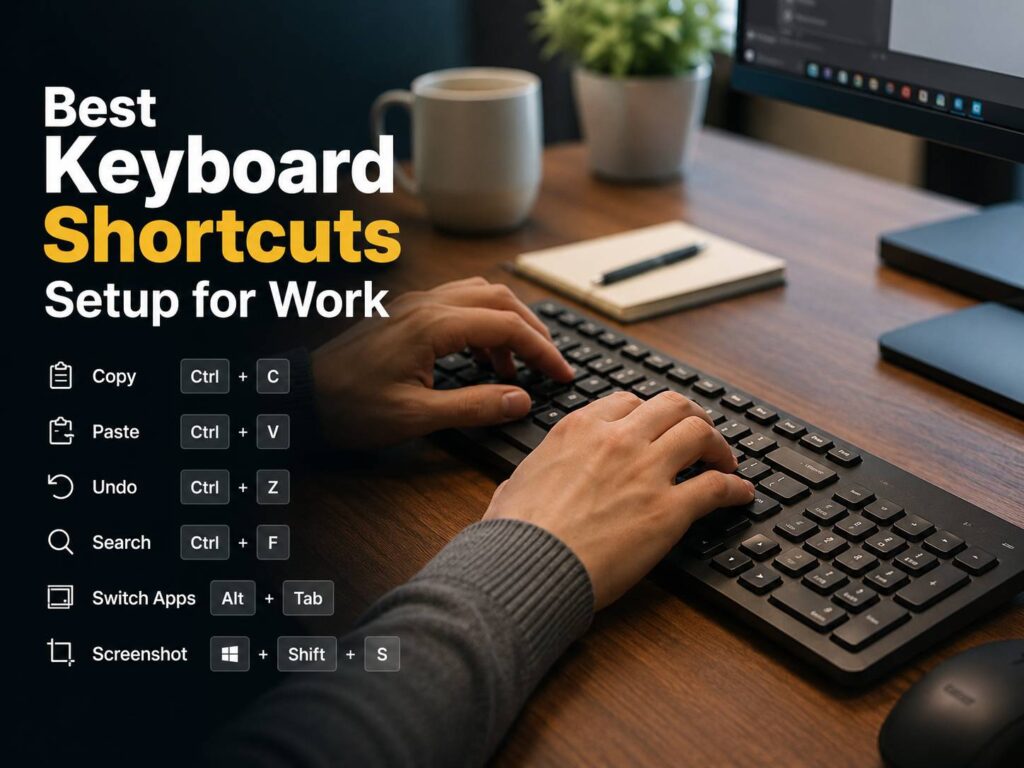
A good keyboard shortcuts setup for work can make your day feel smoother. It will not turn a slow workflow into magic overnight, but it can remove dozens of small delays. Opening apps, moving between tabs, searching documents, taking screenshots, formatting text, and replying to messages all become faster once your hands know the right keys.
Still, the best setup is not the biggest one. You do not need 100 shortcuts. You need a small group of useful shortcuts that fit your workday.
That is the part many guides miss. They list every shortcut, then leave you with too much to remember. A better plan starts with the tasks you repeat all day. Next, you build a simple system around those tasks. Then, once the basics feel natural, you add custom shortcuts for the actions that still slow you down.
This guide shows you how to build the best keyboard shortcuts setup for work without making your desk feel more complicated.
Start With the Shortcuts You Use Every Day
The best keyboard shortcuts are not always the fancy ones. Most of the time, the real time savers are the basic actions you repeat again and again.
Start with these daily tasks:
- Copying and pasting text
- Undoing mistakes
- Moving between apps
- Switching browser tabs
- Searching inside a page
- Opening files
- Taking screenshots
- Locking your computer
- Opening a new browser tab
- Closing tabs you no longer need
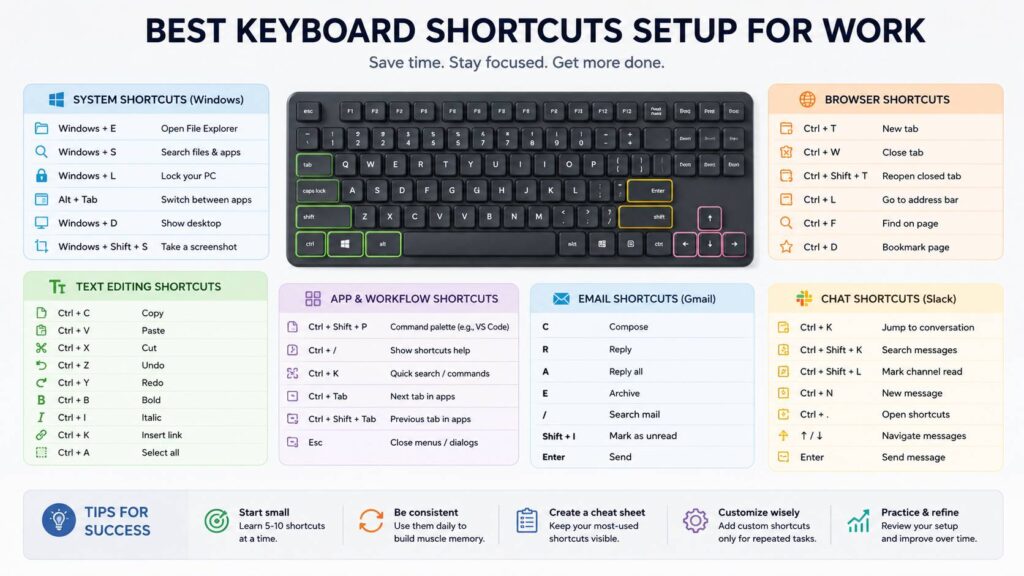
For Windows, your starter setup should include Ctrl + C, Ctrl + V, Ctrl + X, Ctrl + Z, Alt + Tab, Windows + E, Windows + L, Windows + S, and Windows + Shift + S.
For Mac, your starter setup should include Command + C, Command + V, Command + X, Command + Z, Command + Tab, Command + Space, Command + Shift + 4, Command + W, and Command + Q.
In my opinion, this is where most people should begin. These shortcuts are simple, but they touch almost every type of work. After a few days, they start to feel automatic.
Build Your Shortcut Setup Around Your Real Work
A useful keyboard shortcut setup should match your job. A writer does not need the same setup as a developer. A project manager does not work like a designer. A support agent has different needs from someone who spends most of the day in spreadsheets.
For office work, focus on:
- Browser tabs
- Calendar
- Documents
- Spreadsheets
- File search
- Screenshots
- Chat apps
For content work, focus on:
- Text formatting
- Link insertion
- Screenshot capture
- Browser research
- Notes
- Find and replace
- Clipboard history
- Document outlines
For technical work, focus on:
- Command palette
- File search
- Move line up or down
- Duplicate line
- Rename item
- Format document
- Open terminal
- Split editor
Next, look at your own routine. What do you click 30 times per day? What menu do you keep opening? What task breaks your focus? Those are the shortcuts worth learning first.
A good setup should reduce mouse use, not remove it completely. Some tasks still feel better with a mouse. For example, image editing, drag-and-drop tasks, and layout work often need pointer control. That is fine. The goal is less friction, not keyboard-only perfection.
Learn System Shortcuts Before App Shortcuts
System shortcuts work across the whole computer. For that reason, they give you value in almost every app.
On Windows, start with these:
- Windows + E: open File Explorer
- Windows + S: search apps, files, and settings
- Windows + L: lock your computer
- Windows + D: show the desktop
- Windows + Left or Right Arrow: snap a window to the side
- Alt + Tab: switch between open apps
- Ctrl + Shift + Esc: open Task Manager
- Windows + Shift + S: take a selected screenshot
- Ctrl + A: select everything
- Ctrl + Backspace: delete the previous word
On Mac, start with these:
- Command + Space: open Spotlight search
- Command + Tab: switch between apps
- Command + W: close the current window or tab
- Command + Q: quit the current app
- Command + Option + Esc: force quit an app
- Command + Shift + 4: take a selected screenshot
- Command + H: hide the current app
- Command + `: switch between windows in the same app
- Command + A: select everything
- Option + Delete: delete the previous word
Then, after these feel easy, add more app-specific shortcuts. This order matters. A strong system layer helps in every workflow, even on busy days with too many windows open.
Make Browser Shortcuts a Core Part of Your Setup
Much of a workday can happen inside a browser. Email, Google Docs, dashboards, admin panels, CMS tools, project boards, analytics pages, and research tabs all live there. So, browser shortcuts deserve a place near the top of your list.
Start with these:
- Ctrl or Command + T: open a new tab
- Ctrl or Command + W: close the current tab
- Ctrl or Command + Shift + T: reopen the last closed tab
- Ctrl or Command + L: jump to the address bar
- Ctrl or Command + F: search inside the current page
- Ctrl + Tab: move to the next tab
- Ctrl + Shift + Tab: move to the previous tab
- Ctrl or Command + R: reload the page
- Ctrl or Command + D: bookmark the page
The most useful one is Ctrl or Command + L. It moves your cursor straight to the address bar. From there, you can search the web, open a site, paste a URL, or jump to a bookmark without touching the mouse.
That said, shortcuts will not fix a messy tab habit on their own. If you keep 40 tabs open, tab shortcuts only help so much. A cleaner habit works better: keep active work tabs open, then save everything else in bookmarks, notes, or your task app.
Use Text Shortcuts to Write and Edit Faster
Text shortcuts are useful in emails, documents, CMS editors, chat apps, notes, forms, and spreadsheets. They are small, but they save real time.
Start with these:
- Ctrl or Command + C: copy
- Ctrl or Command + V: paste
- Ctrl or Command + X: cut
- Ctrl or Command + Z: undo
- Ctrl or Command + B: bold
- Ctrl or Command + I: italic
- Ctrl or Command + K: insert a link in many editors
- Ctrl or Command + F: find text
- Ctrl or Command + S: save
Then, learn how to move through text faster:
- Ctrl + Left or Right Arrow on Windows: move by word
- Option + Left or Right Arrow on Mac: move by word
- Shift + Arrow: select text
- Ctrl + Shift + Arrow on Windows: select text by word
- Option + Shift + Arrow on Mac: select text by word
- Home and End on Windows: jump to the start or end of a line
- Command + Left or Right Arrow on Mac: jump to the start or end of a line
This is one of the best upgrades for anyone who writes a lot. Moving word by word feels small at first. After a week, going back to slow cursor movement feels annoying.
Plus, text shortcuts work in many places. You can use them in search boxes, file names, browser forms, comments, chat messages, and document editors.
Add Mouse Buttons to Your Shortcut Setup
A keyboard setup works even better when your mouse supports extra buttons. By default, side buttons go back and forward in the browser. That is useful, but those buttons can do more.
For work, side buttons can help with:
- Copy and paste
- Back and forward
- Screenshot capture
- Mute microphone
- Paste plain text
- Open clipboard history
- Switch desktops
- Start a saved macro
Still, do not overload your mouse. Too many button assignments can become confusing. For most work setups, two well-chosen side buttons are enough. If you are unsure, this guide on whether you need more than two side buttons on a mouse explains where extra buttons help and where they just add noise.
My honest view: back and forward are still the safest side-button setup for most users. They work in browsers, folders, and many apps. After that, assign only one extra action that you use daily.
Pick the Right Keyboard Size for Shortcuts
Keyboard size affects shortcut comfort more than people think. A full-size keyboard gives you a number pad, function row, arrows, and navigation keys. That helps with spreadsheets, accounting, data entry, and admin work.
A smaller keyboard gives you more desk space. It can feel better with a mouse, mainly for people who keep the keyboard centered. The tradeoff is that some keys move behind layers or key combinations.
For many desk setups, 75 percent keyboards hit a nice balance. They keep the function row and arrow keys, but they take less room than a full-size board. A 65 percent keyboard saves even more space, yet it can make function keys and navigation shortcuts less direct. For a deeper comparison, read this guide on 65 vs 75 keyboard layouts.
For work, I would choose based on your daily tasks:
- Use full-size for spreadsheets and number-heavy work
- Use 75 percent for mixed office work
- Use 65 percent for compact desks and lighter typing tasks
- Use a separate number pad if you love small keyboards but still enter numbers often
Next, check how often you use the function row, Delete, Home, End, Page Up, and Page Down. If you use them daily, avoid a layout that hides them too deeply.
Use Search Shortcuts Instead of Hunting Through Menus
Search shortcuts are underrated. They help you find commands, files, settings, pages, and messages faster.
Use these often:
- Windows + S for Windows search
- Command + Space for Mac Spotlight
- Ctrl or Command + F for page search
- Ctrl + Shift + P in VS Code for the command palette
- Ctrl or Command + K in many apps for search, links, or commands
- Ctrl + / or Command + / in many apps to open shortcut help
For example, instead of digging through menus for “word count,” “clear formatting,” “insert table,” or “format document,” use the app’s search or command box. It feels faster, and it reduces the need to remember where every setting lives.
This habit helps new software feel less frustrating too. Once you know how to search inside an app, you can find tools faster without clicking through every menu.
Set Up Email Shortcuts Carefully
Email shortcuts can save a lot of time, but they need care. Sending, archiving, deleting, and replying are high-frequency actions. A wrong key can cause an awkward moment.
A good email setup should cover:
- Compose
- Reply
- Reply all
- Search
- Archive
- Mark as read
- Move to folder or label
- Move between messages
Pick only the shortcuts you will actually use. For most people, compose, reply, search, archive, and send are enough.
Then, set a short send delay in your email app. A 10 to 30 second delay can save you from unfinished replies, missing attachments, or tone that sounds too sharp. This tiny safety net is worth it, mainly in client-facing roles.
Use Chat Shortcuts Without Feeding Distraction
Chat apps are great for teamwork, but they can pull your attention all day. Shortcuts help you process messages faster. They should not push you to check every notification.
Useful chat shortcuts include:
- Open search
- Jump to unread messages
- Move between channels
- Start a new message
- Mark a channel as read
- Edit the last message
- Add a reaction
Next, turn off noisy alerts where possible. A shortcut setup works better with fewer interruptions. For example, open unread messages in batches instead of jumping into every ping.
One common issue comes from keyboard layouts. Some shortcuts differ across regions or app versions. Test them in your own app before you rely on them.
Use Custom Shortcuts Only for Repeated Actions
Custom shortcuts can be great. They can also create a messy system that only makes sense for one week.
Good custom shortcut ideas include:
- Open your notes app
- Open your password manager
- Paste plain text
- Start a screenshot
- Mute microphone
- Open clipboard history
- Insert your email address
- Open your main work folder
- Start screen recording
- Open calculator
Avoid changing universal shortcuts like copy, paste, undo, and save. Those keys are already built into your muscle memory. Changing them can slow you down in other apps, on other computers, or during remote work.
A simple rule works well: create a custom shortcut only after you repeat the same action for several days. If the action keeps bothering you, it deserves a shortcut. If not, leave your setup clean.
Add Clipboard History to Save More Time
Clipboard history is one of the easiest productivity wins. It lets you copy several items, then paste the one you need later.
On Windows, Windows + V opens clipboard history after you turn it on. On Mac, you usually need a clipboard manager.
Clipboard history helps with:
- Research notes
- Product specs
- Email replies
- Article outlines
- Code snippets
- Customer support answers
- Repeated text blocks
- CMS edits
Still, be careful with sensitive text. Clipboard tools can store private data. Avoid copying passwords, payment details, personal documents, or private customer information into a saved clipboard history.
For everyday work, pin only safe snippets. For example, your email address, a short bio, a common reply, or a reusable note template.
Make a One-Page Shortcut Cheat Sheet
A shortcut cheat sheet should be short. If it has too many items, you will stop reading it.
Use this structure:
Daily system shortcuts:
- Switch apps
- Open search
- Lock screen
- Take screenshot
- Open files
Browser shortcuts:
- New tab
- Close tab
- Reopen closed tab
- Address bar
- Find on page
Writing shortcuts:
- Copy
- Paste
- Undo
- Bold
- Add link
- Move by word
Work app shortcuts:
- Compose email
- Reply
- Archive
- Search messages
- Open command menu
Then, keep the sheet somewhere visible for one week. After that, remove the shortcuts you already know and add a few new ones.
This keeps learning light. It also prevents the common problem of saving a giant shortcut list and never opening it again.
Avoid These Keyboard Shortcut Mistakes
A shortcut setup should make work easier. These mistakes can do the opposite.
Learning too many shortcuts at once
Start with 5 to 10 shortcuts. Then add more once the first group feels natural.
Changing common shortcuts
Do not remap copy, paste, undo, save, or close. These should stay familiar across every app.
Using risky macros
A macro that deletes, sends, submits, or closes work can cause problems. Keep risky actions manual.
Ignoring comfort
Some key combinations feel awkward. Change them if they strain your hand.
Forgetting about layout differences
A US keyboard, UK keyboard, and Romanian keyboard can place symbols in different spots. Test shortcuts on your actual keyboard.
Building a setup you cannot remember
A clever shortcut is not useful if you keep forgetting it. Keep the system simple.
My Recommended Keyboard Shortcuts Setup for Work
Here is a practical starter setup for most office, content, and admin work.
Core daily shortcuts:
- Copy: Ctrl or Command + C
- Paste: Ctrl or Command + V
- Undo: Ctrl or Command + Z
- Save: Ctrl or Command + S
- Find: Ctrl or Command + F
- Open search: Windows + S or Command + Space
- Switch apps: Alt + Tab or Command + Tab
- Screenshot area: Windows + Shift + S or Command + Shift + 4
- New browser tab: Ctrl or Command + T
- Close tab: Ctrl or Command + W
- Reopen closed tab: Ctrl or Command + Shift + T
- Address bar: Ctrl or Command + L
- Lock screen: Windows + L or Control + Command + Q
- Move by word: Ctrl or Option + Arrow
- Select by word: Ctrl or Option + Shift + Arrow
Add three app shortcuts:
- One for email search
- One for chat search
- One for your main command menu
Then add one custom shortcut:
- Paste plain text
- Open notes
- Mute microphone
- Open screenshot tool
- Open clipboard history
This gives you a strong setup without turning your keyboard into a puzzle.
Final Thoughts
The best keyboard shortcuts setup for work should feel simple, not stressful. Start with system shortcuts, browser shortcuts, text editing, and search. After that, add email, chat, clipboard history, and custom shortcuts only where they save real time.
A good shortcut setup helps you click less, search faster, and stay focused longer. It also makes everyday work feel a little calmer. That matters more than memorizing every shortcut in every app.
Start with a small set today. Use it for one week. Then adjust it around the tasks you repeat most. That is how keyboard shortcuts become part of your work, not another productivity trick you forget.