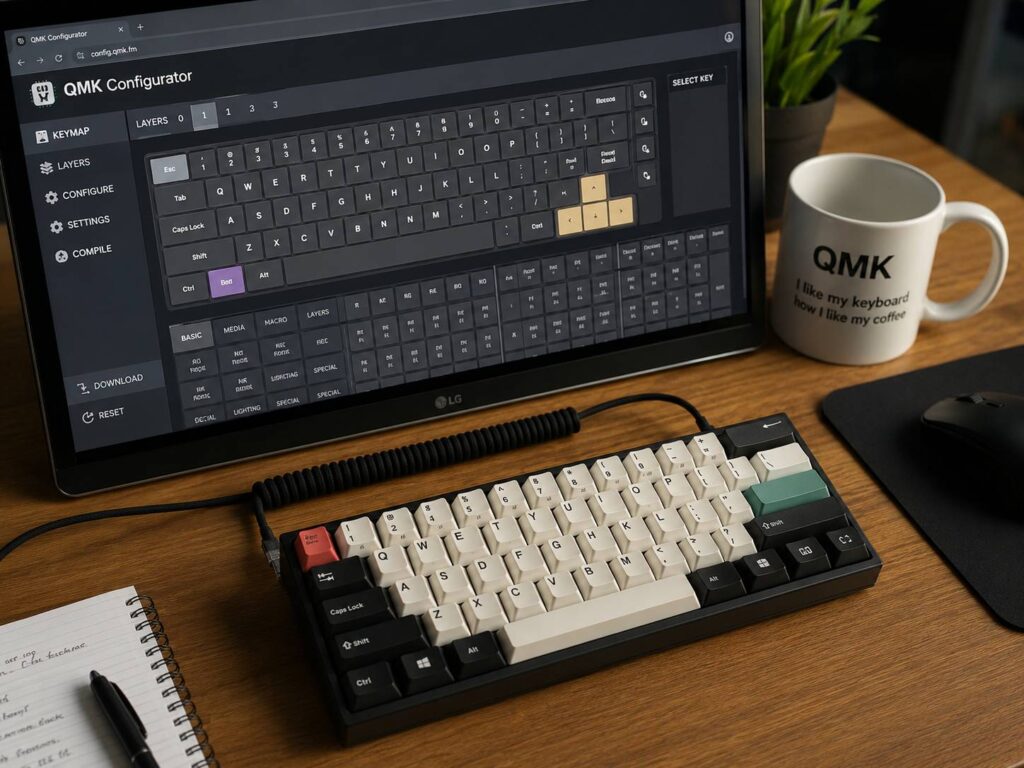
QMK is one of those terms you see often once you start looking at mechanical keyboards. At first, it sounds technical and maybe a little intimidating. Still, the idea behind it is simple: QMK lets you control what your keyboard does at a deeper level.
Instead of being stuck with the default layout, you can change keys, create layers, add macros, adjust shortcuts, and make a small keyboard feel much more useful. For many keyboard fans, QMK is the difference between a keyboard that works fine and a keyboard that feels built for your hands.
The best part is that most QMK changes live inside the keyboard itself. So, after you flash your layout, the keyboard remembers it. You can plug it into another computer, and your custom setup still works. That makes QMK useful for people who switch between workstations, laptops, operating systems, or desk setups.
If you are new to custom keyboards, this guide explains what QMK is, how it works, why people care about it, and what problems beginners often run into.
What Is QMK?
QMK stands for Quantum Mechanical Keyboard. It is open-source firmware used on many programmable mechanical keyboards.
Firmware is the small piece of software stored inside the keyboard. It tells the keyboard what to do after you press a key. On a normal keyboard, that behavior is mostly fixed. On a QMK keyboard, you can change it.
For example, you can turn Caps Lock into Escape. You can make one key act as Control when held and Escape when tapped. You can create a second layer where your letter keys become arrow keys, media controls, or function keys.
That is why QMK is so popular in the custom keyboard community. It gives users real control instead of basic software presets.
Why QMK Matters
A normal keyboard sends simple signals to your computer. You press A, it sends A. You press Enter, it sends Enter. That works well enough, but it does not help much if you want a layout that fits your workflow.
QMK gives the keyboard more intelligence. Because the logic runs on the keyboard, you can build advanced behavior without needing extra desktop software open all the time.
This matters even more with compact keyboards. A 60 percent, 65 percent, or 40 percent keyboard has fewer keys than a full-size board. As a result, you need layers to reach arrows, function keys, navigation keys, and media controls. If you are still choosing between compact sizes, this guide on 65 vs 75 keyboard can help you understand how much layout space you really need.
QMK also matters for comfort. Instead of stretching your fingers for common shortcuts, you can move those shortcuts closer to your home row. Over time, that can make typing feel smoother and less tiring.
What Can You Do With QMK?
QMK can handle simple remapping, but that is only the beginning. Once you understand the basics, you can build a keyboard layout around your real habits.
Common QMK features include:
- Custom keymaps
- Multiple layers
- Macros
- Tap-hold actions
- Mod-Tap keys
- Layer-Tap keys
- Tap Dance
- Combos
- One-shot modifiers
- Mouse keys
- Media controls
- RGB lighting control
- Rotary encoder support
- OLED screen support
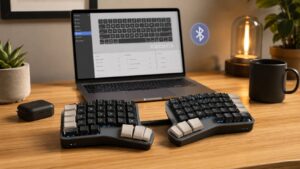
- Split keyboard support
- Custom code for advanced users
For daily use, you do not need all of these features. In fact, the biggest benefit comes from just a few smart changes. A better Escape key, a navigation layer, and a few useful shortcuts can make a keyboard feel much better.
Still, QMK gives you room to grow. You can start simple and then build a more personal layout over time.
QMK Layers Explained
Layers are one of the main reasons people use QMK.
A layer is like a second keyboard hidden under your main keyboard layout. You press or hold a special key, and the same physical keys perform different actions.
For example, your main layer can have letters and basic punctuation. Then, your second layer can have arrows, function keys, media keys, and screen brightness controls. A third layer can hold macros, symbols, or app shortcuts.
A simple QMK layout might look like this:
- Base layer: normal letters, numbers, Space, Enter, Backspace
- Function layer: F1 to F12, brightness, volume, media controls
- Navigation layer: arrows, Home, End, Page Up, Page Down
- Symbol layer: brackets, slashes, currency symbols, coding characters
This is very useful on small keyboards. Instead of losing important keys, you move them to layers. After a little practice, it can feel natural.
There is a learning curve, though. If you add too many layers at once, you will forget where everything is. For that reason, it is better to start with one extra layer and build from there.
QMK Macros Explained
Macros let one key perform several actions.
For example, a macro can type your email address, paste a common phrase, open a shortcut, or run a repeated command. Writers can use macros for text snippets. Developers can use them for brackets, code patterns, or terminal commands. Editors can use them for app shortcuts.
A good macro saves time without getting in the way. A bad macro creates mistakes fast. So, it is better to add macros slowly.
Useful macro ideas include:
- Email address
- Work signature
- Common text replies
- Frequently used symbols
- Repeated app shortcuts
- Media commands
- Coding snippets
- Window management commands
For gaming, be careful. Some games and tournaments do not allow automated actions. QMK is great for comfort and layout control, but it should not be used to break game rules.
What Are Mod-Tap and Layer-Tap Keys?
Mod-Tap and Layer-Tap are two QMK features that can make a keyboard feel much smarter.
A Mod-Tap key sends one command when tapped and another command when held. For example, Caps Lock can send Escape when tapped, but act as Control when held.
A Layer-Tap key works in a similar way. It sends a normal key when tapped and activates a layer when held. For example, Space can work as Space when tapped, but open a navigation layer when held.
These features are powerful, but they need tuning. Press keys quickly and you can trigger the wrong action. Hold them a little too long and you get a modifier instead of a normal key.
The setting that controls this behavior is often connected to timing. If you are trying to understand how keyboard timing works, it helps to read about what debounce time is, since input timing can affect how a keyboard feels in real use.
My honest opinion: Mod-Tap is one of the best QMK features, but only after you tune it for your typing style. Copying someone else’s layout can be a rough start, especially if they type at a different speed.
QMK vs VIA: What Is the Difference?
QMK and VIA are often mentioned together, but they are not the same thing.
QMK is the firmware. It controls the deeper keyboard behavior.
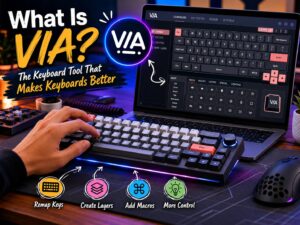
VIA is a visual app that lets you change supported keyboard layouts without writing code or compiling firmware. Many VIA-compatible keyboards run QMK underneath, but VIA gives you an easier interface.
For beginners, VIA is usually friendlier. You open the app, click a key, choose a new function, and save the layout. It feels simple and fast.
QMK gives you more control. It supports advanced macros, custom logic, deeper layer behavior, and source code changes. The tradeoff is that it takes more time to learn.
A simple way to look at it:
- VIA is easier for quick layout changes
- QMK is better for advanced customization
- VIA needs keyboard support
- QMK gives more control
- You can start with VIA and move into QMK later
If you are buying your first custom keyboard, a board with both QMK and VIA support is a smart choice.
How QMK Configurator Works
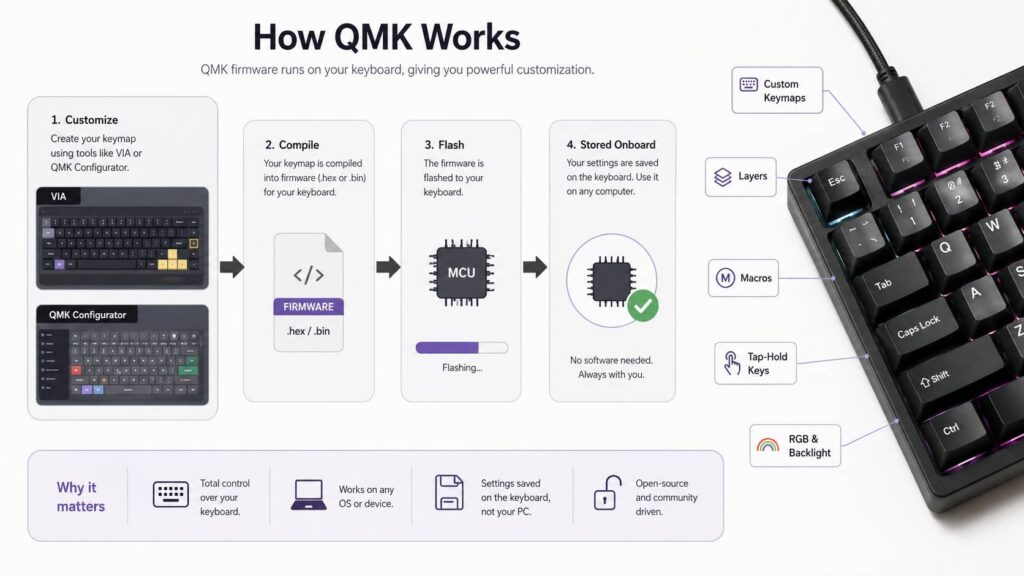
QMK Configurator is a web-based tool that helps you build firmware for supported keyboards.
Instead of editing code by hand, you select your keyboard, choose your layout, change the keys, and compile the firmware file. Then you flash that file to the keyboard.
The process usually looks like this:
- Select the keyboard model
- Pick the correct layout
- Change keys on the visual layout
- Add layers
- Compile the firmware
- Download the file
- Flash it to the keyboard
This is a good entry point for new users. It removes much of the scary setup work and lets you see the layout visually.
That said, QMK Configurator has limits. More advanced features still require local QMK setup and code editing. For many users, though, the configurator is enough for basic remapping and layers.
What Does Flashing a Keyboard Mean?
Flashing means writing new firmware to your keyboard.
The keyboard enters a special mode called bootloader mode. Then, you send the new firmware file to the board. After that, the keyboard restarts with the new layout.
This sounds risky, but it is normal for programmable keyboards. Still, you need to be careful. Flashing the wrong file can make the keyboard stop working until you recover it.
Before flashing, check three things:
- The keyboard model matches exactly
- The layout version is correct
- The firmware file came from a trusted place
It is also smart to save your original keymap. If something feels wrong later, you can go back and fix it faster.
Common QMK Problems Beginners Face
QMK is powerful, but beginners often hit a few frustrating issues.
Common problems include:
- The keyboard is not listed in QMK Configurator
- VIA does not detect the keyboard
- The wrong firmware file gets flashed
- The board does not enter bootloader mode
- A layer key does not work as expected
- Tap-hold keys feel too sensitive
- RGB controls behave differently than expected
- The user adds too many layers too soon
- A copied layout feels uncomfortable
The biggest beginner mistake is changing everything at once. It feels exciting at first, but it quickly becomes confusing.
A better plan is to change a few keys, use them for a day, then adjust. After that, add one layer. Then add one macro. This slower method works better because your muscle memory has time to catch up.
Is QMK Good for Gaming?
QMK can be useful for gaming, but it is not a magic performance upgrade.
It will not make a slow switch faster. It will not fix bad game settings. It will not replace good aim, practice, or stable hardware.
What it can do is help you build a cleaner gaming layout. You can move keys, disable keys you hit by accident, create a gaming layer, and add media controls. You can also make a compact keyboard easier to use during games.
Good gaming uses for QMK include:
- A dedicated gaming layer
- Disabled Windows key
- Moved Caps Lock
- Easy volume controls
- Chat shortcuts
- Cleaner hand placement
- Extra controls on nearby keys
Keep the gaming layer simple. If you make it too clever, you may press the wrong command during a match.
Is QMK Good for Work and Typing?
QMK is excellent for typing and productivity.
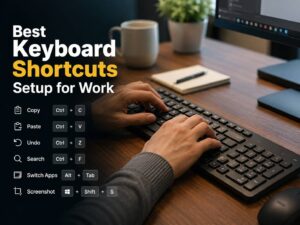
Writers can add punctuation layers, text shortcuts, and editing keys. Programmers can move brackets, symbols, and terminal shortcuts closer to the home row. Spreadsheet users can create a numpad layer on a compact keyboard. Designers and video editors can place app commands under easy key combinations.
The real benefit is not only speed. It is comfort. A keyboard layout that fits your habits feels easier to use every day.
For example, moving Backspace closer to your thumb can feel better than adding ten complex macros. A simple navigation layer can be more useful than an overloaded shortcut system.
That is why the best QMK layouts are often boring at first glance. They are not built to impress people online. They are built to feel natural.
Is QMK Hard to Learn?
QMK can be easy or hard, depending on how deep you go.
Basic remapping is not too difficult, especially with QMK Configurator or VIA. Advanced QMK can take more work. At that point, you deal with files, commands, keymap folders, firmware builds, and sometimes C code.
For most users, there is no need to learn everything. Start with the features you will actually use.
A practical learning path looks like this:
- Start with VIA if your keyboard supports it
- Try QMK Configurator for basic remapping
- Build one extra layer
- Add one or two macros
- Test one Mod-Tap key
- Learn local QMK setup later
This keeps the process manageable. It also helps you avoid the common trap of building a layout that looks smart but feels bad.
Who Should Use QMK?
QMK is best for people who want more control over their keyboard.
It is a great fit for:
- Mechanical keyboard fans
- Programmers
- Writers
- Gamers who want custom layers
- Split keyboard users
- Compact keyboard users
- Ergonomic keyboard users
- People who use many shortcuts
- Users who switch between computers
It is less useful for someone who wants a keyboard to work with no setup at all. If you never remap keys and never use shortcuts, QMK may feel like extra work.
Still, even casual users can benefit from simple changes. A better Escape key, a media layer, or a custom numpad can make a keyboard feel more personal.
Is QMK Worth It?
Yes, QMK is worth it if you care about keyboard control, comfort, and long-term flexibility.
A QMK keyboard can grow with you. You can start with basic remapping, then add layers, macros, and tap-hold keys later. You are not locked into the default layout forever.
The main downside is the learning curve. Some parts feel technical, especially flashing firmware and editing advanced keymaps. There can also be compatibility issues, so it is worth checking QMK support before buying a keyboard.
My real opinion is simple: QMK is one of the best features a custom mechanical keyboard can have. VIA support makes it easier, but QMK gives the keyboard its real depth. Once you get used to building your own layout, it is hard to go back to a fixed keyboard.
Start small. Change one key that annoys you. Add one layer that saves time. Then keep improving the layout as you notice real problems. That is where QMK works best.