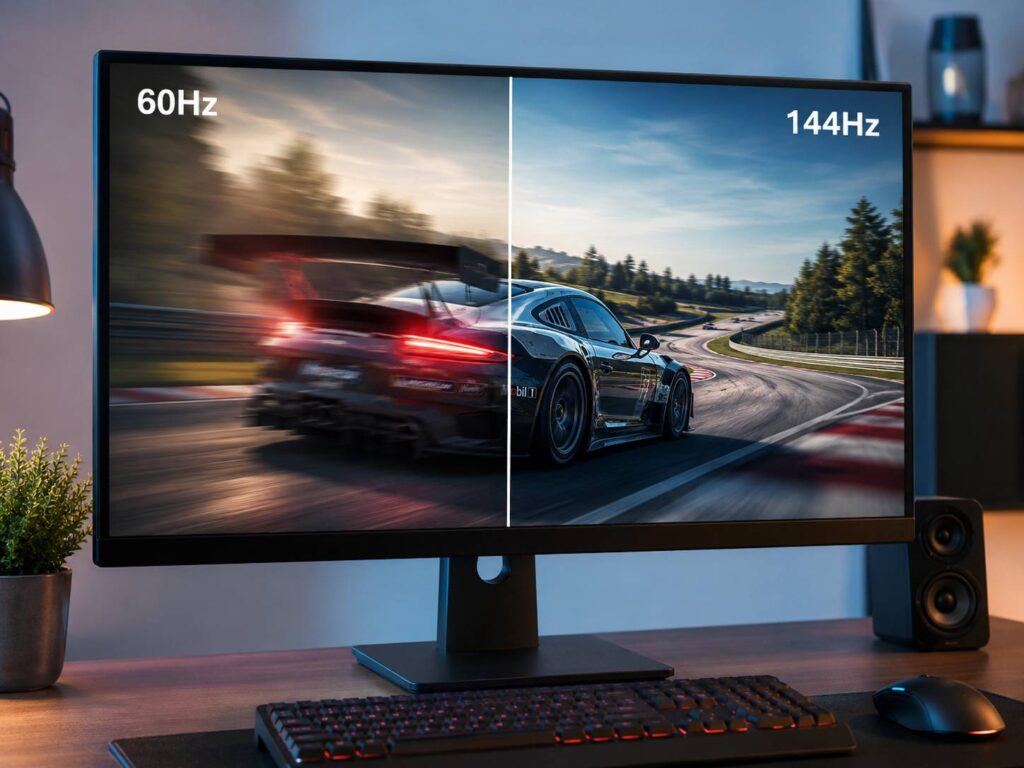
Monitor refresh rate tells you how many times your screen updates the image each second. It uses hertz, written as Hz. A 60Hz monitor updates 60 times per second. A 144Hz monitor updates 144 times per second. A 240Hz monitor updates 240 times per second.
That number sounds simple, but it changes the way a screen feels. Motion looks smoother. Mouse movement feels closer to your hand. Games feel faster. Webpages scroll with less stutter. Even daily work can feel nicer on a faster screen.
Still, refresh rate is not the only monitor spec that matters. It will not make colors richer. It will not make text sharper. It will not fix a weak panel. For that reason, you need to understand what refresh rate does, what it does not do, and which number makes sense for your setup.
What Is Refresh Rate on a Monitor?
Refresh rate is the number of times a monitor refreshes the image per second. The higher the number, the more screen updates you get.
A 60Hz monitor refreshes every 16.7 milliseconds. A 144Hz monitor refreshes every 6.9 milliseconds. A 240Hz monitor refreshes every 4.2 milliseconds. These gaps are tiny, but your eyes and hands can notice them during motion.
This is easiest to see with a mouse cursor. Move a cursor across a 60Hz screen, then try the same thing on a 144Hz screen. The 144Hz screen shows smaller jumps between cursor positions. So, the movement looks cleaner and feels more direct.
Common monitor refresh rates include:
- 60Hz: basic office monitors, budget displays, older laptops
- 75Hz: budget monitors with a small smoothness boost
- 100Hz: a good step up for work and casual use
- 120Hz: common on premium laptops, TVs, and console-friendly screens
- 144Hz: a popular choice for PC gaming
- 165Hz or 180Hz: a small upgrade over 144Hz
- 240Hz: made for fast gaming and esports
- 360Hz or higher: built for serious competitive players
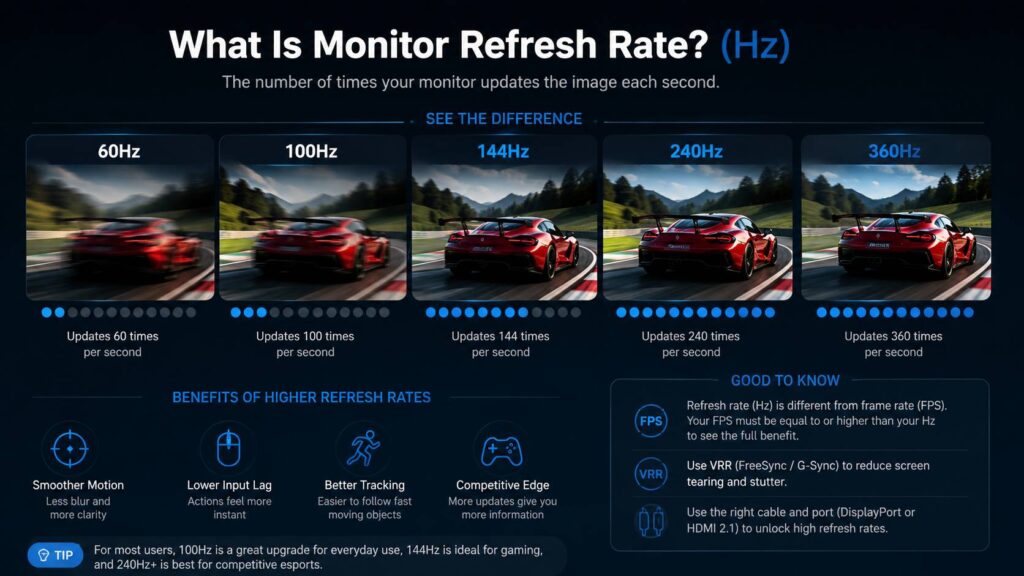
For most buyers, the biggest jump comes from 60Hz to 144Hz. After that, the gains get smaller, but they still matter in fast games.
Refresh Rate vs FPS: What Is the Difference?
Refresh rate belongs to the monitor. FPS belongs to the PC, console, or game. FPS means frames per second.
A monitor can only show new information that the device sends to it. So, a 144Hz monitor feels best when the game runs near 144 FPS. A 240Hz monitor feels best when the system can push very high frame rates.
Here is a simple way to read it:
- 60Hz monitor with 60 FPS: balanced
- 144Hz monitor with 144 FPS: smooth and responsive
- 240Hz monitor with 90 FPS: better than 60Hz, but not true 240Hz
- 144Hz monitor with 300 FPS: the monitor still shows up to 144 updates per second
This is where a fast monitor can disappoint. If the PC cannot feed it enough frames, the screen still works, but the full benefit is missing.
For gaming, match the monitor to your graphics card. A mid-range PC often pairs well with 1080p or 1440p at 144Hz. A stronger PC can make better use of 240Hz, 4K 144Hz, or ultrawide high refresh displays.
Why Higher Refresh Rate Looks and Feels Smoother
Higher refresh rate reduces the time between screen updates. That makes movement look less jumpy.
On a 60Hz screen, the image updates 60 times each second. On a 144Hz screen, it updates more than twice as often. So, motion has more steps. Your eyes see a smoother path between positions.
This helps in many normal tasks:
- Moving the mouse
- Scrolling webpages
- Dragging windows
- Reading moving text
- Editing timelines
- Playing fast games
- Tracking objects in motion
The smoother feel can make a screen seem faster, even during basic use. The change is easy to see when you switch from 60Hz to 144Hz. Then, going back to 60Hz can feel rough.
For office work, 100Hz already feels better than 60Hz. For gaming, 144Hz gives a much bigger jump. For esports, 240Hz and higher can help players track motion with more control.
Is 60Hz Still Enough?
A 60Hz monitor still works for simple tasks. It handles email, documents, browsing, video calls, schoolwork, spreadsheets, and basic streaming without trouble.
It makes sense for:
- A tight budget
- A second monitor
- Static office work
- Light home use
- Basic laptop setups
Still, 60Hz feels dated beside newer 100Hz, 120Hz, and 144Hz screens. Scrolling feels less smooth. Cursor movement looks choppier. Games feel slower, mainly in fast scenes.
For a new monitor, 100Hz is now a better starting point for many people. Prices have dropped, and many affordable screens offer more than 60Hz. For gamers, 144Hz remains the more sensible entry point.
Is 144Hz Good for Gaming?
Yes. A 144Hz monitor is one of the best upgrades for PC gaming. It feels much smoother than 60Hz, but it does not demand the same hardware as 240Hz or 360Hz.
A 144Hz screen works well for:
- Fortnite
- Valorant
- Counter-Strike 2
- Apex Legends
- Rocket League
- Call of Duty
- Racing games
- Action games
- Sports games
The difference is easy to feel. Camera movement looks cleaner. Aiming feels more connected. Fast motion has less judder. Input delay drops too, since the screen refreshes more often.
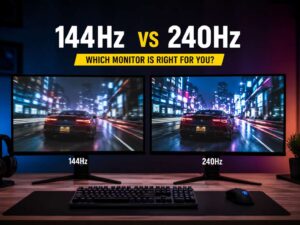
For gaming, 144Hz or 165Hz is the sweet spot. You get a clear upgrade without paying a premium for extreme refresh rates. For a deeper comparison, this guide on 144Hz vs 240Hz monitor explains where the faster option starts to make sense.
Is 240Hz Worth It?
A 240Hz monitor can make games feel faster and cleaner, but the jump from 144Hz to 240Hz is smaller than the jump from 60Hz to 144Hz.
The gain appears most in competitive games. Fast shooters benefit the most. Enemy movement looks easier to track. Mouse movement feels more immediate. Small timing gaps can feel tighter.
That said, a 240Hz screen needs a strong PC. The monitor can refresh 240 times per second, but your game still needs to deliver enough frames. Many heavy AAA games will not hold 240 FPS at high settings.
Choose 240Hz for:
- Competitive shooters
- Esports
- Fast reaction games
- High-FPS gaming PCs
- Players who already reach 200 FPS or more
For casual gaming, 144Hz or 165Hz is usually enough. For single-player games, higher resolution or better contrast can matter more than 240Hz.
Refresh Rate vs Response Time
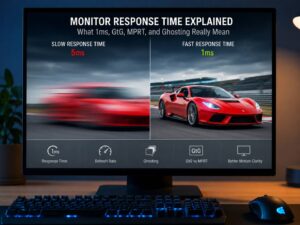
Refresh rate and response time both affect motion, but they are not the same thing.
Refresh rate tells you how often the screen updates. Response time tells you how fast pixels change from one color or shade to another.
A monitor can have a high refresh rate and still show blur. This happens when pixels react too slowly. You may see ghosting, smearing, or trails behind moving objects. VA panels can show dark smearing in some models. IPS panels often handle motion better, but quality still varies. OLED panels have very fast pixel response, but they come with other trade-offs.
Many monitors claim 1ms response time. Real results are often different. Some brands use best-case numbers from aggressive settings. Those settings can create bright halos or inverse ghosting.
For clean motion, look for:
- High refresh rate
- Good real-world response time
- Low input lag
- Well-tuned overdrive
- VRR support
- Reviews with motion tests
Do not buy a monitor based only on the Hz number. Motion quality comes from several parts working together.
What Is Variable Refresh Rate?
Variable refresh rate, or VRR, helps the monitor match the frame output from your PC or console. This can reduce tearing and stutter.
You will see names like:
- AMD FreeSync
- NVIDIA G-Sync
- G-Sync Compatible
- VESA Adaptive-Sync
- HDMI VRR
Screen tearing happens when one part of the screen shows one frame and another part shows a newer frame. It often appears as a horizontal split during movement. VRR helps by letting the display follow the device’s changing frame rate.
This helps most in games with uneven FPS. For example, a game may move between 80 FPS, 110 FPS, and 140 FPS during play. VRR can make that feel cleaner than a fixed refresh setup.
For PC gaming, VRR is now one of the most useful monitor features. It will not raise your FPS, but it can make unstable FPS look smoother.
Does Refresh Rate Affect Input Lag?
Yes, refresh rate can reduce part of the display delay. A faster screen gets more chances to show a new frame each second.
At 60Hz, each refresh cycle takes about 16.7ms. At 144Hz, it takes about 6.9ms. At 240Hz, it takes about 4.2ms. So, the display can show new visual updates sooner.
Total input lag also comes from other parts:
- Mouse or keyboard delay
- Game engine delay
- CPU load
- GPU load
- Frame queue
- Monitor processing
- Pixel response
Still, high refresh rate helps. That is why fast monitors feel more responsive. The cursor reacts closer to your movement. Games feel tighter. Aiming can feel more direct.
For casual users, this mainly feels pleasant. For competitive players, it can affect tracking and timing.
What Refresh Rate Do You Need for Work?
For normal office work, 60Hz is usable, but 100Hz feels better. The improvement shows up in scrolling, cursor movement, and window dragging.
A 100Hz or 120Hz monitor can make long workdays feel more comfortable. The screen feels calmer during movement. Text can be easier to follow during quick scrolling. This is useful for writing, coding, research, spreadsheets, and admin tasks.
For work, refresh rate should not be the only priority. Text clarity, panel coating, brightness, ergonomics, USB-C support, and resolution matter a lot. A 27-inch 1440p 100Hz monitor can be a better work display than a cheap 1080p 240Hz gaming monitor.
People who split time between work and gaming should look at balance. This guide on gaming monitor vs work monitor covers the trade-offs in more detail.
What Refresh Rate Do You Need for Gaming?
The right refresh rate depends on the games you play and the FPS your system can reach.
For casual games, 75Hz or 100Hz can feel fine. For most PC gamers, 144Hz or 165Hz is the safer choice. For esports, 240Hz and higher can make sense.
Here is a simple guide:
- 60Hz: basic use and very casual gaming
- 100Hz: good for work and light gaming
- 120Hz: strong for console gaming
- 144Hz: best value for most PC gamers
- 165Hz: slightly smoother than 144Hz
- 240Hz: great for esports and fast shooters
- 360Hz and higher: niche choice for serious competitive play
Resolution matters too. A 1080p 240Hz monitor is easier to drive than a 4K 240Hz monitor. A 1440p 165Hz screen often gives the best mix of sharpness and smoothness for many PC gamers.
Does Refresh Rate Matter for Consoles?
For consoles, 120Hz is the key number. Many PlayStation 5 and Xbox Series X games offer 60 FPS modes, and some offer 120 FPS modes. A 144Hz or 165Hz monitor can work, but consoles usually target 60Hz or 120Hz output.
For console gaming, look for:
- HDMI 2.1 for 4K 120Hz support
- HDMI VRR support
- Low input lag
- Good HDR performance
- Clear motion at 60Hz and 120Hz
A 240Hz monitor is not needed for most console players. A good 4K 120Hz display often makes more sense.
Does Resolution Affect Refresh Rate?
Yes. Higher resolution needs more bandwidth. A monitor may support 144Hz at 1080p, but not 144Hz at 4K through every port.
The cable and port matter. DisplayPort is common for high refresh PC monitors. HDMI can work well too, but the version matters. HDMI 2.1 is important for 4K 120Hz on modern consoles and many PCs. DisplayPort 1.4 and DisplayPort 2.1 support many high refresh setups, based on resolution, color depth, compression, GPU support, and monitor limits.
Common problems include:
- The wrong cable limits the screen to 60Hz
- One monitor port is faster than another
- A laptop USB-C port lacks enough display bandwidth
- A dock caps output at 60Hz
- The GPU port cannot support the chosen mode
- The monitor needs a setting changed in its menu
Before buying, check the exact refresh rate at the exact resolution you plan to use. Do not trust the biggest Hz number on the product title alone.
Why Your Monitor Is Stuck at 60Hz
This problem happens all the time. Someone buys a 144Hz or 165Hz monitor, plugs it in, then Windows shows only 60Hz.
Try these fixes:
- Open Windows Settings.
- Go to System.
- Go to Display.
- Open Advanced display.
- Pick the monitor.
- Set the refresh rate to the highest supported option.
- Use the cable from the monitor box.
- Try DisplayPort instead of HDMI on a PC.
- Check the monitor’s on-screen menu.
- Update the graphics driver.
- Skip cheap adapters during testing.
- Connect the monitor straight to the laptop or PC.
- Avoid duplicate display mode during setup.
Laptop docks cause many refresh rate problems. A dock may support 4K at 60Hz but not 1440p at 144Hz. Cheap HDMI adapters can create the same issue.
The monitor may be fine. The weak link is often the cable, adapter, port, or setting.
Does Refresh Rate Matter for Movies and YouTube?
Refresh rate matters less for movies than it does for games. Most movies use 24 frames per second. Many shows and videos use 24, 25, 30, or 60 FPS.
A 144Hz monitor does not turn a 24 FPS movie into native 144 FPS. The video still has the same number of frames. A better display can still improve the viewing experience, but that usually comes from contrast, brightness, HDR, black levels, and color quality.
For YouTube, 60 FPS videos can look smoother than 30 FPS videos. A high refresh monitor can show them nicely, but a 240Hz monitor is not needed for streaming.
For movies, spend more attention on panel quality. For games, refresh rate matters much more.
Common Refresh Rate Myths
Higher refresh rate always means better image quality.
False. Refresh rate affects motion. It does not guarantee better color, contrast, brightness, or sharpness.
144Hz is only for gamers.
False. Gamers benefit most, but normal desktop use feels smoother too.
You need 240Hz for every game.
False. 144Hz or 165Hz already gives a great experience.
FPS and Hz are the same thing.
False. FPS comes from the PC or console. Hz comes from the monitor.
A 1ms monitor always has clear motion.
False. Real response time varies. Some fast overdrive modes create ugly artifacts.
HDMI always limits refresh rate.
False. HDMI limits depend on the version, cable, device port, resolution, and monitor support.
Real Problems People Notice After Buying a High Refresh Monitor
High refresh monitors can feel great, but a few issues show up often.
VRR flicker is one of them. It can appear in menus, loading screens, or dark scenes. Some OLED and VA monitors show it more clearly. Turning VRR off for one problem game can help.
Overdrive artifacts are another common issue. The fastest overdrive mode can create bright trails around moving objects. The middle setting often looks cleaner.
If you do not notice a big upgrade right away, the monitor is usually still set to 60Hz, the game FPS is too low, or the task has little motion. After the settings are fixed, the difference becomes much easier to see.
Power use can rise too. Laptops can drain faster at 120Hz or 144Hz. Some laptops offer a dynamic refresh setting to save battery during simple tasks.
How to Choose the Right Monitor Refresh Rate
Start with your real use. Then match the refresh rate to your hardware.
Choose 60Hz only for a very tight budget or a second screen. Choose 100Hz for a smoother work monitor. Choose 144Hz or 165Hz for the best value gaming setup. Choose 240Hz for esports and fast shooters. Choose 360Hz or higher only for serious competitive play with a very fast PC.
Screen resolution matters at the same time. A 1440p 165Hz monitor often feels better for mixed use than a 1080p 240Hz monitor. A 4K 144Hz monitor looks sharp and smooth, but it needs a strong graphics card.
Check these details before buying:
- Native refresh rate at your chosen resolution
- HDMI and DisplayPort versions
- USB-C display support, for laptops
- VRR support
- Real response time
- Input lag test results
- Panel type
- Overdrive quality
- HDR performance
- Warranty and dead pixel policy
The Hz number matters, but it should not make the full decision for you. A balanced monitor feels better day after day.
Final Thoughts
Monitor refresh rate is one of the most useful specs to understand before buying a new screen. It tells you how many times the monitor updates each second, and that affects smoothness, motion clarity, and responsiveness.
For basic work, 60Hz still works, but 100Hz feels nicer. For most gamers, 144Hz or 165Hz gives the best mix of price and performance. For competitive play, 240Hz and higher can help, but the PC needs to push enough FPS.
The best monitor is not always the one with the highest refresh rate. A good screen needs the right mix of Hz, resolution, response time, panel quality, ports, and price. Pick the refresh rate that fits your use, then check the rest of the monitor before you buy.