Printer specs can look helpful at first. Then the list gets long, technical, and a bit annoying. You see print speed, DPI, page yield, duty cycle, duplex printing, wireless features, scanner resolution, paper capacity, mobile app support, and a few other numbers that sound serious.
The tricky part is simple: not every printer spec matters in real life.
Some specs affect your wallet every time you print. Some save you time every week. Others look impressive on the box but barely change the way the printer works for normal home or office use.
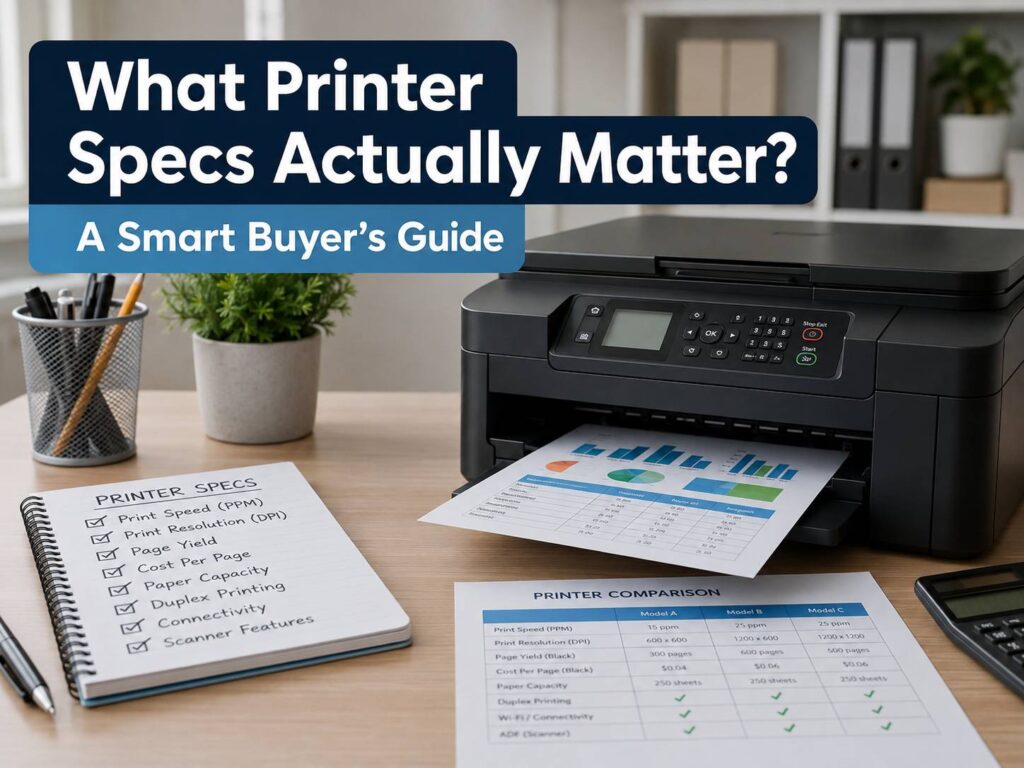
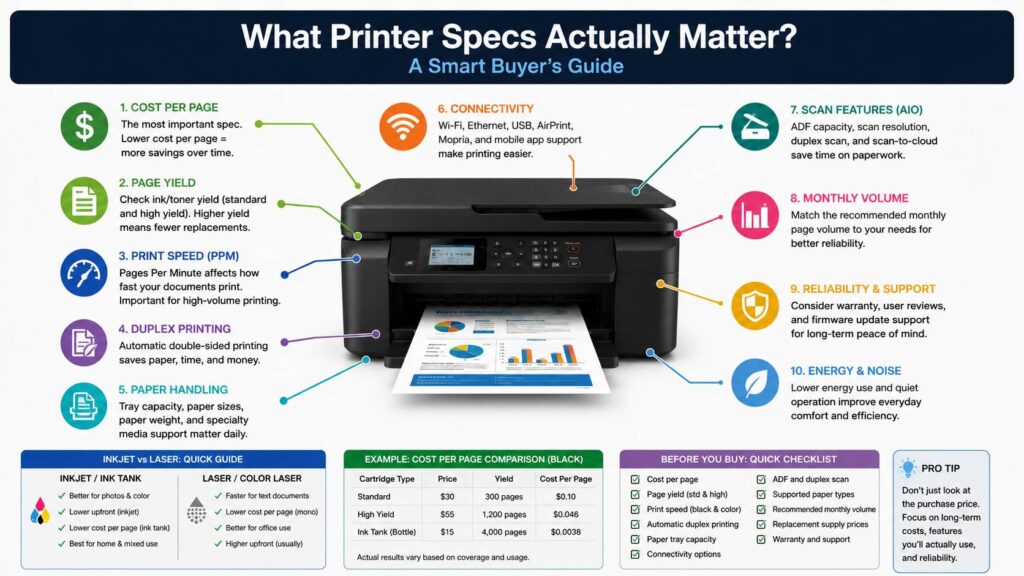
So, what printer specs actually matter? The most useful ones are cost per page, cartridge or toner yield, print speed, paper handling, duplex printing, wireless support, scan features, and recommended monthly volume. Print resolution matters too, but mostly for photos, design work, and detailed graphics.
This guide keeps things practical. It explains the printer features worth checking, the specs that are often overrated, and the common issues people usually notice after they already bought the wrong model.
Start With Your Real Printing Habits
A printer for homework is not the same as a printer for invoices. A photo printer has different priorities than a small office printer. So, the first step is to look at what you actually print.
For light home use, simple wireless printing, low ink cost, automatic double-sided printing, and easy setup matter most. For school, you want affordable running costs and decent paper handling. For a home office, speed, scan features, Ethernet, and paper tray capacity become much more useful.
Photo printing changes the whole discussion. At that point, ink type, paper support, color quality, and borderless printing matter more than raw speed.
Occasional printing creates another issue. Inkjet printers can clog after long breaks. Laser printers usually handle long idle periods better, mainly for black text documents. That is one reason cheap inkjets can be frustrating. The printer sits unused for two months, then the nozzles need cleaning right when you need to print something fast.
Running Cost Is More Important Than the Printer Price
The lowest printer price is often a trap. A $60 printer can look like a great deal, then the first set of replacement cartridges costs almost as much as the printer.
The spec that matters here is cost per page. This tells you roughly how much each printed page costs. You can calculate it with a simple formula:
Cost per page = cartridge price ÷ estimated page yield
For example:
- Cartridge price: $30
- Estimated page yield: 300 pages
- Cost per page: $30 ÷ 300 = $0.10 per page
Now compare that with a larger cartridge:
- Cartridge price: $55
- Estimated page yield: 1,200 pages
- Cost per page: $55 ÷ 1,200 = $0.046 per page
The bigger cartridge costs more upfront, but it prints each page for less than half the cost.
Ink tank printers often do better here. They cost more at the start, but bottled ink can make each page much cheaper. For people who print often, that makes a big difference. For rare printing, a basic laser printer can still be the safer choice.
A good rule: check ink or toner prices before buying the printer.
For a deeper buying breakdown, this guide on how to choose the right printer without wasting money on the wrong one can help you compare printer types before spending money.
Page Yield Tells You More Than the Cartridge Size
Page yield means the estimated number of pages a cartridge, toner, or ink bottle can print. It is one of the most useful printer specs, but it still needs context.
Real yield changes based on what you print. A page with a few lines of text uses far less ink than a full-page photo. Color charts, school projects, shipping labels, and cleaning cycles all change the final number.
Still, page yield helps you compare printers fairly.
Look for these details:
- Standard cartridge yield
- XL cartridge yield
- Ink bottle yield
- Starter cartridge yield
- Toner yield
- Drum replacement cost
- Waste toner box cost
- Printhead replacement cost
Starter cartridges deserve special attention. Many printers ship with starter ink or starter toner. These usually contain less than the normal replacement supply. So, the printer may run out sooner than expected.
The printer works fine, then the first replacement set feels expensive. That is not a defect. It is just how many budget printers are sold.
Print Speed Matters, But Not for Everyone
Print speed is listed in pages per minute, or ppm. It matters a lot for people who print long documents, invoices, office reports, worksheets, or shipping labels.
For light home use, speed is less critical. Waiting a few extra seconds for a form or a recipe is not a real problem. Waiting for a 50-page report can feel very different.
As a practical guide:
- 8 to 12 ppm works for light home use
- 15 to 25 ppm feels better for regular printing
- 25 ppm and above suits a busy home office
- 35 ppm and above makes sense for heavier office use
Check black print speed and color print speed separately. Many inkjet printers print black text at a fair speed, then slow down a lot with color pages.
First-page-out time also matters. This is how long the printer takes to wake up and print the first page. A printer can have a strong ppm rating but still feel slow at the start.
One real issue: draft mode can inflate speed numbers. Draft prints faster, but it often looks too light for serious documents. Standard-quality speed gives a better picture of daily use.
Print Resolution Is Not Always a Big Deal
Print resolution is shown as DPI, or dots per inch. Higher DPI sounds better, and for some jobs it is better. Yet, for normal documents, it is not the spec to obsess over.
Text documents do not need extreme DPI. A modern laser printer at 600 x 600 dpi can produce crisp text. For forms, invoices, labels, homework, and office notes, that is enough.
DPI matters more for:
- Photos
- Detailed color graphics
- Small fonts
- Fine lines
- Creative work
- Marketing materials
- Presentation handouts
Even then, DPI alone does not decide print quality. Paper type, ink type, toner quality, driver settings, and color handling all play a role.
A budget photo printer with a high DPI number can still produce flat-looking prints on cheap paper. A better photo-focused inkjet with the right paper can look much better, even with less exciting numbers on the spec sheet.
Duplex Printing Is Worth Having
Automatic duplex printing means the printer can print on both sides of the page by itself. This is one of those specs that seems small, then becomes very useful.
It saves paper. It makes documents thinner. It also makes reports, contracts, and study materials easier to handle.
There are two common types:
- Manual duplex: you flip the pages yourself
- Automatic duplex: the printer flips the paper internally
Automatic duplex is much better. Manual duplex works, but it can lead to upside-down pages, paper jams, and wasted sheets.
Duplex scanning is a separate feature. A printer can support double-sided printing but still scan only one side at a time. For office work, check this carefully. People often assume both features come together, then discover the scanner is more basic than expected.
Paper Handling Can Save You From Daily Frustration
Paper handling sounds boring. Still, it affects real use more than many premium-looking features.
Check these specs:
- Main tray capacity
- Rear paper feed
- Supported paper sizes
- Supported paper weight
- Envelope support
- Label support
- Photo paper support
- Borderless printing
- Output tray size
A 100-sheet tray is fine for light home use. A 250-sheet tray feels better for regular printing. A small office may need 500 sheets or a second tray.
Rear feed is useful for thicker paper, labels, photo sheets, and envelopes. Some compact printers struggle with anything thicker than normal copy paper.
This is a common mistake. Someone buys a small printer for home use, then tries to print envelopes, card stock, or glossy paper. The printer technically works, but the feeding system is not made for that job.
For that reason, check paper support before you buy.
Wireless and Mobile Printing Need a Closer Look
Printer setup should be easy. In real life, wireless printing can be one of the most annoying parts of owning a printer.
Look for:
- Wi-Fi
- Dual-band Wi-Fi
- Ethernet
- USB
- AirPrint
- Mopria support
- Chromebook support
- Wi-Fi Direct
- Brand app support
For most homes, Wi-Fi with AirPrint and Mopria support is enough. Apple users should check AirPrint. Android and Windows users should check Mopria support. Chromebook users should check compatibility before buying.
Ethernet is still valuable, mainly for home offices and small offices. A printer connected by cable to the router often causes fewer connection drops than one placed in a weak Wi-Fi spot.
One real issue: many printers still work better on 2.4 GHz Wi-Fi than 5 GHz Wi-Fi. That can make setup confusing on modern routers. So, dual-band support is a nice extra, but a stable setup matters more than the label on the box.
Scanner Specs Matter on All-in-One Printers
All-in-one printers can print, scan, and copy. Some can fax too. Yet, the scanner part can vary a lot from one model to another.
Check these scanner specs:
- Flatbed scanner size
- Scan resolution
- Automatic document feeder
- ADF capacity
- Duplex scanning
- Scan to email
- Scan to cloud
- OCR support
- Copy speed
An ADF, or automatic document feeder, is very useful for forms, receipts, school papers, contracts, and office files. Without it, you need to place each page on the glass one by one.
For basic documents, 300 dpi scanning is usually enough. For old photos or detailed images, higher scan resolution matters more.
A common issue appears with compact all-in-one printers. Buyers expect an ADF, then realize the printer only has a flatbed scanner. It still scans, but large document batches become slow and irritating.
Monthly Volume Matters More Than Duty Cycle
Monthly duty cycle shows the maximum number of pages a printer can handle in a month. It is not the number you should print every month.
Recommended monthly volume is more useful. That number gives a better idea of what the printer can handle without extra wear.
Use this rough guide:
- Under 100 pages per month: basic home printer
- 100 to 500 pages per month: stronger home or student printer
- 500 to 2,000 pages per month: home office or small office printer
- Over 2,000 pages per month: business-class printer
A printer used far above its comfort range can develop problems sooner. Paper jams, worn rollers, slower output, and more maintenance can show up over time.
At the same time, buying too much printer can waste money and desk space. A large office laser printer makes little sense for someone who prints ten pages per month.
Inkjet, Ink Tank, or Laser: Specs Change by Printer Type
Printer specs make more sense once you know the printer type.
Inkjet printers use liquid ink. They are common for home use, color documents, school projects, and occasional photo printing. They can produce nice color output, but cartridges may cost more over time.
Ink tank printers use refillable bottles. They cost more upfront, but the running cost is often much lower. They work best for families, students, and home offices that print often.
Laser printers use toner powder. They are strong for text, forms, invoices, and office paperwork. A monochrome laser printer is usually one of the best choices for people who mostly print black text.
Color laser printers can be useful for offices, but toner cost needs careful checking. A full set of replacement toner can be expensive.
My opinion is straightforward: buy a monochrome laser printer for mostly black text. Buy an ink tank printer for frequent color printing at home. Buy a photo-focused inkjet for serious photo prints. Avoid choosing by brand or price alone.
For budget planning, this guide on how much should you spend on a printer is useful before comparing models.
Security and Updates Matter for Shared Printers
Printer security is not only for large companies. A printer connects to your network, stores settings, accepts print jobs, and may scan to email or cloud services.
Useful security features include:
- Admin password controls
- Firmware updates
- PIN printing
- Network access controls
- Guest access settings
- Option to disable unused services
- Secure printing features
For a basic home printer, firmware updates and a strong Wi-Fi password are usually enough. For a shared office printer, admin controls matter more.
After setup, check the printer settings. Many models are made for easy setup, not strict privacy. Turn off services you do not use. Then set a strong admin password.
Size, Noise, and Desk Fit Are Easy to Forget
Printer size can be misleading online. A printer may look compact in photos, then need extra room for the rear tray, output tray, scanner lid, or paper path.
Check the full size with trays open. Weight matters too, mainly with laser printers.
Look at:
- Width
- Depth
- Height
- Rear tray clearance
- Output tray extension
- Scanner lid clearance
- Weight
- Noise rating
Noise matters in bedrooms, apartments, shared offices, and small desks. Some printers sound fine for a few pages but become annoying during longer jobs.
This is another real-world issue. A rear-feed printer can need more space behind it than expected. A deep paper tray can stick out. A scanner lid can hit a shelf above the printer. These details rarely sound exciting, but they affect daily comfort.
Specs That Usually Matter Less
Some printer specs are useful for certain users, but not for everyone. Do not pay extra for features you will never use.
Specs that often matter less:
- Very high DPI for text documents
- Fax support
- Large touchscreen
- NFC printing
- Extra printer memory for basic home use
- Huge duty cycle for light printing
- Borderless printing for document-only users
- Photo features on office printers
A touchscreen can make setup nicer, but it does not improve print quality. Fax is still needed in some offices, but most homes can skip it. NFC can be handy, yet Wi-Fi, AirPrint, Mopria, and printer apps cover most modern printing needs.
Common Printer Problems Buyers Notice Too Late
Most printer regrets come from missed specs, not from broken hardware.
Common issues include:
- Ink dries after long periods without printing
- Replacement cartridges cost too much
- Starter cartridges run out fast
- Wi-Fi setup fails or disconnects
- Printer works only on 2.4 GHz Wi-Fi
- ADF is missing
- Duplex scanning is missing
- Paper tray is too small
- Envelopes jam
- Labels feed badly
- Photo prints look dull on plain paper
- Color toner costs more than expected
- Printer is too big for the desk
- Brand app setup feels forced
- Firmware updates change cartridge behavior
Most of these issues can be avoided before checkout. Check supplies, paper handling, connection options, and scanner features first. Then compare speed and print quality.
Quick Printer Spec Checklist
Before buying, check this list:
- Printer type: inkjet, ink tank, laser, or color laser
- Estimated monthly page count
- Cost per page
- Cartridge, toner, or bottle yield
- Replacement supply prices
- Automatic duplex printing
- ADF for scanning
- Duplex scanning, where needed
- Paper tray capacity
- Supported paper sizes
- Supported paper weight
- Wi-Fi, Ethernet, and USB
- AirPrint and Mopria support
- Recommended monthly volume
- Printer size with trays open
- Warranty and update support
The top three are running cost, connectivity, and paper handling. A printer that gets those right will feel easier to live with.
Final Advice: Buy for Real Use, Not for the Biggest Number
The printer specs that actually matter are the ones that affect cost, time, and daily frustration.
For basic home use, focus on low running cost, wireless printing, automatic duplex printing, and simple cartridge replacement.
For a home office, add faster print speed, Ethernet, ADF scanning, more paper capacity, and a realistic monthly volume rating.
For students, running cost and mobile printing matter most. For photos, paper support and ink quality matter more than speed. For small businesses, page yield, toner cost, security, and multi-user support deserve more attention.
The best printer is rarely the one with the longest spec sheet. It is the one that prints what you need, at a fair cost, without constant setup problems.
A cheap printer with expensive ink is not a bargain. A fast printer with weak paper handling is not practical. A high-resolution printer with poor supplies is not a smart buy.
Pick the printer based on your real print volume, your paper needs, and your replacement supply costs. That simple check can prevent most printer regrets.