Buying a webcam sounds simple at first. Then you start seeing 720p, 1080p, 4K, autofocus, HDR, AI framing, low-light correction, dual microphones, privacy shutters, and software controls. Suddenly, a basic upgrade turns into a confusing choice.
The good news is that you probably do not need the most expensive webcam. A solid model between $60 and $120 will be enough for video calls, remote work, online classes, and casual meetings. It should look sharper than a laptop camera, handle normal indoor light better, and give you a more natural angle on screen.
Still, some people should spend more. Streamers, teachers, creators, consultants, and anyone who records video often will benefit from better image quality, smoother motion, stronger software controls, and improved low-light performance.
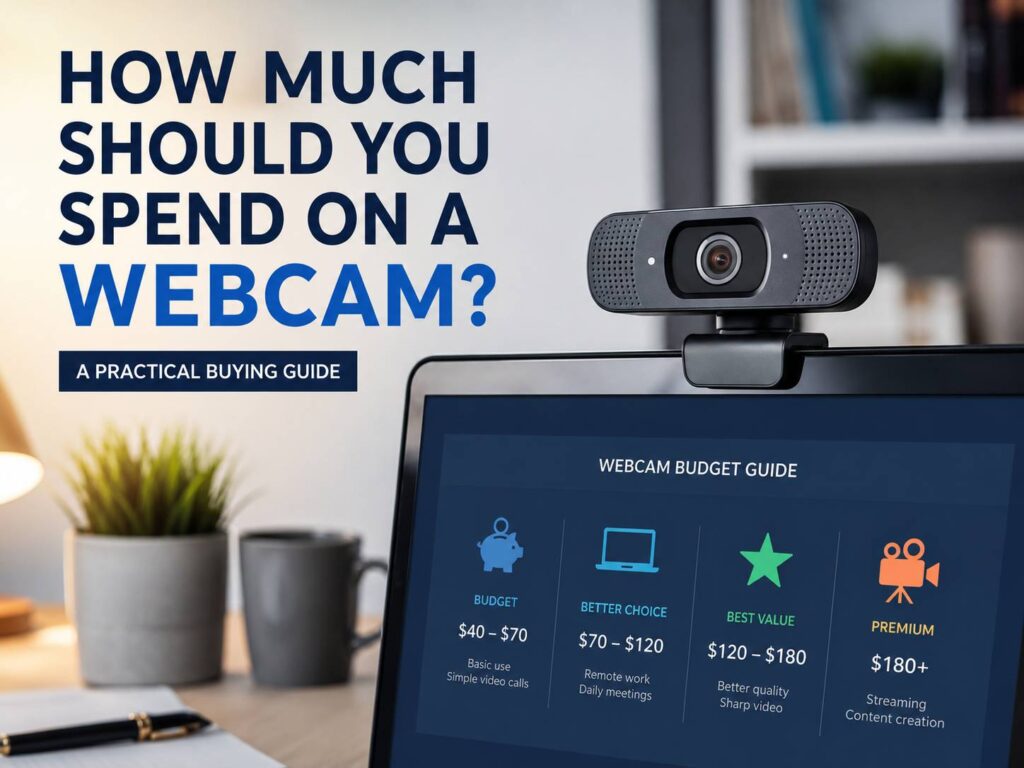
So, how much should you spend on a webcam? For basic use, $40 to $70 can work. For everyday work, $70 to $120 is the safest range. For a more polished setup, $120 to $180 makes sense. For streaming, content creation, and premium 4K video, expect to spend $180 to $300.
Why webcam prices are so different
Webcams can look very similar from the outside, yet the results can be completely different. Price depends on the sensor, lens, resolution, frame rate, autofocus, microphones, mounting system, software, and extra features like auto-framing or background adjustment.
Resolution gets most of the attention, but it does not tell the full story. A cheap 1080p webcam can still look soft, noisy, or washed out. A better 1080p webcam can look cleaner than a poor 4K model, especially in normal home lighting.
For that reason, do not buy only based on the number printed on the box. Look at the whole camera. The lens, sensor, color handling, focus, and software controls matter just as much as resolution.
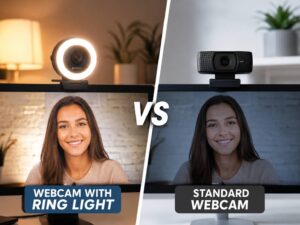
Lighting matters too. In practice, many webcam problems come from poor room lighting, not the camera itself. A bright window behind you can make your face look dark. A weak ceiling light can add shadows. A small desk lamp placed in front of you can make a cheaper webcam look much better.
The best webcam budget for most people
Plan to spend between $70 and $120. This range gives the best mix of price, quality, and everyday usefulness.
At this price, you can expect a good 1080p image, better color than a built-in laptop camera, decent autofocus or stable fixed focus, and a mount that sits properly on a monitor. You should also get enough quality for Zoom calls, Google Meet, Microsoft Teams, online interviews, and client meetings.
This price range works well for remote workers, students, freelancers, teachers, and anyone who appears on video several times a week. It is not a luxury range, but it is where webcams start to feel reliable.
This is the range to look at first. It avoids the worst budget-camera issues, but it does not push you into paying for creator features you may never use.
For a deeper buying checklist, this guide on how to choose the right webcam is a useful next read before picking a model.
Spending under $40: good only for basic calls
A webcam under $40 can work, but expectations need to stay realistic. This range is fine for casual calls, quick family chats, a backup desktop camera, or a child’s online class.
Still, the problems show up quickly. Cheap webcams often struggle in low light. Faces can look grainy. Skin tones can look too red, too pale, or slightly green. Some models also over-sharpen the image, which makes the picture look harsh instead of clear.
Mount quality can be another issue. A weak clip can slide on thin monitors or sit at a strange angle. That becomes annoying after a few calls.
Autofocus can also be unreliable at this price. Some cheap webcams keep shifting focus during a meeting. Others use fixed focus, which works only at a certain distance.
Spend under $40 only for light use. For work calls, interviews, client meetings, or streaming, this range is usually too limited.
Spending $40 to $80: a good budget upgrade
The $40 to $80 range is where a webcam starts to feel like a real upgrade. You can find decent 1080p models here, and many will beat older laptop cameras by a clear margin.
For this budget, look for 1080p at 30 frames per second, a field of view around 70 to 80 degrees, a physical privacy cover, and basic low-light correction. This setup is enough for one person sitting at a desk.
This range is ideal for students, casual office workers, and people who join a few video calls each week. It is also a good choice for someone using a desktop PC that has no built-in camera.
That said, built-in microphones are usually just okay. They may pick up keyboard noise, room echo, or fan noise from a laptop. For better sound, a headset or basic USB microphone will usually beat the webcam mic.
Spending $80 to $150: the strongest home-office range
The $80 to $150 range is the best choice for people who work on camera often. This is where image quality becomes more consistent.
You can expect sharper video, better exposure, cleaner color, stronger autofocus, and more useful software controls. Many cameras in this range also have better mounts and a more natural field of view for desk use.
This budget makes sense for managers, consultants, sales calls, recruiters, online tutors, coaches, and anyone who wants to look more polished in meetings. A better webcam will not make a bad presentation good, but it can make you look clearer, more prepared, and easier to watch.
Some models in this range offer 1080p at 60 frames per second. That can make movement look smoother. It helps more for teaching, streaming, demos, and video recording than for normal team meetings.
This is the most comfortable upgrade range. You get noticeable quality gains without jumping into premium pricing.
Spending $150 to $300: best for creators and premium setups
A webcam between $150 and $300 is best for people who care about video quality beyond basic meetings. This includes streamers, YouTubers, online trainers, course creators, podcasters with video, and professionals who record presentations.
At this price, you can find 4K webcams, better sensors, stronger low-light handling, HDR, AI framing, and more detailed software controls. Some models also offer smoother 1080p video at higher frame rates.
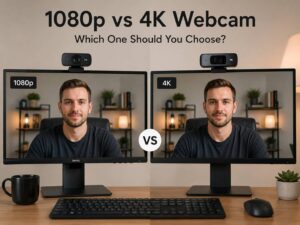
4K can be useful, but it is not magic. For video calls, other people may not always see the full 4K image. Call platforms can reduce quality based on bandwidth, app settings, hardware, and meeting conditions.
Still, 4K has real value for recording and cropping. You can zoom in, reframe the shot, or record sharper video for YouTube, courses, and product demos.
My opinion: buy a premium webcam for better control and better image processing, not only for the 4K label. The best premium webcams often look better at 1080p too, since the sensor and lens are stronger.
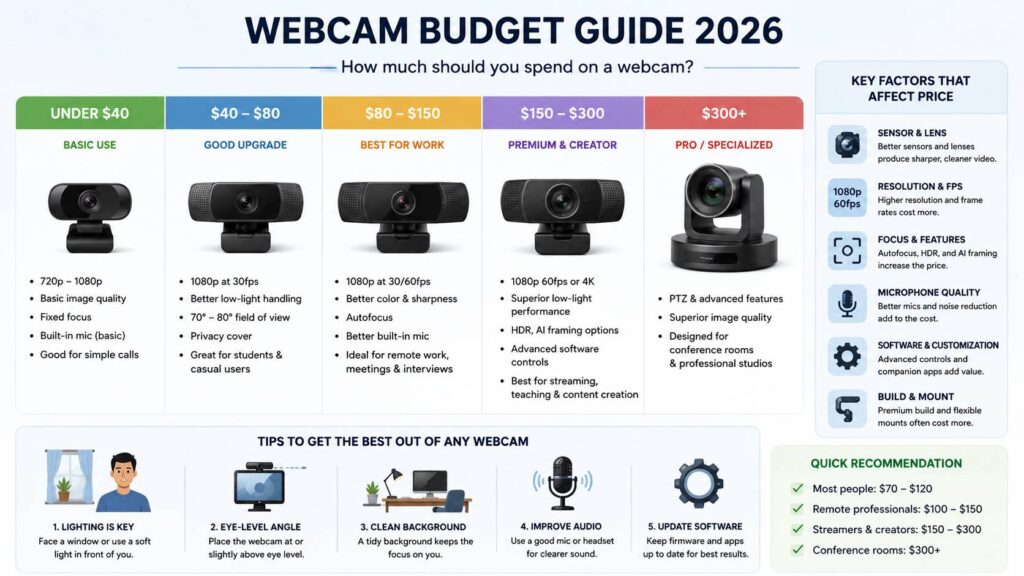
Spending over $300: not needed for most desks
Unless you stream or record video often, you do not need to spend over $300 on a personal webcam. At that point, you are entering conference-room gear, PTZ cameras, advanced streaming setups, or creator setups that may work better with a mirrorless camera and capture card.
For one person sitting at a desk, a good $120 webcam plus better lighting will often look better than a $350 camera in a dark room.
So, before spending more than $300, look at your full setup. Check your lighting, audio, background, desk angle, and monitor height. These upgrades can make a larger difference than another camera purchase.
720p, 1080p, or 4K: what should you choose?
For 2026, 720p should be treated as the bare minimum. It is fine for basic calls, but it can look soft on modern screens. Avoid it as your main webcam if you care about image quality.
1080p is the best choice for most buyers. It looks clear enough for work calls, online classes, interviews, and general home use. It also uses less bandwidth than 4K.
1080p at 60 frames per second is useful for smoother motion. Pick it for streaming, teaching, workouts, demos, and content where movement matters.
4K is best for creators, premium work setups, and users who want more room to crop or reframe. It costs more and needs a better setup to look its best.
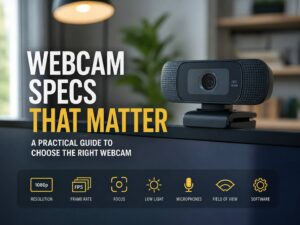
For a simple breakdown of the numbers that actually matter, read this guide on webcam specs that matter.
Field of view matters more than people think
Field of view controls how much of the room appears behind you. A narrow view shows mostly your face and shoulders. A wide view shows more of your desk, wall, and background.
For one person, 70 to 80 degrees is usually the best fit. It feels natural and does not show too much of the room.
For two people, 90 degrees works better. For a small meeting room, a normal webcam is not enough. You need a proper conference camera with a wider lens and better microphones.
A very wide webcam can make your face look distorted near the edges. It can also make a tidy desk look messy, since more of the room appears in the frame.
Autofocus, fixed focus, and real-world problems
Autofocus sounds better on paper, but it needs to work well. A good autofocus system keeps your face sharp and handles movement without drawing attention to itself.
A bad autofocus system can be distracting. The camera may pulse in and out of focus during a call. This often happens in dim light or with a busy background.
Fixed focus can still be good for desk use. It does not hunt, and it can stay stable during meetings. The downside is that it may not handle close-up objects well.
Choose autofocus if you move around, teach, show products, or record content. Choose a stable fixed-focus webcam if you mainly sit in one spot for calls.
Do webcam microphones matter?
Webcam microphones are useful, but they are rarely great. They can work for casual meetings, yet they often pick up echo, keyboard taps, room noise, and fan sounds.
For work calls, a headset usually sounds clearer. For webinars, teaching, and recording, a USB microphone is a better choice.
This is a common mistake: buyers spend extra for a webcam with “dual microphones,” then still sound distant in calls. Video quality matters, but clear audio often matters more.
The smartest way to spend your webcam budget
Start with your real use. Do not buy a premium webcam just because it looks impressive in ads.
For casual calls, spend $40 to $70. For normal remote work, spend $70 to $120. For a stronger professional setup, spend $120 to $180. For streaming, teaching, or content creation, spend $180 to $300.
Then spend a little time fixing the setup. Put the webcam at eye level. Face a soft light. Avoid bright windows behind you. Use a headset or microphone for cleaner sound. Clean the lens from time to time, since smudges can make even a good camera look poor.
A balanced setup almost always beats an expensive webcam used badly. A $90 webcam with good lighting can look better than a $250 webcam in a dark room.
Final verdict: how much should you spend on a webcam?
Most people should spend $70 to $120 on a webcam in 2026. That range gives a real upgrade over built-in laptop cameras and avoids many of the problems found on cheap models.
Budget users can stay around $40 to $70 for simple calls. Professionals should look closer to $100 to $150. Creators, streamers, teachers, and video-first workers should consider $150 to $300.
The best webcam is not always the most expensive one. It is the one that fits your calls, lighting, desk setup, software, and video quality needs. Buy for your real use, and you will get better results without wasting money.