A good webcam can change how you look in meetings, interviews, classes, and streams. It helps your face look sharper, your lighting look cleaner, and your setup feel more professional. A poor webcam does the opposite. It can make a bright room look dull, add grain to your face, or blur every small movement.
The good news? You do not need the most expensive webcam to look good. You need the right webcam for your desk, lighting, monitor, video apps, and daily use.
This guide breaks down the specs that matter, the ones that get too much attention, and the small details people often miss.
Start With Your Main Use
Before checking resolution, frame rate, or field of view, think about how you plan to use the webcam.
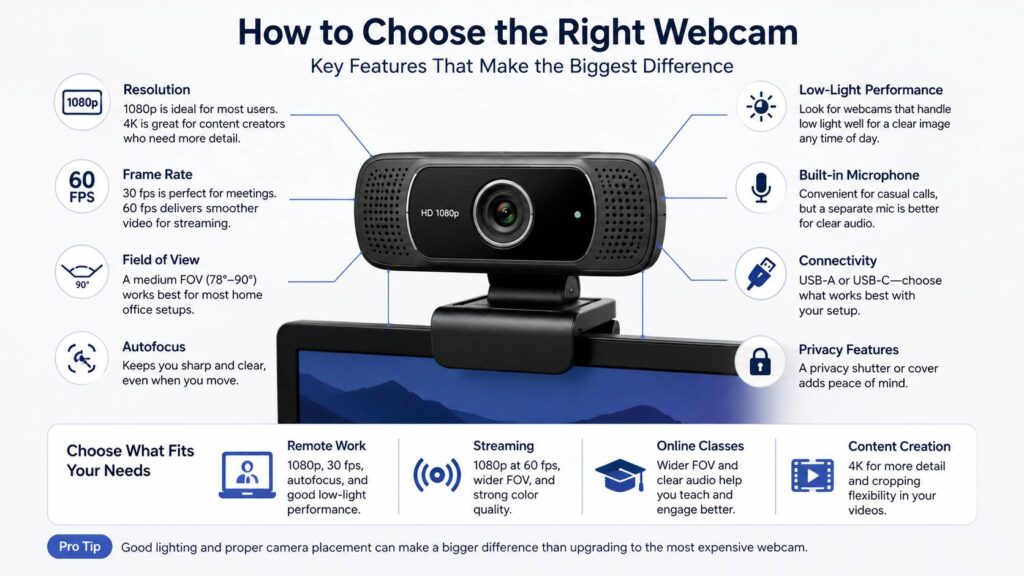
For normal work calls, a good 1080p webcam is usually enough. It gives a clear image, works well with most meeting apps, and does not need a high-end computer.
For streaming, smooth motion matters more. A webcam that supports 1080p at 60 fps can look better than a 4K webcam locked to 30 fps, mainly during hand movement or gaming content.
For online classes, coaching, or training sessions, a wider field of view can help. It gives you space to show gestures, notes, or a whiteboard.
For content creation, 4K can make sense. It gives you extra detail and more room to crop the image later. Still, 4K does not fix poor lighting, weak audio, or bad framing.
A simple rule works well: buy for your real use, not for the biggest number on the box.
Choose the Right Resolution
Resolution is the headline spec. It matters, but it does not tell the whole story.
A 720p webcam works for basic calls. It is fine for casual chats or quick meetings. Still, the image can look soft on modern monitors.
A 1080p webcam is the best choice for most people. It gives cleaner detail, better face clarity, and a more polished look. For remote work, online interviews, video calls, and classes, 1080p hits the right balance.
A 4K webcam is better for creators, product demos, recorded videos, and premium desk setups. It can show more detail and lets you crop the frame without losing too much sharpness.
Still, a strong 1080p webcam often looks better than a cheap 4K model. Sensor quality, lens quality, exposure, color, and lighting matter a lot. For a deeper comparison, this 1080p vs 4K webcam guide can help you decide which one fits your setup.
Check the Frame Rate
Frame rate controls how smooth your video looks. Most webcams offer 30 fps, 60 fps, or both.
For meetings, 30 fps is fine. Your face will look natural, and most video call apps compress the feed anyway.
For streaming, tutorials, and recording, 60 fps can look smoother. It helps during hand gestures, fast movement, and gaming content.
Read the full specs before buying. Some webcams support 4K at 30 fps, then drop to 1080p for 60 fps. That is normal, but it can surprise buyers who expect all features to work together at once.
For most home office users, 1080p at 30 fps is enough. Streamers and creators should look harder at 1080p at 60 fps.
Pick the Right Field of View
Field of view tells you how much the webcam captures.
A narrow field of view, around 60 to 70 degrees, works well for one person. It keeps the focus on your face and hides more of the room.
A medium field of view, around 78 to 90 degrees, fits most desks. It gives a natural look without showing too much background.
A wide field of view, over 90 degrees, works better for group calls, conference rooms, teaching, or setups where you need to show more space.
Wide-angle webcams can create problems too. They can stretch faces near the edge of the frame. They can show clutter behind you. They can make a small room feel too exposed.
For a home office, an adjustable field of view is ideal. You can use a tighter shot for calls, then widen the frame for presentations or demos.
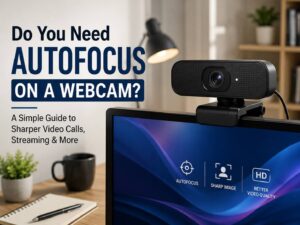
Look for Reliable Autofocus
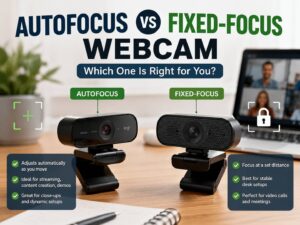
Autofocus sounds like a small feature, but it matters every day. A webcam with poor autofocus can pulse in and out during calls. That looks distracting and feels unprofessional.
Fixed-focus webcams cost less. They work best when you sit at the same distance every time.
Autofocus webcams are better for people who move, use a standing desk, hold items near the camera, or record product demos. They keep the subject sharper without manual changes.
Not all autofocus systems perform the same. Some react too often. Others struggle in low light. Check real user feedback before buying, not just the product page.
Low-Light Performance Matters
Most webcams look decent in bright daylight. The real test comes in the evening, in a darker room, or with a bright window behind you.
Good low-light correction brightens your face without turning the image into a noisy blur. Better webcams handle shadows, backlight, and uneven lighting with fewer strange color shifts.
HDR can help in difficult lighting. For example, it can stop a bright window from making your face look too dark. Still, HDR cannot replace a small desk lamp.
The easiest upgrade is light. Put a soft light in front of you, not behind you. Even a mid-range webcam can look much better with proper lighting.
Check Color and Skin Tone
A webcam should make skin look natural. Some models add too much red. Others look yellow, gray, or washed out. Cheap webcams can make faces look overly smooth too.
Color changes from room to room. Warm bulbs, white walls, sunlight, monitor glow, and colored curtains all affect the image.
Good webcam software helps. Brightness, contrast, saturation, sharpness, and white balance controls let you fix the picture. This is useful if your room lighting changes during the day.
Check software support before buying. Some webcam apps work better on Windows than macOS. Some offer only basic controls. Others need extra setup before they work well.
Do Not Rely Too Much on the Built-In Microphone
Many webcams include a built-in microphone. It is useful for quick calls, travel, or backup audio. Still, it rarely beats a dedicated microphone, headset, or good earbuds.
Distance is the main problem. The webcam sits near the monitor, not near your mouth. It can pick up keyboard clicks, room echo, fans, pets, and background noise.
For casual calls, the built-in mic is fine. For interviews, teaching, webinars, podcasts, or client meetings, use a separate microphone. Clear audio often matters more than sharper video.
Check the Mount and Cable
A webcam can have great image quality and still feel annoying if the mount is weak.
Look for a stable monitor clip. It should grip the screen well without scratching it. Thin monitors, curved monitors, and narrow bezels can be tricky, so check buyer feedback if your setup is unusual.
A tripod thread is a useful extra. It lets you place the webcam on a small tripod, desk arm, or stand. Eye-level framing looks much better than a low laptop angle.
Cable length matters too. A short cable can be frustrating on large desks. A stiff cable can pull a small webcam out of position. These details sound minor, but you notice them fast during daily use.
Match the Webcam to Your Computer
Most webcams connect through USB-A or USB-C. Some include an adapter. Others do not.
Check your ports before buying. A USB-C webcam is clean and modern, but a desktop with mostly USB-A ports can make it less convenient.
Older computers can struggle with 4K video. Work laptops can have software restrictions too. Some companies block webcam control apps, so a camera with good default image quality becomes more valuable.
For a work-from-home desk, think about the full setup, not just the camera. Your keyboard, mouse, lighting, chair, monitor height, and audio gear all affect comfort. This list of the best keyboards for work from home in 2026 can help if you are improving the rest of your workspace too.
Privacy Features Are Useful
A privacy shutter is worth having. It gives you a simple physical cover and helps prevent awkward moments. Some webcams include a built-in shutter. Others include a removable cap. Many cheap models skip it.
A status light is useful too. It shows when the camera is active. That small detail can help you spot apps that access your camera.
For home, office, and family use, a physical shutter is a smart feature. It does not cost much, but it adds real peace of mind.
Understand App Limits
Your webcam does not control everything. Zoom, Google Meet, Microsoft Teams, Discord, OBS, and browser tools can handle the same camera in different ways.
Some apps limit video quality based on bandwidth, account type, device power, or meeting settings. A 4K webcam does not mean other people will see you in 4K.
Better hardware still helps. A good sensor, cleaner lens, better exposure, and stronger color handling can improve the feed before compression starts. Still, do not buy 4K only for normal meetings. For most calls, lighting and framing matter more.
For local recording, YouTube videos, OBS, and product demos, higher resolution can be more useful.
Common Webcam Buying Mistakes
Do not rush a webcam purchase. Watch for these mistakes:
- Buying 4K for basic meetings, then using apps that compress the video heavily.
- Ignoring lighting, then blaming the webcam for grainy video.
- Choosing a very wide lens for solo calls.
- Trusting a built-in webcam mic for serious work.
- Forgetting to check cable length.
- Ignoring the monitor mount.
- Buying a camera with weak software support.
- Paying extra for features already built into their video apps.
A safe choice is simple: 1080p resolution, autofocus, decent low-light correction, a medium field of view, a privacy shutter, and a stable mount.
Best Webcam Type by User
For remote work, choose a 1080p webcam at 30 fps with autofocus and a field of view around 78 to 90 degrees.
For job interviews, pick a webcam with natural color, stable exposure, and a tighter frame. Add a soft light in front of you.
For streaming, look for 1080p at 60 fps, clean software controls, tripod support, and better color handling.
For online teaching, choose a wider field of view if you show notes, gestures, or a board. Autofocus helps if you move objects close to the lens.
For family calls, a simple 1080p webcam with easy plug-and-play setup works well.
For content creation, a 4K webcam can be worth it. Add good lighting and a separate microphone before spending more on camera specs.
How Much Should You Spend?
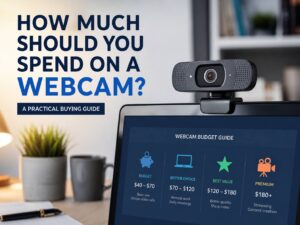
Budget webcams are fine for basic calls. Expect softer video, weaker microphones, and fewer manual controls.
Mid-range webcams offer the best value for most buyers. This is where you often get better autofocus, stronger mounting, clearer color, and better software.
Premium webcams make sense for creators, teachers, coaches, streamers, executives, and people who spend hours on camera each week. The better image control can save time and make your setup look more polished.
Spend more only if the webcam helps your work, content, or daily comfort. For one short call per week, keep it simple. For daily video work, buy the better model.
Setup Tips After You Buy
Place the webcam at eye level. This gives a more natural angle.
Face a soft light source. Avoid sitting with a bright window behind you.
Clean the lens. A small fingerprint can make the video look soft.
Open the camera settings. Adjust brightness, contrast, white balance, and sharpness.
Frame your shot with a little space above your head. Keep your face close enough to look clear.
Use a separate microphone for serious calls or recordings.
Test the camera in your main app before an important meeting. The preview can look different from one app to another.
Final Verdict
The right webcam is not always the one with the highest resolution. It is the one that fits your room, your lighting, your computer, and your real use.
A good 1080p webcam is the best choice. Look for reliable autofocus, solid low-light correction, a medium field of view, a stable mount, and a privacy shutter.
Choose 4K if you record content, crop your image, present professionally, or want a more premium setup. Pick 60 fps if smooth motion matters. Use a wider field of view only if you need to show more than one person or more of your desk.
Good lighting and clear audio matter too. A cheaper webcam with smart lighting can beat an expensive webcam in a dark room. A dedicated microphone can make you sound far more professional than a built-in webcam mic.
Buy for your actual setup, not just the spec sheet. That is the easiest way to choose the right webcam and avoid paying for features you will barely use.