Setting DPI and sensitivity sounds simple. You move a slider, test the mouse, and change it again. Still, finding a setting that feels right can take a while. The cursor feels too fast on the desktop. Aim feels shaky in games. Small edits feel hard in photo apps. After a longer session, the hand can feel tired too.
The problem is rarely one single setting. DPI, Windows cursor speed, in-game sensitivity, desk space, mousepad size, grip style, and screen resolution all affect the final feel. So, the best mouse setting is not the highest DPI number printed on the box. It is the setting that gives you control without making your hand work harder than it should.
This guide explains how to set mouse DPI and sensitivity the right way. It covers gaming, office work, creative tasks, and daily PC use. More than that, it gives you a simple testing method that works better than copying random pro settings from the internet.
What DPI Means on a Mouse
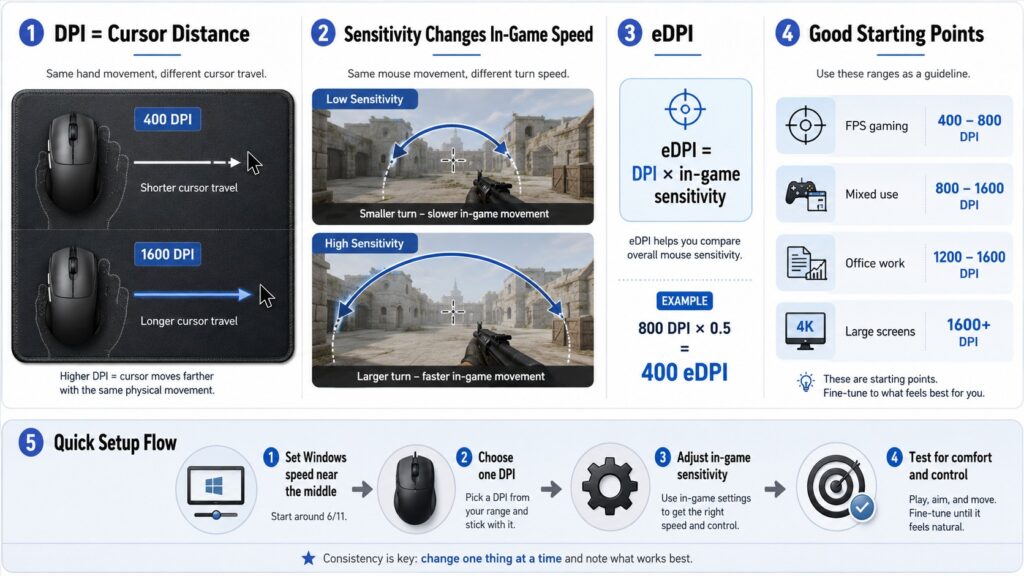
DPI means dots per inch. In plain terms, it tells you how far your cursor moves for every inch you move the mouse. A higher DPI moves the cursor farther with the same hand movement. A lower DPI moves it less.
For example, 400 DPI feels slow. You need more arm movement to cross the screen. By comparison, 1600 DPI feels faster. The cursor travels across the display with less effort.
Some brands use CPI instead of DPI. CPI means counts per inch. For normal users, both terms point to the same idea: how sensitive the mouse sensor feels during movement.
Still, DPI is not only about speed. It also affects control. If the mouse feels nervous, you will overshoot small targets. If it feels too slow, you will drag your arm more than needed. So, the right DPI should feel steady, predictable, and comfortable.
DPI vs Sensitivity: What Is the Difference?
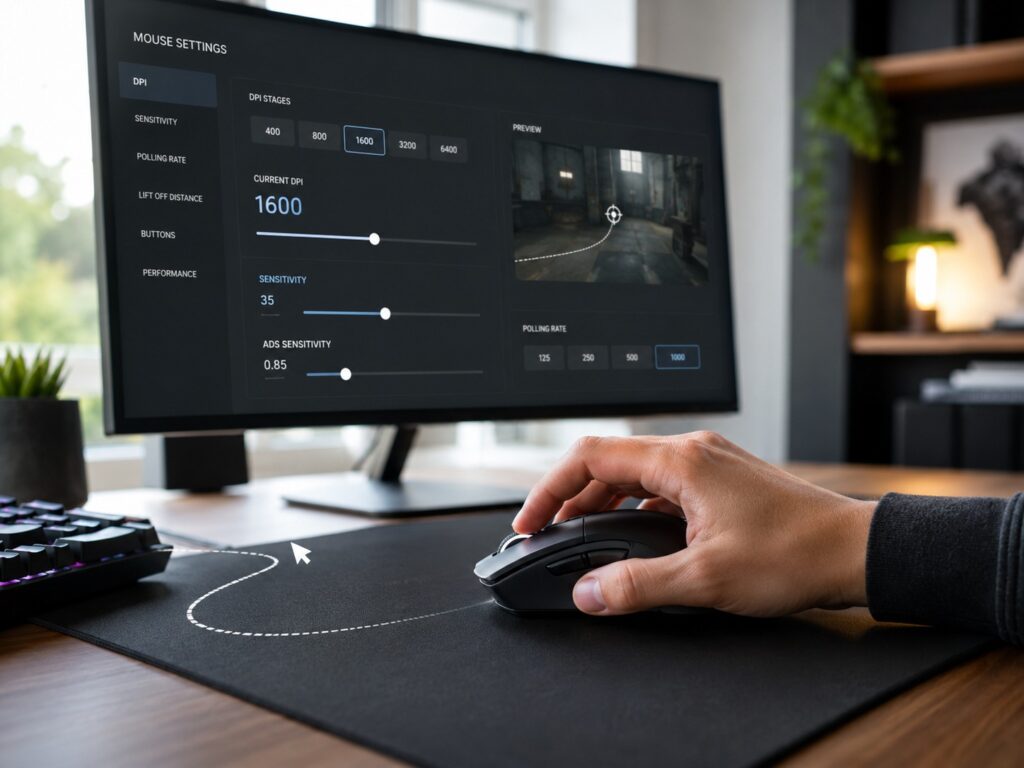
DPI comes from the mouse hardware or the mouse software. You set it in apps like Logitech G HUB, Razer Synapse, SteelSeries GG, Corsair iCUE, or another brand tool.
Sensitivity comes from the operating system or the game. Windows has cursor speed. Games have their own sensitivity sliders. Creative apps can feel different too, mainly based on zoom level, screen size, and workspace layout.
Here is the simple version:
- DPI changes how the mouse sensor reports movement.
- Windows cursor speed changes how fast the pointer moves on the desktop.
- Game sensitivity changes how fast your camera or crosshair moves inside a game.
- eDPI combines DPI and in-game sensitivity into one number.
The formula is simple:
eDPI = DPI x in-game sensitivity
For example:
800 DPI x 0.5 sensitivity = 400 eDPI
400 DPI x 1.0 sensitivity = 400 eDPI
Both setups give the same eDPI. Even so, they can still feel a little different from game to game. Still, eDPI helps you compare settings without guessing.
Why Higher DPI Is Not Always Better
Mouse brands often promote very high DPI numbers. That can make a 20,000 DPI or 30,000 DPI mouse sound better than a model with a lower number. In real use, very high DPI often feels too fast for accurate control.
High DPI can work well on a large monitor, an ultrawide display, or a multi-monitor desk. For aim, photo editing, video editing, and precise clicks, it can feel jumpy. A tiny hand movement sends the cursor too far.
For most people, these ranges make more sense:
- 400 to 800 DPI for low-sensitivity FPS gaming
- 800 to 1600 DPI for mixed gaming and desktop use
- 1200 to 2000 DPI for office work, browsing, and larger screens
- 2000 DPI or higher for users who prefer very small wrist movements
These numbers are starting points, not strict rules. Your desk space, mousepad size, monitor resolution, hand control, and main tasks matter more than any number in a product listing.
For office setups, DPI can still matter more than you might expect. If you mainly use spreadsheets, browser tabs, and documents, this guide on whether DPI matters on office mice is a useful next read.
Start with a Clean Windows Mouse Setup
Before you adjust a gaming mouse or in-game sensitivity, clean up your Windows mouse settings. This step matters a lot. A poor Windows setting can make every DPI value feel wrong.
Use this setup first:
- Open Windows Settings.
- Go to Bluetooth & devices.
- Open Mouse.
- Set cursor speed near the middle.
- Keep this setting stable.
- Test DPI inside your mouse software after that.
The middle cursor speed gives the cleanest baseline. It also makes troubleshooting easier. If your mouse feels wrong later, you can check DPI, game settings, or the mouse surface without second-guessing every Windows option.
For FPS gaming, it is worth turning off pointer acceleration. In Windows, this option appears as “Enhance pointer precision.” Pointer acceleration changes cursor movement based on the speed of your hand. That can feel fine for office work, but it can make aim training harder. The same hand movement does not always create the same pointer movement.
So, for shooters, a direct and predictable feel usually works better. For normal desktop work, pointer acceleration comes down to personal taste.
Pick a DPI Based on Your Main Use
The right DPI starts with your main task. Do not set your mouse only around one YouTube tip or one esports player’s setup. Start with your own desk, screen, and daily use.
For office work and browsing, 1200 to 1600 DPI is a comfortable range. It moves fast enough across modern screens, but it still gives enough control for tabs, menus, and documents.
For FPS games, 400 to 800 DPI remains popular. It gives smoother arm aiming and better micro-control. The trade-off is simple: you need more desk space.
For MOBA and strategy games, 800 to 1600 DPI often feels better. You need fast clicks, quick map movement, and easy camera control.
For creative work, 800 to 1200 DPI gives strong control for detailed edits. In photo editing, video timelines, 3D apps, and design tools, too much speed can make small adjustments frustrating.
For ultrawide monitors or dual-monitor setups, 1600 DPI can feel more comfortable. It reduces large hand movements across the screen.
A good starting point for most people is 800 or 1600 DPI. Test one of these for a full day. Then change only one setting at a time.
How to Set DPI in Mouse Software
Most gaming mice let you set DPI in the brand’s software. The exact menu changes by brand, but the process feels similar.
Use this simple setup:
- Open your mouse software.
- Select your mouse.
- Find the sensitivity, DPI, or CPI section.
- Create one or two DPI stages.
- Delete extra stages you never use.
- Save the profile to onboard memory, if your mouse supports it.
Too many DPI stages create confusion. You press the DPI button by mistake, then the cursor suddenly feels wrong. Next, you start changing game sensitivity, and the setup gets worse.
A cleaner setup looks like this:
- 800 DPI for gaming
- 1600 DPI for desktop work
Another good option:
- 1200 DPI for everything
- 800 DPI for FPS games
If your mouse has a DPI button under the scroll wheel, test it. It is easy to hit by accident during gaming. In that case, disable the button or set every DPI stage to the same value. That small fix solves a common “my sensitivity changed by itself” problem.
How to Set In-Game Sensitivity the Right Way
Game sensitivity needs its own setup. Do not drag the slider until the mouse feels fast and exciting. Fast aim can feel good for five minutes, then fall apart in real matches.
Start with this method:
- Set your mouse DPI first.
- Open your game.
- Lower sensitivity until you can track a target smoothly.
- Move your mouse from one side of the mousepad to the other.
- Check how far your camera turns.
- Adjust slowly until a comfortable swipe gives the turn range you need.
For FPS games, the 360-distance test is a useful check. This means the desk distance needed to turn your character a full 360 degrees. Lower sensitivity needs more desk space. Higher sensitivity needs less.
A common FPS range is 25 to 45 cm for a full 360 turn. Tactical shooters often feel better near the slower end. Faster arena shooters can feel better with a quicker setup.
Still, do not copy a pro player’s sensitivity blindly. Their desk, mousepad, posture, grip, monitor, and years of practice differ from yours. Use pro settings as a rough starting point, then tune around your own hand. If you play shooters often, this guide to the best FPS gaming mouse features can help you match your settings with the right mouse design.
Use eDPI to Compare Settings
eDPI helps you compare mouse setups more clearly. It is useful in games where the sensitivity scale is easy to calculate.
Use this formula:
DPI x sensitivity = eDPI
For example:
800 DPI x 0.35 = 280 eDPI
1600 DPI x 0.175 = 280 eDPI
Both setups have the same eDPI. The second setup uses higher DPI and lower in-game sensitivity. Some players prefer the smoother desktop feel of higher DPI. Others prefer the familiar control of lower DPI.
Still, eDPI does not transfer perfectly between every game. Each game can use a different sensitivity scale, field of view, zoom behavior, and input system. So, treat eDPI as a helpful guide, not a universal rule.
Match Sensitivity to Your Mousepad and Desk Space
Your mousepad size sets a real limit. A tiny pad forces higher sensitivity. A large pad lets you use lower sensitivity and more arm movement.
Small mousepad:
- Works better with 1200 to 2000 DPI
- Fits wrist aiming
- Saves desk space
- Can feel harder for precise FPS aim
Medium mousepad:
- Works well with 800 to 1600 DPI
- Fits mixed use
- Gives enough room for most games
Large mousepad:
- Works well with 400 to 1000 DPI
- Fits arm aiming
- Helps with smoother tracking
- Needs more desk space
If you run out of pad during normal gameplay, your sensitivity is too low for your space. If small movements send your crosshair past the target, your sensitivity is too high.
Next, look at your desk posture. A cramped desk can make low sensitivity feel awful. A wide desk can make it feel natural. The mouse setting should fit the space you actually use, not the space someone else has in a setup video.
Wrist Aim vs Arm Aim
Your aiming style changes the best sensitivity.
Wrist aim uses small movements from the wrist. It works well with higher DPI and higher sensitivity. It feels fast, but small corrections can become harder. After long sessions, the wrist can feel tired too.
Arm aim uses larger movements from the forearm and shoulder. It works well with lower DPI and lower sensitivity. It gives smoother tracking, but it needs a larger mousepad.
A hybrid style mixes the two. You move the arm for large turns and use the wrist for small corrections. In practice, this feels the most natural for mixed gaming and daily PC use.
If your wrist hurts after gaming, lower sensitivity a little and use more arm movement. If your shoulder feels tired, raise sensitivity slightly and reduce huge swipes. Comfort matters. A setting that creates strain is not the right setting.
Fix Common DPI and Sensitivity Problems
Small mouse problems can feel bigger than they are. So, fix them one by one.
The cursor feels too fast on the desktop:
- Lower DPI by one step.
- Keep Windows cursor speed near the middle.
- Remove extra DPI stages.
Aim feels shaky:
- Lower in-game sensitivity.
- Relax your grip.
- Use a larger mousepad.
- Avoid very high DPI.
You cannot turn fast enough:
- Raise in-game sensitivity slightly.
- Raise DPI only after testing sensitivity.
- Check if your mousepad is too small.
Your sensitivity changes randomly:
- Check the DPI button.
- Remove unused DPI stages.
- Save one profile to onboard memory.
- Check game profile switching in your mouse software.
Your aim feels different in every game:
- Use a sensitivity converter only as a starting point.
- Match your 360-distance by hand.
- Test hip-fire and scoped aim separately.
Desktop work feels fine, but games feel bad:
- Leave DPI alone.
- Tune only in-game sensitivity.
- Turn off pointer acceleration for better consistency.
The key is simple: change one setting, test it, then move to the next one. If you change DPI, Windows speed, and game sensitivity all at once, you will not know what fixed the problem.
Keep One Setting Long Enough to Build Control
Constant changes hurt muscle memory. If you change DPI every session, your hand never learns the movement. Pick a setup, then keep it for several days.
A practical test plan looks like this:
Day 1:
Set DPI and sensitivity. Use the mouse normally. Do not adjust every few minutes.
Day 2:
Change only one setting if the problem is clear. Lower sensitivity if you overshoot. Raise it if you cannot reach targets.
Day 3:
Run a simple test. Move between icons, track small objects, and check comfort after one hour.
Day 4 and later:
Keep the setting stable. Make tiny changes only.
Small changes work better than huge jumps. For games, change sensitivity by 5% to 10% at a time. For desktop use, move DPI one step at a time.
This part feels boring, but it works. Your hand needs time to learn the distance between movement and result. After a few days, the mouse should feel more natural.
Best DPI Starting Points
Use these DPI values as practical starting points.
FPS gaming:
- 400 DPI for very low sensitivity
- 800 DPI for balanced control
- 1600 DPI with lower in-game sensitivity
General gaming:
- 800 DPI
- 1200 DPI
- 1600 DPI
Office work:
- 1200 DPI
- 1600 DPI
- 2000 DPI for large screens
Creative work:
- 800 DPI
- 1000 DPI
- 1200 DPI
Ultrawide or dual monitors:
- 1600 DPI
- 2000 DPI
- 2400 DPI if you prefer short hand movement
My honest preference is simple: most users should start at 800 DPI for shooters and 1600 DPI for daily desktop use. These two values cover most setups without making the mouse feel out of control.
Final Tips for Better Mouse Control
The best DPI and sensitivity setting should feel boring in the best way. You should stop thinking about the mouse and focus on the task. If you constantly fight the cursor, the setting is wrong.
Keep your setup simple. Use one main DPI for desktop work and one for gaming if needed. Avoid five random DPI stages. Keep Windows cursor speed stable. Tune each game from inside the game menu. Then give your hand enough time to adapt.
A good mouse setting gives you three things: comfort, control, and repeatable movement. You do not need the highest DPI. You do not need a pro player’s exact sensitivity. You need a setting that fits your hand, desk, screen, and habits.
Start with 800 or 1600 DPI. Set Windows mouse speed near the middle. Turn off pointer acceleration for FPS games. Then adjust in-game sensitivity slowly until your aim feels smooth and your hand stays relaxed. That is the right way to set DPI and sensitivity.