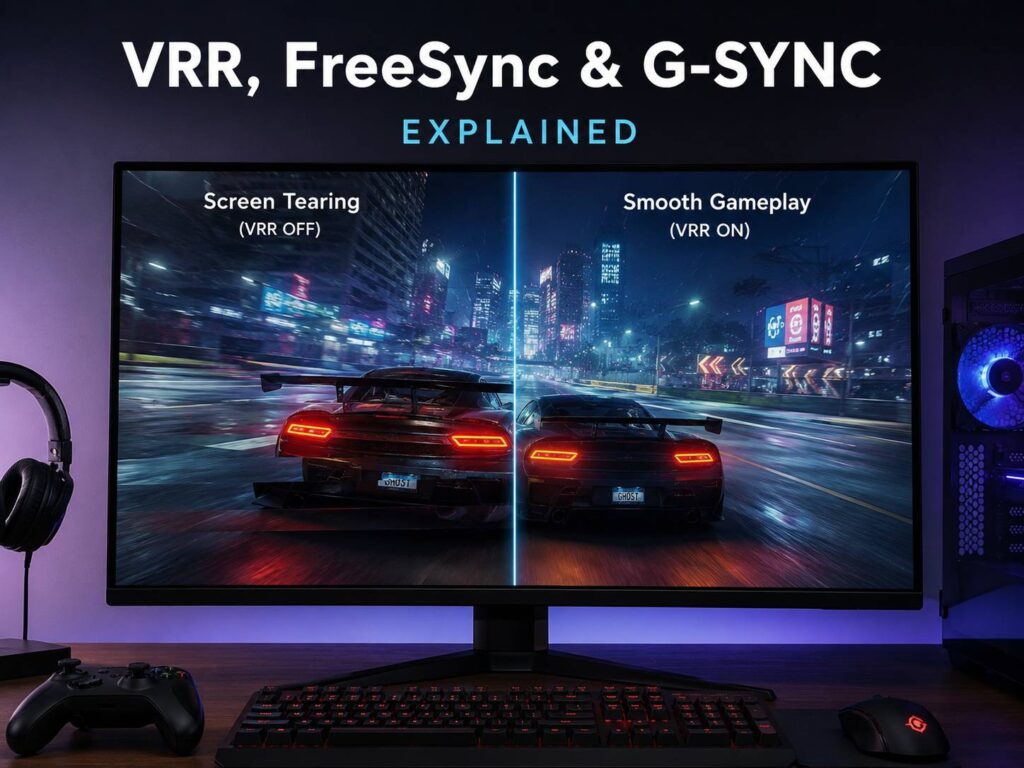
What VRR Means
VRR stands for variable refresh rate. It lets a monitor or TV adjust its refresh rate to match the frame rate coming from your PC, console, or gaming device.
A normal display refreshes at a fixed speed. For example, a 60Hz screen refreshes 60 times per second. A 144Hz screen refreshes 144 times per second. That sounds simple, but games do not always run at one steady frame rate.
One scene may run at 120 FPS. A crowded battle may drop to 86 FPS. Then a quiet indoor area may climb back to 140 FPS. Without VRR, the display keeps refreshing at its fixed rhythm, even as the game sends frames at a changing pace.
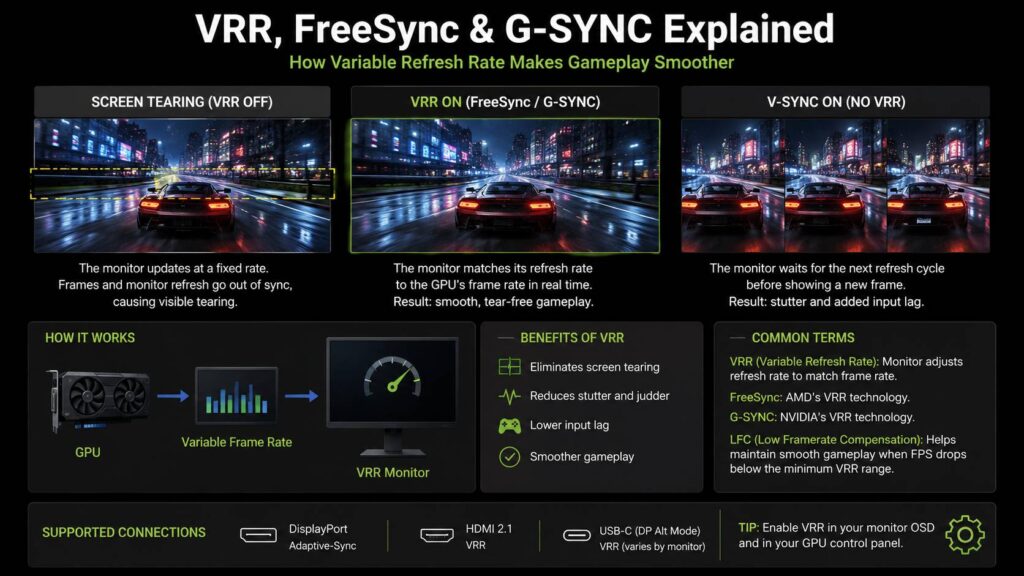
That mismatch can create screen tearing, stutter, judder, or a rougher feel during fast movement. So, instead of forcing the game to match the display, VRR lets the display follow the game more closely.
In real use, this makes games feel smoother. It does not raise your FPS, but it makes frame rate changes less distracting.
Why VRR Matters for Gaming
VRR matters most during normal gameplay. Benchmark numbers can look great, but a game can still feel uneven. A title that averages 120 FPS can still dip under 90 FPS during heavy scenes.
For example, open-world games often change frame rate as you move through busy areas. Racing games can show tearing during fast turns. Shooters can feel less clean during sudden camera movement. VRR helps reduce those problems.
The main benefits are easy to notice:
- Less screen tearing
- Smoother motion during FPS changes
- Fewer small stutters
- Cleaner camera movement
- Better feel on high refresh rate displays
- More stable console gaming on modern TVs
Screen tearing is the easiest issue to spot. It looks like the image splits into two parts that do not line up. You often see it during quick turns, fast side movement, or rapid camera pans.
Stutter feels different. The game may look like it pauses for a split second, then continues. That can happen on fixed-refresh displays when frame pacing does not line up well.
In practice, VRR is one of the most useful gaming display features. 4K, HDR, and high brightness get more attention, but VRR often changes the feel of gaming more than people expect.
What Is FreeSync?
FreeSync is AMD’s variable refresh rate technology. It helps the display match the frame rate from a compatible graphics card, gaming laptop, console, or supported device.
FreeSync appears on many gaming monitors and TVs. It became popular partly due to broad support and lower display costs. For that reason, many budget and mid-range gaming displays include some form of FreeSync.
There are three main FreeSync labels:
- AMD FreeSync
- AMD FreeSync Premium
- AMD FreeSync Premium Pro
Basic FreeSync focuses on reducing tearing and stutter. Next, FreeSync Premium adds stricter requirements, including a higher refresh rate target and low framerate compensation. Then FreeSync Premium Pro adds HDR-related testing for displays built for HDR gaming.
Low framerate compensation, often called LFC, deserves attention. A monitor may support VRR from 48Hz to 144Hz. If your game drops below 48 FPS, it falls under the normal VRR window. LFC can help by repeating frames in a way that keeps the monitor operating inside its supported range.
That sounds technical, but the result is simple. Frame drops feel less harsh, and the screen can stay smoother during demanding scenes.
For most Radeon users, FreeSync Premium is a good target. It gives a stronger feature set than basic FreeSync and still appears on many affordable monitors.
What Is G-SYNC?
G-SYNC is NVIDIA’s variable refresh rate technology. It works with GeForce graphics cards and compatible displays. The label matters, since G-SYNC can mean several different things.
The main G-SYNC labels are:
- G-SYNC Compatible
- G-SYNC
- G-SYNC Ultimate
G-SYNC Compatible displays do not need a dedicated NVIDIA hardware module. Instead, they use Adaptive-Sync technology and pass NVIDIA validation. These displays can work very well, mainly when the monitor has clean tuning and a wide VRR range.
Full G-SYNC monitors sit higher in the range. These models include dedicated NVIDIA hardware. They can offer stronger control over refresh behavior and pixel response. As a result, they often handle motion more cleanly across changing frame rates.
G-SYNC Ultimate sits at the premium end. It targets high-end gaming displays with strong HDR performance, low latency, and tighter quality checks.
For many GeForce users, G-SYNC Compatible is enough. Still, full G-SYNC has value for players who care about motion clarity, VRR behavior, and display tuning across a wide refresh range.
FreeSync vs G-SYNC: What Is the Difference?
FreeSync and G-SYNC solve the same basic problem. They help the display match the game’s frame rate so motion looks cleaner and tearing becomes less visible.
The real difference comes from display support, certification, hardware, price, and GPU brand.
FreeSync uses open display standards and appears on a large number of monitors. That makes it common at lower prices. G-SYNC has stronger NVIDIA branding and tighter validation. Some G-SYNC displays include dedicated hardware, which can improve VRR behavior and overdrive control.
Here is the simple version:
- FreeSync often gives better value.
- FreeSync Premium is a strong choice for most gaming monitors.
- FreeSync Premium Pro suits HDR gaming displays.
- G-SYNC Compatible works well for many GeForce users.
- Full G-SYNC can offer better motion tuning.
- G-SYNC Ultimate targets premium HDR gaming setups.
Your graphics card matters. Radeon cards pair naturally with FreeSync. GeForce cards pair naturally with G-SYNC and G-SYNC Compatible displays. Many FreeSync monitors also work with NVIDIA cards, mainly over DisplayPort, but quality can vary by model.
For that reason, do not buy from the logo alone. Check the VRR range, the ports, the refresh rate, and real user feedback. A clean 144Hz monitor can feel better than a poorly tuned 165Hz display.
HDMI VRR and DisplayPort Adaptive-Sync
VRR can work through DisplayPort or HDMI, but the port matters.
DisplayPort Adaptive-Sync is common on PC gaming monitors. For desktop gaming, DisplayPort is often the safer pick. It usually works well with high refresh rates, FreeSync, and G-SYNC Compatible displays.
HDMI VRR matters more for consoles, TVs, and living room setups. Modern gaming TVs often list HDMI VRR next to 4K 120Hz, low input lag, and game mode.
Still, not every HDMI port supports the same features. One HDMI port may support 4K at 120Hz with VRR, and another may be limited. Some TVs also require an enhanced HDMI mode in the settings menu.
This creates a common problem. A player plugs a console into a random HDMI port, then VRR does not show up. After that, the fix is usually simple: use the right HDMI input, turn on the enhanced format setting, and use a proper HDMI cable.
For PC setups, your monitor connection can shape the whole experience. A USB-C display can simplify cable management, but gaming features depend on the exact port and bandwidth. For a deeper look at connection choices, this guide to a USB-C monitor vs standard monitor explains where USB-C makes sense and where a regular DisplayPort or HDMI setup still works better.
VRR Range: The Spec That Is Easy to Miss
The VRR range tells you where variable refresh rate works. For example, a monitor may support VRR from 48Hz to 144Hz. That means VRR works best when your game runs between 48 FPS and 144 FPS.
A wider VRR range is better. A range from 30Hz to 144Hz gives more room than a range from 48Hz to 144Hz. Low framerate compensation can help below the minimum range, but the display still needs good tuning.
This is where cheap gaming monitors can disappoint. Two displays may both advertise 165Hz and FreeSync. One may stay smooth during dips. The other may flicker, pulse brightness, or feel rough at lower frame rates.
So, look past the headline refresh rate. A monitor’s VRR behavior matters just as much as the maximum Hz number.
Does VRR Replace V-Sync?
VRR and V-Sync are related, but they are not the same feature.
V-Sync tries to stop tearing by syncing frames to a fixed display refresh cycle. It can reduce tearing, but it can also add input lag or stutter when the game cannot keep up.
VRR changes the display timing instead. That makes it more flexible during frame rate changes.
A good starting setup looks like this:
- Turn on VRR in the monitor or TV menu.
- Turn on FreeSync or G-SYNC in the GPU control panel.
- Set the display to its highest refresh rate in Windows.
- Cap FPS a few frames below the monitor’s maximum refresh rate.
- Use a middle overdrive setting.
- Test your most played games.
For example, a 144Hz monitor often works well with a frame cap around 141 FPS. A 165Hz monitor often works well around 162 FPS. This keeps the game inside the VRR range and helps avoid tearing near the refresh ceiling.
That small frame cap can make the whole setup feel cleaner.
Common VRR Problems and Fixes
VRR works well on many displays, but it can still create issues. Most problems come from cables, ports, settings, drivers, or weak monitor tuning.
Common VRR issues include:
- Flickering in dark scenes
- Brightness pulsing
- VRR option missing
- G-SYNC Compatible setting not appearing
- FreeSync disabled in the monitor menu
- Tearing near the maximum refresh rate
- Black screen during game launch
- VRR not working over the selected HDMI port
- Overdrive trails during lower FPS scenes
Flicker is one of the most frustrating VRR issues. It can show up in menus, loading screens, dark games, or scenes with unstable frame pacing. OLED displays and some VA monitors can make it more visible.
A frame cap can help. A different overdrive mode can help too. In some cases, a driver update or firmware update fixes odd behavior.
The cable matters as well. For PC gaming monitors, a good DisplayPort cable is often the safest choice. For 4K 120Hz console gaming, use a certified Ultra High Speed HDMI cable.
TV settings can cause confusion too. Some TVs hide VRR under a game mode menu. Others link VRR to a specific HDMI format setting. Newer smart TVs can also change picture settings through software features. If you use a Google TV, this article about how Gemini on Google TV can fix picture settings by voice shows how TV settings are becoming easier to adjust.
Best Settings for a Smoother VRR Experience
Start with the display itself. Open the monitor or TV menu and look for FreeSync, Adaptive-Sync, VRR, or Game Mode. Turn it on there first.
Next, open your GPU software. Radeon users should check AMD Software. GeForce users should check the NVIDIA Control Panel. Console users should check the display settings and confirm that VRR is active.
Use these settings as a practical base:
- Set your display to its highest refresh rate.
- Turn on VRR in the display menu.
- Turn on FreeSync or G-SYNC in GPU settings.
- Cap FPS slightly below the maximum refresh rate.
- Avoid extreme overdrive modes.
- Use game mode on TVs.
- Keep GPU drivers current.
- Update display firmware where available.
- Test real gameplay, not only menus.
Overdrive needs extra care. Many monitors offer Normal, Fast, Faster, or Extreme modes. The fastest mode often creates inverse ghosting. That looks like bright trails around moving objects.
With VRR, refresh rate changes often. A strong overdrive mode can look good at high FPS, then look messy at lower FPS. For this reason, the middle setting is often the best choice.
In my experience, chasing the fastest overdrive label usually creates more problems than it fixes. A balanced mode gives cleaner motion in more games.
Is VRR Worth It on 60Hz, 144Hz, and 240Hz Displays?
VRR can help at many refresh rates, but the benefit changes by display type.
On a 60Hz display, VRR can reduce tearing and small stutters. Still, the screen has less room to work with, so the result will not feel as fluid as a high refresh rate monitor.
On a 144Hz or 165Hz monitor, VRR makes the most sense for many players. You get smoother motion, lower latency than 60Hz, and a strong frame rate window for modern games.
On a 240Hz monitor, VRR still has value. Competitive players may care more about latency and frame consistency, but VRR can still help when FPS moves up and down.
For most gamers, VRR should stay on. The feature solves more problems than it creates on a well-tuned display.
What to Check Before Buying a VRR Monitor or TV
A VRR logo is not enough. Two monitors with the same badge can feel very different.
Check these points before buying:
- Maximum refresh rate
- Minimum VRR range
- FreeSync, FreeSync Premium, or FreeSync Premium Pro label
- G-SYNC Compatible, G-SYNC, or G-SYNC Ultimate label
- HDMI VRR support for consoles
- DisplayPort Adaptive-Sync support for PC
- Low framerate compensation
- Reports about flicker or blank screens
- Overdrive quality at lower frame rates
- Firmware update history
- Exact ports that support VRR
For PC gaming, a well-reviewed 1440p 144Hz or 165Hz monitor with clean VRR is a smart choice. For console gaming, a good TV should support 4K 120Hz, HDMI VRR, low input lag, and a proper game mode.
A cheaper display can still be great, but check real feedback before buying. VRR quality does not always match the marketing badge.
VRR for Movies, Video, and Everyday Use
VRR mainly targets gaming. Still, refresh matching can help some video and media playback cases. Movies, shows, and online videos do not always match a desktop refresh rate perfectly.
Even so, VRR is not the main feature to judge for movies. Picture mode, motion processing, black levels, brightness, and HDR quality matter more for film and TV.
For everyday desktop use, VRR will not change much. Scrolling may feel smoother on a high refresh rate display, but VRR itself matters most in games.
So, buy VRR for gaming first. Treat any video benefit as a bonus.
Final Advice
VRR sounds technical, but the idea is simple. Your game changes frame rate, so your display changes with it. That helps reduce tearing, stutter, and uneven motion.
FreeSync gives great value and appears on many monitors. FreeSync Premium is the best target for most people buying a new gaming monitor. FreeSync Premium Pro fits HDR gaming displays better.
G-SYNC Compatible is a solid choice for many GeForce users. Full G-SYNC and G-SYNC Ultimate cost more, but they can offer better tuning on premium monitors.
The best choice depends on your GPU, display ports, VRR range, and the games you play. Match the display to your hardware, use the right cable, set a small FPS cap, and avoid extreme overdrive modes.
After everything is set up well, VRR makes gaming feel calmer, cleaner, and more stable. It will not replace a stronger graphics card, but it can make your current frame rate feel much better.