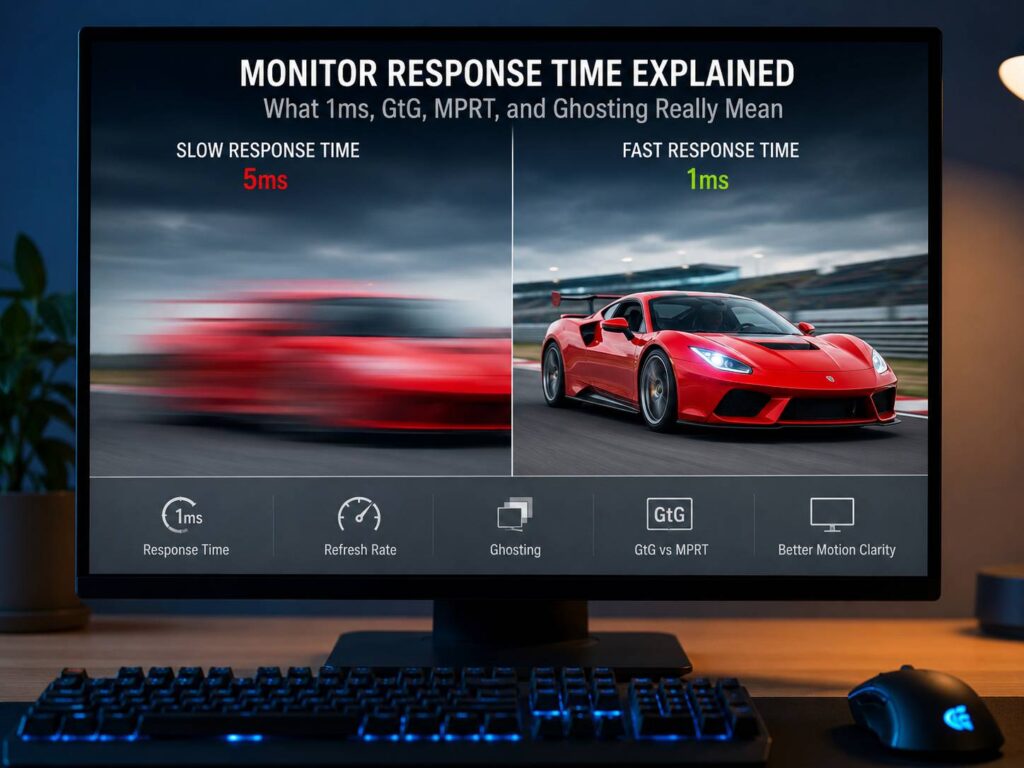
Monitor response time sounds simple. A lower number looks better, so a 1ms monitor appears faster than a 5ms monitor. That idea makes sense on a product page, but real use feels less tidy.
Response time measures how fast a pixel changes from one shade to another. It matters during games, sports, fast scrolling, movies, and quick camera movement. A slow monitor response time can leave trails behind moving objects. That effect is called ghosting.
For example, a player running across the screen can leave a faint shadow behind them. A dark object can smear across a bright background. Text can look soft during quick scrolling. In fast games, those small motion problems can make the screen feel less sharp.
Still, the number on the box does not tell the full story. Some monitors advertise 1ms response time but still show blur. Others list 4ms or 5ms and look cleaner in motion. The real result comes from the test method, panel type, overdrive setting, refresh rate, and input lag.
This guide explains monitor response time in plain terms. It covers GtG, MPRT, ghosting, overdrive, panel types, refresh rate, and the settings that matter after setup.
What Response Time Means on a Monitor
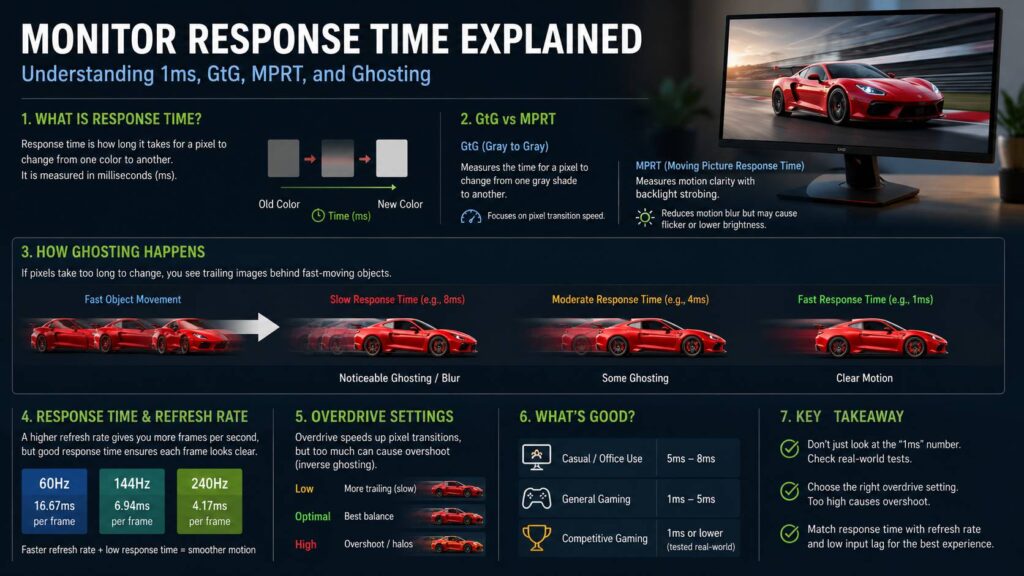
Response time is the time a monitor pixel needs to change from one color or shade to another. Monitor brands measure it in milliseconds. One millisecond equals one thousandth of a second.
Most monitor listings use gray-to-gray response time. You will often see it written as GtG or G2G. This test measures how fast a pixel changes from one gray shade to another gray shade.
That sounds clear, but there is a catch. A monitor does not change only from one gray shade to another during real use. It changes through many colors and brightness levels. Some transitions happen fast. Others take longer.
For example, a light gray to medium gray shift can look clean. A dark gray to black shift can take more time. As a result, the monitor can look fast in one test but still show trails in dark scenes.
A good response time keeps motion sharp. The image changes quickly enough to match each new frame. A poor response time lets the old frame linger for a moment. Then your eye sees a trail.
Why the 1ms Monitor Claim Can Be Misleading
The “1ms” label sells monitors. It looks fast, clean, and easy to compare. It is easy to make it the first spec you check.
Still, one number can hide a lot. Some monitors reach 1ms only in the fastest overdrive mode. That mode pushes pixels harder so they move faster. The trade-off can be overshoot.
Overshoot happens when a pixel goes past the target shade, then moves back. On screen, this can look like bright trails, glowing edges, or strange halos. It is also called inverse ghosting.
So, a monitor can look better in a spec sheet but worse in a real game. The fastest setting is not always the best setting.
A better question is simple: does the monitor show clean motion without ghosting or halos? A screen with a clean 4ms response can feel better than a forced 1ms mode full of bright trails.
In real use, the best overdrive setting is often Normal, Medium, or Fast. Extreme modes often create more problems than they fix.
GtG vs MPRT: What These Response Time Terms Mean
GtG and MPRT describe different parts of motion performance.
GtG means gray-to-gray. It measures how fast pixels change shade. This is the response time spec most monitor brands promote.
MPRT means moving picture response time. It relates more to how much blur your eyes see during movement. Many monitors use MPRT with backlight strobing modes. Brands give these modes names such as Motion Blur Reduction, ELMB, ULMB, DyAc, or VRB.
A 1ms MPRT monitor does not always have 1ms GtG pixel speed. Often, it reaches that claim through backlight strobing. The monitor flashes the backlight in short bursts to reduce visible blur.
That can help in fast games. Still, it brings trade-offs.
Common MPRT trade-offs include:
- Lower brightness
- Screen flicker
- Eye strain for some users
- Limited use with variable refresh rate
- Double images at the wrong frame rate
- Weaker image quality in some scenes
For this reason, GtG and MPRT should not be treated as the same spec. GtG tells you more about pixel transition speed. MPRT tells you more about perceived motion blur. Both matter, but neither one tells the full story alone.
Response Time vs Refresh Rate vs Input Lag
Response time, refresh rate, and input lag are easy to mix up. These specs all affect how a monitor feels, but they are not the same thing.
Response time controls how fast pixels change. It affects ghosting, smearing, and motion clarity.
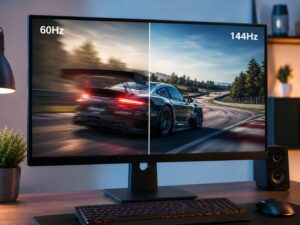
Refresh rate controls how many times the monitor updates the image each second. A 60Hz monitor refreshes 60 times per second. A 144Hz monitor refreshes 144 times per second. A 240Hz monitor refreshes 240 times per second.
Input lag is the delay between your action and the result on screen. You move the mouse, press a key, or use a controller. The screen then shows the result after a short delay.
Next, think about how these specs work together. A monitor can have low response time but still feel delayed if input lag is high. A monitor can have low input lag but still show ghosting if pixel transitions are slow.
For gaming, you want all three to work well:
- Low response time for cleaner motion
- High refresh rate for smoother movement
- Low input lag for faster control feel
For a deeper look at refresh rate, read this guide on monitor refresh rate explained. It pairs well with response time, since both specs shape motion clarity.
How Slow Response Time Looks on Screen
Slow response time creates motion problems that become easy to spot once you know the signs.
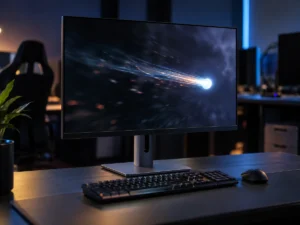
Ghosting appears as a faint trail behind a moving object. You see a soft shadow that follows the object for a split second. This often appears in games, sports, and fast camera pans.
Black smearing appears as dark trails in shadowy scenes. This issue often shows up on budget VA monitors. Dark areas lag behind brighter objects, so the image can look dirty during movement.
Inverse ghosting appears as bright trails or glowing edges. This often comes from too much overdrive. The monitor tries to speed up pixels, then pushes them too far.
Motion blur makes moving objects look soft. Some blur comes from pixel response. Some blur comes from how modern flat panels hold each frame on screen until the next one appears.
Stutter is different. It can come from uneven frame pacing, low frame rate, or sync problems. Response time is easy to blame for every motion issue, but it is only one part of the chain.
Panel Types and Response Time
Panel type still matters. Modern monitors have improved a lot, but each panel type has common strengths and weak spots.
TN panels were once the speed choice for competitive gaming. They often had fast response times and low motion blur. The downside was weaker color and narrow viewing angles.
IPS panels now offer strong speed with better color and wider viewing angles. Many 144Hz, 165Hz, 240Hz, and 360Hz gaming monitors use fast IPS panels. For many people, IPS gives the safest mix of gaming speed, work use, and image quality.
VA panels often have better contrast and deeper blacks. They can make movies and dark games look richer. The common issue is slower dark transitions. That can create black smearing in darker scenes.
OLED panels have very fast pixel transitions. They usually avoid classic LCD ghosting. Motion can look very clean, especially at high refresh rates. Still, OLED has other concerns, such as price, burn-in risk, brightness behavior, and text clarity on some models.
In practice, fast IPS works well for most mixed-use buyers. VA can look great for dark-room use, but motion testing matters more there. OLED delivers the cleanest pixel response, but it costs more and needs more care.
Overdrive Settings: Why Faster Is Not Always Better
Overdrive is a monitor setting that speeds up pixel transitions. It sends a stronger signal to the pixels, so they reach the next shade faster.
Most gaming monitors include overdrive options with names such as Off, Normal, Fast, Faster, Extreme, Level 1, or Level 2. Some brands call the same setting Response Time.
The fastest option can look tempting. It can reduce ghosting in some scenes. Yet it can create overshoot in others. That overshoot can look worse than the original blur.
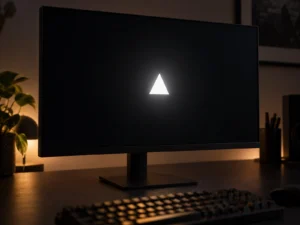
Start with the middle overdrive setting. Then test fast movement in a game, a UFO motion test, or fast scrolling text.
Use this simple check:
- Trails behind objects mean response time is too slow.
- Bright halos around objects mean overdrive is too strong.
- Soft blur with no halo can point to refresh rate limits.
- Clean edges with little trail mean the setting is likely right.
For variable refresh rate gaming, overdrive gets harder. A setting that looks good at 165Hz can look worse at 70Hz or 90Hz. Better monitors handle this with variable overdrive. Cheaper models can show more overshoot at lower frame rates.
Good Monitor Response Time for Each Use
A good response time target changes with the way you use the monitor.
For office work, browsing, school, and email, 5ms to 8ms works fine for most users. Text clarity, brightness, contrast, and comfort matter more than raw speed.
For casual gaming, aim for 5ms GtG or better with low ghosting. A clean 5ms monitor can feel pleasant, especially at 75Hz, 100Hz, 144Hz, or 165Hz.
For competitive gaming, aim for tested fast response time that matches the refresh rate. At 144Hz, each refresh takes about 6.94ms. At 240Hz, each refresh takes about 4.17ms. At 360Hz, each refresh takes about 2.78ms. The pixels need to change fast enough to keep up.
For console gaming, 120Hz support and low input lag matter a lot. A claimed 1ms spec matters less than clean 60Hz and 120Hz motion.
For movies, response time can affect fast scenes. Still, contrast, color, HDR performance, and black levels often matter more.
For photo or video editing, color accuracy and uniformity come first. A fast panel helps, but image quality matters more than a 1ms sticker.
If you use one screen for both games and work, this gaming monitor vs work monitor guide can help you compare the trade-offs.
How to Check Response Time Before Buying
Do not rely only on the product title. Retail listings often show the best possible number, not the best real-use result.
Check these details before buying:
- Look for tested GtG results, not only the advertised number.
- Check overshoot or inverse ghosting notes.
- Look for response time at several refresh rates.
- Search for black smearing reports on VA monitors.
- Check the recommended overdrive mode.
- Read owner comments about ghosting, halos, and motion blur.
- Watch pursuit camera tests for fast gaming monitors.
A monitor can score well at max refresh rate and still perform poorly at lower frame rates. This matters for single-player games that run between 60 fps and 120 fps. It matters for consoles too.
Be careful with terms such as 1ms MPRT, 1ms VRB, or 0.5ms. These claims often refer to special modes, not normal daily use. Those modes can lower brightness, add flicker, or limit other features.
Best Settings After You Set Up the Monitor
After you connect a new monitor, check the settings before judging it.
First, set the refresh rate. Windows can leave a high refresh monitor at 60Hz. Open display settings and choose the highest supported refresh rate. Then check the GPU control panel.
Next, set overdrive to the middle option. Test a fast game or a motion test. Raise it one step if trails remain visible. Lower it one step if you see bright halos.
Then, turn on variable refresh rate for gaming. Use FreeSync, G-SYNC Compatible, or the monitor’s VRR setting. Test the same game at your usual frame rate.
Be careful with motion blur reduction modes. They can make fast motion look clearer, but they often reduce brightness. They can flicker too. Some users like them. Others feel eye strain fast.
For console use, check the HDMI port and cable. Some monitors support high refresh only through one port. A wrong port can limit refresh rate and make the monitor feel slower.
Common Response Time Mistakes
A few mistakes are easy to make.
They compare only the advertised millisecond number. A 1ms claim does not prove clean motion.
They use Extreme overdrive and think the monitor is broken. That setting often causes inverse ghosting. A lower mode can fix it.
They confuse response time with input lag. Response time affects pixel trails. Input lag affects control delay.
They expect 144Hz to fix every blur issue. Higher refresh helps motion, but slow pixels can still leave trails.
They buy a budget VA monitor for dark gaming, then dislike black smearing. VA contrast can look great, but motion performance varies a lot.
They turn on MPRT mode and wonder why the screen looks dim. Strobing reduces visible blur, but brightness often drops.
They ignore frame rate. A 240Hz monitor cannot show 240 unique frames if the PC sends only 70 fps. The monitor still works, but the full smoothness benefit does not appear.
Final Advice on Monitor Response Time
Monitor response time matters, but the listed number is only a starting point. The real goal is clean motion without ghosting, black smearing, or bright overshoot.
For most people, a fast IPS gaming monitor with a 144Hz to 180Hz refresh rate feels smooth and safe. For serious esports, 240Hz or higher makes more sense, but only with tested low response time. For deeper blacks and movies, VA or OLED can look better. Each type has motion trade-offs.
For the cleanest pixel transitions, OLED stands at the top. The cost and care rules matter, though. For balanced daily use, fast IPS remains the easy choice.
Do not buy a monitor only for a 1ms label. Check the panel type, refresh rate, input lag, overdrive behavior, and real motion tests. A monitor with balanced settings will feel better every day than one that wins only on a product page.