
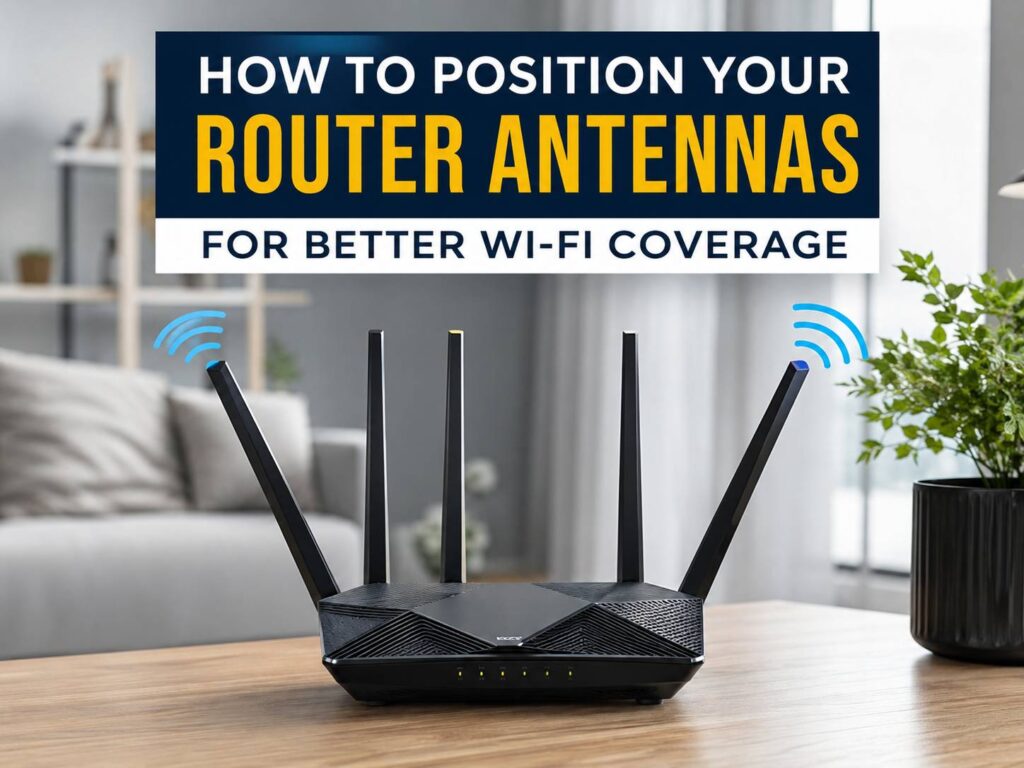
A weak Wi-Fi signal often looks like a router problem, but the antennas can play a bigger role than many people expect. A small change in angle can help one room gain a steadier connection, yet the same change can weaken another room. So, the goal is not to chase the highest speed in one spot. The real goal is balanced coverage across the places where you use Wi-Fi every day.
For most homes, the best starting point is simple. Keep the router in an open, central location and place most antennas upright. Then test the rooms that matter. After that, adjust one or two antennas at a time.
That sounds easy, and it is. Still, wall materials, floor layout, router height, and wireless bands can change the result. This guide explains how to position router antennas, how many should point upward, what angles to try, and what to check before buying extra hardware.
Why Router Antenna Position Matters
Most adjustable router antennas send much of their signal out from the sides rather than from the tip. So, an upright antenna tends to spread coverage across the same floor. A flat antenna changes that pattern and can send more usable energy toward spaces above or below.
This is where many people go wrong. They point every antenna toward the room with weak Wi-Fi, almost like aiming a flashlight. Yet router antennas do not work that way. In fact, the tip of the antenna can sit near a weaker part of the signal pattern.
Modern routers use several antennas to manage separate data streams. They can use MIMO, MU-MIMO, and beamforming to communicate with several devices and shape parts of the wireless signal. Still, antenna direction matters. The radio features help, but they cannot cancel poor placement, thick concrete, metal barriers, or long distances.
Think of antenna position as one piece of the setup. Router placement comes first. Antenna angle comes next. Channel choice and wireless band come after that.
The Best Router Antenna Position for Most Homes
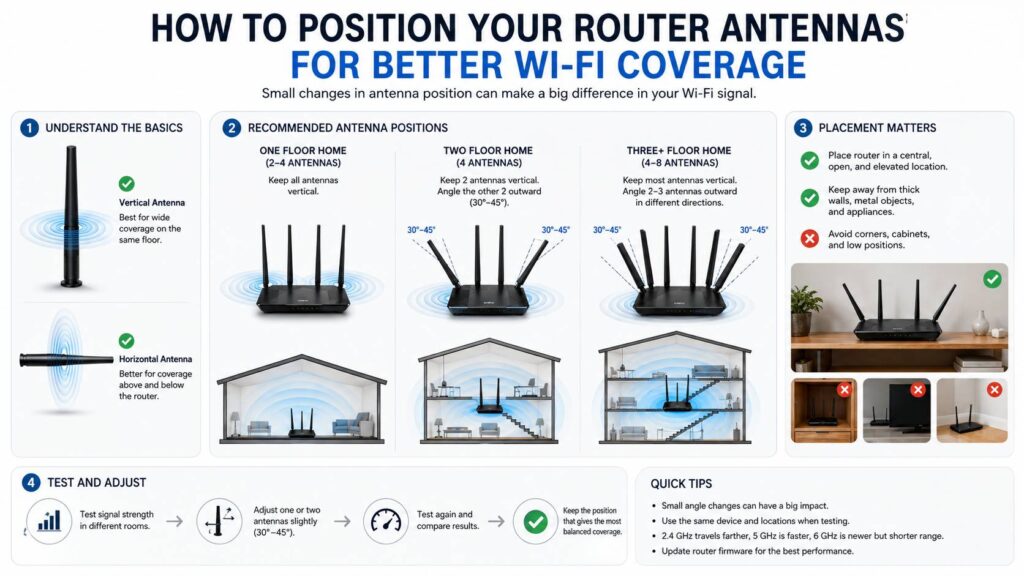
In a one-floor apartment or house, start with every antenna vertical. This gives the router a clean, predictable pattern across the same level.
Next, test the furthest bedroom, the living room, and any home office. If coverage looks balanced, leave the antennas alone. Tiny changes are not useful when the network already works well.
For a two-floor home, try a mixed layout. Keep half the antennas vertical and angle the rest outward by about 30 to 45 degrees. This pattern can help the router communicate with devices on another level or with phones held in different positions.
A good starting setup looks like this:
- One antenna: Keep it vertical.
- Two antennas: Keep both vertical for one floor. Use one vertical and one angled for two floors.
- Three antennas: Keep the middle antenna vertical. Angle the outer antennas slightly outward.
- Four antennas: Keep two vertical. Angle the other two outward.
- Six or eight antennas: Keep most upright. Angle two or three in different directions.
These positions are not strict rules. Each router has its own antenna design, radio layout, and internal tuning. So, use the manual for your model as the first reference, then test the result in your own home.
How to Position Router Antennas in a Single-Story Home
A single-floor home needs broad horizontal coverage. For that reason, upright antennas usually work best.
Start by moving the router away from the floor. Place it on a shelf, desk, or wall mount at roughly chest height. This simple move often helps more than rotating every antenna.
Next, look at what sits between the router and the weak room. Sofas, cabinets, televisions, radiators, and kitchen appliances can weaken or reflect the signal. Thick walls create an even bigger problem. So, try to give the router a cleaner path through the home.
A central position matters too. A router placed at one end of a long home must push the signal through every wall. Move it toward the middle and the same router can cover much more space.
In practice, many homes keep the router beside the internet entry point. That spot is easy for the installer, but it can be poor for coverage. A longer Ethernet cable can let you move the router to a better place without changing the internet service itself.
How to Position Router Antennas for Two or More Floors
Multi-floor homes need more testing. Floors and ceilings can contain concrete, pipes, wiring, metal mesh, or heating systems. Each material can weaken the signal.
Start with the router near the center of the building. A middle floor often gives the best overall result in a three-floor home. In a two-floor home, a high shelf on the lower floor can work well.
Then set half the antennas upright. Angle the others outward by about 30 degrees. Test the upper floor and lower floor. If the signal remains weak, try 45 degrees.
Stairwells can help too. They create a more open path between floors. So, a router placed near the stairs can beat a router hidden in a room, even when the rooms sit close together on a plan.
Concrete remains the hardest case. A room directly above the router can still have weak Wi-Fi if the ceiling contains dense reinforcement. In that case, a mesh node or wired access point can fix more than another antenna adjustment.
Router Placement Has a Bigger Effect Than Tiny Antenna Changes
Antenna angle matters, but router placement matters more.
Put the router in an open, central, raised spot. Keep it away from thick metal, water, and large electronics. Then keep the vents clear so heat can escape.
Avoid these locations:
- Inside a cabinet
- Behind a television
- On the floor
- Next to a microwave oven
- Beside a large speaker
- Near a metal filing cabinet
- In a utility cupboard
- Against a reinforced concrete wall
- At the far end of the home
- Directly beside another wireless router
Metal can block or reflect Wi-Fi. Water can absorb part of the radio energy. So, large aquariums, water tanks, mirrors with metal backing, and dense stone walls can create stubborn dead zones.
A hidden router looks tidier, but a closed cabinet often hurts both cooling and signal strength. In my view, a visible router on a high shelf is the better trade. It may not look perfect, but it usually works better.
How Many Router Antennas Should Point Up?
Most antennas should point upward in a normal home setup. That position suits broad coverage across the same floor and matches the usual orientation of many phones, laptops, televisions, and smart devices.
At the same time, one or two angled antennas can help with polarization diversity. Phones and tablets change position all day. A device can sit upright, sideways, flat on a table, or tilted in the hand. Mixed antenna angles give the router more ways to maintain a stable link.
Do not assume that more visible antennas mean much longer range. Some antennas serve separate wireless bands. Others support extra data streams. So, an eight-antenna router can improve capacity and speed without giving eight times the coverage.
Small hardware settings can change how a device feels in real use. The same idea appears in other tech. For example, learning what rapid trigger means on a keyboard shows how one physical setting can change responsiveness more than people expect.
What to Do With Routers That Have Internal Antennas
Many mesh nodes, provider gateways, and compact routers hide their antennas inside the case. You cannot rotate them, so device placement matters even more.
Keep the unit in its normal upright position. Do not turn it on its side just to make it fit inside a shelf. Do not stack books, consoles, or other devices on top.
Next, check the product design. Some units are built for a desk. Others are meant for a wall, ceiling, or power outlet. Use the position intended by the maker.
Mesh nodes need careful spacing too. Do not put a node inside the dead zone. Instead, place it between the main router and the weak room, where it still receives a strong signal. A node cannot repeat speed that it never receives.
Common Router Antenna Mistakes
Pointing Every Antenna at the Weak Room
This looks logical, yet it often gives poor results. The side of a common dipole antenna usually carries more usable signal than the tip. Start with the antennas upright instead.
Laying Every Antenna Flat
A fully horizontal setup can hurt devices on the same floor. Keep most antennas vertical and angle only a few.
Spreading the Antennas Too Far Apart
Some users push every antenna to the edge of its hinge range. That creates a wide fan shape, but the pattern may not match the home.
Start with a smaller angle. Test 30 degrees first. Then try 45 degrees.
Copying a Photo From Another Router
Two routers can look similar yet use different internal layouts. So, a photo from another model is not a reliable guide.
Buying Cheap High-Gain Antennas
A larger gain number does not mean stronger Wi-Fi in every direction. High-gain antennas often flatten the coverage pattern. That can help on one floor and hurt rooms above or below.
Cheap replacement antennas can use poor connectors or weak internal parts. Extension cables can add signal loss too. For most homes, the factory antennas are the safer choice.
Running One Speed Test
One result tells you very little. Internet speed changes with server load, broadband traffic, device limits, and background downloads.
Run each test three times. Then use the average.
A Simple Test for Router Antenna Position
Use the same device and the same test points each time.
- Put the router in a central, raised position.
- Set every antenna vertically.
- Restart the router.
- Wait a few minutes.
- Test three to five rooms.
- Record speed, latency, and signal strength.
- Angle one or two antennas by 30 degrees.
- Repeat the same tests.
- Try 45 degrees if the first change does not help.
- Keep the setup that gives the most stable coverage.
A Wi-Fi analyzer app can show signal strength in dBm. A value closer to zero is stronger. So, minus 50 dBm is stronger than minus 70 dBm.
Use the same phone or laptop for every test. Different devices can show different readings.
For speed tests, calculate an average:
- Test one: 180 Mbps
- Test two: 210 Mbps
- Test three: 195 Mbps
- Total: 585 Mbps
- Average: 585 ÷ 3 = 195 Mbps
Repeat the same process after each antenna change. Then compare the averages, not the single highest number.
Check the Wi-Fi Band Before Blaming the Antennas
Each Wi-Fi band behaves differently.
The 2.4 GHz band usually reaches farther and handles walls better. Yet it often faces more interference from nearby routers, Bluetooth gear, and household appliances.
The 5 GHz band can deliver higher speeds at short and medium range. Still, it loses strength faster through walls and floors.
The 6 GHz band gives compatible devices access to cleaner spectrum. At the same time, its reach can fall quickly through dense obstacles.
So, a weak 5 GHz or 6 GHz connection in a distant room does not always point to poor antenna position. The band itself can be the main limit.
Channel congestion can create the same symptoms. On 2.4 GHz, channels 1, 6, and 11 are common non-overlapping choices in many regions. Local rules and nearby networks still matter, so check channel use before changing settings.
Do Wi-Fi 6, Wi-Fi 7, and Future Routers Need Different Antenna Angles?
New wireless standards add features, but basic antenna rules remain similar. The router still works best in an open, central spot. External antennas still need sensible angles. Walls, floors, metal, and distance still affect coverage.
Wi-Fi 7 can use Multi-Link Operation with compatible devices. This feature lets a device use more than one wireless link. It can improve speed, latency, or stability. Yet it cannot remove the physical limits of the home.
Future router designs may change the way antennas look or work. For a current example of how next-generation hardware is being discussed, see this guide to the TP-Link Archer 8 Wi-Fi 8 router.
Real Problems That Antenna Changes Cannot Fix
Some Wi-Fi faults need more than a new angle.
A router cannot push a clean signal through several reinforced concrete walls. An old phone can have a weak wireless radio. A damaged Ethernet cable can limit the link between the modem and router. Old firmware can cause drops. A crowded channel can create lag. A weak mesh backhaul can slow every device connected to the node.
Provider gateways create another common issue. Installers often place them near the fiber or cable entry point. That spot may sit in a corner, behind furniture, or close to electrical equipment.
A longer Ethernet cable can help. Move the router toward the center of the home, then test again.
Large homes often need mesh units or wired access points. Wired backhaul works best since each access point receives a stable network link. A wireless extender can help with a small gap, but it needs a strong signal at its own location.
In my experience, people spend too much time rotating antennas by tiny amounts. Moving the router one meter higher or two meters toward the center often makes the bigger difference.
Why Strong Wi-Fi Bars Can Still Feel Slow
The Wi-Fi icon does not show the full quality of the connection. A phone can display strong bars and still face slow downloads, high latency, packet loss, or local interference.
Common causes include:
- Too many devices on one band
- A crowded wireless channel
- Slow broadband service
- Background downloads
- An overloaded router
- Weak mesh backhaul
- An old Wi-Fi adapter
- Very wide channels in a crowded area
- Two routers creating double routing
- A slow Ethernet port or cable
Test the internet through Ethernet. If the wired result is slow too, antenna position is not the main problem.
Best Router Antenna Position Checklist
Use this checklist before buying new hardware:
- Put the router near the center of the home.
- Raise it above floor level.
- Keep it in the open.
- Start with every antenna vertical.
- Use mixed vertical and angled positions for more than one floor.
- Keep most antennas upright.
- Angle selected antennas by 30 to 45 degrees.
- Keep the router away from metal, water, and large electronics.
- Test every change from the same locations.
- Check 2.4 GHz, 5 GHz, and 6 GHz separately.
- Review channel congestion.
- Follow the router manual for model-specific guidance.
- Move mesh nodes closer if their link is weak.
- Use Ethernet backhaul where practical.
Find the Position That Works Best in Your Home
The best router antenna position for a single-floor home is usually vertical. A multi-floor home often benefits from a mix of vertical and angled antennas.
Start with the router itself. Move it to a central, raised, open location. Then set the antennas upright. After that, angle one or two antennas and test again.
Do not expect antenna changes to defeat thick concrete, metal barriers, or a very large floor plan. In those cases, mesh units or wired access points can provide a stronger fix.
A careful setup can reduce dead zones, improve video calls, and make smart devices more reliable. It takes only a few tests, and the result often saves the cost of new hardware.