
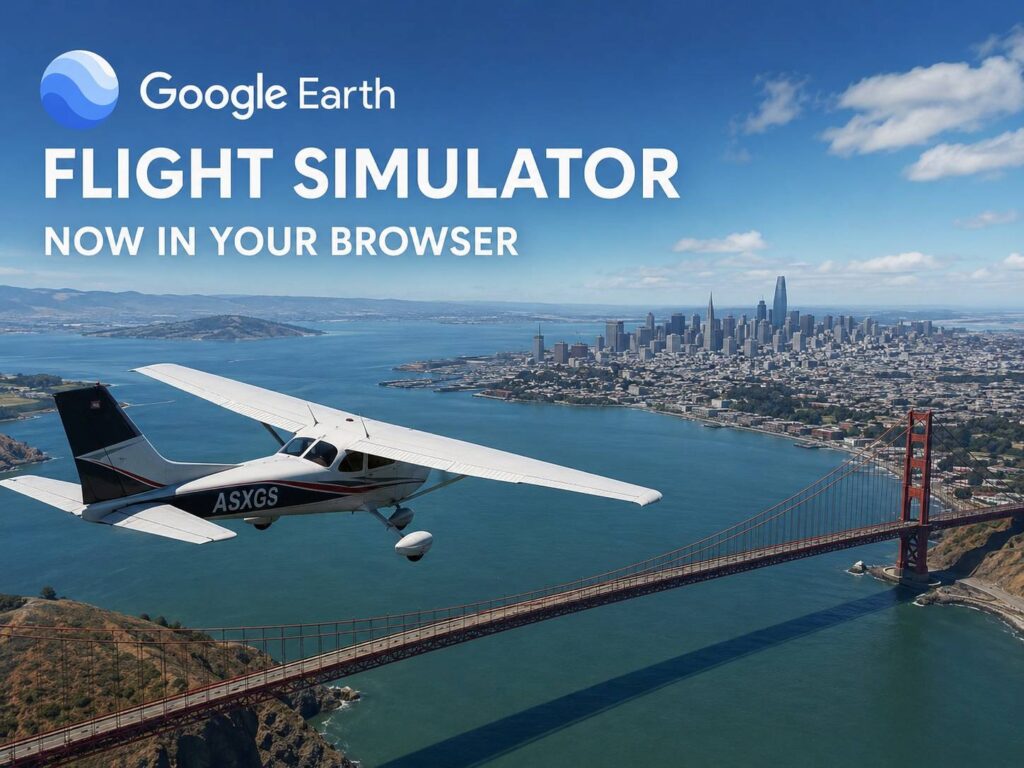
Google Earth has a fresh reason to keep people clicking around for longer than planned. Its flight simulator now works in the browser, so users can fly over real places without installing Google Earth Pro or opening a separate flight game.
This is not a deep pilot training tool. Instead, it feels like a simple flying mode built for curiosity. The controls stay light, the physics stay friendly, and the whole feature works best as a fun way to explore the planet from above.
Still, that simple setup gives it real charm. You open Google Earth, choose the flight simulator, and start flying over cities, coastlines, mountains, rivers, deserts, and landmarks in a few clicks. For many people, that is enough to make Google Earth feel new again.
What changed in Google Earth Flight Simulator?
The biggest change is access. Google Earth’s flight simulator used to sit inside the desktop version, where many casual users never found it. Now, the web version brings the feature into Google Earth through a browser.
That matters. You do not need a large download. You do not need a paid flight sim. You do not need a gaming PC for a short test flight. Instead, you open Google Earth on a desktop browser, enter Explore Earth, open the Tools menu, and select Flight Simulator.
This move makes the feature easier to try. A hidden desktop tool reaches a smaller crowd. A browser tool reaches students, teachers, map fans, travel planners, casual gamers, and anyone curious enough to click around.
The experience works best on a computer. It uses keyboard and mouse controls, so a desktop or laptop gives the cleanest result. For smoother control, a good desk setup helps too. If you use a wireless mouse often, this guide on what a mouse dock is explains how charging docks can keep your mouse ready between long browsing or gaming sessions.
How to start flying in Google Earth
Starting a flight takes less than a minute. Open Google Earth in your browser, then click Explore Earth from the home screen. Next, open the Tools menu at the top and choose Flight Simulator.
One setting matters right away. Google Earth starts the simulator with the abstract Map basemap by default. That view can look plain, so it removes much of the fun. Switch the basemap to Satellite before you fly.
Satellite view gives the feature its real value. You see terrain, roads, buildings, coastlines, rivers, and familiar places from above. Then, once the aircraft starts moving, the world feels more active than a normal map.
For a better first flight, choose a place with clear visual detail. New York, London, Paris, Dubai, Tokyo, the Alps, the Grand Canyon, and Rio de Janeiro all work well. Your own city can work too, mainly if you already know the streets and landmarks.
The controls are simple, but they still need practice
Google Earth’s browser flight simulator uses basic controls. Page Up increases thrust, and Page Down lowers it. The arrow keys control pitch and roll. The down arrow points the nose down. The up arrow pulls the nose up. The left and right arrows bank the aircraft.
At first, the aircraft can feel twitchy. Small movements work better than large ones. So, if the plane starts turning too fast, ease off and correct gently.
You can also click inside the simulator to use mouse-guided flight. Some users will find this smoother than the keyboard. Still, the same rule applies: small mouse movements give better control.
Crashes are part of the first few flights. Google pauses the simulation after a direct hit with the ground, then gives you a restart option. That restart places the aircraft back at a safer height, so you can keep flying without reloading the page.
My honest view: the controls feel rough during the first few minutes. After that, the feature becomes easier to enjoy. It feels less like a full flight sim and more like a playful map tool, and that fits Google Earth well.
Why the browser version feels fun
The best part is not the aircraft. The best part is the world below it.
Google Earth streams real imagery and 3D places as you fly. As a result, the simulator feels more personal than a generic flying game. You can pass over your hometown, follow a river, circle a famous skyline, or fly near a mountain range you have only seen in photos.
This makes the feature useful for more than quick fun. Teachers can use it during geography lessons. Students can compare city layouts, rivers, mountain shapes, and coastlines. Travel fans can preview famous places from the air before a trip.
It also works well for simple curiosity. Want to fly over Manhattan? Start there. Want to cross the Alps? Choose a nearby location and climb. Want to see how your city looks from above? Search for it, switch to Satellite view, and start flying.
What it does not try to replace
Google Earth Flight Simulator in the browser is not a rival to Microsoft Flight Simulator. It does not offer deep cockpit controls, real weather systems, advanced airport procedures, or complex aircraft handling.
That is not a flaw. The browser version has a different goal. It gives users a fast way to fly over real-world imagery without setup, cost, or a long learning curve.
For that reason, the feature works best as a casual exploration tool. It gives you the feeling of flight without asking you to learn dozens of controls. In a browser, that lighter design makes sense.
People who want realism will feel limited fast. People who want a fun way to explore the world will probably enjoy it within the first minute.
Tips for a better first flight
Switch to Satellite view before takeoff. The Map view looks too plain for this kind of feature.
Start over a city, coastline, or landmark. These areas give your eyes more detail to follow.
Use gentle controls. Fast pitch and roll changes can send the aircraft into a crash.
Keep your speed under control. High speed can make imagery load late, mainly on slower connections.
Fly higher at first. Low flight looks fun, but it gives you less time to react.
Try familiar places first. Your own city feels more interesting when you can recognize roads, parks, and buildings.
Use the restart button without frustration. Crashing during the first few flights is normal.
Why this update matters
Google Earth has always worked well as a tool for curiosity. You search for a place, zoom in, rotate the view, and spend more time than expected exploring. The browser flight simulator adds a more active layer to that habit.
Instead of only looking at a map, you guide an aircraft over it. That small change makes the whole experience feel more alive. It also gives Google Earth a fresh feature at a time when many users expect web tools to work without downloads.
The browser version will not replace a full flight simulator, and it does not need to. Its strength sits in speed, ease, and real-world imagery. You open the browser, choose a location, fly for five minutes, and close it when you are done.
That simple loop makes the feature easy to recommend.
Who should try Google Earth Flight Simulator?
Try it if you enjoy maps, geography, travel planning, casual browser games, or Google Earth itself. It also fits students and teachers who want a more visual way to explore real places.
Skip it if you want realistic aircraft systems, runway procedures, weather simulation, or full cockpit depth. The feature is too simple for that kind of use.
For everyone else, Google Earth’s browser flight simulator is a small but welcome surprise. It makes familiar places feel new, and it gives users a fast way to fly over the planet without installing anything.