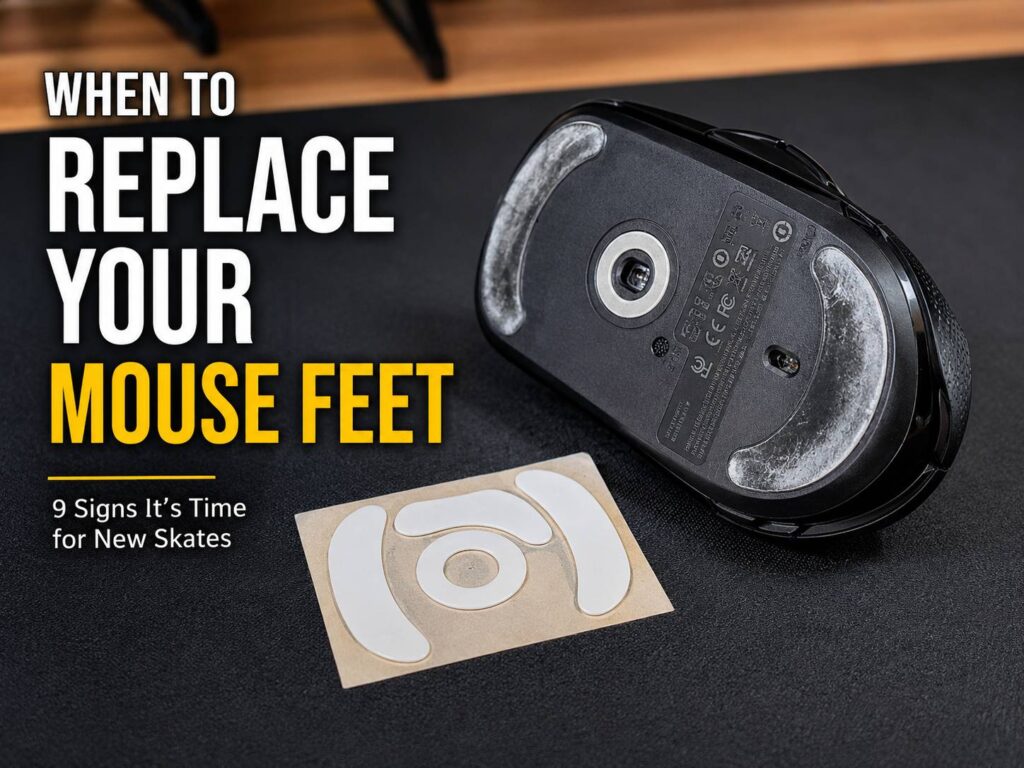
Mouse feet are easy to ignore, yet they change the way your mouse feels every day. These small pads sit under the mouse shell and glide across your desk pad. Good mouse feet help the mouse move smoothly, stop cleanly, and track in a steady way. Worn mouse feet do the opposite. They add drag, make movement feel scratchy, and turn simple cursor control into a small daily annoyance.
It is easy to blame the sensor, the mouse pad, or your aim first. That makes sense. A dirty pad, poor settings, or a bad surface can cause problems too. Still, worn mouse skates often sit at the center of the issue. The wear builds slowly, so you may not notice it right away. One day, the mouse just feels heavier, rougher, or harder to control.
This guide explains when to replace your mouse feet, how to spot worn mouse skates, what causes faster wear, and how to choose the right replacement set.
What Are Mouse Feet?
Mouse feet are the smooth pads on the bottom of your mouse. Many gaming mice use PTFE feet, which have low friction and help the mouse move with less resistance. For a simple breakdown of the material and why it matters, this guide on what are PTFE mouse feet explains the basics in more detail.
Some mice use large curved skates. Others use small dots, thin strips, or a mix of shapes. The design depends on the mouse model, weight, and intended glide style.
Mouse feet handle 3 main jobs:
- They reduce friction between the mouse and pad.
- They protect the bottom shell from scraping.
- They help keep the sensor at the right height from the surface.
That last part matters more than it seems. A mouse sensor reads movement from a set distance. If the feet wear down too much, the mouse sits lower than intended. If replacement skates are too thick, the mouse sits higher than intended. Either change can make the mouse feel strange.
For normal browsing, small changes may not bother you. For gaming, design work, or fast office use, those changes can stand out fast.
How Long Do Mouse Feet Usually Last?
There is no fixed replacement date for mouse feet. A heavy gamer on a rough pad can wear them down in a few months. A light office user on a clean cloth pad can use the same set for years.
A fair rule looks like this:
- Heavy gaming use: check every 3 to 6 months.
- Mixed work and gaming: check every 6 to 12 months.
- Light office use: check once a year.
- Glass pad use: check more often.
- Dirty desk or pad use: check often, since dust and grit wear the feet faster.
Time helps as a rough guide, but feel matters more. Replace your mouse feet once the mouse no longer glides in a clean, steady way after you clean the pad and the feet.
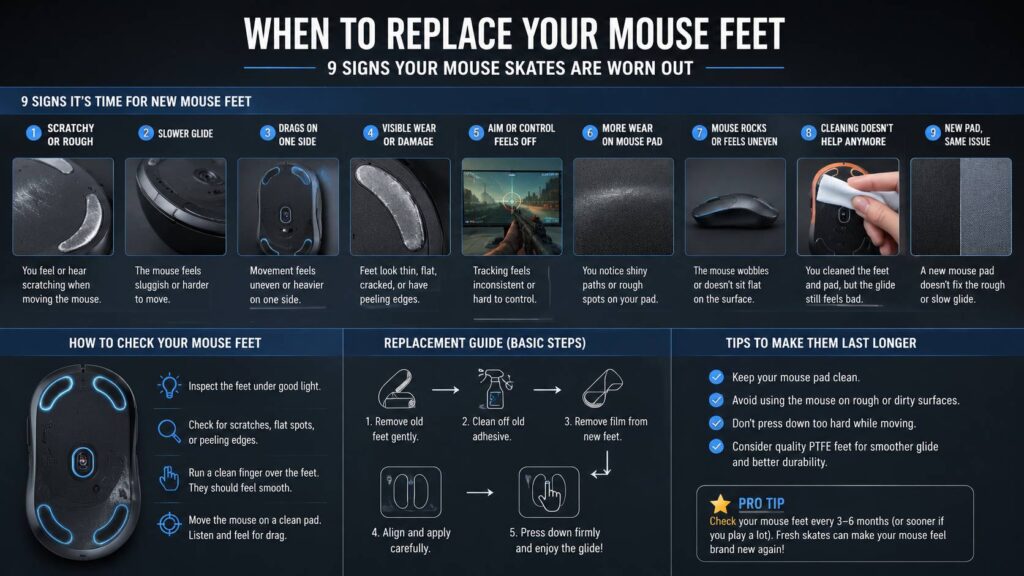
Sign 1: Your Mouse Feels Scratchy
A scratchy glide is one of the clearest signs of worn mouse feet. You may hear a soft scraping sound. You may feel small vibrations through your fingers. The mouse may no longer feel smooth on the pad.
This often means the PTFE layer has worn thin. Dirt can cause the same feeling, so clean the feet first. Use a soft microfiber cloth and wipe around the edges of each skate. Then clean the mouse pad too.
After cleaning, test the mouse again. Move it slowly in circles. Then move it left and right with light pressure. A healthy set of skates should feel smooth in both tests. Worn feet often feel rough in one direction first, then rough in every direction later.
If the scratchy feel stays, the feet are probably ready for replacement.
Sign 2: The Glide Feels Slower Than Before
A slow mouse is not always a problem. A slower glide can mean more control, and many cloth pads feel slower by design. The problem starts when the glide changes for no clear reason.
Small movements may take more effort. You may push harder than usual. In games, small aim changes can feel sticky. During work, the pointer may feel less smooth across the screen.
Clean the pad before you buy new skates. Dust, skin oil, pet hair, and small crumbs can slow any mouse. If cleaning does not bring back the old feel, worn feet become the most likely cause.
This issue shows up often on cloth pads. Cloth holds oil and dust. Once the mouse feet wear down, they can sink into the fabric more and create extra drag.
Sign 3: The Mouse Drags on One Side
Uneven wear can make one side of the mouse feel heavier. You may feel the left edge catch, or the rear skate may feel slower than the front. This happens more often if you press harder on one side of the mouse.
Flip the mouse over and check the feet under bright light. One skate may look flatter than the others. You may see shiny patches, thin spots, or rough edges.
Uneven drag can hurt comfort and aim. It can make quick flicks feel unstable too. Replace the full set, not only one foot. A mixed set can create uneven height and a strange glide.
Sign 4: The Feet Look Thin, Flat, or Damaged
Good mouse feet usually look smooth and clean. Many new skates have rounded edges. Those rounded edges help the mouse slide over cloth instead of catching on it.
Replace the feet if you see:
- Deep scratches
- Peeling edges
- Flat spots
- Cracked pads
- Missing corners
- Glue showing under the foot
- Sharp edges that catch the pad
- One skate sitting lower than the others
Visual damage matters, even if the mouse still works. Once an edge starts peeling, dust can stick to the adhesive. Then the skate can drag harder and mark the mouse pad.
Sign 5: Your Aim Feels Less Consistent
Gamers often notice worn mouse feet during aim training, FPS matches, or fast tracking games. The mouse starts and stops in a less predictable way. The first movement feels sticky, then the mouse moves too far once it breaks free.
That creates a common issue: overcorrection. You push harder to start the movement, then you pull back to fix it. The result feels jumpy and a bit frustrating.
Low-sensitivity players can notice this faster. Large arm movements reveal rough glide more than small wrist movements. If your aim feels off and your mouse pad is clean, check the feet before changing DPI or sensitivity.
New skates will not turn weak aim into perfect aim. They can restore the clean feel your mouse had before. That can make tracking and stopping feel more natural again.
Sign 6: The Mouse Pad Shows More Wear Marks
Mouse feet protect the mouse and the pad. Once they wear down, the harder bottom shell can sit closer to the surface. That can leave shiny paths, rough spots, or darker trails on a cloth pad.
You can check this with side light. Place the pad near a window or lamp. Tilt it slightly and look for clear tracks in the area where you move the mouse most.
A dirty pad can create marks too. Still, if those marks appear with a scratchy glide, the feet may have reached the end of their useful life.
Replacing the feet early can help protect the mouse pad. That matters more if you use a premium cloth pad, hybrid pad, or glass pad.
Sign 7: The Mouse Rocks or Feels Uneven
A mouse should sit flat. If it rocks from corner to corner, the feet may not sit at the same height. This can happen after heavy wear, poor installation, or a skate that has lifted on one edge.
Place the mouse on a clean, flat desk. Do not use the mouse pad for this test. Tap each corner lightly. If one corner moves down and clicks against the desk, the bottom is not sitting flat.
Next, inspect the feet. One may be missing, compressed, or poorly attached. Replace the full set and clean the old adhesive before fitting the new skates.
Sign 8: Cleaning No Longer Fixes the Glide
A dirty mouse pad can make new skates feel bad. That is why cleaning should always come before replacement.
Wipe the bottom of the mouse with a soft microfiber cloth. For the mouse pad, follow the care advice for that pad type. Many cloth pads handle gentle cleaning. Coated pads need more care. Avoid harsh chemicals on the mouse body, and do not soak any pad with electronics or lighting.
Let the pad dry fully before testing. A damp cloth pad creates drag and can feel worse than a dirty one.
If the glide still feels rough, slow, or uneven after cleaning, replacement makes sense. At that point, dirt is not the main issue. The skate material has likely worn down.
Sign 9: A New Mouse Pad Makes the Mouse Feel Wrong
A new mouse pad can reveal old mouse feet. This happens often after moving from a soft cloth pad to a faster hybrid pad, or from cloth to glass.
Old skates that felt fine on one pad may scratch or drag on another. Small rough spots on the skate edge can catch textured surfaces. Thin feet can make the shell sit too close to harder pads too.
Do not replace the feet after one strange session. Give the new pad a few days. Clean the mouse feet and test again. If the glide still feels rough or the mouse sounds scratchy, new skates are a smart fix.
PTFE, Glass, and Dot Skates: Which Type Should You Choose?
Most users should choose model-specific PTFE mouse feet. They fit the original shape, keep the sensor height close to stock, and offer a balanced glide. For daily use and most games, this is the safest pick.
Pure PTFE skates usually feel smoother than basic stock feet. Rounded-edge PTFE skates can feel better on cloth pads, since they reduce edge catch. They are a good upgrade for many gaming mice.
Glass skates feel much faster on many surfaces. That slick feel can be a plus, but it can also feel too fast, mainly in games that need strong stopping control. Dust can feel more noticeable under glass skates too.
Dot skates use small contact points instead of full-size feet. They can make the mouse feel faster, since less material touches the pad. Yet they can change pressure points and may feel less stable on soft cloth.
For most people, the best first replacement is simple: buy a full PTFE set made for your exact mouse model.
What Causes Mouse Feet to Wear Faster?
Mouse feet wear faster under pressure, dirt, friction, and rough surfaces. Your habits play a big role too.
Common causes include:
- Long gaming sessions
- Low sensitivity with wide arm movements
- Rough or textured mouse pads
- Dust and grit on the desk
- Pressing down hard during play
- Using the mouse on bare wood or rough desks
- Sweat and skin oils on the pad
- Old adhesive lifting at the skate edge
- Pet hair and small debris under the mouse
The mouse pad matters a lot. A clean soft cloth pad usually treats skates gently. A rough hard pad can wear them faster. A dirty pad can wear them faster than both.
How to Check Mouse Feet in 2 Minutes
You do not need special tools for a basic check.
Turn the mouse over and look at the feet in bright light. Start with the edges. Peeling, roughness, or lifted corners mean replacement is close.
Run a clean fingertip lightly across each foot. The surface should feel smooth. A rough edge or raised glue line can create drag.
Test the glide on a clean pad next. Move the mouse in slow circles, straight lines, and quick stops. Listen for scraping. Feel for uneven resistance.
Check the height at the end. Look at the bottom shell from the side. If the plastic shell sits very close to the pad, the skates may be too worn.
How to Replace Mouse Feet Without Damaging the Mouse
Take your time with replacement. Rushing can scratch the bottom shell or leave glue behind.
Use this simple process:
- Turn the mouse off and unplug it.
- Work on a clean desk with good light.
- Warm the old skates slightly with your hand or gentle airflow.
- Lift the edge with a plastic tool or fingernail.
- Avoid metal tools, since they can scratch the shell.
- Peel the old skates slowly.
- Remove old adhesive from the skate area.
- Clean the surface with a soft cloth.
- Let the area dry.
- Apply the new feet in the correct shape and direction.
- Press each skate down with light, even pressure.
- Wait a short time before hard use.
Do not cover the sensor opening. Do not stack new skates over old skates. Do not mix thick and thin feet from different sets. Each mistake can change tracking or make the mouse feel uneven.
Should You Replace Mouse Feet or Buy a New Mouse?
Replace the feet if the buttons, scroll wheel, sensor, and shell still work well. Mouse skates cost far less than a new mouse, and they can make an old mouse feel close to new again.
Buy a new mouse if the feet are not the main problem. Double-clicking switches, a failing scroll wheel, random disconnects, and sensor spinouts point to bigger faults. New feet will not fix those problems.
There is one more case. If the mouse has heavy grip wear, a loose shell, and worn feet, replacement skates may only solve part of the problem. Then a new mouse may feel better.
For a good mouse that only feels slow or scratchy, new mouse feet are the smarter fix.
Small Mistakes to Avoid
Do not wait until the glide feels terrible to replace mouse feet. Waiting that long can wear the pad and make the mouse feel worse for weeks.
Others replace them too soon. They buy new skates after one bad day, then later find out the mouse pad was dirty. Clean first, replace second.
Avoid these common mistakes:
- Using random skates that do not fit your mouse
- Buying very thick skates without checking sensor height
- Leaving old adhesive under the new feet
- Using metal tools near the shell
- Touching the sticky side too much
- Testing on a dirty pad
- Mixing different skate brands on the same mouse
- Removing the sensor ring if the replacement kit does not include one
Small details matter. Good installation can make budget skates feel clean. Bad installation can make premium skates feel uneven.
Final Advice: Replace Mouse Feet When the Glide Stops Feeling Clean
The best time to replace mouse feet is when cleaning no longer restores smooth glide. Look for scratchy movement, uneven drag, slow starts, visible wear, peeling edges, or poor control during quick movements.
For most users, PTFE replacement skates made for the exact mouse model give the best balance of speed, control, and safe fit. Glass and dot skates can work well too, but they suit more specific setups.
Check your mouse feet a few times per year. Clean your mouse pad often. Keep dust off your desk. These small habits help your mouse glide better and make each set of skates last longer.
A fresh set of mouse feet will not turn a bad mouse into a great one. It can bring back the smooth, steady feel that made the mouse good in the first place. If your mouse feels rough, slow, or uneven, the feet are one of the first parts to inspect.