What Is ZMK?
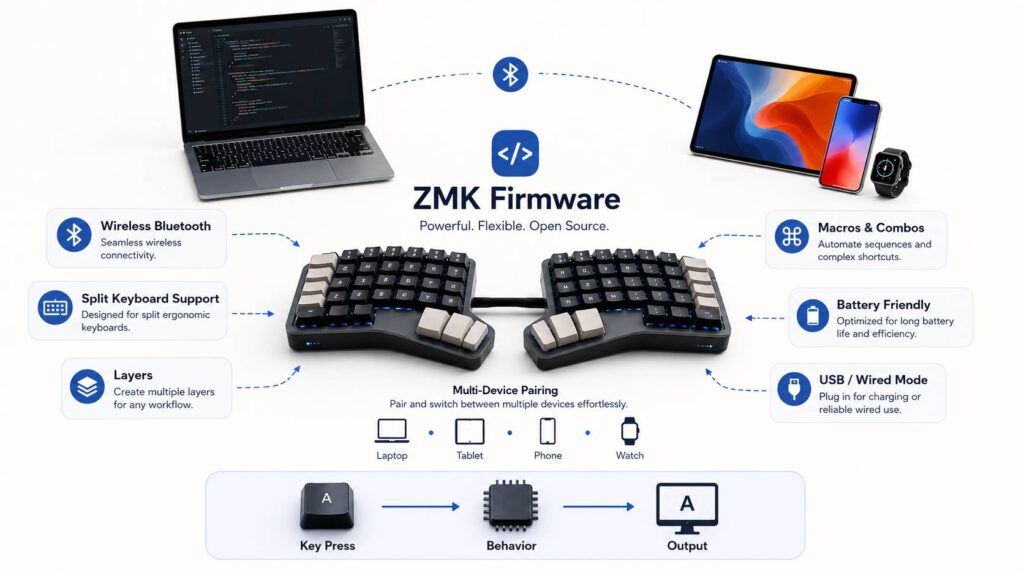
ZMK is open source keyboard firmware made for custom mechanical keyboards. It is best known for wireless builds, split keyboards, compact layouts, and low power use.
In simple terms, ZMK tells your keyboard what each key should do. It controls your layout, layers, Bluetooth profiles, macros, combos, hold-tap keys, battery reporting, and many other features that make a keyboard feel personal.
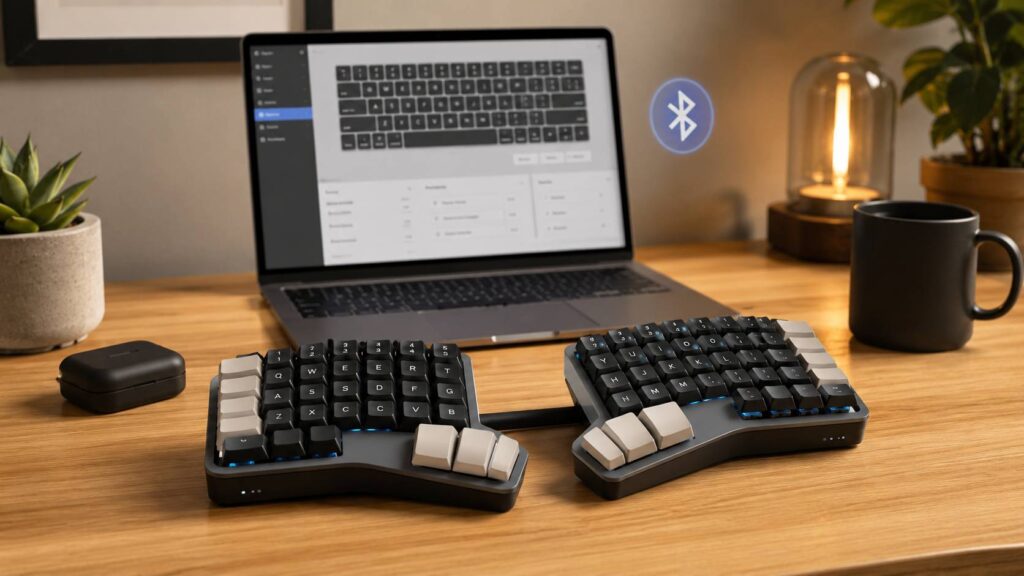
For many keyboard hobbyists, ZMK becomes interesting after they start looking at Bluetooth mechanical keyboards or ergonomic split keyboards. If you have seen boards like the Corne, Sofle, Lily58, Sweep, Totem, or other small split keyboards, you have probably seen ZMK mentioned as well.
ZMK is not a normal keyboard app. It is firmware. That means it runs on the keyboard controller itself. Once you flash it, the keyboard remembers your layout without needing a desktop program open in the background.
That is a big reason people like it. You can create a keyboard layout that works the way your hands work, then take that keyboard from one device to another.
Why ZMK Is So Popular
ZMK became popular because many custom keyboard users wanted better wireless support. QMK is still one of the biggest names in custom keyboard firmware, and it works very well for many wired keyboards. Still, wireless split keyboards need careful Bluetooth handling, better power management, and good support for battery-powered controllers.
That is where ZMK feels different. It was built with wireless keyboards in mind from the start.
Some of the main reasons people choose ZMK include:
- Strong Bluetooth support
- Support for wireless split keyboards
- Low power use for battery-powered boards
- Battery level reporting
- USB support for wired use
- Layers, macros, combos, and tap-hold keys
- Support for encoders, displays, pointing devices, and lighting on compatible builds
- Good support for compact ergonomic keyboards
For users who want a deeper comparison with older custom keyboard firmware, this guide on what is QMK is a helpful next read. QMK and ZMK share the same basic goal, but they often suit different keyboard builds.
ZMK is especially useful for small keyboards. A 34-key or 36-key keyboard needs smart layers to feel complete. You do not have a full number row, arrow cluster, or function row, so the firmware needs to do more work. ZMK gives you the tools to make that possible.
How ZMK Works
ZMK works through configuration files. The most important one for most users is the keymap file. This file tells the keyboard what each physical key does.
A typical ZMK setup includes:
- A board, which refers to the controller
- A shield, which refers to the keyboard layout or PCB
- A keymap file, which controls the key layout
- A config file, which controls features and settings
- A build workflow, often handled through GitHub Actions
At first, this can sound more technical than it really is. You usually start with a working config for your keyboard. Then you edit the keymap, build the firmware, download the file, and flash it to the keyboard.
The first build can feel awkward. After that, the process becomes much easier. Most later changes are simple key swaps, layer tweaks, or timing adjustments.
This text-based setup has a real advantage. Your keyboard layout becomes easy to back up. You can save it, copy it, compare old versions, and reuse parts of it on another keyboard.
ZMK Keymaps and Layers
Layers are one of the best parts of ZMK. A layer is a second layout that sits under your fingers. Your main layer can hold letters. Another layer can hold numbers. A third layer can hold arrows, media keys, and function keys.
A common ZMK layout might include:
- Base layer for letters and common typing keys
- Number layer for numbers and symbols
- Navigation layer for arrows, Home, End, Page Up, and Page Down
- Bluetooth layer for pairing and device switching
- Media layer for volume, playback, and brightness controls
This is why ZMK works so well on compact keyboards. You can use fewer physical keys without losing important functions.
For example, a thumb key can act as Space when tapped and activate a symbol layer when held. Another key can act as Enter when tapped and Control when held. These small tricks make compact keyboards much easier to use.
Still, good layers need planning. A messy layout can slow you down. A clean layout with fewer smart choices often feels better than a complex one with too many hidden shortcuts.
ZMK Behaviors Explained
ZMK uses “behaviors” to control what happens when you press a key. A normal key press is one behavior. A layer switch is another. Macros, combos, sticky keys, and tap-hold actions are all handled through behaviors too.
Common ZMK behaviors include:
- Key press for normal letters and commands
- Momentary layer for holding a layer key
- Toggle layer for turning a layer on or off
- Mod-tap for using one key as both a letter and modifier
- Layer-tap for using one key as both a normal key and layer key
- Sticky key for one-shot modifiers
- Combo for pressing two or more keys together
- Macro for sending a short key sequence
Mod-tap is one of the most useful ZMK features. It can also be one of the most annoying at the start.
For example, you can place modifiers on the home row. A key can type “A” when tapped and act as Shift when held. This can feel great after tuning, but it can misfire if the timing does not match your typing speed.
So, do not judge ZMK after one bad mod-tap test. Small timing changes can make a big difference.
ZMK Studio Makes Keymap Editing Easier
ZMK Studio gives users a more visual way to edit supported keyboards. It lets you change parts of the keymap without rebuilding and reflashing firmware every time.
That sounds great, and in many cases it is. Still, ZMK Studio is not the same as VIA or Vial for every keyboard. Your keyboard needs support for it, and some advanced settings still need normal config files.
For simple key changes, ZMK Studio can save time. For deeper layout work, the text config workflow still matters.
My real opinion: ZMK Studio makes ZMK less scary, but it does not remove the learning curve completely. It is best seen as a helpful tool, not a full replacement for understanding how your keyboard works.
ZMK vs QMK: What Is the Difference?
ZMK and QMK both control custom keyboards, but they often fit different types of builds.
QMK is very common for wired keyboards. It has a huge community, lots of keyboard support, and many advanced features. If you have a wired custom keyboard, QMK is often the easiest and most mature choice.
ZMK is usually the better pick for wireless keyboards. It focuses more on Bluetooth, battery life, and split wireless setups.
Choose ZMK if:
- You want a Bluetooth custom keyboard
- You are building a wireless split keyboard
- Your board uses a supported wireless controller
- You care about battery life
- You like compact ergonomic keyboards
- You want strong layer and combo support
- Your keyboard already has a good ZMK config
Choose QMK if:
- Your keyboard is wired only
- Your board already has strong QMK support
- You need the widest custom keyboard compatibility
- You want a more mature wired firmware setup
- You prefer using VIA or Vial on a supported board
Neither option is perfect for every person. The better choice depends on your keyboard, controller, and daily use.
Common Problems Users Have With ZMK
ZMK can be powerful, but beginners often run into the same problems.
One common issue is a failed GitHub Actions build. A small syntax mistake can break the firmware build. A missing bracket, wrong keyboard name, wrong shield name, or bad key binding can stop everything.
The error logs can look intimidating. Still, they often point close to the problem. The trick is to change one thing at a time, then test again.
Bluetooth pairing can also cause confusion. Your keyboard may store several Bluetooth profiles, and your computer may remember old pairing data. If pairing fails, you often need to clear the keyboard profile and remove the old keyboard entry from your computer or phone.
Split keyboards can bring extra problems. One side may act as the central half, and the other side connects to it. If you flash the wrong file to the wrong side, the halves may not talk to each other correctly.
Battery reporting can also look wrong if the hardware settings do not match the keyboard. This is common on DIY builds, especially when people copy configs from a similar board instead of using the exact one.
A practical tip: keep your first layout simple. Get the base layer working. Then add numbers. Next, add navigation keys. After that, test combos and mod-taps.
Is ZMK Good for Ergonomic Keyboards?
Yes, ZMK is a very good fit for many ergonomic keyboards. It works especially well with split keyboards, column-staggered layouts, low-profile boards, and small layouts with fewer keys.
Many ergonomic keyboard users care about hand position, thumb keys, typing comfort, and reduced finger travel. ZMK helps by letting you place common actions closer to your strongest fingers.
For example, instead of reaching for arrow keys, you can place arrows on a layer under your right hand. Instead of reaching for Backspace, you can place it on a thumb key. These changes can make typing feel smoother after you build the right layout.
If you are comparing keyboard shapes and comfort, this guide on ergonomic keyboard vs regular keyboard gives helpful context before choosing a firmware or board.
Still, firmware alone will not fix every comfort problem. The keyboard shape, key spacing, switch weight, desk height, and typing habits matter too. ZMK gives you control, but the physical keyboard still needs to suit your hands.
Is ZMK Good for Gaming?
ZMK can work for gaming, but it is not always the first choice for competitive players.
For casual gaming, a ZMK keyboard can be fine, especially over USB. Bluetooth can work too, but wireless performance depends on the keyboard, controller, computer, environment, and power settings.
For fast competitive games, a wired keyboard gives more predictable input behavior. If gaming is your main use, test the keyboard in the games you actually play.
Pay attention to:
- Wake time after sleep
- Reconnection speed
- Missed inputs
- Layer mistakes during gameplay
- Bluetooth stability
- Battery level during longer sessions
For most ZMK users, the main appeal is not gaming. The stronger reasons are wireless freedom, split layouts, comfort, battery life, and custom keymaps.
Is ZMK Hard to Learn?
ZMK is not hard forever, but it can feel confusing at the start.
The first setup asks you to learn several new ideas at once. You deal with GitHub, firmware builds, board names, shield names, keymap files, flashing steps, and Bluetooth pairing. That is a lot if you only wanted to move one key.
After the first successful flash, the learning curve gets easier. You begin to understand where each setting lives and what breaks a build.
The best way to learn ZMK is to start small:
- Use a working config for your exact keyboard
- Change one key first
- Build and flash the firmware
- Test the change
- Save a backup before bigger edits
- Add one new feature at a time
- Learn layers before macros
- Tune hold-tap keys slowly
- Keep notes about what works
This approach saves time. It also keeps you from breaking five things at once.
Best ZMK Features to Try First
Some ZMK features are easier to learn than others. Start with useful basics before building a very complex layout.
Good first features include:
- A simple number layer
- A navigation layer with arrow keys
- Media keys for volume and playback
- Bluetooth profile switching
- A reset key
- A bootloader key
- A few simple combos
- One or two layer-tap keys
- One or two mod-tap keys
Avoid building a layout with too many tricks on day one. It may look clever, but it can slow you down in real use.
A simple three-layer layout often works better than a crowded layout with shortcuts you forget. Once your base layout feels natural, you can add more advanced features.
Who Should Use ZMK?
ZMK is a great choice for users who want more control over a wireless custom keyboard.
It is a strong fit for:
- Wireless mechanical keyboard users
- Split keyboard users
- Ergonomic keyboard fans
- Programmers who like text-based configs
- People who want custom layers and combos
- Users building with low-power controllers
- Keyboard hobbyists who enjoy layout tuning
- People who want one keyboard for several devices
ZMK is not the best fit for every user. If you want a simple keyboard with an app-based layout editor and no setup work, a VIA-compatible keyboard may feel easier.
That said, ZMK becomes rewarding once you understand the basics. You can shape the keyboard around your typing habits instead of forcing yourself to adapt to a fixed layout.
Final Verdict: Is ZMK Worth Using?
ZMK is worth using if you want a wireless custom mechanical keyboard with serious layout control. It is one of the best firmware choices for Bluetooth split keyboards, low-power builds, and compact ergonomic layouts.
The main tradeoff is the setup process. ZMK asks you to learn how keymap files, layers, behaviors, firmware builds, and flashing work. That can feel frustrating at first. After a few edits, though, the process starts to feel normal.
My honest opinion: ZMK is not the easiest keyboard firmware for beginners, but it is one of the most rewarding options for wireless custom keyboards. If your keyboard already has a polished ZMK config, the experience can be smooth. If you are starting from scratch, expect some trial and error.
For users who want Bluetooth, split layouts, long battery life, and deep layout control, ZMK is a strong choice. It gives you the freedom to build a keyboard that feels personal, practical, and comfortable.