What Is VIA?
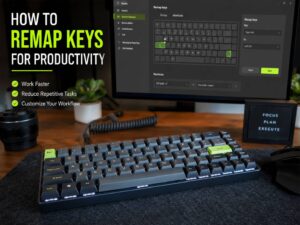
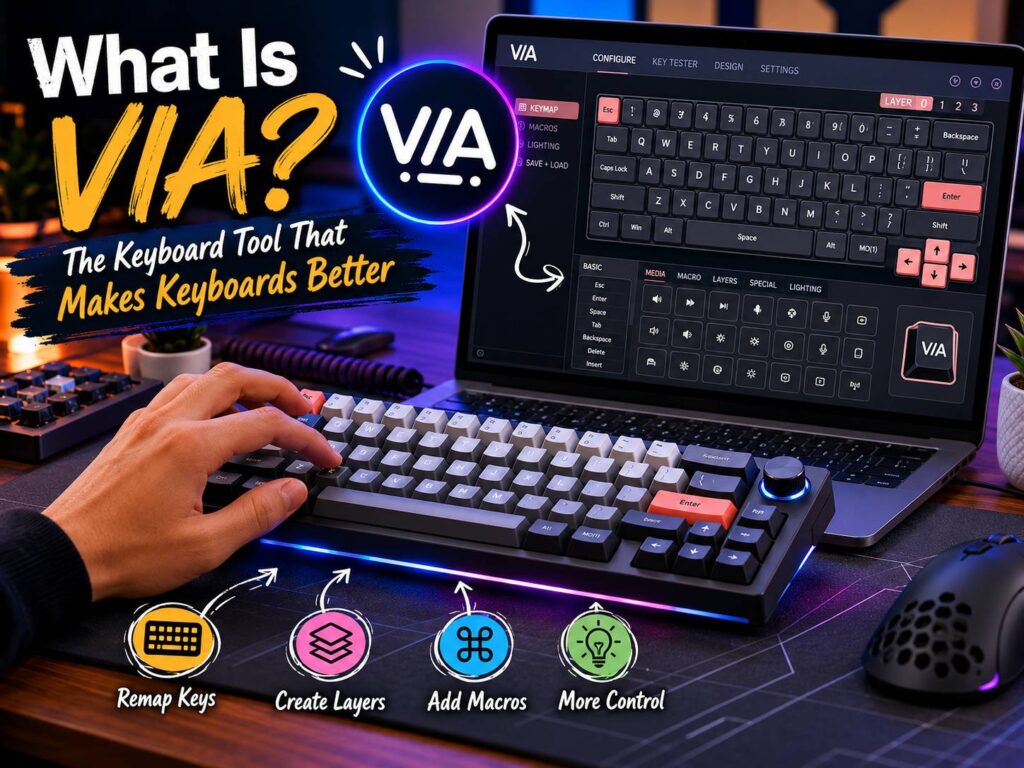
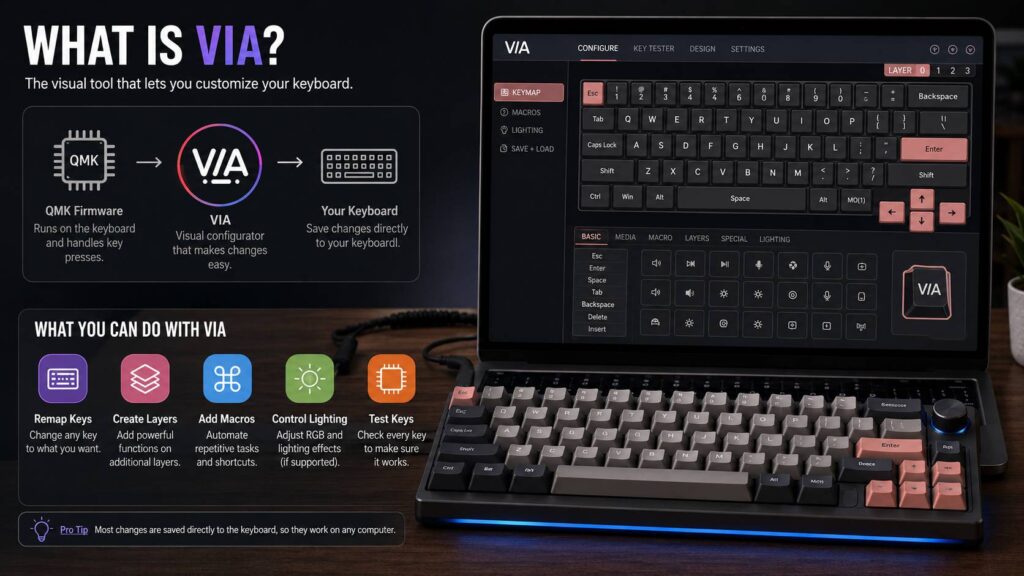
VIA is a keyboard configurator for compatible mechanical keyboards. It lets you remap keys, build layers, create macros, test switches, and adjust supported lighting controls through a simple visual interface.
For many keyboard fans, that matters more than it sounds. A normal keyboard gives you the layout the brand chose. A VIA keyboard gives you control over how each key works. You can move Caps Lock, add media keys, place Delete somewhere easier, or turn a compact keyboard into a much more useful daily tool.
The best part is speed. You do not need to rebuild firmware each time you want to change a key. You do not need to be a programmer either. In many cases, you plug in the keyboard, open VIA, approve the device connection, then start editing.
That is why VIA has become one of the most searched features in the custom keyboard hobby. It makes layout tuning feel less scary. It also saves time, especially for people who switch between work, gaming, writing, and general browsing.
Why Keyboard Fans Care About VIA
Keyboard fans care about sound, feel, switches, keycaps, and build quality. Still, layout control can matter even more during daily use. A keyboard can sound amazing and still annoy you if the key placement does not match your habits.
VIA fixes that problem in a practical way. For example, a 65 percent keyboard saves desk space but removes some dedicated keys. With VIA, you can place Home, End, Page Up, Page Down, Print Screen, or media controls on a second layer. So, the smaller keyboard becomes easier to live with.
Gamers can benefit too. A spare key can become a push-to-talk button. Another key can trigger a common in-game command. For work, VIA can place shortcuts for screenshots, muting audio, launching task view, or switching desktops right where your fingers already rest.
This is the real reason keyboard fans care. VIA makes the keyboard feel personal. Instead of adapting to the board, you shape the board around your habits.
VIA and QMK: What Is the Difference?
VIA and QMK often appear together, but they are not the same thing.
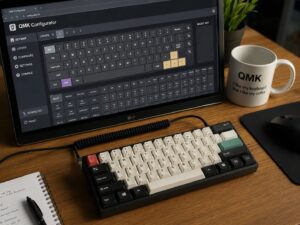
QMK is the firmware system that runs on many custom mechanical keyboards. It tells the keyboard how to behave after each key press. VIA is the visual tool that lets you adjust supported QMK-based keyboards without editing code.
Think of it this way:
- QMK is the deeper firmware layer.
- VIA is the friendly control panel.
- A keyboard needs VIA-ready firmware for VIA to work properly.
If you want a deeper beginner guide, this article on what QMK is explains the firmware side in a more focused way.
This difference matters when you shop for a keyboard. A keyboard can support QMK but not VIA. Another board can support VIA, but only after you load the correct firmware or JSON file. So, do not assume that every QMK keyboard works in VIA right away.
What Can You Actually Do With VIA?
VIA handles the changes most keyboard users want. It is not only for hobbyists who own expensive custom boards. It helps anyone who wants a smarter layout.
Common VIA features include:
- Remapping keys
- Creating function layers
- Adding macros
- Testing keys
- Editing encoder knob actions on supported boards
- Changing RGB controls on compatible keyboards
- Saving layout changes to the keyboard
- Switching between Windows and Mac-style layouts
A simple example makes this clearer. Let’s say you never use Caps Lock. VIA can turn it into Control, Escape, Delete, or a layer key. That one change can make typing and shortcuts feel better right away.
Next, you can build a media layer. Hold Fn, then use nearby keys for volume, play, pause, mute, and track skipping. After a few days, reaching for separate media keys feels slow.
For writers, programmers, and office users, macros can help too. A macro can enter a repeated phrase, trigger a shortcut, or combine several key presses. Keep them simple, though. Long macros can become messy and hard to remember.
Why Layers Make VIA So Useful
Layers are one of VIA’s strongest features. A layer is a second keyboard layout hidden under your main layout. You press or hold a layer key, then other keys perform different actions.
This is why small keyboards can still feel complete. A 60 percent keyboard has no physical arrow cluster, but VIA can place arrows on a layer. You can set I, J, K, and L as arrow keys, use WASD, or place arrows on the bottom right keys.
There is no perfect layout for everyone. That is the whole point. VIA lets you test different layouts until one feels natural.
Layers also help full-size keyboards. You can create a work layer with shortcuts for apps, documents, screenshots, or browser tabs. Then, you can create a gaming layer with only the keys you need. As a result, one keyboard can serve several setups without changing hardware.
VIA vs Brand Keyboard Software
Many gaming and office keyboards come with brand software. Some apps work well, but others feel heavy. They may run in the background, ask for accounts, install extra services, or limit you to one brand.
VIA feels cleaner. It focuses on keyboard controls. It does not try to become a full hardware hub. Plus, it works across many enthusiast keyboards from different makers.
That gives VIA a strong advantage. You can move from one VIA-compatible keyboard to another and keep a similar workflow. You do not have to learn a new app every time.
Still, VIA is not perfect. Some brand apps offer deeper RGB effects, battery tools, or wireless settings. VIA focuses more on keymaps, layers, macros, and basic supported controls. So, the better choice depends on what you value most.
Common VIA Problems and How to Fix Them
VIA feels simple when everything works. The most common frustration starts when the app does not detect the keyboard.
Several things can cause this:
- The keyboard is in Bluetooth or 2.4 GHz wireless mode.
- The USB cable only charges and does not transfer data.
- The keyboard does not have VIA-ready firmware.
- The wrong JSON file was loaded.
- The board revision does not match the VIA definition.
- The browser blocks device access.
- The keyboard needs a firmware update.
Start with the easy checks. Use a proper data cable. Connect the keyboard in wired mode. Open the VIA web app in a supported browser. Then approve the keyboard access prompt.
If VIA still does not detect the board, check the keyboard maker’s support page. Some keyboards need a JSON file before VIA can display the correct layout. This file tells VIA what the keyboard looks like, how its matrix works, and which controls it supports.
Be careful here. A keyboard name can cover several versions. ANSI, ISO, knob, non-knob, wired, wireless, and different PCB revisions can each need different files. The wrong file can make the layout look broken.
Is VIA Safe to Use?
VIA needs permission to communicate with your keyboard. That is normal, but it still deserves care. Only use the official VIA app or trusted sources from the keyboard maker. Avoid random download pages that claim to offer VIA tools or keyboard files.
After you finish editing, close the app. Also, avoid granting keyboard access to unknown websites. This is a good habit with any tool that can read or change keyboard input behavior.
For normal users, VIA is not something to fear. It is a widely used tool in the mechanical keyboard hobby. Still, careful source checking matters. The same rule applies to many tech purchases and tools: focus on real function, not just the name on the box. That same thinking helps in other categories too, such as comparing an air purifier vs fan before buying one for a room.
Who Should Use a VIA Keyboard?
A VIA-compatible keyboard is a strong choice for people who like control. It suits compact keyboard users, gamers, writers, programmers, and anyone who repeats the same shortcuts every day.
It is especially useful for:
- People who use 60 percent, 65 percent, or 75 percent keyboards
- Mac and Windows users who switch layouts
- Writers who need fast navigation keys
- Gamers who want custom key placement
- Programmers who use symbols and shortcuts often
- Office users who rely on repeated actions
- Keyboard fans who enjoy testing new layouts
A full-size keyboard user can still benefit. You may not need layers to replace missing keys, but macros and shortcut layers can still save time.
That said, VIA is less exciting for people who never change key functions. If you use a keyboard exactly as it ships, VIA may not feel important at first. Even then, it adds long-term value. Your desk setup, operating system, or daily work habits can change later.
What to Check Before Buying a VIA-Compatible Keyboard
Do not buy a keyboard only because the product title says “VIA support.” Check the details first.
Look for these points:
- The exact model supports VIA.
- The exact version supports VIA.
- The brand provides firmware or setup files.
- The layout matches your region, such as ANSI or ISO.
- The keyboard works in wired mode for setup.
- Owners confirm that VIA detection works.
- The support page includes clear instructions.
This is where many beginners get stuck. A keyboard can look perfect in photos, then become frustrating if setup files are hard to find. Clear brand support matters.
In my opinion, good VIA support adds real value to a keyboard. Poor VIA support can do the opposite. If a brand advertises VIA but hides the files or gives vague setup steps, expect extra work.
VIA vs Full QMK Editing
VIA is easier. Full QMK editing is more powerful.
Most people should start with VIA because it handles common layout changes in minutes. You can remap keys, edit layers, test layouts, and adjust basic features without touching code.
Full QMK editing fits users who want deeper control. It can support advanced tap behavior, combos, custom functions, special timing rules, and more complex firmware changes. That level of control is powerful, but it takes more time to learn.
For most buyers, VIA is enough. It covers the changes that make a keyboard better in real life. If you later outgrow it, QMK gives you a deeper path.
Real Issues Users Notice With VIA
VIA is useful, but it has rough edges.
The first issue is detection. Many beginners open VIA, plug in the board, and see nothing. That can feel like the keyboard is broken, even when it only needs wired mode, a data cable, or the correct JSON file.
The second issue is terminology. Keycodes, layers, macros, and matrix testing can sound technical at first. The interface is visual, but some labels still come from the firmware world.
Another issue is layout confusion. Compact keyboards often use several hidden layers. If you change too much too fast, you can forget where keys are. A small printed note or screenshot helps during the first week.
One more issue is brand inconsistency. Some companies explain VIA setup clearly. Others mention VIA in marketing but leave users searching forums for files. That is not VIA’s fault alone, but it still affects the user experience.
Final Verdict: Why VIA Matters
VIA matters because it gives keyboard users practical control. It turns a fixed keyboard into a flexible tool. You can remap keys, build layers, add macros, and make compact layouts easier to use.
For keyboard fans, that control is part of the fun. For regular users, it can solve daily annoyances. A missing key, awkward shortcut, or bad default layout no longer has to stay that way.
VIA is not perfect. Setup can be confusing on some boards, and advanced users may still prefer full QMK editing. Still, for most people, VIA is one of the best features to look for in a mechanical keyboard.
A good VIA-compatible keyboard feels easier to tune, easier to keep, and easier to make your own. That is why keyboard fans care so much.